

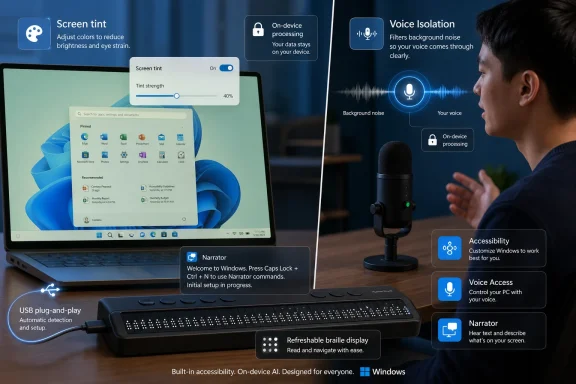
Microsoft made several Windows accessibility features available to testers on May 22, 2026, across its Beta and Experimental Insider channels, including Screen tint for visual comfort, Voice Isolation for Voice Access, and plug-and-play HID braille display support in Narrator. The headline is not that Windows gained another handful of settings. It is that Microsoft is quietly shifting accessibility from a specialized corner of the OS into the same iterative pipeline that now governs taskbar experiments, print plumbing, and voice-driven computing. For Windows users and administrators, that makes accessibility both more visible and more volatile.
The Windows Insider Program has always been a strange hybrid: part engineering telemetry farm, part enthusiast playground, part early-warning system for enterprise IT. Accessibility has often lived adjacent to that world rather than at its center, arriving as a finished set of accommodations rather than as a set of mainstream features shaped in public.
This week’s builds suggest a different posture. Microsoft is putting accessibility changes directly into the Friday flight cadence, alongside File Explorer fixes, Dev Drive reliability improvements, Windows Ready Print toggles, and the ongoing channel reshuffle. That matters because features that pass through Insider testing are not just evaluated for whether they work, but for whether they belong in the everyday Windows experience.
Screen tint is the clearest example. Microsoft describes it as an accessibility setting, but the problem it addresses is not limited to users with formal accessibility needs. Bright, saturated displays, long work sessions, eye fatigue, and light sensitivity are routine parts of modern PC use. By placing the control in Accessibility rather than Display alone, Microsoft is acknowledging the feature’s roots while also inviting a much broader audience to use it.
Voice Isolation in Voice Access follows the same pattern. Voice Access is explicitly an assistive technology, but the problem of a microphone hearing the wrong person in a noisy room is universal. A feature that lets Windows focus on a single user’s voice could make the difference between voice control being viable in a shared office and being a demo that only works in silence.
That distinction is important. Night light warms the display to reduce blue light, especially for evening use. Screen tint is about reducing overall intensity and improving comfort during the day. The difference sounds minor until you remember how many Windows settings historically conflate “display looks different” with a single bucket of color temperature, brightness, contrast, and filters.
The one catch is also revealing: Screen tint disables color filters, and color filters disable Screen tint. That is the kind of tradeoff that looks harmless in a release note but can matter a great deal to users who already rely on color filters for color vision deficiency or other visual needs. Microsoft is not simply adding a comfort feature; it is negotiating limited display-processing real estate among overlapping accommodations.
For administrators, this is the sort of setting that may eventually require policy thinking. A tint overlay is personal by nature, but PCs are often shared, reimaged, and managed. If Screen tint graduates into a stable Windows release, support teams will need to know whether a “washed out” or “oddly colored” display is a hardware complaint, a driver issue, a user preference, or an accessibility configuration.
Microsoft is adding three speech recognition modes in Voice Access settings under Improve speech recognition. Voice Isolation filters other speakers and background noise but requires a one-time setup. A second mode removes non-speech background noise without requiring voice enrollment. A third mode leaves microphone input unfiltered.
The setup flow asks the user to read a short paragraph aloud so Voice Access can learn that person’s voice. Microsoft says the processing happens locally and that the voice data never leaves the device. In 2026, that privacy claim is not decorative. Voice biometrics are sensitive, and accessibility users should not have to trade independence for cloud-based identity risk.
The technical framing also marks a subtle but important divide in Microsoft’s AI era. Much of the company’s current product messaging pushes intelligence into cloud services and Copilot-branded experiences. Voice Isolation in Voice Access, by contrast, is an on-device feature for a practical accessibility problem. That is the right architectural instinct: if the PC is being asked to distinguish its user’s voice for control of the OS, the PC should not need to send that voice elsewhere to do it.
That sounds like plumbing because it is. But accessibility often lives or dies on plumbing. A feature that works only after driver hunting, vendor utilities, or sighted assistance is not truly accessible at the moment it is most needed. Plug-and-play support is not glamour; it is autonomy.
Microsoft lists devices including the Orbit Reader 20, Orbit Slate 340, Freedom Scientific Focus 40, and APH Mantis Q40 as compatible examples. More importantly, HID braille displays can now work during the initial Windows setup experience over USB. That means deaf-blind users can set up a PC from the first screen rather than waiting until after Windows is configured.
This is the part of the Insider flight that reads least like consumer polish and most like operating-system responsibility. Windows is still the default computing environment in many schools, workplaces, public agencies, and assistive technology contexts. Supporting an open standard for braille displays during setup is exactly the kind of foundation that determines whether accessibility is an add-on or a property of the platform.
Experimental Build 26300.8497 is the big accessibility build. Beta Build 26220.8491 gets Voice Isolation and several bug fixes, but not the full Screen tint and braille package described for the Experimental flight. Experimental (26H1) Build 28020.2149 is more modest, focused on reliability improvements for File Explorer and Dev Drive. The 29595.1000 build for Canary testers moving toward Experimental (Future Platforms) contains platform changes tied to a new active development build rather than user-facing features.
The practical consequence is that “Insider” is no longer enough information. A user asking whether they can try Screen tint, Voice Isolation, or the new braille support needs to know not only that they are in the Insider Program but exactly which branch, build number, and feature rollout state they are on. Controlled Feature Rollout adds another layer, because even users on the same channel may not receive a feature at the same time unless it is explicitly available to all or exposed through feature flags.
Microsoft’s recent channel simplification is supposed to reduce confusion, and in the long run it may. But this transition period is messy. The old Dev Channel is becoming Experimental, Canary 28000-series builds are moving toward Experimental (26H1), and the 29500-series path is becoming Experimental (Future Platforms). That is a lot of renaming for a program whose value depends on users understanding what risk they have accepted.
Voice Isolation appearing in Beta suggests Microsoft sees the feature as closer to the mainline Windows experience than some of the more experimental work in Build 26300.8497. It is still a preview, and Microsoft still warns that features in Insider builds can change, disappear, or never ship. But Beta is where a feature begins to feel less like a sketch and more like a candidate.
That has consequences for IT pros who run lab machines on Insider builds to anticipate support calls. Voice Isolation is the kind of feature that can change user behavior quickly. If it improves reliability for voice control, some users will start depending on it. If it later changes or ships with different hardware requirements, that dependence becomes a support issue.
The Beta flight also fixes an explorer.exe crash that could cause blinking or repeated taskbar refreshes, an Energy Saver quick setting duplication, and unexpected audio muting on some devices. Those are not accessibility features, but they matter because assistive technologies often depend on the stability of the shell, audio stack, and input system. A flashy accessibility feature on an unstable desktop is not empowerment; it is another failure mode.
The Magnifier change is small but telling: touch panning bars are now off by default to provide a cleaner magnified view on touch devices, with an option to turn them back on. That reflects a design tension Microsoft often faces in accessibility: visible controls can make a feature discoverable, but they can also obstruct the very content a user is trying to see. Defaults are editorial decisions in software form.
The Windows Ready Print toggle is another example of Microsoft’s modern Windows strategy. The company wants to move printing toward IPP by default when supported, reducing reliance on third-party drivers and simplifying installation. But after years of Windows printing pain, giving users and administrators a toggle is not just a convenience; it is an admission that modernizing a platform with decades of device history requires escape hatches.
That is why Experimental remains useful despite the chaos. It is the place where Microsoft can expose the compromise before the compromise becomes policy. Accessibility users benefit from that transparency only if Microsoft listens carefully, because a change that looks cleaner in a lab can be worse for a user with a highly specific workflow.
This is especially relevant because accessibility data can be unusually intimate. A PC may reveal how a person sees, hears, types, speaks, moves, reads, or navigates. The more adaptive Windows becomes, the more sensitive its local models and preferences become. Privacy cannot be bolted on after the feature graduates from Insider testing.
On-device processing also has hardware implications. Microsoft did not frame Voice Isolation in these notes as a Copilot+ PC-only feature, which is encouraging. Accessibility improvements should not become premium silicon perks unless there is no alternative. But if future features lean on NPUs or newer processors, Microsoft will need to be explicit about what runs where and why.
For enterprises, local processing is easier to defend than cloud speech analysis, but it is not automatically simple. Voice profiles, microphone behavior, enrollment flows, and user-specific accessibility settings all intersect with device management and privacy policy. The right answer is not to block the feature; it is to understand it before users need it.
The new features also show that accessibility quality is not just about avoiding breakage. It is about reducing friction. A braille display that works during setup, a voice feature that ignores the wrong speaker, and a tint option that reduces fatigue all lower the cost of using the PC. That cost is often invisible to users who do not need the feature, but it is very real.
This is where Microsoft deserves some credit. These are not merely “inspirational” accessibility announcements designed for a conference keynote. They are practical, low-level, user-facing changes being put into the messy machinery of Windows testing. That is where real accessibility work has to happen.
But the company also inherits the responsibility that comes with that machinery. If accessibility features are flighted, delayed, hidden behind feature flags, or removed, Microsoft must communicate clearly. The people most affected by these changes are often the least able to treat them as casual experiments.
None of these caveats are disqualifying. They are the reality of changing an operating system used by hundreds of millions of people on hardware that ranges from corporate desktops to aging laptops to specialized assistive setups. But they mean Microsoft cannot treat accessibility previews like cosmetic experiments.
The company’s recent willingness to reintroduce familiar customization, including testing alternative taskbar positions in the Experimental Channel, suggests that user pressure still matters. Accessibility users have long understood this dynamic: when Windows removes a control or changes a behavior, the cost is not nostalgia. It can be productivity, independence, or the ability to use the machine at all.
That is why the Insider Program’s new feature flags could become more important than they first appear. If testers can opt into specific features rather than waiting for opaque A/B assignment, Microsoft gets cleaner feedback and users get more agency. For accessibility features, that agency is not a luxury.
That means accessibility should be part of every Windows preview evaluation. Lab testing should include Narrator, Magnifier, Voice Access, display filters, audio behavior, setup flows, and peripheral pairing. If that sounds excessive, consider how often organizations claim to support accessibility without validating the actual tools users depend on.
It also means support desks need better vocabulary. “My screen looks tinted,” “Windows is ignoring my voice,” “my braille display does not connect,” and “setup is stuck before I can use my device” are not random edge cases. They are the human interface to platform changes.
The broader lesson is that Windows accessibility is no longer a static checklist buried in Settings. It is becoming a fast-moving part of the OS. That is good news only if Microsoft, testers, and administrators treat it with the seriousness usually reserved for security and compatibility.
 Accessibility Moves From Compliance Checkbox to Insider Feature Factory
The Windows Insider Program has always been a strange hybrid: part engineering telemetry farm, part enthusiast playground, part early-warning system for enterprise IT. Accessibility has often lived adjacent to that world rather than at its center, arriving as a finished set of accommodations rather than as a set of mainstream features shaped in public.This week’s builds suggest a different posture. Microsoft is putting accessibility changes directly into the Friday flight cadence, alongside File Explorer fixes, Dev Drive reliability improvements, Windows Ready Print toggles, and the ongoing channel reshuffle. That matters because features that pass through Insider testing are not just evaluated for whether they work, but for whether they belong in the everyday Windows experience.
Screen tint is the clearest example. Microsoft describes it as an accessibility setting, but the problem it addresses is not limited to users with formal accessibility needs. Bright, saturated displays, long work sessions, eye fatigue, and light sensitivity are routine parts of modern PC use. By placing the control in Accessibility rather than Display alone, Microsoft is acknowledging the feature’s roots while also inviting a much broader audience to use it.
Voice Isolation in Voice Access follows the same pattern. Voice Access is explicitly an assistive technology, but the problem of a microphone hearing the wrong person in a noisy room is universal. A feature that lets Windows focus on a single user’s voice could make the difference between voice control being viable in a shared office and being a demo that only works in silence.
Screen Tint Is a Small Toggle With a Large Argument Behind It
Screen tint arrives in Experimental Build 26300.8497 under the Vision section of Settings > Accessibility. It applies a color overlay across the entire display, includes six preset colors, allows a custom color, and offers a strength slider ranging from subtle to intense. Microsoft says it can be used at the same time as Night light, because the two features target different problems.That distinction is important. Night light warms the display to reduce blue light, especially for evening use. Screen tint is about reducing overall intensity and improving comfort during the day. The difference sounds minor until you remember how many Windows settings historically conflate “display looks different” with a single bucket of color temperature, brightness, contrast, and filters.
The one catch is also revealing: Screen tint disables color filters, and color filters disable Screen tint. That is the kind of tradeoff that looks harmless in a release note but can matter a great deal to users who already rely on color filters for color vision deficiency or other visual needs. Microsoft is not simply adding a comfort feature; it is negotiating limited display-processing real estate among overlapping accommodations.
For administrators, this is the sort of setting that may eventually require policy thinking. A tint overlay is personal by nature, but PCs are often shared, reimaged, and managed. If Screen tint graduates into a stable Windows release, support teams will need to know whether a “washed out” or “oddly colored” display is a hardware complaint, a driver issue, a user preference, or an accessibility configuration.
Voice Access Gets the Feature It Needed for the Real World
Voice Isolation may be the more consequential addition because it targets a fundamental weakness of voice-driven computing: the world is noisy. Voice Access already lets users control Windows and dictate text by speaking. But in the real world, people share rooms, keyboards clatter, doors close, TVs run in the background, and colleagues talk over one another.Microsoft is adding three speech recognition modes in Voice Access settings under Improve speech recognition. Voice Isolation filters other speakers and background noise but requires a one-time setup. A second mode removes non-speech background noise without requiring voice enrollment. A third mode leaves microphone input unfiltered.
The setup flow asks the user to read a short paragraph aloud so Voice Access can learn that person’s voice. Microsoft says the processing happens locally and that the voice data never leaves the device. In 2026, that privacy claim is not decorative. Voice biometrics are sensitive, and accessibility users should not have to trade independence for cloud-based identity risk.
The technical framing also marks a subtle but important divide in Microsoft’s AI era. Much of the company’s current product messaging pushes intelligence into cloud services and Copilot-branded experiences. Voice Isolation in Voice Access, by contrast, is an on-device feature for a practical accessibility problem. That is the right architectural instinct: if the PC is being asked to distinguish its user’s voice for control of the OS, the PC should not need to send that voice elsewhere to do it.
Braille Support Shows Why Standards Matter More Than Demos
The most important feature in Experimental Build 26300.8497 may be the one least likely to generate mainstream attention: Narrator now supports refreshable braille displays that use the HID standard. Microsoft says compatible displays can connect over USB with no additional setup, and Bluetooth pairing works through the normal Settings > Bluetooth & devices flow.That sounds like plumbing because it is. But accessibility often lives or dies on plumbing. A feature that works only after driver hunting, vendor utilities, or sighted assistance is not truly accessible at the moment it is most needed. Plug-and-play support is not glamour; it is autonomy.
Microsoft lists devices including the Orbit Reader 20, Orbit Slate 340, Freedom Scientific Focus 40, and APH Mantis Q40 as compatible examples. More importantly, HID braille displays can now work during the initial Windows setup experience over USB. That means deaf-blind users can set up a PC from the first screen rather than waiting until after Windows is configured.
This is the part of the Insider flight that reads least like consumer polish and most like operating-system responsibility. Windows is still the default computing environment in many schools, workplaces, public agencies, and assistive technology contexts. Supporting an open standard for braille displays during setup is exactly the kind of foundation that determines whether accessibility is an add-on or a property of the platform.
Microsoft’s Channel Cleanup Still Leaves Users Reading Tea Leaves
These accessibility additions arrive during a confusing but significant reshaping of the Windows Insider Program. Microsoft is moving toward Beta and Experimental branding, while old Dev and Canary identities are still visible in places. That means this week’s accessibility story is also a channel story.Experimental Build 26300.8497 is the big accessibility build. Beta Build 26220.8491 gets Voice Isolation and several bug fixes, but not the full Screen tint and braille package described for the Experimental flight. Experimental (26H1) Build 28020.2149 is more modest, focused on reliability improvements for File Explorer and Dev Drive. The 29595.1000 build for Canary testers moving toward Experimental (Future Platforms) contains platform changes tied to a new active development build rather than user-facing features.
The practical consequence is that “Insider” is no longer enough information. A user asking whether they can try Screen tint, Voice Isolation, or the new braille support needs to know not only that they are in the Insider Program but exactly which branch, build number, and feature rollout state they are on. Controlled Feature Rollout adds another layer, because even users on the same channel may not receive a feature at the same time unless it is explicitly available to all or exposed through feature flags.
Microsoft’s recent channel simplification is supposed to reduce confusion, and in the long run it may. But this transition period is messy. The old Dev Channel is becoming Experimental, Canary 28000-series builds are moving toward Experimental (26H1), and the 29500-series path is becoming Experimental (Future Platforms). That is a lot of renaming for a program whose value depends on users understanding what risk they have accepted.
Beta Is Becoming the More Honest Preview Track
The Beta build’s inclusion of Voice Isolation is notable because Microsoft has been trying to make Beta feel more predictable. Historically, the Beta Channel was not always as clean as its name implied; feature availability could vary, A/B rollouts could frustrate testers, and the boundary between “nearly ready” and “maybe someday” was not always obvious.Voice Isolation appearing in Beta suggests Microsoft sees the feature as closer to the mainline Windows experience than some of the more experimental work in Build 26300.8497. It is still a preview, and Microsoft still warns that features in Insider builds can change, disappear, or never ship. But Beta is where a feature begins to feel less like a sketch and more like a candidate.
That has consequences for IT pros who run lab machines on Insider builds to anticipate support calls. Voice Isolation is the kind of feature that can change user behavior quickly. If it improves reliability for voice control, some users will start depending on it. If it later changes or ships with different hardware requirements, that dependence becomes a support issue.
The Beta flight also fixes an explorer.exe crash that could cause blinking or repeated taskbar refreshes, an Energy Saver quick setting duplication, and unexpected audio muting on some devices. Those are not accessibility features, but they matter because assistive technologies often depend on the stability of the shell, audio stack, and input system. A flashy accessibility feature on an unstable desktop is not empowerment; it is another failure mode.
The Experimental Channel Is Where Windows Admits It Is Unfinished
Experimental Build 26300.8497 is doing several things at once. It previews accessibility features, tweaks Magnifier behavior, adds a Windows Ready Print toggle, fixes input issues, and continues the steady background work of reliability. It is a reminder that Windows is no longer updated as a monolithic product, even when annual version numbers remain.The Magnifier change is small but telling: touch panning bars are now off by default to provide a cleaner magnified view on touch devices, with an option to turn them back on. That reflects a design tension Microsoft often faces in accessibility: visible controls can make a feature discoverable, but they can also obstruct the very content a user is trying to see. Defaults are editorial decisions in software form.
The Windows Ready Print toggle is another example of Microsoft’s modern Windows strategy. The company wants to move printing toward IPP by default when supported, reducing reliance on third-party drivers and simplifying installation. But after years of Windows printing pain, giving users and administrators a toggle is not just a convenience; it is an admission that modernizing a platform with decades of device history requires escape hatches.
That is why Experimental remains useful despite the chaos. It is the place where Microsoft can expose the compromise before the compromise becomes policy. Accessibility users benefit from that transparency only if Microsoft listens carefully, because a change that looks cleaner in a lab can be worse for a user with a highly specific workflow.
Local Processing Is the Right Privacy Promise, But It Raises the Bar
Microsoft’s statement that Voice Isolation processing happens locally and that voice data never leaves the device is exactly what users should want to hear. It is also a promise that raises expectations. Once a company says an assistive feature can be powerful, personal, and private on the PC, users will expect more features to meet that standard.This is especially relevant because accessibility data can be unusually intimate. A PC may reveal how a person sees, hears, types, speaks, moves, reads, or navigates. The more adaptive Windows becomes, the more sensitive its local models and preferences become. Privacy cannot be bolted on after the feature graduates from Insider testing.
On-device processing also has hardware implications. Microsoft did not frame Voice Isolation in these notes as a Copilot+ PC-only feature, which is encouraging. Accessibility improvements should not become premium silicon perks unless there is no alternative. But if future features lean on NPUs or newer processors, Microsoft will need to be explicit about what runs where and why.
For enterprises, local processing is easier to defend than cloud speech analysis, but it is not automatically simple. Voice profiles, microphone behavior, enrollment flows, and user-specific accessibility settings all intersect with device management and privacy policy. The right answer is not to block the feature; it is to understand it before users need it.
Accessibility Is Now Part of the Windows Quality Story
Microsoft has spent much of the past year talking about Windows quality, Insider feedback, and the need to make previews clearer. Accessibility belongs in that conversation because accessibility failures are quality failures. A bug that breaks Narrator, Voice Access, Magnifier, or braille display support is not a niche regression; it can make a PC unusable.The new features also show that accessibility quality is not just about avoiding breakage. It is about reducing friction. A braille display that works during setup, a voice feature that ignores the wrong speaker, and a tint option that reduces fatigue all lower the cost of using the PC. That cost is often invisible to users who do not need the feature, but it is very real.
This is where Microsoft deserves some credit. These are not merely “inspirational” accessibility announcements designed for a conference keynote. They are practical, low-level, user-facing changes being put into the messy machinery of Windows testing. That is where real accessibility work has to happen.
But the company also inherits the responsibility that comes with that machinery. If accessibility features are flighted, delayed, hidden behind feature flags, or removed, Microsoft must communicate clearly. The people most affected by these changes are often the least able to treat them as casual experiments.
The Old Windows Problem Has Not Gone Away
There is an uncomfortable truth beneath the optimism: Windows remains a sprawling platform where every improvement risks interacting badly with some existing workflow. Screen tint disables color filters. Voice Isolation requires enrollment. HID braille support depends on device compatibility. Feature rollouts vary by channel and build.None of these caveats are disqualifying. They are the reality of changing an operating system used by hundreds of millions of people on hardware that ranges from corporate desktops to aging laptops to specialized assistive setups. But they mean Microsoft cannot treat accessibility previews like cosmetic experiments.
The company’s recent willingness to reintroduce familiar customization, including testing alternative taskbar positions in the Experimental Channel, suggests that user pressure still matters. Accessibility users have long understood this dynamic: when Windows removes a control or changes a behavior, the cost is not nostalgia. It can be productivity, independence, or the ability to use the machine at all.
That is why the Insider Program’s new feature flags could become more important than they first appear. If testers can opt into specific features rather than waiting for opaque A/B assignment, Microsoft gets cleaner feedback and users get more agency. For accessibility features, that agency is not a luxury.
The Accessibility Flight Tells IT Pros Where to Look Next
For Windows enthusiasts, the obvious move is to install the right build and try the new toggles. For IT pros, the better move is to watch the pattern. Microsoft is not merely adding features; it is turning accessibility into a continuous development stream with privacy, standards, hardware, and management implications.That means accessibility should be part of every Windows preview evaluation. Lab testing should include Narrator, Magnifier, Voice Access, display filters, audio behavior, setup flows, and peripheral pairing. If that sounds excessive, consider how often organizations claim to support accessibility without validating the actual tools users depend on.
It also means support desks need better vocabulary. “My screen looks tinted,” “Windows is ignoring my voice,” “my braille display does not connect,” and “setup is stuck before I can use my device” are not random edge cases. They are the human interface to platform changes.
The broader lesson is that Windows accessibility is no longer a static checklist buried in Settings. It is becoming a fast-moving part of the OS. That is good news only if Microsoft, testers, and administrators treat it with the seriousness usually reserved for security and compatibility.
The May 22 Builds Put Accessibility on the Main Windows Roadmap
This flight is worth tracking because it puts practical accessibility improvements into the same preview stream as the rest of Windows development. The details matter more than the branding.- Screen tint is available in Experimental Build 26300.8497 under Accessibility > Vision, with presets, custom color support, and a strength slider.
- Screen tint can work alongside Night light, but it cannot be used at the same time as color filters.
- Voice Isolation is available in Voice Access in both Experimental Build 26300.8497 and Beta Build 26220.8491, with local processing and a one-time voice setup.
- Narrator now supports HID refreshable braille displays in the Experimental build, including use during the initial Windows setup experience over USB.
- The Beta build is mostly about Voice Isolation and fixes, while the Experimental build carries the broader accessibility payload.
- The ongoing Insider channel transition means build numbers and rollout state matter as much as channel names.
References
- Primary source: thurrott.com
Published: Fri, 22 May 2026 18:27:09 GMT

Microsoft Makes New Windows Accessibility Features Available for Insider Testing
Windows Insiders on the Beta and Experimental Channels can test new accessibility features, including Voice Isolation in Voice Access and a Screen Tint option to reduce eye strain. www.thurrott.com
