

Productivity in Windows is rarely about finding a single magic app — it’s about mastering a set of tightly integrated, system-level tools that reduce friction, automate repeat work, and free your attention for the tasks that matter most. Built into modern Windows are powerful apps — from Microsoft Copilot to File Explorer, OneNote, and Focus Sessions — that, when combined into simple workflows, can transform how quickly and reliably you get things done.
Windows has evolved from a static operating system into an ecosystem of integrated productivity experiences. Microsoft’s strategy focuses on system-level integration: apps that are updated independently, sync across devices through Microsoft accounts, and pull intelligence from Microsoft 365 and on-device AI where available. That approach means many productivity gains are available immediately to users without third‑party installs, and new AI features are increasingly embedded across native apps.
Adopt incrementally: pick one workflow (e.g., meeting → To Do → Focus Session) and make it a habit for two weeks. The measurable returns come from reducing switches, increasing focused time, and automating tedious steps — not from adding more apps. When used thoughtfully, Windows’ native productivity tools will not only help you get more done but will also make the process simpler, more predictable, and less draining.
Source: Microsoft Best Windows Built-in Productivity Tools | Microsoft Windows
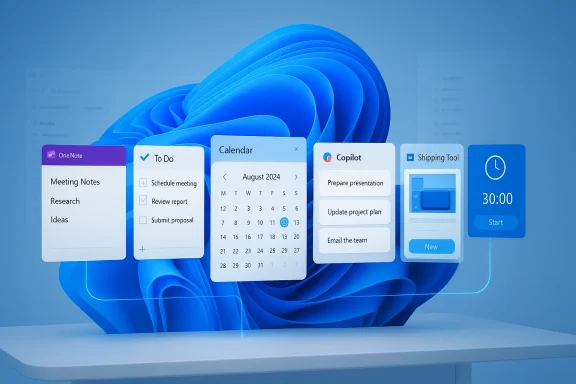 Background
Windows has evolved from a static operating system into an ecosystem of integrated productivity experiences. Microsoft’s strategy focuses on system-level integration: apps that are updated independently, sync across devices through Microsoft accounts, and pull intelligence from Microsoft 365 and on-device AI where available. That approach means many productivity gains are available immediately to users without third‑party installs, and new AI features are increasingly embedded across native apps.Microsoft Copilot — your AI assistant on the desktop
What it is and why it matters
Microsoft Copilot is now positioned as the desktop AI that helps you summarize, plan, convert notes into actionable lists, draft messages, and generate ideas conversationally right from Windows. Copilot has shifted from a novelty to an operational assistant integrated across Windows and Microsoft 365 apps, and Microsoft continues to expand its capabilities and modes of operation.Practical uses
- Summarize long emails into bullet points so you can act quickly on the most important information.
- Consolidate scattered notes from OneNote or documents into step‑by‑step checklists for projects and trips.
- Run conversational planning sessions directly from the desktop with prompts like “Hey Copilot, build a two‑day agenda for product research.”
Strengths
- Context awareness: Copilot can pull information from the apps you already use so outputs are grounded in your data.
- Multimodal assistance: It combines chat, document understanding, and actions (e.g., creating calendar events or lists) to close the loop between thinking and doing.
Risks and cautions
- Accuracy limits: Like all generative AI, Copilot can hallucinate or present imprecise summaries; always validate critical factual outputs.
- Privacy and data routing: Depending on configuration and tenant policies, Copilot’s behavior may involve cloud processing and data signals that IT teams need to govern. Organizations should review governance options and data handling rules before broad rollouts.
Microsoft To Do — simple, effective task management
Why To Do still matters
Microsoft To Do is an intentionally simple task manager that integrates with Outlook, Microsoft 365, and Focus Sessions. It’s designed for daily planning via features like My Day and recurring tasks for ongoing responsibilities. For many users, a focused and predictable task list is more productive than a complex project tool.Best practices
- Use My Day every morning to limit your focus to a manageable number of tasks.
- Create weekly goal lists for broader objectives and use recurring tasks for habits and routine admin.
- Link emails to tasks (Outlook integration) to ensure follow‑ups stay visible and actionable.
Integration note
To Do’s deep Outlook and Teams ties mean your task list can become the connective tissue between meetings, email followups, and focused work sessions. That integration reduces context switching and prevents lost action items.Windows Calendar — time visibility and time‑boxing
Core benefits
The built‑in Calendar app gives you a quick view of your day from the taskbar and supports joining meetings, editing meeting details, and syncing with multiple providers (Outlook, Google). Color‑coded calendars help manage work, personal, and shared schedules in one place, making time blocking and transparent planning straightforward.Time‑blocking workflow (simple)
- Block 90‑minute deep‑work sessions for your top priorities.
- Use 30–60 minute calendar slots for admin tasks and meetings.
- Reserve a daily 15‑minute “buffer” block to process new emails and tasks.
These slots, when respected, reduce frantic context switching and create predictable work windows.
OneNote — the flexible digital notebook
Why OneNote remains indispensable
OneNote is designed for flexible note capture: typed notes, handwriting, voice transcription, embedded files, and images. OneNote’s structure (notebooks → sections → pages) supports both linear project plans and free-form capture, which is critical for research, meeting notes, and long‑running projects.AI in OneNote
Copilot integrations inside OneNote let you prompt the app to convert notes into plans, outlines, or lists. This lowers the friction of turning scattered thoughts into actionable tasks and templated content. Use Copilot in OneNote to draft a project plan from meeting minutes or to extract an action list from a brainstorm.Collaboration and search
- Share notebooks for real‑time collaboration and use search to find phrases across notebooks.
- Use sectioning and tags for consistent triage: tag follow‑ups, ideas, and decisions so they’re surfaced later.
Snipping Tool and Screen Recorder — capture is communication
Quick capture, clear context
Screenshots and short recordings frequently communicate faster than long emails. The Snipping Tool (Win + Shift + S) provides fast screen capture with immediate editing, annotation, and sharing; the built‑in screen recorder helps demonstrate fixes or walk someone through a process. Recent updates have added on‑device AI enhancements like smarter cropping and color tools in some Windows builds.Use cases
- Create a 90‑second screen recording to explain a bug or a workflow rather than writing step-by-step instructions.
- Annotate a screenshot to highlight the exact UI element you need feedback on.
Clock app and Focus Sessions — structured attention
Focus Sessions explained
Focus Sessions inside the Clock app let you schedule work intervals with built‑in breaks, track total focused time, and integrate directly with Microsoft To Do. Optional Spotify integration provides background audio that’s less distracting than ad‑heavy music streams. Regular use trains disciplined attention and turns time blocking into measurable output.Practical routine
- Start with a 50/10 rhythm (50 minutes focused, 10 minutes break) for creative work.
- Use the Clock app to tie the session to a specific To Do task so your time is explicitly bound to a deliverable.
Microsoft Sticky Notes — visible micro‑reminders
Sticky Notes are small, persistent notes that float where you need them. Use them for temporary reminders, quick copy‑and‑pastes, or as a visual cue for priorities during a sprint. They sync across devices via your Microsoft account so you don’t lose quick thoughts when you switch machines. Use sticky notes sparingly to avoid visual clutter.File Explorer — faster file management and OneDrive integration
Productivity features worth using
File Explorer has evolved with tabs, a modern layout, and OneDrive integration so cloud and local files appear together. Pin frequently used folders to Quick Access, use Win + E to open File Explorer quickly, and rely on the Gallery view for efficient image browsing. Tabs and improved layouts reduce window management friction.Tips
- Use the search bar with filters (date:, kind:, ext
 to find files quickly.
 - Pin folders you use daily to Quick access and mount OneDrive locations for seamless cloud file handling.
Microsoft Edge — the productivity browser
Built‑in browser tools that save time
Microsoft Edge has several features designed to help focused work: tab muting, clutter‑free printing, full‑screen reading experiences for documents and ebooks, grammar tools in reading mode, and autofill for forms. Edge’s integration with Windows and Microsoft accounts makes it a practical default for workflows that rely on web apps.Extensions and collections
- Use Collections to gather web research into a single pane and export it to Word or OneNote for further drafting.
- Mute noisy tabs to avoid distraction during deep work sessions.
Other built‑in productivity helpers
Virtual Desktops and Task View
Virtual Desktops let you separate contexts (e.g., one desktop for deep work, another for meetings and comms). Task View (Win + Tab) makes switching fast and predictable. Use different desktop backgrounds or layouts to cue your brain into the right mode.Windows Terminal and Power Automate Desktop
For power users and automation needs, Windows Terminal (modern command-line experience) and Power Automate Desktop (desktop/web automation) are now included as inbox apps in many Windows builds — enabling scriptable, repeatable automation without extra purchases. That inclusion makes it easier than ever to automate repetitive tasks like file renaming, batch processing, or form filling.Clipboard history and storage sense
- Clipboard history (Win + V) stores copied items and increases speed for repetitive copy/paste tasks.
- Storage Sense can clean temporary files automatically to prevent disk bloat from interrupting work.
Practical workflows that combine these apps
Workflow 1 — Meeting to action in five steps
- Capture meeting notes directly in OneNote with audio transcription if needed.
- Ask Copilot to summarize the notes and extract action items.
- Send action items to Microsoft To Do (or create tasks in Planner/To Do).
- Block focused time in Calendar and start a Focus Session tied to the top task.
- Use Snipping Tool or a short screen recording to prepare any deliverable demos.
Workflow 2 — Quick research sprint
- Collect web findings in Edge’s Collections.
- Export the collection to OneNote and ask Copilot to produce an outline.
- Allocate a 90‑minute Focus Session and draft the deliverable in Word or Outlook.
Strengths: why built‑ins beat many third‑party alternatives
- Integration: Native apps are designed to work together with single‑sign‑on and shared contexts, dramatically reducing setup time.
- System-level access: Features like Win + shortcuts, taskbar integration, and system overlays make built‑ins faster to invoke and less fragile than third‑party tools.
- On‑device improvements: Microsoft increasingly ships on‑device AI features that can perform tasks without extensive cloud roundtrips, improving speed and privacy when configured.
Risks and mitigation: what to watch for
1. Data governance and AI
Generative features add clear productivity value but create governance questions. Organizations should review how Copilot and other AI features route data, apply retention settings, and manage tenant‑level policies. If you’re in IT, audit Copilot settings and follow Microsoft’s guidance on enterprise governance before enabling broad access.2. Feature fragmentation and subscription gating
Some advanced AI capabilities across Windows apps are tied to Microsoft 365 subscriptions or feature‑tier gating. If your workflows rely on those features, plan licensing accordingly and audit which features are available under your plan to avoid surprises.3. Accuracy and over‑reliance
Don’t treat AI outputs as authoritative without verification. Copilot is excellent for drafting and synthesis but requires human review for legal, financial, or safety‑critical content. Build verification steps into workflows where mistakes are consequential.4. Distraction and tool sprawl
Ironically, installing every productivity toy creates more context switching. Adopt a “one‑stack” strategy: pick the built‑in tools that meet most needs and avoid scattering data across many services, which increases cognitive load.Advanced tips, automation, and power user moves
- Use Power Automate Desktop to record desktop actions (file exports, joins, renames) and schedule them with Task Scheduler for predictable, hands‑off runs.
- Master these shortcuts to speed navigation: Win + E (Explorer), Win + Tab (Task View), Win + Shift + S (Snip), Win + V (Clipboard history). Spend a week making them reflexive — the time saved compounds rapidly.
- If you manage an organization, combine Copilot governance with conditional access policies and tenant controls to limit sensitive data exposure while enabling productive AI use.
How to decide which tools to adopt first
- If you’re drowning in email and meetings: start with Copilot (for summaries) and Calendar (time blocking).
- If tracking work is your pain point: adopt Microsoft To Do and tie tasks to Focus Sessions.
- If you capture lots of ideas and research: standardize on OneNote and use Collections in Edge for web capture.
Final assessment — practical reality check
Windows’ built‑in productivity stack is no longer “just basic utilities.” Together, Copilot, To Do, OneNote, Calendar, and the focused work features in Clock and Edge constitute a coherent productivity platform that addresses planning, execution, and review. These apps work best when you intentionally connect them into repeatable workflows, add small automation with Power Automate or Task Scheduler, and keep governance and verification checks in place for AI outputs.Adopt incrementally: pick one workflow (e.g., meeting → To Do → Focus Session) and make it a habit for two weeks. The measurable returns come from reducing switches, increasing focused time, and automating tedious steps — not from adding more apps. When used thoughtfully, Windows’ native productivity tools will not only help you get more done but will also make the process simpler, more predictable, and less draining.
Source: Microsoft Best Windows Built-in Productivity Tools | Microsoft Windows
