

Windows Sandbox is a built-in Windows 10 and Windows 11 feature for Pro, Enterprise, and Education editions that runs untrusted applications inside a temporary, hypervisor-isolated desktop environment, then discards the environment when the session is closed. That makes it one of the most useful security tools Microsoft ships for ordinary power users, even if it remains oddly under-discussed outside admin circles. The feature is not a magic malware shredder, and it should not be mistaken for a full lab. But for the daily problem of “I need to open this thing without donating my main PC to chaos,” Sandbox is exactly the kind of pragmatic Windows security feature Microsoft should be making more visible.
The Windows Central piece makes the right starting point: untrusted software is not an abstract problem. It is the installer from a vendor you have never heard of, the “portable” utility linked in a forum thread, the suspicious document-adjacent executable, the old driver package from a mirror site, or the one-off diagnostic tool someone insists is safe because “it worked for me.” Most Windows users are not trying to reverse-engineer malware; they are trying to get through a day without turning curiosity into incident response.
Windows Sandbox addresses that problem with a brutally simple bargain. You get a clean Windows desktop, you run the thing, and when you close the Sandbox window, the state goes away. Files copied in, programs installed, registry changes made inside the environment, and whatever mess the tested app leaves behind are supposed to die with the session.
That disposability is the heart of the feature. A conventional virtual machine can do the same job, but only if the user has already made a set of decisions: which ISO to use, how much RAM to allocate, whether to snapshot, how to patch, how to network, and how to keep the guest from becoming yet another semi-permanent machine to maintain. Sandbox turns that workflow into a Windows feature rather than a hobby.
This is why Windows Sandbox has always felt like a feature built by people who knew what power users actually do. They do not want to stop experimenting. They want a blast shield between experimentation and the workstation that contains their browser profile, password manager, SSH keys, Teams cache, saved documents, and the administrative tools they use to keep everyone else productive.
Windows Sandbox lowers that activation energy. It uses Microsoft’s hypervisor to create an isolated Windows environment on demand, using the host’s OS image rather than requiring a separate VM installation. That is the important architectural trick: the user sees something that behaves like a temporary virtual machine, but the operational burden looks more like launching an app.
This matters because security features succeed when they meet users at the moment of temptation. The danger is not the well-planned malware-analysis session; it is the five-second decision to double-click a file because the user is busy, mildly annoyed, and fairly sure Defender will catch anything obvious. Sandbox gives that user a middle path between reckless trust and a full lab setup.
The feature’s performance profile also helps. Microsoft describes Windows Sandbox as lightweight, with quick launch times, virtual GPU support, and smarter memory management than a traditional VM. In practice, the appeal is not that it replaces Hyper-V, VMware Workstation, or enterprise detonation chambers. The appeal is that it is fast enough to become a habit.
Security has always been partly about habit formation. If the safer path takes fifteen minutes, users will route around it. If the safer path takes a few seconds and feels native, it has a chance.
By default, Windows Sandbox is designed to be usable. Clipboard sharing is enabled, networking is enabled, and the environment can reach the internet through the host’s networking stack. These defaults make sense for ordinary testing because most installers need a network connection, and most users need an easy way to move a file in. But they also mean Sandbox is not the same thing as an air-gapped crime scene.
Networking is the most obvious example. If an untrusted app is allowed to run inside Sandbox with network access, it can still communicate outward. Depending on the network, the host configuration, and the nature of the malware or unwanted software, that may be undesirable. The threat has been contained away from the host OS state, but it has not necessarily been prevented from phoning home, probing reachable services, or behaving badly on the network.
Clipboard and file movement are the other subtle traps. The same convenience that lets a user paste an installer into Sandbox can become a path for accidental data movement in the wrong direction. If a user copies sensitive content from the host and pastes it into the sandboxed environment, isolation has not failed; the user has bridged it.
That is the right way to think about Windows Sandbox. It is a controlled room with doors, not a sealed vault. The doors can be useful. They can also be misused.
That change matters because a surprising amount of Windows software still assumes reboot control. Drivers, security tools, shell extensions, legacy business applications, and even some ordinary consumer utilities may not behave meaningfully until after a restart. Before this change, Sandbox could be an awkward fit for software whose installer treated reboot as part of the installation handshake.
Microsoft’s adjustment is sensible because it preserves the main model. Close Sandbox, and the state is gone. Reboot inside Sandbox, and the test can continue. The boundary between “temporary testing session” and “persistent machine” remains clear enough for users to understand.
This is a good example of how security features mature. The first version often proves the model. Later versions remove enough friction that the model becomes livable. A sandbox that cannot handle reboot-hungry Windows software is still useful; a sandbox that can survive an internal restart is much more aligned with the software ecosystem it exists to contain.
The caveat is that users need to understand the difference between a reboot and a close. Restarting inside the sandbox keeps the session alive. Closing the Sandbox application discards it. For administrators writing guidance, that distinction deserves to be spelled out because it is precisely the kind of detail that becomes a help-desk ticket later.
That configurability is where Windows Sandbox crosses from enthusiast convenience into IT utility. A security-minded user can launch a sandbox with networking disabled. A developer can start a sandbox with a test folder mapped read-only. A support technician can create a repeatable environment that launches a diagnostic workflow automatically. A training team can give users a known-safe place to practice a procedure without leaving durable state behind.
The trade-off is that configuration also creates sharp edges. Mapping host folders into the sandbox can be useful, but it is also a deliberate weakening of the clean separation that makes the feature attractive in the first place. If that mapped folder is writable, then the sandboxed app may be able to alter files the user cares about. If it is read-only, the risk profile changes substantially.
This is where Microsoft’s “simple” story needs an administrator’s asterisk. Windows Sandbox is simple when used casually and powerful when configured deliberately. It is not simple when users randomly download
A good
Both approaches are necessary because trust decisions are messy. Reputation systems can block unknown or suspicious applications, but new software is unknown by definition. Niche utilities, internal tools, freshly compiled binaries, and unsigned hobby projects can all look risky to a system that does not know their history. Sometimes that suspicion is justified. Sometimes it is merely inconvenient.
Sandbox gives users a place to investigate without immediately overriding the operating system’s instincts on the production desktop. That is valuable even when the software later turns out to be harmless. The testing session may reveal bundled installers, unwanted browser extensions, noisy startup tasks, strange network behavior, or simply poor software hygiene. Not every bad app is “malware” in the dramatic sense. Plenty are just invasive, sloppy, or impossible to uninstall cleanly.
This is where Windows Sandbox may be most useful for Windows enthusiasts. It lets them answer practical questions: What does this installer drop? Does it demand admin rights? Does it install services? Does it add startup entries? Does it behave normally without access to my real user profile? Does it still look trustworthy after I watch it run for five minutes?
Security is not only about blocking known evil. It is also about giving users a safe place to be skeptical.
That distinction matters in organizations where informal tools become informal policy. An admin who uses Sandbox to inspect a suspicious installer is doing something sensible. An organization that tells users “just open suspicious stuff in Sandbox” without defining network behavior, file movement, logging expectations, and escalation paths is outsourcing security judgment to the least controlled moment in the workflow.
There is also a licensing and edition boundary. Windows Sandbox is not available across every Windows consumer scenario; it is tied to editions such as Pro, Enterprise, and Education, and it depends on virtualization support. That means it cannot be the universal answer for every home user, every fleet device, or every locked-down endpoint.
For managed environments, the better role is narrower and more realistic. Sandbox can be part of the admin toolkit. It can support help-desk triage, packaging checks, quick installer inspection, documentation screenshots, and one-off experimentation. It can reduce the number of throwaway VMs an IT team maintains for small tasks. It can help standardize safe testing for technicians who do not need a full forensic environment.
But if the suspected file is genuinely malicious, targeted, or tied to an incident, Sandbox is not where the investigation should end. At that point, the right path is controlled malware analysis, endpoint telemetry, and incident handling, not vibes in a disposable desktop.
That invisibility has consequences. A user who knows about Sandbox may test an unknown installer safely. A user who does not know about it may upload the file to a random online scanner, run it on the host, or avoid testing entirely. The gap is not capability. It is product education.
Microsoft could do more here without turning Windows into a nag machine. File Explorer could offer a “Run in Windows Sandbox” action for executable files on supported editions. Windows Security could surface Sandbox as a recommended tool when users attempt to run unknown software. Smart App Control or SmartScreen warnings could include a Sandbox path for advanced users where appropriate.
There are reasons to be cautious. A prominent “run in Sandbox” button might create false confidence, and some users may interpret it as a guarantee. But hiding the feature is not neutral either. It leaves a useful safety mechanism underused while Windows continues to carry the cultural reputation of being a platform where users are one bad download away from regret.
A good operating system does not merely block users from danger. It gives them safer ways to do the things they were going to do anyway.
That matters for Microsoft’s broader Windows security story. The company has spent the Windows 11 era tightening hardware requirements, leaning on TPMs, pushing virtualization-based security, and trying to normalize the idea that a modern PC should use hardware isolation as a baseline rather than a luxury. Sandbox is one of the clearest user-facing demonstrations of that philosophy.
It also fits the way Windows power users actually think. They like tools. They like reversible changes. They like being able to poke at something without making a weekend project out of reinstalling the OS. Windows Sandbox offers a rare combination: enterprise-grade isolation ideas packaged in a form that an enthusiast can understand in one sentence.
There is a lesson here for Microsoft. Security features are easier to accept when users can see the utility. “This setting protects kernel integrity” may be important, but it is abstract. “This desktop disappears when you close it” is concrete. The more Windows security can move from invisible restriction to visible containment, the more likely users are to adopt it willingly.
That is especially important in an era when Windows users are being asked to trust more automation, more reputation scoring, more cloud-backed decisions, and more default-deny logic. Sandbox gives some agency back. It says: fine, you still want to inspect the thing? Do it over here.
The strongest use cases are ordinary and repetitive. Test the installer. Open the suspicious archive after extracting it carefully. Check the behavior of a utility before installing it on the host. Visit a site you do not want touching your browser profile. Try a registry-tweaking tool without handing it your real registry first. None of this requires drama.
The discipline is knowing when to tighten the defaults. If you are testing something merely unknown, the stock Sandbox may be enough. If you are testing something actively suspicious, disable networking, avoid shared folders, keep clipboard use minimal, and do not sign into personal or corporate accounts inside the sandbox. If you need evidence, document what you see before closing the session, because the whole point is that the evidence disappears with the environment unless you intentionally export it.
That last point is easy to overlook. Disposable environments are wonderful until you realize you needed a log, screenshot, hash, or installer artifact after closing the window. Sandbox rewards a slightly more deliberate workflow: prepare, test, capture, close.
It will not tell you whether the app is ethically trustworthy. It will not guarantee that network activity is harmless. It will not protect data you deliberately paste into the session. It will not replace backups, least privilege, application control, endpoint protection, or common sense. It will not turn a consumer laptop into a malware research lab.
What it does is more modest and more useful. It reduces the blast radius of everyday experimentation. It gives Windows users a clean environment without demanding that they maintain another machine. It lets administrators inspect and reproduce small problems quickly. It makes the safer choice fast enough that people may actually use it.
That is the real standard. Security tools do not need to be perfect to be worth using. They need to be better than the behavior they replace.
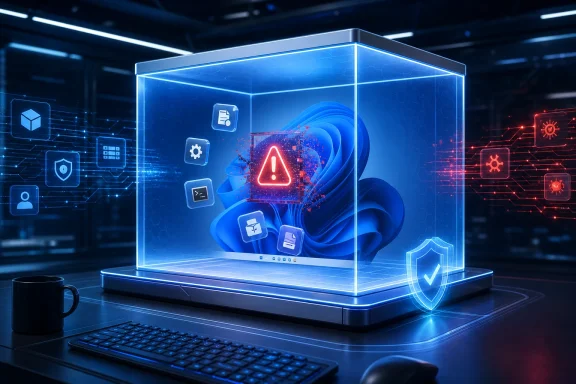 Microsoft’s Best Security Feature Is the One That Vanishes When You Close It
The Windows Central piece makes the right starting point: untrusted software is not an abstract problem. It is the installer from a vendor you have never heard of, the “portable” utility linked in a forum thread, the suspicious document-adjacent executable, the old driver package from a mirror site, or the one-off diagnostic tool someone insists is safe because “it worked for me.” Most Windows users are not trying to reverse-engineer malware; they are trying to get through a day without turning curiosity into incident response.Windows Sandbox addresses that problem with a brutally simple bargain. You get a clean Windows desktop, you run the thing, and when you close the Sandbox window, the state goes away. Files copied in, programs installed, registry changes made inside the environment, and whatever mess the tested app leaves behind are supposed to die with the session.
That disposability is the heart of the feature. A conventional virtual machine can do the same job, but only if the user has already made a set of decisions: which ISO to use, how much RAM to allocate, whether to snapshot, how to patch, how to network, and how to keep the guest from becoming yet another semi-permanent machine to maintain. Sandbox turns that workflow into a Windows feature rather than a hobby.
This is why Windows Sandbox has always felt like a feature built by people who knew what power users actually do. They do not want to stop experimenting. They want a blast shield between experimentation and the workstation that contains their browser profile, password manager, SSH keys, Teams cache, saved documents, and the administrative tools they use to keep everyone else productive.
The Old VM Model Was Too Heavy for the Everyday Threat
For years, the correct advice for testing untrusted software was “use a VM.” It was correct in the same way that “eat better and sleep more” is correct: true, useful, and frequently ignored because the friction is high. A properly managed VM is excellent, but setting one up is often more work than the risky action the user wanted to take in the first place.Windows Sandbox lowers that activation energy. It uses Microsoft’s hypervisor to create an isolated Windows environment on demand, using the host’s OS image rather than requiring a separate VM installation. That is the important architectural trick: the user sees something that behaves like a temporary virtual machine, but the operational burden looks more like launching an app.
This matters because security features succeed when they meet users at the moment of temptation. The danger is not the well-planned malware-analysis session; it is the five-second decision to double-click a file because the user is busy, mildly annoyed, and fairly sure Defender will catch anything obvious. Sandbox gives that user a middle path between reckless trust and a full lab setup.
The feature’s performance profile also helps. Microsoft describes Windows Sandbox as lightweight, with quick launch times, virtual GPU support, and smarter memory management than a traditional VM. In practice, the appeal is not that it replaces Hyper-V, VMware Workstation, or enterprise detonation chambers. The appeal is that it is fast enough to become a habit.
Security has always been partly about habit formation. If the safer path takes fifteen minutes, users will route around it. If the safer path takes a few seconds and feels native, it has a chance.
The Isolation Story Is Strong, but It Is Not a Force Field
The most dangerous misunderstanding about Windows Sandbox is the idea that “isolated” means “risk-free.” It does not. Sandbox uses hardware-based virtualization and a separate kernel boundary, which is a serious security separation from the host. But the environment still has configurable integration points, and those integration points are where convenience and risk negotiate with each other.By default, Windows Sandbox is designed to be usable. Clipboard sharing is enabled, networking is enabled, and the environment can reach the internet through the host’s networking stack. These defaults make sense for ordinary testing because most installers need a network connection, and most users need an easy way to move a file in. But they also mean Sandbox is not the same thing as an air-gapped crime scene.
Networking is the most obvious example. If an untrusted app is allowed to run inside Sandbox with network access, it can still communicate outward. Depending on the network, the host configuration, and the nature of the malware or unwanted software, that may be undesirable. The threat has been contained away from the host OS state, but it has not necessarily been prevented from phoning home, probing reachable services, or behaving badly on the network.
Clipboard and file movement are the other subtle traps. The same convenience that lets a user paste an installer into Sandbox can become a path for accidental data movement in the wrong direction. If a user copies sensitive content from the host and pastes it into the sandboxed environment, isolation has not failed; the user has bridged it.
That is the right way to think about Windows Sandbox. It is a controlled room with doors, not a sealed vault. The doors can be useful. They can also be misused.
The 22H2 Reboot Change Fixed a Real Annoyance Without Changing the Basic Bargain
One of the more important details in Microsoft’s current documentation is easy to miss: starting with Windows 11 version 22H2, data persists through restarts initiated within the sandbox. That does not mean Sandbox has become permanent. It means the session can survive the kind of reboot that some installers demand before they finish.That change matters because a surprising amount of Windows software still assumes reboot control. Drivers, security tools, shell extensions, legacy business applications, and even some ordinary consumer utilities may not behave meaningfully until after a restart. Before this change, Sandbox could be an awkward fit for software whose installer treated reboot as part of the installation handshake.
Microsoft’s adjustment is sensible because it preserves the main model. Close Sandbox, and the state is gone. Reboot inside Sandbox, and the test can continue. The boundary between “temporary testing session” and “persistent machine” remains clear enough for users to understand.
This is a good example of how security features mature. The first version often proves the model. Later versions remove enough friction that the model becomes livable. A sandbox that cannot handle reboot-hungry Windows software is still useful; a sandbox that can survive an internal restart is much more aligned with the software ecosystem it exists to contain.
The caveat is that users need to understand the difference between a reboot and a close. Restarting inside the sandbox keeps the session alive. Closing the Sandbox application discards it. For administrators writing guidance, that distinction deserves to be spelled out because it is precisely the kind of detail that becomes a help-desk ticket later.
Configuration Files Turn the Toy Into a Tool
The default Sandbox experience is intentionally simple, but the feature becomes much more serious once.wsb configuration files enter the picture. These XML files let users and administrators adjust Sandbox behavior, including networking, GPU sharing, clipboard redirection, mapped folders, startup commands, memory, audio and video input, printer redirection, and protected client mode.That configurability is where Windows Sandbox crosses from enthusiast convenience into IT utility. A security-minded user can launch a sandbox with networking disabled. A developer can start a sandbox with a test folder mapped read-only. A support technician can create a repeatable environment that launches a diagnostic workflow automatically. A training team can give users a known-safe place to practice a procedure without leaving durable state behind.
The trade-off is that configuration also creates sharp edges. Mapping host folders into the sandbox can be useful, but it is also a deliberate weakening of the clean separation that makes the feature attractive in the first place. If that mapped folder is writable, then the sandboxed app may be able to alter files the user cares about. If it is read-only, the risk profile changes substantially.
This is where Microsoft’s “simple” story needs an administrator’s asterisk. Windows Sandbox is simple when used casually and powerful when configured deliberately. It is not simple when users randomly download
.wsb files from the internet and double-click them without understanding what the file enables.A good
.wsb file is policy expressed as convenience. A bad one is a preconfigured exception list with a friendly icon.Smart App Control and Sandbox Solve Different Parts of the Same Problem
Windows Central’s framing places Windows Sandbox near Smart App Control, and that comparison is useful because the two features represent different philosophies. Smart App Control tries to make a trust decision before software runs. Windows Sandbox assumes the user may still want to run something and tries to make the consequences temporary.Both approaches are necessary because trust decisions are messy. Reputation systems can block unknown or suspicious applications, but new software is unknown by definition. Niche utilities, internal tools, freshly compiled binaries, and unsigned hobby projects can all look risky to a system that does not know their history. Sometimes that suspicion is justified. Sometimes it is merely inconvenient.
Sandbox gives users a place to investigate without immediately overriding the operating system’s instincts on the production desktop. That is valuable even when the software later turns out to be harmless. The testing session may reveal bundled installers, unwanted browser extensions, noisy startup tasks, strange network behavior, or simply poor software hygiene. Not every bad app is “malware” in the dramatic sense. Plenty are just invasive, sloppy, or impossible to uninstall cleanly.
This is where Windows Sandbox may be most useful for Windows enthusiasts. It lets them answer practical questions: What does this installer drop? Does it demand admin rights? Does it install services? Does it add startup entries? Does it behave normally without access to my real user profile? Does it still look trustworthy after I watch it run for five minutes?
Security is not only about blocking known evil. It is also about giving users a safe place to be skeptical.
Enterprise IT Should Treat Sandbox as a Workbench, Not a Control Plane
For sysadmins, Windows Sandbox is appealing because it is built in, fast, and disposable. But it should not be confused with enterprise application control, endpoint detection, browser isolation, privileged access workstations, or a managed malware-analysis pipeline. Sandbox is a workbench. It is not a governance model.That distinction matters in organizations where informal tools become informal policy. An admin who uses Sandbox to inspect a suspicious installer is doing something sensible. An organization that tells users “just open suspicious stuff in Sandbox” without defining network behavior, file movement, logging expectations, and escalation paths is outsourcing security judgment to the least controlled moment in the workflow.
There is also a licensing and edition boundary. Windows Sandbox is not available across every Windows consumer scenario; it is tied to editions such as Pro, Enterprise, and Education, and it depends on virtualization support. That means it cannot be the universal answer for every home user, every fleet device, or every locked-down endpoint.
For managed environments, the better role is narrower and more realistic. Sandbox can be part of the admin toolkit. It can support help-desk triage, packaging checks, quick installer inspection, documentation screenshots, and one-off experimentation. It can reduce the number of throwaway VMs an IT team maintains for small tasks. It can help standardize safe testing for technicians who do not need a full forensic environment.
But if the suspected file is genuinely malicious, targeted, or tied to an incident, Sandbox is not where the investigation should end. At that point, the right path is controlled malware analysis, endpoint telemetry, and incident handling, not vibes in a disposable desktop.
The Feature’s Biggest Weakness Is That Microsoft Still Makes Users Discover It
Windows Sandbox is one of those Windows features that feels simultaneously mature and hidden. It is documented, supported, and powerful, yet many users who would benefit from it do not know it exists. Microsoft has spent years pushing visible security surfaces such as Defender, SmartScreen, Smart App Control, and Windows Security dashboards, but Sandbox often remains a feature enthusiasts mention to each other rather than a mainstream safety reflex.That invisibility has consequences. A user who knows about Sandbox may test an unknown installer safely. A user who does not know about it may upload the file to a random online scanner, run it on the host, or avoid testing entirely. The gap is not capability. It is product education.
Microsoft could do more here without turning Windows into a nag machine. File Explorer could offer a “Run in Windows Sandbox” action for executable files on supported editions. Windows Security could surface Sandbox as a recommended tool when users attempt to run unknown software. Smart App Control or SmartScreen warnings could include a Sandbox path for advanced users where appropriate.
There are reasons to be cautious. A prominent “run in Sandbox” button might create false confidence, and some users may interpret it as a guarantee. But hiding the feature is not neutral either. It leaves a useful safety mechanism underused while Windows continues to carry the cultural reputation of being a platform where users are one bad download away from regret.
A good operating system does not merely block users from danger. It gives them safer ways to do the things they were going to do anyway.
Containers Finally Mean Something Visible on the Windows Desktop
Windows has had containers, Hyper-V, virtualization-based security, WSL, WDAG-era browser isolation concepts, and various application-control technologies orbiting each other for years. To many users, this has looked like plumbing: important, invisible, and mostly relevant when it breaks. Windows Sandbox is different because it turns that plumbing into a visible desktop behavior.That matters for Microsoft’s broader Windows security story. The company has spent the Windows 11 era tightening hardware requirements, leaning on TPMs, pushing virtualization-based security, and trying to normalize the idea that a modern PC should use hardware isolation as a baseline rather than a luxury. Sandbox is one of the clearest user-facing demonstrations of that philosophy.
It also fits the way Windows power users actually think. They like tools. They like reversible changes. They like being able to poke at something without making a weekend project out of reinstalling the OS. Windows Sandbox offers a rare combination: enterprise-grade isolation ideas packaged in a form that an enthusiast can understand in one sentence.
There is a lesson here for Microsoft. Security features are easier to accept when users can see the utility. “This setting protects kernel integrity” may be important, but it is abstract. “This desktop disappears when you close it” is concrete. The more Windows security can move from invisible restriction to visible containment, the more likely users are to adopt it willingly.
That is especially important in an era when Windows users are being asked to trust more automation, more reputation scoring, more cloud-backed decisions, and more default-deny logic. Sandbox gives some agency back. It says: fine, you still want to inspect the thing? Do it over here.
The Safe Way to Be Curious on Windows Is Becoming More Deliberate
The practical message for WindowsForum readers is not that every unknown file deserves a Sandbox session. It is that Windows now includes a middle tier between blind trust and full isolation lab, and that tier is good enough to change habits. Used correctly, Windows Sandbox is less about paranoia than hygiene.The strongest use cases are ordinary and repetitive. Test the installer. Open the suspicious archive after extracting it carefully. Check the behavior of a utility before installing it on the host. Visit a site you do not want touching your browser profile. Try a registry-tweaking tool without handing it your real registry first. None of this requires drama.
The discipline is knowing when to tighten the defaults. If you are testing something merely unknown, the stock Sandbox may be enough. If you are testing something actively suspicious, disable networking, avoid shared folders, keep clipboard use minimal, and do not sign into personal or corporate accounts inside the sandbox. If you need evidence, document what you see before closing the session, because the whole point is that the evidence disappears with the environment unless you intentionally export it.
That last point is easy to overlook. Disposable environments are wonderful until you realize you needed a log, screenshot, hash, or installer artifact after closing the window. Sandbox rewards a slightly more deliberate workflow: prepare, test, capture, close.
A Disposable Desktop Is Not a Substitute for Judgment
The temptation with any security feature is to inflate it into a slogan. Windows Sandbox does not make untrusted software safe. It makes testing untrusted software safer under a set of assumptions that users and administrators still need to understand.It will not tell you whether the app is ethically trustworthy. It will not guarantee that network activity is harmless. It will not protect data you deliberately paste into the session. It will not replace backups, least privilege, application control, endpoint protection, or common sense. It will not turn a consumer laptop into a malware research lab.
What it does is more modest and more useful. It reduces the blast radius of everyday experimentation. It gives Windows users a clean environment without demanding that they maintain another machine. It lets administrators inspect and reproduce small problems quickly. It makes the safer choice fast enough that people may actually use it.
That is the real standard. Security tools do not need to be perfect to be worth using. They need to be better than the behavior they replace.
The Windows Sandbox Habit Worth Building Now
Windows Sandbox deserves a place in the normal Windows power-user workflow, but only if users treat it as a controlled testing space rather than a magical quarantine. The value is not just the isolation; it is the repeatable habit of putting uncertainty somewhere disposable before it reaches the host.- Windows Sandbox is best used for quick inspection of unknown installers, utilities, files, and web destinations before they touch a real Windows profile.
- The environment is discarded when the Sandbox window is closed, but Windows 11 version 22H2 and later can preserve the session through restarts initiated inside the sandbox.
- Default networking and clipboard behavior improve convenience, but they also create exposure that cautious users should disable or limit through configuration files when testing higher-risk material.
.wsbfiles can turn Sandbox into a repeatable admin tool, especially when they disable risky integrations or map host folders read-only.- Sandbox should complement Defender, SmartScreen, Smart App Control, application control, backups, and incident-response processes rather than replace them.
- The safest workflow is to test deliberately, avoid signing into sensitive accounts, capture any evidence before closing, and assume that anything intentionally shared with the sandbox has crossed the boundary.
References
- Primary source: Windows Central
Published: Thu, 04 Jun 2026 19:13:40 GMT
Use Windows Sandbox and containers to test untrusted apps safely | Windows Central
Windows Sandbox acts as a digital safety net, allowing you to test untrusted apps in isolation and keep your system protected.www.windowscentral.com - Official source: learn.microsoft.com
- Official source: github.com
GitHub - microsoft/Windows-Sandbox: Disposable, secure and lightweight Windows Desktop Environment · GitHub
Disposable, secure and lightweight Windows Desktop Environment - microsoft/Windows-Sandbox github.com
- Official source: techcommunity.microsoft.com
Windows Sandbox | Microsoft Community Hub
Windows Sandbox is a new lightweight desktop environment tailored for safely running applications in isolation. Learn more! techcommunity.microsoft.com
- Related coverage: dsebastien.net
Windows Sandbox
Windows Sandbox (WSB) is a disposable, hypervisor-isolated desktop environment built into Windows 10/11 Pro, Enterprise, and Education editions. It launches… www.dsebastien.net
- Related coverage: howtogeek.com
How to Configure the Windows Sandbox
The Windows Sandbox lets you easily run untrusted software. Here's how to configure its hidden options, including folder sharing. www.howtogeek.com
- Related coverage: thurrott.com
Windows Sandbox - Thurrott.com
Windows 11 Pro includes an optional feature called Windows Sandbox that lets you run untrusted software in an isolated, temporary, Desktop environment.www.thurrott.com - Related coverage: windowscult.com
Windows Sandbox: What is it and how to use it on windows 11/10
Windows Sandbox is a feature that allows you to run a virtualized environment of Windows 11 on your PC, without affecting your main systemwww.windowscult.com - Related coverage: mirror.gpmidi.net
- Related coverage: windowsarchive.orangera.in
- Related coverage: wiki.itarian.com
Last edited:
