

Update Windows Server Secure Boot CA 2023 now—but treat recovery media validation, not the June 2026 certificate dates alone, as the urgent work. Servers that have not completed the transition can continue booting and receiving normal Windows updates, yet they may be unable to receive future early-boot protections; before the Microsoft Windows Production PCA 2011 deadline of October 19, 2026, prove that every server, WinRE path, installation image, emergency USB device, and PXE workflow can boot with the 2023 trust chain.
The Microsoft Corporation KEK CA 2011 expired on June 24, 2026, and Microsoft UEFI CA 2011 expired on June 27, 2026. Those dates did not create a universal “server stops booting” event. Microsoft says an unremediated server may still start normally and continue to receive standard Windows updates.
The consequence is narrower but important: Secure Boot may not be able to validate future updates to early-boot components, including Boot Manager, DB/DBX updates, revocation data, and later boot-vulnerability mitigations. The remaining hard planning date is October 19, 2026, when Microsoft Windows Production PCA 2011 expires.
For Windows Server, Microsoft requires administrator-led action rather than the controlled rollout model used for many client devices. That changes the practical question from “Should we wait?” to “Can we recover a server if its normal boot path and its emergency boot media are no longer aligned?”
Include these fields:
Use this controlled test process:
Before applying a production change, ensure that a console path and tested 2023-compatible recovery medium are available. For remote locations, verify that someone can access the physical console or the server’s approved out-of-band management interface if normal remote access is unavailable.
Your change record should include:
The key evidence is still the same: the server reaches
Do not let a certificate project turn into an unplanned whole-cluster firmware exercise. The Secure Boot status, firmware behavior, and recovery-media test should be documented per node, even for nominally identical hardware.
Do not apply broad DB/DBX changes until the vendor confirms support or your controlled test demonstrates a successful boot and recovery path.
Is
No. It confirms an important server-side status, but it does not prove that WinRE, installation media, PXE, vendor tools, or remote virtual media can boot and recover that server.
The strongest completion standard is straightforward: every supported server has an updated certificate status, a successful event record, current firmware compatibility, and a recovery medium that has actually booted on its hardware class with Secure Boot enabled.
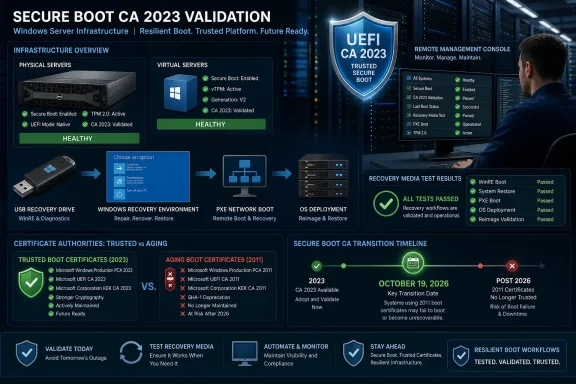 Why the recovery-media decision matters now
The Microsoft Corporation KEK CA 2011 expired on June 24, 2026, and Microsoft UEFI CA 2011 expired on June 27, 2026. Those dates did not create a universal “server stops booting” event. Microsoft says an unremediated server may still start normally and continue to receive standard Windows updates.The consequence is narrower but important: Secure Boot may not be able to validate future updates to early-boot components, including Boot Manager, DB/DBX updates, revocation data, and later boot-vulnerability mitigations. The remaining hard planning date is October 19, 2026, when Microsoft Windows Production PCA 2011 expires.
For Windows Server, Microsoft requires administrator-led action rather than the controlled rollout model used for many client devices. That changes the practical question from “Should we wait?” to “Can we recover a server if its normal boot path and its emergency boot media are no longer aligned?”
Make the decision: update after a recovery-media pilot, not after an assumption
Use this decision rule:- Update now in a pilot if the server has current firmware support, a documented maintenance window, and tested recovery media signed for the Windows UEFI CA 2023 trust chain.
- Do not broadly deploy yet if your emergency USB media, WinRE image, installation ISO, PXE environment, hardware remote-console workflow, or third-party bootloader has not been boot-tested on representative hardware.
- Escalate hardware or firmware exceptions now when Event ID 1803 or 1795 appears, when firmware cannot accept the required Secure Boot updates, or when older hardware has no viable vendor firmware path.
Build the inventory that connects servers to their rescue paths
A certificate-status report alone is incomplete. Create one inventory record per physical server, virtual platform template, or hardware model and associate it with the media used to recover it.Include these fields:
- Server name, role, location, and service owner.
- Hardware model, firmware version, and firmware support status.
- Secure Boot status and the current
UEFICA2023Statusresult. - Relevant System event IDs and the date of the most recent result.
- Normal operating-system boot method.
- WinRE availability and the tested recovery procedure.
- Installation USB or ISO identity, creation date, and test result.
- PXE or network-boot workflow, if used.
- Any third-party EFI application, bootloader, storage controller option ROM, or vendor recovery environment required to start or repair the system.
- Cluster membership, dependency order, and maintenance-window constraints.
- A named break-glass owner and physical or remote-console access method.
Verify the Windows Server certificate transition
Perform these checks before and after the pilot deployment.- Sign in with an account that has administrative access to the server.
- Open Registry Editor and browse to:
HKEY_LOCAL_MACHINE\SYSTEM\CurrentControlSet\Control\SecureBoot - Check the
UEFICA2023Statusvalue.Updatedindicates success.- Any other state requires investigation before you mark the server complete.
- Browse to:
HKEY_LOCAL_MACHINE\SYSTEM\CurrentControlSet\Control\SecureBoot\Servicing - Check whether
UEFICA2023Errorexists.- If it exists, treat the update as failed or incomplete and review the associated DB/DBX update logs before proceeding.
- Open Event Viewer and go to Windows Logs > System.
- Filter or search for these event IDs:
- 1808: successful completion.
- 1800: restart required.
- 1801: incomplete update.
- 1803: missing KEK.
- 1795: firmware error.
- Restart when Event ID 1800 indicates that a restart is required, then repeat the registry and event-log checks.
UEFICA2023Status = Updated and Event ID 1808, with no unresolved firmware or missing-KEK event.Create and test 2023-compatible recovery media
Microsoft’s recovery guidance includes creating recovery and installation USB media that uses boot files signed by Windows UEFI CA 2023. Do not assume that an existing emergency drive becomes compliant because the installed server has updated successfully.Use this controlled test process:
- Identify every bootable recovery asset used by the team: Windows installation USB devices, WinRE media, custom WinPE drives, vendor recovery tools, PXE images, virtual-media ISOs, and bare-metal restoration media.
- Retire unidentified or undated media from emergency cabinets. Label each retained item with its operating-system family, creation date, purpose, and test date.
- Build fresh recovery and installation USB media using Microsoft’s current recovery guidance so the boot files are signed by Windows UEFI CA 2023.
- On a non-production server that represents the target hardware and firmware, attach the new media and boot it with Secure Boot enabled.
- Confirm that the media reaches its intended environment: Windows Setup, Windows Recovery Environment, or the approved recovery tool. Do not continue into installation or destructive repair actions merely to prove that it starts.
- Test the operational tasks that matter in your environment, such as locating the operating-system volume, accessing network storage where required, opening a command prompt, and reaching the repair or restore workflow.
- Repeat for each materially different server model, firmware generation, virtual platform template, and remote-console method.
- Record the result in the inventory. A media item is “approved” only when it has been boot-tested on the platform class it is expected to rescue.
Treat DB and DBX changes as a controlled boot-chain change
DB and DBX updates can alter what firmware trusts or rejects at startup. The update itself is not a reason to disable Secure Boot casually, and disabling Secure Boot is a workaround—not a completed remediation.Before applying a production change, ensure that a console path and tested 2023-compatible recovery medium are available. For remote locations, verify that someone can access the physical console or the server’s approved out-of-band management interface if normal remote access is unavailable.
Your change record should include:
- The server’s current Secure Boot state and firmware version.
- The exact recovery medium and test result.
- Confirmation of a maintenance window and application owner approval.
- Cluster or service dependency precautions.
- The vendor’s documented firmware recovery method, if one exists.
- The restoration path for a failed update, including who can authorize it.
Special cases that should not wait for the broad rollout
Air-gapped and offline servers
Offline servers need the same validation, but their update and recovery workflow must be pre-staged. Bring approved Windows updates, firmware packages, and newly created recovery media through the organization’s normal offline-transfer controls. Validate the complete sequence in an isolated lab or representative maintenance environment before touching the production server.The key evidence is still the same: the server reaches
UEFICA2023Status = Updated, Event ID 1808 is present, and the approved recovery media boots.Failover clusters and critical server groups
Update and test one node at a time. Confirm that the node returns to service cleanly before progressing to another node, and preserve enough healthy capacity to meet the application’s operating requirements.Do not let a certificate project turn into an unplanned whole-cluster firmware exercise. The Secure Boot status, firmware behavior, and recovery-media test should be documented per node, even for nominally identical hardware.
Third-party bootloaders and EFI tools
If a server depends on a non-Microsoft EFI application, custom bootloader, storage appliance tool, or vendor recovery image, make it part of the pilot. The central question is whether that component remains trusted by the updated firmware database and whether it can coexist with the new Windows boot chain.Do not apply broad DB/DBX changes until the vendor confirms support or your controlled test demonstrates a successful boot and recovery path.
Troubleshoot the signals before expanding deployment
Use Microsoft’s event results as deployment gates:- Event ID 1801, incomplete: Restart the server, then check the registry and System log again.
- Event ID 1803, missing KEK: Check whether the OEM firmware supports the required update before retrying.
- Event ID 1795, firmware error: Update firmware using the server manufacturer’s supported process, then revalidate.
UEFICA2023Errorexists: Review DB/DBX update logs and keep the server out of the completed population.- Deployment remains stuck: Validate firmware compatibility and recovery media before attempting broader remediation.
Frequently Asked Questions
Will a server stop booting because the 2011 certificates expired?
Not necessarily. Microsoft states that affected systems can continue to boot and receive standard Windows updates. The concern is loss of future Secure Boot protection for early-boot components and mitigations.Is UEFICA2023Status = Updated enough to close the ticket?
No. It confirms an important server-side status, but it does not prove that WinRE, installation media, PXE, vendor tools, or remote virtual media can boot and recover that server.Should we disable Secure Boot if old recovery media fails?
No. That may be an emergency workaround, not a remediation. Build and test media using boot files signed by Windows UEFI CA 2023, then address firmware or third-party boot-component compatibility.What is the practical deadline?
The Microsoft Windows Production PCA 2011 certificate expires on October 19, 2026. Use the time before that date to complete administrator-led server deployment and prove each recovery path, rather than relying on the fact that an unremediated server may still boot today.The strongest completion standard is straightforward: every supported server has an updated certificate status, a successful event record, current firmware compatibility, and a recovery medium that has actually booted on its hardware class with Secure Boot enabled.
References
- Primary source: learn.microsoft.com
Troubleshooting Windows Server Secure Boot Certificate Update issues - Windows Server | Microsoft Learn
Learn how to troubleshoot Secure Boot certificate update issues on Windows Server to maintain security before the 2026 expiration.learn.microsoft.com - Independent coverage: support.microsoft.com
- Independent coverage: techcommunity.microsoft.com
- Primary source: WindowsForum
Secure Boot PCA 2011 Expires October 19, 2026: Fleet Rollout Guide | Windows Forum
Microsoft’s July 15 OEM Secure Boot Office Hours did not move the remaining deadline: Microsoft Windows Production PCA 2011 is scheduled to expire on...windowsforum.com
