

MakeUseOf has highlighted Windows Task Scheduler as a still-useful native automation engine for routine PC chores, from launching a work setup at sign-in to scheduling cleanup scripts and maintenance jobs.
The point is not that Task Scheduler is new. It has been part of Windows since the Windows 2000 era, with the current-generation Task Scheduler 2.0 architecture dating to Windows Vista. But it remains one of the less visible built-in tools capable of replacing small, repetitive habits with reliable background jobs.
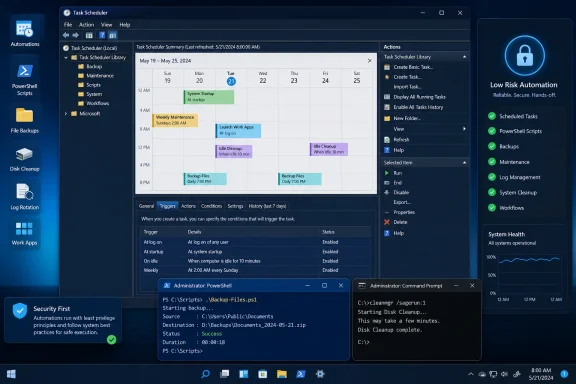
Microsoft describes Task Scheduler as a service that monitors specified time or event criteria, then runs the selected program, command, or script when those conditions are met. That covers simple daily timers, but also logon, startup, idle, and event-log triggers.
As reported by MakeUseOf, common personal-use examples include opening a browser, Outlook, or a set of work applications immediately after sign-in; archiving project logs weekly; and displaying reminders through a command or script.
For Windows users and administrators, the more practical uses are often less flashy:
For tasks that alter files or restart machines, test the underlying command manually first. Set a sensible “Start in” directory where required, use a dedicated non-admin account when elevated rights are unnecessary, and review the task’s History tab after deployment. Administrators should also remember that a logon trigger is tied to a user session, while a startup trigger can run before anyone signs in.
Task Scheduler is not a replacement for enterprise configuration management, endpoint monitoring, or a properly managed backup platform. It is, however, a credible answer for local automation that needs no subscription, agent, or always-on third-party service.
Windows users can open it by searching for Task Scheduler, then begin with a low-risk task such as launching a script or application at logon.
The point is not that Task Scheduler is new. It has been part of Windows since the Windows 2000 era, with the current-generation Task Scheduler 2.0 architecture dating to Windows Vista. But it remains one of the less visible built-in tools capable of replacing small, repetitive habits with reliable background jobs.
Microsoft describes Task Scheduler as a service that monitors specified time or event criteria, then runs the selected program, command, or script when those conditions are met. That covers simple daily timers, but also logon, startup, idle, and event-log triggers.
 Useful jobs that do not need another app
As reported by MakeUseOf, common personal-use examples include opening a browser, Outlook, or a set of work applications immediately after sign-in; archiving project logs weekly; and displaying reminders through a command or script.For Windows users and administrators, the more practical uses are often less flashy:
- Run a PowerShell or batch script at startup, logon, or on a schedule.
- Start a backup, log rotation, or file-copy process outside working hours.
- Launch a maintenance process after a system event or during idle time.
- Use Event Viewer entries as triggers for monitoring or remediation scripts.
- Schedule Disk Cleanup with predefined settings.
cleanmgr documentation specifies that cleanmgr /sageset:n saves the cleanup categories chosen in the Disk Cleanup interface, while cleanmgr /sagerun:n executes that saved configuration. A scheduled task can call the latter command weekly or monthly without user interaction.The catches
Task Scheduler is powerful largely because it can run nearly anything executable, including command-line utilities and PowerShell scripts. That also means a poorly designed task can create problems quietly: delete the wrong files, run repeatedly after failures, or execute with more privileges than intended.For tasks that alter files or restart machines, test the underlying command manually first. Set a sensible “Start in” directory where required, use a dedicated non-admin account when elevated rights are unnecessary, and review the task’s History tab after deployment. Administrators should also remember that a logon trigger is tied to a user session, while a startup trigger can run before anyone signs in.
Task Scheduler is not a replacement for enterprise configuration management, endpoint monitoring, or a properly managed backup platform. It is, however, a credible answer for local automation that needs no subscription, agent, or always-on third-party service.
Windows users can open it by searching for Task Scheduler, then begin with a low-risk task such as launching a script or application at logon.
References
- Primary source: MakeUseOf
Published: 2026-07-19T22:00:12+00:00
I automated my PC's boring chores with a tool that's been in Windows for 20 years
Why install another automation app? www.makeuseof.com
