

Microsoft Intune’s planned enhanced Windows Sync action should be treated as a controlled verification step, not a universal “fix it” button. Microsoft’s in-development notice says the action is intended to trigger a broader on-demand synchronization across compliance, configuration policies, apps, and scripts—making it potentially valuable during incident response and urgent rollouts, but only if administrators can prove what changed before and after the request.
The feature is not released, and Microsoft explicitly cautions that in-development roadmap items can change. That makes this the right time to write the runbook, define evidence collection, and decide who can initiate a sync during a real incident—rather than treating a future button in the Intune admin center as proof that a Windows device has received, processed, and evaluated a policy.
Microsoft describes the upcoming improvement as a more comprehensive on-demand sync for Windows devices. The intended scope includes compliance, configuration policies, apps, and scripts, with the stated use cases of troubleshooting, incident response, and high-priority rollouts.
That is a meaningful shift from waiting for normal device maintenance behavior. Windows devices normally perform maintenance syncs roughly every eight hours, with a limit of one maintenance sync every 6.5 hours; recently enrolled devices initially check in more often. Change-based notifications can reach online devices immediately or within a few hours, while an offline device necessarily receives those changes only at a later sync.
The practical lesson is simple: an enhanced Sync request may shorten the path from administrator intent to device activity, but it cannot make an unavailable device available. Nor has Microsoft promised instant reporting that confirms each workload was delivered, processed successfully, or evaluated into the desired final state.
Those distinctions matter in incidents. A sync request, policy delivery, local processing, and compliance reporting are related events, but they are not the same event. Treating them as one creates false closure: an administrator sees that a sync was requested, assumes the device is fixed, and moves on before confirming whether the affected app installed, the script ran, or the compliance state changed.
For a configuration incident, the “before” record might show that the assigned setting has not appeared on the endpoint. The “after” evidence must establish more than a new sync attempt: it should show whether the configuration was processed and whether the expected Windows state now exists.
For an application incident, distinguish the service-side assignment from device-side installation. A sync could be received while the application still fails to install or remains unprocessed. The same distinction applies to scripts: the requested sync is not evidence that a script executed successfully, much less that it achieved its intended remediation.
For a compliance incident, avoid assuming that a policy update and a compliance change arrive as a single atomic event. Microsoft’s roadmap language identifies compliance among the workloads covered by the enhanced action, but it does not promise instantaneous status reporting. Administrators should document the pre-sync compliance state, the condition being corrected, the remediation evidence, and the later compliance result.
WindowsForum’s recent coverage of Intune update alerts and policy-driven Windows 11 update management points to the broader operational direction: more administrative signals and more policy control are useful only when teams know which signal represents intent, delivery, execution, or final device state. Enhanced Sync could improve that chain, but it does not remove the need to interpret it.
The most useful starting files are:
This is also where the line between Microsoft’s announced capability and assumed future tooling must stay clear. Microsoft has not committed to a new diagnostic-log collection interface as part of enhanced Windows Sync. Do not design an emergency procedure that depends on a new portal pane, new failure field, or automatic log package that has not been announced.
Instead, prepare a validation checklist for the first tenant or test device that receives the capability:
Use enhanced Sync on a small, named set of devices first. Choose representative endpoints: one known-good online device, one device exhibiting the failure, and—when relevant—one endpoint that is temporarily unreachable. That test set tells the incident team whether it is dealing with assignment scope, cloud delivery, local processing, or device availability.
The action is best reserved for cases where waiting for scheduled maintenance is itself the operational risk. A critical compliance correction, urgent application deployment, remediation validation, or post-change confirmation qualifies. Routine drift investigation generally does not.
Enhanced Windows Sync may become one of the most useful small controls in the Intune admin center, precisely because it narrows the wait during high-pressure work. Its value will depend less on how often administrators click it than on whether each click is tied to a documented hypothesis, a local evidence check, and a clear decision about what happens next.
The feature is not released, and Microsoft explicitly cautions that in-development roadmap items can change. That makes this the right time to write the runbook, define evidence collection, and decide who can initiate a sync during a real incident—rather than treating a future button in the Intune admin center as proof that a Windows device has received, processed, and evaluated a policy.
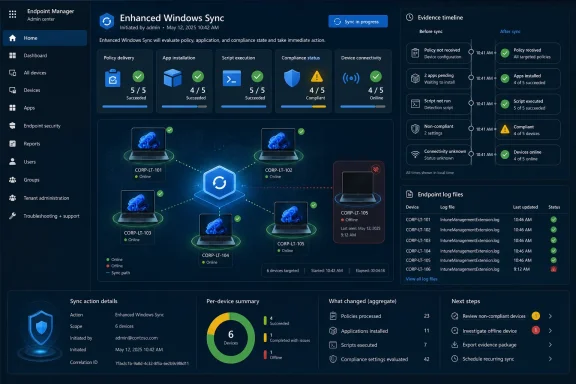 Microsoft Is Expanding the Trigger, Not Promising an Instant Verdict
Microsoft describes the upcoming improvement as a more comprehensive on-demand sync for Windows devices. The intended scope includes compliance, configuration policies, apps, and scripts, with the stated use cases of troubleshooting, incident response, and high-priority rollouts.That is a meaningful shift from waiting for normal device maintenance behavior. Windows devices normally perform maintenance syncs roughly every eight hours, with a limit of one maintenance sync every 6.5 hours; recently enrolled devices initially check in more often. Change-based notifications can reach online devices immediately or within a few hours, while an offline device necessarily receives those changes only at a later sync.
The practical lesson is simple: an enhanced Sync request may shorten the path from administrator intent to device activity, but it cannot make an unavailable device available. Nor has Microsoft promised instant reporting that confirms each workload was delivered, processed successfully, or evaluated into the desired final state.
Those distinctions matter in incidents. A sync request, policy delivery, local processing, and compliance reporting are related events, but they are not the same event. Treating them as one creates false closure: an administrator sees that a sync was requested, assumes the device is fixed, and moves on before confirming whether the affected app installed, the script ran, or the compliance state changed.
Build the Runbook Around Four Separate Checks
The runbook should explicitly separate the four stages that are most often collapsed into “Intune synced.”- Record the starting state before requesting sync. Capture the device’s current check-in position, the relevant policy, app, script, or compliance result, the reported error or symptom, and the exact time the incident investigation began. If the target is a high-priority deployment, record the assignment and the intended device outcome before taking action.
- Confirm that the device is realistically reachable. Determine whether the Windows device is online and capable of receiving cloud-delivered change notifications. An offline endpoint is not a failed enhanced Sync case; it is a connectivity or availability case that must wait for the device’s next successful connection and synchronization.
- Initiate the enhanced Sync action only once the expected outcome is defined. State the verification target in the incident record: for example, “retrieve the revised configuration policy,” “retry processing the assigned script,” “evaluate the compliance rule after remediation,” or “process the required app assignment.” A request without a predicted result is just activity.
- Collect post-sync evidence from the service and the Windows device. Compare the new status against the baseline and confirm the local workload processed. For Intune Management Extension investigations, inspect the relevant device logs rather than relying solely on a portal status change.
- Classify the result before closing the incident. Mark the outcome as delivered and resolved, delivered but still failing locally, not yet delivered, or indeterminate. “Indeterminate” is a valid operational result when the available telemetry does not prove the full path.
- Stop repeated manual syncs unless the hypothesis changes. A second sync should answer a new diagnostic question, not repeat the first request because the expected state has not appeared. Otherwise, the team adds noise while losing the timeline needed to identify the real fault.
The Before-and-After Record Is the Feature’s Real Value
A usable incident record does not need to be elaborate, but it should be consistent. The core evidence should identify the device, the workload in question, the time of the action, and the state on either side of the request.For a configuration incident, the “before” record might show that the assigned setting has not appeared on the endpoint. The “after” evidence must establish more than a new sync attempt: it should show whether the configuration was processed and whether the expected Windows state now exists.
For an application incident, distinguish the service-side assignment from device-side installation. A sync could be received while the application still fails to install or remains unprocessed. The same distinction applies to scripts: the requested sync is not evidence that a script executed successfully, much less that it achieved its intended remediation.
For a compliance incident, avoid assuming that a policy update and a compliance change arrive as a single atomic event. Microsoft’s roadmap language identifies compliance among the workloads covered by the enhanced action, but it does not promise instantaneous status reporting. Administrators should document the pre-sync compliance state, the condition being corrected, the remediation evidence, and the later compliance result.
WindowsForum’s recent coverage of Intune update alerts and policy-driven Windows 11 update management points to the broader operational direction: more administrative signals and more policy control are useful only when teams know which signal represents intent, delivery, execution, or final device state. Enhanced Sync could improve that chain, but it does not remove the need to interpret it.
IME Logs Remain the Local Truth for Apps and Scripts
For incidents involving Win32 apps, PowerShell scripts, remediations, and other Intune Management Extension activity, the endpoint remains essential to diagnosis. Microsoft identifies the Intune Management Extension log directory at:C:\ProgramData\Microsoft\IntuneManagementExtension\LogsThe most useful starting files are:
IntuneManagementExtension.logfor the extension’s general activity and processing flow.AppWorkload.logfor application workload activity.AgentExecutor.logfor execution-related details.HealthScripts.logfor health-script activity.
HealthScripts.log and execution-related records to distinguish non-delivery from local execution failure.This is also where the line between Microsoft’s announced capability and assumed future tooling must stay clear. Microsoft has not committed to a new diagnostic-log collection interface as part of enhanced Windows Sync. Do not design an emergency procedure that depends on a new portal pane, new failure field, or automatic log package that has not been announced.
Do Not Treat Unknown Prerequisites as Requirements
The coming feature’s exact telemetry, status fields, failure diagnostics, Windows version requirements, Intune Management Extension dependencies, and RBAC implications have not been detailed in Microsoft’s public in-development description. Administrators should not invent requirements from the feature name or assume it changes the existing authorization model.Instead, prepare a validation checklist for the first tenant or test device that receives the capability:
- Confirm which Windows enrollment and management scenarios expose the action.
- Confirm whether the action produces a distinguishable event, timestamp, or workload-specific status.
- Test an online device and an intentionally offline device to document the operational difference.
- Test a configuration policy, an app, a script, and a compliance-related change separately.
- Verify whether a sync request changes portal reporting speed, local processing speed, or both.
- Confirm which operational roles can invoke the action before adding it to an incident-response procedure.
The Most Dangerous Failure Mode Is Repeated-Sync Noise
A blanket “sync all affected devices” response can be tempting during a broad outage or a rushed rollout. It can also obscure causality. If an assignment is malformed, a script has a local dependency problem, or a device is offline, repeatedly requesting sync does not resolve the underlying issue and makes it harder to correlate actions with outcomes.Use enhanced Sync on a small, named set of devices first. Choose representative endpoints: one known-good online device, one device exhibiting the failure, and—when relevant—one endpoint that is temporarily unreachable. That test set tells the incident team whether it is dealing with assignment scope, cloud delivery, local processing, or device availability.
The action is best reserved for cases where waiting for scheduled maintenance is itself the operational risk. A critical compliance correction, urgent application deployment, remediation validation, or post-change confirmation qualifies. Routine drift investigation generally does not.
Frequently Asked Questions
Is enhanced Windows Sync available now?
No. Microsoft currently lists the enhanced Windows Sync action as in development, and its roadmap information is subject to change.Will enhanced Sync immediately make a device compliant?
Not necessarily. Microsoft includes compliance in the planned synchronization scope, but it has not promised instant compliance reporting or an immediate final-state verdict.Can enhanced Sync fix an offline Windows device?
No. Change-based notifications can reach online devices quickly, but an offline device receives changes only after it reconnects and synchronizes.Does the feature replace Intune Management Extension log review?
No. For app, script, and remediation troubleshooting, local IME logs remain key evidence for determining whether work was processed and whether it succeeded.Enhanced Windows Sync may become one of the most useful small controls in the Intune admin center, precisely because it narrows the wait during high-pressure work. Its value will depend less on how often administrators click it than on whether each click is tied to a documented hypothesis, a local evidence check, and a clear decision about what happens next.
References
- Primary source: learn.microsoft.com
In development - Microsoft Intune | Microsoft Learn
This article describes Microsoft Intune features that are in development.learn.microsoft.com - Independent coverage: microsoft.com
Microsoft 365 Roadmap | Microsoft 365
The Microsoft 365 Roadmap lists updates that are currently planned for applicable subscribers. Check here for more information on the status of new features and updates.www.microsoft.com
- Primary source: WindowsForum
New Windows Update Alerts in Microsoft Intune: Enhance Device Management | Windows Forum
According to a recent article from the Microsoft Tech Community, titled "New Alerts for Windows Updates in Microsoft Intune," published on September 18...windowsforum.com
