

Windows users can update many installed applications with a single PowerShell command:
As reported by Neowin, the appeal is straightforward: WinGet can handle conventional desktop applications alongside packages supplied through configured sources such as the Microsoft Store, avoiding the usual round of vendor updaters, browser downloads, and Store checks. Microsoft documents WinGet as part of App Installer on supported Windows 10, Windows 11, and Windows Server 2025 systems.
Running
To update everything WinGet identifies, run:
For a single package, use its package ID where possible rather than a loose name match. Microsoft’s example format is:
Microsoft also notes that applications with unknown versions are skipped unless the
That makes unattended execution possible through Task Scheduler, but it also means accepting any applicable source and package terms without review. For personal PCs, a scheduled task may be convenient; for managed endpoints, admins should test the command against a representative device set and use their existing endpoint-management platform where possible.
A startup task also needs to run in the correct user context, wait for networking, and have access to the WinGet/App Installer registration. Simply running it with elevated privileges does not guarantee every application can update silently, since individual installers can still require a reboot, user interaction, or a closed application.
For most Windows users,
winget upgrade --all. The command uses Microsoft’s Windows Package Manager to find recognized software with available upgrades and attempt to install them in one pass.As reported by Neowin, the appeal is straightforward: WinGet can handle conventional desktop applications alongside packages supplied through configured sources such as the Microsoft Store, avoiding the usual round of vendor updaters, browser downloads, and Store checks. Microsoft documents WinGet as part of App Installer on supported Windows 10, Windows 11, and Windows Server 2025 systems.
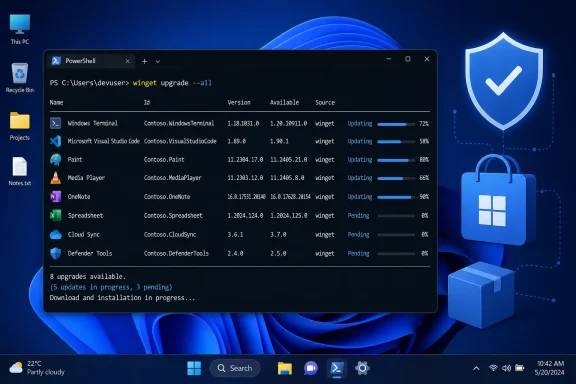 Check first, then update
Running winget upgrade without arguments produces a list of recognized applications with updates available. That is the sensible first step, especially on machines with a long history of manually installed software.To update everything WinGet identifies, run:
winget upgrade --allFor a single package, use its package ID where possible rather than a loose name match. Microsoft’s example format is:
winget upgrade --id Microsoft.PowerToyswinget list shows software WinGet can see, including many applications installed outside WinGet itself. winget list --upgrade-available is a more focused inventory for pending updates.“All” does not mean every program
The catch is important:--all is not a universal Windows software updater. WinGet must be able to identify the installed application and find a matching package and upgrade path from its sources. Some programs are absent from those repositories, use proprietary updaters, expose no usable version information, or are deliberately pinned against updating.Microsoft also notes that applications with unknown versions are skipped unless the
--include-unknown option is used. That can be useful for testing, but it reduces certainty about whether an upgrade is actually needed. Enterprise-managed machines may also have update policies, proxy requirements, or application-management tooling that make a blanket local update command inappropriate.Automation needs restraint
WinGet can suppress source and package agreement prompts with:winget upgrade --all --accept-source-agreements --accept-package-agreementsThat makes unattended execution possible through Task Scheduler, but it also means accepting any applicable source and package terms without review. For personal PCs, a scheduled task may be convenient; for managed endpoints, admins should test the command against a representative device set and use their existing endpoint-management platform where possible.
A startup task also needs to run in the correct user context, wait for networking, and have access to the WinGet/App Installer registration. Simply running it with elevated privileges does not guarantee every application can update silently, since individual installers can still require a reboot, user interaction, or a closed application.
For most Windows users,
winget upgrade followed by winget upgrade --all is the practical compromise: review what will change, then let WinGet handle the packages it recognizes.References
- Primary source: Neowin
Published: 2026-07-15T15:20:01+00:00
Here's how to update every app on your Windows PC with a single command | Neowin
Are you regularly forgetting to update apps on your PC, because it's too time-consuming? There's a much simpler way. www.neowin.net
