

Winpilot’s latest release tightens its grip on Windows 11 bloat with a focused set of AI-targeted removal tools, a refreshed UI, and a conspicuous return of Clippy as an assistant — but the update also highlights the technical and security trade-offs users must weigh when using third‑party debloat utilities.
Windows debloating has moved from niche hobby to mainstream pastime: users, system builders, and IT enthusiasts routinely remove preinstalled apps, telemetry hooks, and now — increasingly — AI features such as Copilot, Recall, and other Microsoft-supplied assistants. One of the better-known utilities in this space evolved from a PowerShell-centric tweak app into a full GUI suite under a single developer’s stewardship, then rebranded and retooled multiple times to respond to Windows’ shifting feature set.
This tool began life as a community-backed customization utility, gained millions of downloads, and later morphed into a more aggressive debloater with an AI-focused feature set. In its most recent incarnation it now carries a new name and introduces an “assistant” interface with deeper automation and plugin integration that specifically targets Microsoft’s AI additions to Windows 11. The developer has explicitly stated that the tool will not take autonomous actions without user consent and that the debloat database will be maintained statically and with community input going forward.
I verified the release notes and changelog for the latest build in the project’s official package and cross-checked the headline changes against independent technology reporting to ensure the description below reflects what the updated tool actually installs and modifies.
It’s important to stress that true, complete removal of all AI-related elements can be difficult. Some AI components are deeply integrated into the OS shell and cloud services and may be reintroduced by Windows Update or by dependent system components. The app’s assisted workflow acknowledges this by recommending actions and providing a guided path rather than performing full, automatic purges.
Any assertion that a single tool can permanently eliminate all AI features without periodic maintenance is exaggerated; Microsoft’s update mechanisms and integration points mean users will likely need to reapply some changes after future updates. Treat absolute claims with skepticism and expect follow-up actions after major system updates.
However, the underlying landscape — a rapidly evolving OS that layers AI into many components — means no tool can claim permanent, universal removal of AI features. Users must accept an ongoing maintenance burden and the operational risk that comes with modifying a living system. Running these tools responsibly requires backups, testing in safe environments, and ongoing monitoring after major Windows updates.
For power users and enthusiasts who value control and privacy, the update makes the tool more useful and approachable. For mainstream users and enterprise clients, the balance of risk versus benefit should be carefully weighed. With sensible safeguards and informed use, Winpilot’s latest release is a practical addition to the Windows debloating toolkit — provided users treat it as a powerful instrument that demands respect, not a magic bullet.
Conclusion: Winpilot’s improved AI removal features and UI polish strengthen its case as a go‑to tool for enthusiasts who want to shrink Windows 11’s AI surface. The new assisted approach and integrated plugins reduce some of the historic recklessness of debloaters, but they do not — and cannot — remove the responsibility from the user. Back up first, test second, and proceed with full awareness that Windows updates and complex dependencies will require occasional follow-up maintenance.
Source: Neowin https://www.neowin.net/news/popular-windows-11-debloating-tool-updated-with-better-ai-removal/
 Background
Windows debloating has moved from niche hobby to mainstream pastime: users, system builders, and IT enthusiasts routinely remove preinstalled apps, telemetry hooks, and now — increasingly — AI features such as Copilot, Recall, and other Microsoft-supplied assistants. One of the better-known utilities in this space evolved from a PowerShell-centric tweak app into a full GUI suite under a single developer’s stewardship, then rebranded and retooled multiple times to respond to Windows’ shifting feature set.This tool began life as a community-backed customization utility, gained millions of downloads, and later morphed into a more aggressive debloater with an AI-focused feature set. In its most recent incarnation it now carries a new name and introduces an “assistant” interface with deeper automation and plugin integration that specifically targets Microsoft’s AI additions to Windows 11. The developer has explicitly stated that the tool will not take autonomous actions without user consent and that the debloat database will be maintained statically and with community input going forward.
I verified the release notes and changelog for the latest build in the project’s official package and cross-checked the headline changes against independent technology reporting to ensure the description below reflects what the updated tool actually installs and modifies.
What changed in the latest release
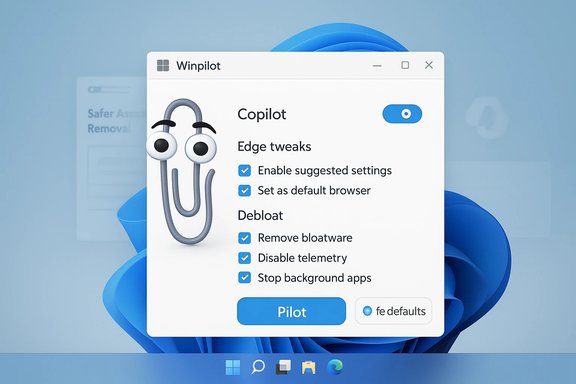
The update is a multi-part package that affects UI, plugin structure, and AI-targeted removal functionality. Key observable changes include:- Assistant and Clippy integration: A graphical assistant — represented by a Clippy-like character — monitors workflow and provides suggestions, step guidance, and status updates as users run debloat operations.
- Copilot-specific controls: The update integrates a plugin that lets users search for, disable, or re-enable Microsoft Copilot and related AI features directly from the GUI.
- Decrapify debloating plugin: The main debloat engine was reframed as an assisted operation; it now recommends rather than autonomously deletes items, and includes a community-maintained “bulletin board” of recommended items for removal.
- UI refresh (codename Stargate): Visual updates and navigation improvements make the app easier to use, with a new “Pilot” button to switch between plugin workflows.
- WebView2 → Win32 transition: The app moved away from being a WebView2-hosted web app to a native Win32 desktop application in order to reduce dependencies and improve compatibility.
- Edge and browser tweaking GUI: Integration of a user interface for a popular Edge tweaking script allows users to toggle Edge-specific settings and remove certain in‑browser telemetry or features from the same application.
- Safer defaults and user consent: The developer emphasizes that the tool will not perform autonomous changes; debloat actions require explicit user intent and selection.
How the AI removal features actually work
Understanding what “AI removal” means in practice is essential. The application does not conjure a magic algorithm that rewrites Windows; instead, it orchestrates a set of well‑known techniques and scripts that administrators have used for years, now refocused on AI feature vectors. The typical methods used include:- Removing inbox packages and UWP apps that contain AI features.
- Disabling scheduled tasks, background services, and system features tied to Copilot and other assistants.
- Applying registry tweaks and Group Policy edits that hide or disable UI entry points for AI features.
- Uninstalling or blocking specific packages while preserving core Windows components.
It’s important to stress that true, complete removal of all AI-related elements can be difficult. Some AI components are deeply integrated into the OS shell and cloud services and may be reintroduced by Windows Update or by dependent system components. The app’s assisted workflow acknowledges this by recommending actions and providing a guided path rather than performing full, automatic purges.
Strengths: why this update is useful
- Centralized control for AI features: Instead of hunting through separate scripts and manual registry edits, the GUI unifies Copilot toggles, Edge tweaks, and inbox app removals into a single workflow, lowering the barrier for power users and enthusiasts.
- Guided, safer defaults: The transition to an assisted model reduces the risk of the app autonomously deleting items that may break a user’s system. The recommendation board and step-by-step assistance helps moderate risk.
- Improved user experience: The UI refresh and the move to a native Win32 application yield faster launches, fewer dependencies, and a more Windows-like look and feel.
- Community-maintained bloat database: A static, community-maintained list of bloatware recommendations allows experienced users to vet and suggest removals while preserving transparency.
- Reversible or non-destructive options: Built-in guidance and, in many cases, restore points or revert scripts help users back out of changes if something goes wrong — though the completeness of reversibility varies by action.
Risks and limitations
Even with better UI and safeguards, debloating Windows — especially removing AI features — carries material risks. The principal concerns are:- OS update resilience: Windows updates routinely reintroduce components that have been removed or disabled, or they change the internal identifiers the scripts target. Users may find features returned after a cumulative update or feature update.
- Undocumented dependencies: Removing what appears to be an isolated package can cascade into broken functionality elsewhere. AI features are increasingly woven into mail, search, and system experiences; eliminating one component may degrade others.
- Security implications: Running a third‑party debloater requires elevated privileges and trust in the developer. Malicious or poorly coded scripts with admin rights can damage systems, install backdoors, or inadvertently expose data.
- Supportability and warranty: Using aggressive debloaters can void support options in enterprise contexts or complicate manufacturer warranty claims. In consumer scenarios, Microsoft support will often ask users to revert to a standard configuration before troubleshooting.
- Privacy promises vs. practical results: While removing visible AI components reduces surface-level telemetry and UI prompts, some telemetry will remain baked into system services that are not trivial to remove. The app reduces exposure but does not guarantee a full privacy lockdown.
- Potential for user error: A guided interface helps, but experienced users and novices alike can still accidentally remove necessary components; the revert mechanisms are not universally comprehensive.
Best practices for safe usage
To minimize problems when using Winpilot or any third‑party debloating utility, follow this checklist:- Create a full system backup or image before running major removals.
- Use a restore point and verify the tool’s revert or undo features for each action.
- Prefer testing on a non-production machine or inside a virtual machine to observe the exact effect of each removal.
- Read changelogs and release notes for both Windows updates and the debloater — some actions may be obsolete or harmful after OS changes.
- Avoid “one‑click” mass deletions unless you fully understand the list of items to be removed.
- Keep the application itself updated, but read each release’s notes before applying major changes.
- Verify the downloaded binary’s authenticity when possible (checksums or signed releases).
- If using the tool in an enterprise environment, consult with IT and validate compliance and support ramifications.
Technical verification and cross-checks
The new feature set — including the assistant, Clippy integration, Copilot controls, and transition to Win32 — is documented in the app’s public release notes. Independent reporting from multiple technology news outlets corroborates the headlines and the nature of the changes. Where press coverage described bold claims (for example, “removes every AI feature in seconds”), those claims were cross-referenced with the project’s changelog and developer statements; the authoritative materials show that the tool is effectively an orchestrator of scripts and recommended actions rather than a single, atomic remover of every AI artifact across all possible Windows builds.Any assertion that a single tool can permanently eliminate all AI features without periodic maintenance is exaggerated; Microsoft’s update mechanisms and integration points mean users will likely need to reapply some changes after future updates. Treat absolute claims with skepticism and expect follow-up actions after major system updates.
Legal and ethical considerations
Modifying your personal system is generally lawful for private use, but there are several constraints and responsibilities to consider:- Terms of service and EULAs: Aggressive modification can contravene manufacturer or software provider support agreements. Enterprises often prohibit unsupported changes.
- Third‑party code trust: Running third‑party software with administrative privileges means placing trust in the developer’s code. Only use code from sources you trust and verify release authenticity where possible.
- Privacy vs. functionality trade-offs: Removing AI features may increase privacy but will likely remove capabilities that rely on those services. Evaluate which trade-offs matter more for your workflow.
- Security updates and patching: Stripping components could unintentionally remove security updates or mitigation features. Remain vigilant with patch cycles.
What the community needs to watch for
- Maintenance model: A community-maintained bloat database is a good start, but the long-term quality of recommendations depends on active, knowledgeable contributors. Watch whether the project maintains momentum and timely updates as Microsoft changes the OS.
- Windows update arms race: Expect Microsoft to harden or reintroduce components if a large subset of the install base adopts debloating methods; this dynamic will produce recurring “whack-a-mole” maintenance for debloat tools.
- Evolving AI surface: As Microsoft ships new AI features across cloud, local services, and developer APIs, debloaters will have to adapt beyond simple package removals, targeting background services and network calls more aggressively — which carries more risk.
- Compatibility with enterprise controls: Enterprises that value centralized management will evaluate whether to block or permit these tools. Vendor responses could shape how widely consumer debloat practices scale into business environments.
Practical scenarios: when to use Winpilot
- You want a lean, privacy‑oriented home PC for web browsing, media, or gaming and don’t rely on bundled Microsoft features.
- You maintain test or lab machines and want quick ways to apply and revert configuration baselines.
- You’re a system builder or enthusiast who enjoys customizing fresh installations for minimalism and performance.
- You understand backup and restore procedures, and accept the possibility of occasional rework after Windows updates.
Final assessment
This update marks a notable step in the maturity of community debloat tools: the software has shifted from a toolbox of scripts into an orchestrated assistant with UI polish, community curation, and specific attention to AI-related features. The approach of recommending and guiding rather than automatically excising components is a welcome safety measure that addresses previous criticisms of such utilities.However, the underlying landscape — a rapidly evolving OS that layers AI into many components — means no tool can claim permanent, universal removal of AI features. Users must accept an ongoing maintenance burden and the operational risk that comes with modifying a living system. Running these tools responsibly requires backups, testing in safe environments, and ongoing monitoring after major Windows updates.
For power users and enthusiasts who value control and privacy, the update makes the tool more useful and approachable. For mainstream users and enterprise clients, the balance of risk versus benefit should be carefully weighed. With sensible safeguards and informed use, Winpilot’s latest release is a practical addition to the Windows debloating toolkit — provided users treat it as a powerful instrument that demands respect, not a magic bullet.
Conclusion: Winpilot’s improved AI removal features and UI polish strengthen its case as a go‑to tool for enthusiasts who want to shrink Windows 11’s AI surface. The new assisted approach and integrated plugins reduce some of the historic recklessness of debloaters, but they do not — and cannot — remove the responsibility from the user. Back up first, test second, and proceed with full awareness that Windows updates and complex dependencies will require occasional follow-up maintenance.
Source: Neowin https://www.neowin.net/news/popular-windows-11-debloating-tool-updated-with-better-ai-removal/
