

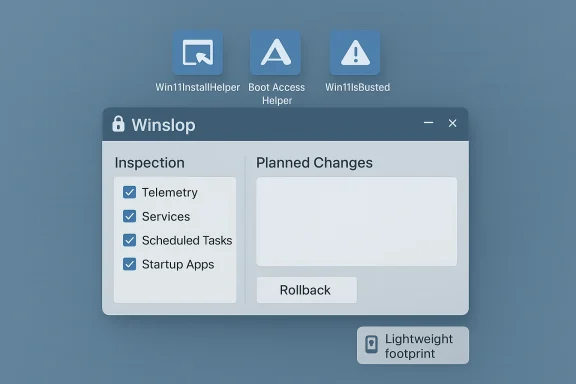
Winslop’s latest build doubles down on the project’s promise: a tiny, local, no‑telemetry utility that exposes the exact changes it will make to Windows and gives users simple, reversible controls to remove what the developer calls “system slop.” The 0.50.125 release focuses less on flashy UI and more on practical rescue tooling — adding drop‑in PowerShell extensions for recovery and install tasks while keeping the core app intentionally lightweight and deterministic.
Background / Overview
Winslop is a focused, open‑source fork of earlier community debloat efforts (notably CrapFixer and other PowerShell-driven projects) and is authored under the handle known as “builtbybel.” The project’s stated objectives are compactness, transparency, and reversibility: show users exactly what will change, allow selection of specific actions, and provide a rollback path where possible. Community coverage and release notes emphasize its offline, local operation — Winslop does not ship cloud telemetry or on‑device AI — and that design choice is central to its appeal for privacy‑conscious and performance‑minded users.Why Winslop matters today
- Windows 11 has increasingly integrated AI features, promotional UI and preinstalled packages that many users consider optional “slop.” That rising surface has driven a robust ecosystem of scripts and GUI utilities that help users reclaim a quieter, leaner desktop. Winslop packages these common operations into a deliberately small GUI that emphasizes inspection first.
- For system builders, technicians, and advanced home users, the ability to perform audited, repeatable cleanup operations from a compact tool is a practical time saver — provided the user respects the limits and risks of servicing changes.
What Winslop 0.50.125 actually adds
The 0.50.125 update reframes Winslop from a pure de‑slop utility into a lightweight toolkit that can also help when Windows behaves badly. Rather than fatten the core application, the developer added extensions — small, PowerShell‑based modules accessible from the app’s Tools interface — that perform targeted rescue tasks. The headline items in the changelog are:- Drop‑in PowerShell extensions to keep the main app minimal while enabling rescue actions (boot help, recovery, and media creation) without embedding heavy dependencies into the core binary.
- New Extension — Win11InstallHelper: launches Microsoft’s official Media Creation Tool and integrates Rufus for creating bootable USB installers (streamlines creating install media without bundling the tools into Winslop).
- New Extension — Boot Access Helper: displays common BIOS/UEFI and boot‑menu keys for detected hardware vendors so users can boot from USB faster.
- New Extension — Win11IsBusted: a beginner‑friendly recovery wizard that guides users to Reset this PC, Advanced Startup (WinRE), SFC and DISM repairs.
- General refinements: faster startup, reduced resource usage, improved documentation, minor fixes, and an updated extension engine.
How Winslop works — technical breakdown
Winslop does not “turn off AI models.” It operates across familiar administrative layers Windows exposes. Understanding these layers explains both the benefits and the risks.1) Registry and Group Policy flips (low risk)
Many UI affordances — taskbar buttons, quick links and certain shell behaviors — are controlled by registry keys or Group Policy settings. Flipping these keys hides or disables UI elements and is generally reversible. Winslop exposes many such toggles in a previewable form, which makes these changes relatively low risk when the tool logs the edits.2) Appx / MSIX uninstallations (moderate risk)
Inbox apps and modern Windows features are frequently packaged as Appx/MSIX. Winslop automates Remove‑AppxPackage and Remove‑AppxProvisionedPackage for current users and can attempt to uninstall provisioned manifests so new user profiles don’t receive the packages. This is moderately invasive: user‑level reinstallation is usually possible via the Microsoft Store or DISM, but provisioning edits change defaults for new accounts and can affect OEM customizations.3) Scheduled task and local data cleanup (destructive if mishandled)
Services like Windows Recall or other indexing features build local snapshot indices and scheduled maintenance. Deleting those stores removes local history and search snapshots — a win for privacy but destructive if the user relies on them. Winslop exposes these options and warns users to back up first.4) Component‑Based Servicing (CBS) edits and blocker packages (high risk)
The most controversial technique used in community tools is touching the servicing inventory (CBS) or installing tiny “blocker” packages to prevent Windows Update from reprovisioning removed components. While this can make removals durable across updates, it intentionally diverges a machine from Microsoft’s expected servicing inventory and is the primary cause of upgrade or repair fragility. Winslop’s documentation and community commentary treat such servicing edits as optional and high‑risk; whether a specific release performs them by default is a key question for users.Strengths: what Winslop gets right
- Transparency and auditability. Winslop emphasizes an inspect‑then‑apply flow: the app scans the machine, shows a clear list of what’s present, and previews the exact changes before they are enacted. That reduces accidental runs and supports safer use.
- Local, offline operation. The project stresses that it does not upload system data or rely on cloud services or on‑device AI; everything runs locally and deterministically. For privacy‑oriented users that matters.
- Small, maintainable codebase. By positioning itself as a compact fork and pushing optional capability into PowerShell extensions, Winslop keeps the core binary tiny and easier to audit. Multiple outlets report compressed builds under a few hundred kilobytes.
- Reversibility where possible. The app documents changes and, where feasible, offers rollback assistance (System Restore points, revert scripts). That’s an important safeguard absent from older one‑click scripts.
- Practical rescue tools. The new extensions in 0.50.125 (boot helper, install media creator, guided recovery) make Winslop useful beyond simple debloating — they are pragmatic helpers when Windows installation or booting goes wrong.
Risks and caveats — what users must not ignore
No community debloating tool is risk‑free. The practical hazards fall into three buckets.Breakage and compatibility
- Removing or disabling components that seem optional can break dependent features or third‑party apps. Edge integrations, OEM utilities, or enterprise management agents sometimes rely on components that appear optional. Users have reported unexpected interactions after aggressive removals.
Upgrade and support fragility
- Servicing edits or blocker packages can cause Windows Update failures and complicate repair, and they’re the primary reason vendors warn against such changes. If you intend to keep a machine under vendor warranty or expect vendor support, an altered servicing inventory can complicate diagnostics and support interactions. Winslop treats servicing surgery as optional for this reason.
Data loss and irreversible cleanup
- Deleting local indices or scheduled task artifacts (e.g., Recall indices) is often irreversible without backups. Users who treasure local search history or recovery artifacts must be cautious. Winslop surfaces these operations as destructive and recommends backups.
Practical, safe steps for using Winslop (recommended workflow)
- Create a full system backup or a disk image before any sweeping operations. A System Restore point alone is not always sufficient for servicing‑level edits.
- Run Winslop’s inspection scan and review every item the tool lists. Avoid blanket “select all” actions.
- Start small: apply one category (for example, Ads or Privacy) and observe behavior for 48–72 hours. This staged approach isolates problems and simplifies rollback.
- Avoid servicing (CBS) edits unless you fully understand implications. Treat blocker packages and servicing surgery as last resorts and document the steps you took.
- If you need durable reprovisioning blocks for imaging fleets, prefer documented Group Policy or MDM approaches in enterprise settings rather than ad‑hoc servicing surgery. For corporate machines, use Intune, WSUS or Autopatch where possible.
- Keep copies of Winslop’s logs and any generated revert scripts in a safe location so you can retrace and undo edits if required.
Who should use Winslop — target audiences
- Power users and system builders who image machines and need a fast, scripted way to remove inbox apps and policy‑controlled UI nudges. Winslop’s inspection and rollback features are especially useful when imaging many devices.
- Privacy‑minded home users who want a local, auditable way to reduce telemetry, hide Copilot/UI nags, and remove some preinstalled apps without resorting to online services.
- Technicians who appreciate the new rescue extensions (Win11InstallHelper, Boot Access Helper, Win11IsBusted) as practical shortcuts during troubleshooting and reinstall workflows.
- Managed enterprise endpoints where changes should be applied through sanctioned tooling (Group Policy, Intune CSPs, WSUS) to maintain compliance and audit trails. Third‑party local modifications can create a management and support gap.
- Users who cannot or will not create backups. If you do not have a recovery plan, do not run destructive cleanup actions that delete local data stores.
Comparing Winslop to other tools and Microsoft controls
Winslop sits in a spectrum between manual admin controls and heavy, one‑click debloaters.- Compared with manual Group Policy/MDM edits, Winslop is faster and more convenient for single‑machine or small‑scale use, but it lacks the central management, reporting and auditability enterprises get from Intune/AD.
- Compared with older one‑click scripts, Winslop emphasizes inspection and rollback; it is intentionally less opaque than some utilities that perform sweeping changes without preview. That makes it a better fit for cautious users.
- Compared with hard servicing surgery performed by some community scripts, Winslop makes those options explicit and optional — a practical design choice that reduces accidental upgrade fragility when users don’t fully understand servicing inventory implications.
Independent verification and what we confirmed
To report responsibly, the most important claims are cross‑checked against multiple community reports and the project’s public documentation as represented in independent writeups:- Winslop is an open‑source project by the developer known as “builtbybel” and is positioned as a small, local tool to remove UI/telemetry slop. This is corroborated across community coverage and release notes.
- The 0.50.125 release focuses on adding extensions for rescue tasks and keeping the core app lightweight — a pattern repeated in release notes and hands‑on writeups.
- The tool’s behavior (registry/policy flips, Appx/MSIX removals, optional servicing edits) and the risk profiles of those layers are well‑documented in community analysis and the wider debloat tooling literature. Winslop exposes these same techniques and treats higher‑risk servicing edits as opt‑in.
Final assessment — practical verdict for Windows users
Winslop 0.50.125 is a pragmatic evolution: it acknowledges that users want both a minimal core and a few practical helpers. By moving recovery and install tasks into PowerShell extensions, the project preserves its core promise — transparent, local, and reversible control — while adding real‑world troubleshooting usefulness. For the right audience (power users, technicians and privacy‑minded individuals), Winslop strikes a compelling balance between convenience and safety.But the usual caveats apply: do not treat Winslop as a panacea. Avoid servicing‑level surgery unless you understand the upgrade implications, always maintain backups, and prefer managed controls for corporate fleets. When used cautiously and with a clear recovery plan, Winslop is one of the more careful, auditable entries in the Windows debloat ecosystem — small, transparent, and pragmatic by design.
If you plan to try Winslop, follow the practical workflow above, run the inspection first, and test changes in a non‑critical environment before applying them to machines you rely on daily. The tool gives you power — use it with the discipline that power requires.
Source: Neowin Winslop 0.50.125
