

To make a separate Word document without changing the original, create the copy before editing. In Word for Windows, use File > Save a Copy; in Word for Mac, use File > Save As; in Word for the web, use File > Save As > Save As. You can also duplicate the
Use the method that matches where you are working:
You can also press F12 to open the Save a Copy or Save As interface. On keyboards that assign media controls to the function keys, you may need to press Fn+F12.
Do not simply select File > Save after editing. Save writes changes to the currently open file and does not create a second document.
or:
Turning off AutoSave is not a reliable substitute for making a copy. A later manual save could still overwrite the original. Use Save a Copy when you need two independent documents.
For a file in a synchronized OneDrive or SharePoint folder, the same procedure applies. OneDrive uploads the copied file when synchronization runs. Wait for the file’s OneDrive status icon to show that synchronization has completed before shutting down or disconnecting the computer.
The availability of OneDrive and SharePoint locations may depend on your Microsoft 365 sign-in status, OneDrive configuration, macOS permissions, and organizational policies. If the online location does not appear inside Word, save through the corresponding OneDrive folder in Finder.
Only the latest document version is transferred by Copy to. Earlier entries from the original file’s version history are not included in the new copy.
If Copy to is missing, the site may be using a classic or on-premises experience, or your account may not have permission to create files in the destination.
You can also copy a selected file to another Drive location using Ctrl+C, opening the destination folder, and pressing Ctrl+V.
.docx directly in File Explorer, Finder, OneDrive, SharePoint, Google Drive, or Dropbox. These instructions cover Windows 11 and Windows 10, Word for Microsoft 365, Word 2024, Word 2021, Word 2019, Word 2016, Word for Mac, Word for the web, and current Word mobile apps.
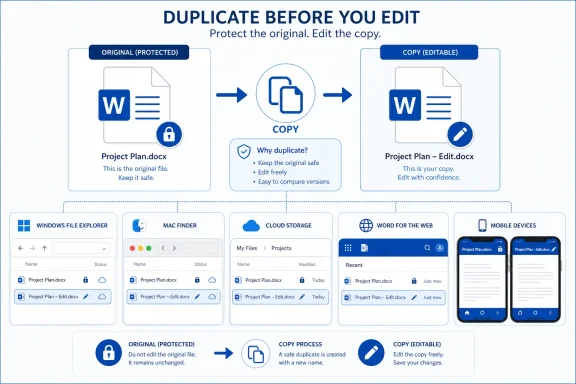 Choose the correct copying method
Use the method that matches where you are working:- Document open in Word for Windows: Use Save a Copy.
- Document open in Word for Mac: Use Save As.
- File visible in a Windows or Mac folder: Copy it in File Explorer or Finder.
- Document open in a browser: Use Word for the web’s Save As or Download a copy command.
- File stored in OneDrive or SharePoint: Use Copy to, download it, or copy it through a synchronized folder.
- Document open on a phone or tablet: Use Save a Copy or Save As, depending on the app.
- File stored in Google Drive or Dropbox: Use that service’s copy command.
Make a copy in Word for Windows
Microsoft’s current procedure for Word for Microsoft 365, Word 2024, Word 2021, Word 2019, and Word 2016 uses Save a Copy.- Open the original document in Word.
- Select File.
- Select Save a Copy.
- Choose a storage location:
- OneDrive for a cloud copy.
- This PC for a local folder.
- Browse to select a specific folder, external drive, or network location.
- Enter a different name in the File name box.
- Keep *Word Document (.docx)** selected unless you need another format.
- Select Save.
You can also press F12 to open the Save a Copy or Save As interface. On keyboards that assign media controls to the function keys, you may need to press Fn+F12.
Do not simply select File > Save after editing. Save writes changes to the currently open file and does not create a second document.
Protect the original when AutoSave is enabled
AutoSave is commonly enabled when a Microsoft 365 document is stored in OneDrive or SharePoint. Changes can begin syncing shortly after you make them.- Open the cloud document.
- Do not type, delete, format, or accept tracked changes yet.
- Select File > Save a Copy.
- Choose the destination.
- Give the copy a distinct name.
- Select Save.
- Confirm that the new name appears in Word’s title bar.
- Begin editing the copy.
Project proposal - revised.docxor:
Project proposal - 2026-07-13.docxTurning off AutoSave is not a reliable substitute for making a copy. A later manual save could still overwrite the original. Use Save a Copy when you need two independent documents.
Copy a Word document in Windows File Explorer
When the document is closed and already visible in a folder, copying the file is usually faster than opening Word.- Press Windows logo key+E to open File Explorer.
- Browse to the folder containing the document.
- Select the
.docxor.docfile. - Press Ctrl+C.
- Open the folder where you want the copy.
- Press Ctrl+V.
- Select the copied file.
- Press F2.
- Enter a new name without removing the
.docxextension. - Press Enter.
For a file in a synchronized OneDrive or SharePoint folder, the same procedure applies. OneDrive uploads the copied file when synchronization runs. Wait for the file’s OneDrive status icon to show that synchronization has completed before shutting down or disconnecting the computer.
Make a copy in Word for Mac
Word for Microsoft 365 for Mac, Word 2024 for Mac, and Word 2021 for Mac use Save As to save an open document under a different name.- Open the document in Word for Mac.
- Select File > Save As.
- Alternatively, press Command+Shift+S.
- Enter a different name in the Save As box.
- Select the destination folder.
- In File Format, keep Word Document (.docx) selected.
- Select Save.
The availability of OneDrive and SharePoint locations may depend on your Microsoft 365 sign-in status, OneDrive configuration, macOS permissions, and organizational policies. If the online location does not appear inside Word, save through the corresponding OneDrive folder in Finder.
Duplicate the file in macOS Finder
If the Word document is visible in Finder and does not need to be open:- Open Finder.
- Locate and select the document.
- Select File > Duplicate, or press Command+D.
- Rename the duplicated file.
- Select the document in Finder.
- Press Command+C.
- Open the destination folder.
- Press Command+V.
Make a cloud copy in Word for the web
Word for the web saves changes automatically. Create a separate cloud document before editing the original.- Open the document in Word for the web.
- Select File.
- Select Save As.
- Select Save As again.
- Choose the destination in OneDrive.
- Enter a new name.
- Complete the save operation.
- Confirm that the browser tab or document title shows the new name.
Download a separate copy to the computer
Use this method when you want a local.docx rather than another OneDrive document.- Open the document in Word for the web.
- Select File > Create a Copy.
- Select Download a copy.
- Wait for the download to finish.
- Open the browser’s Downloads list or the Windows Downloads folder.
- Move or rename the downloaded file as needed.
Copy a document from OneDrive or SharePoint
Download one file
- Open OneDrive or the SharePoint document library in a browser.
- Select the circle beside the Word document.
- Select Download on the command bar.
- If prompted, choose a destination; otherwise, check the browser’s Downloads folder.
Create another cloud file with Copy to
- Select the document in OneDrive or SharePoint.
- Select Copy to on the command bar.
- Choose the destination folder or supported SharePoint site.
- Select Copy here.
Only the latest document version is transferred by Copy to. Earlier entries from the original file’s version history are not included in the new copy.
If Copy to is missing, the site may be using a classic or on-premises experience, or your account may not have permission to create files in the destination.
Copy a Word file in Microsoft Teams
Files shown in Teams channels are generally stored in SharePoint, while files in your personal OneDrive area are stored in OneDrive.- In Teams, open OneDrive.
- Select My files or the location containing the document.
- Find the Word file.
- Select More options (...) beside it.
- Select Copy to.
- Choose the destination.
- Confirm the copy using the button displayed by Teams.
Make a copy on iPhone or iPad
The exact command depends on whether you are using Word or Apple’s Files app.In Word for iPhone or iPad
- Open the document in Word.
- Open the File menu.
- Choose the save-a-copy or save-as command displayed by the current app version.
- Enter a new file name.
- Choose a local or cloud location.
- Confirm the save.
In the Files app
- Open Files.
- Select Browse.
- Open On My iPhone, On My iPad, iCloud Drive, or an added cloud provider.
- Touch and hold the Word document.
- Select Copy.
- Open the destination folder.
- Touch and hold an empty area.
- Select Paste.
Make a copy in Word for Android
Word for Android uses Save As for a new name or location.- Open the document.
- Open the File menu.
- Tap Save As.
- Enter a new file name.
- Choose a destination such as:
- This device
- Personal OneDrive
- OneDrive for work or school
- Dropbox
- Another connected service
- Tap Save.
Copy a Word document in Google Drive
Google Drive can create another copy of an individual Word file through its web interface. Google states that the Make a copy command is available in Chrome and is not available in Drive for desktop.- Open Google Drive in Chrome.
- Find the Word document.
- Right-click it.
- Select Make a copy.
- Locate the new file, which normally has “Copy of” added to its name.
- Rename or move it as required.
You can also copy a selected file to another Drive location using Ctrl+C, opening the destination folder, and pressing Ctrl+V.
Copy a Word document in Dropbox
On the Dropbox website
- Find the Word file.
- Select the ... menu beside it.
- Select Copy.
- Choose the destination folder.
- Select Copy to confirm.
In a synchronized Dropbox folder
- Open the Dropbox folder in File Explorer or Finder.
- Right-click the document and select Copy.
- Open the destination folder.
- Right-click and select Paste on Windows or Paste Item on Mac.
In the Dropbox mobile app
- Open Files.
- Tap the ellipsis beside the document.
- Tap Duplicate on Android or Copy on iPhone and iPad.
- Select the destination folder.
- Tap Paste on Android or Save copy on iPhone and iPad.
Check that the copy is independent
Before editing or distributing the new document:- Compare the original and copied file names.
- Confirm that both files appear in the expected folder.
- Open the copy.
- Make a harmless test change, such as adding a temporary word.
- Save and close the copy.
- Open the original and verify that the test change is absent.
- Remove the temporary change from the copy.
Troubleshoot missing or blocked copy commands
- Save a Copy is not shown: Look for File > Save As. Microsoft notes that the label can depend on whether the file is stored locally, in OneDrive, or in SharePoint.
- The original was already changed: Open the file’s Version History in OneDrive or SharePoint and restore the required earlier version. Restoring is recovery; it does not replace making a copy before editing.
- The copy is read-only: Check the file’s Properties on Windows, Finder permissions on Mac, or the cloud service’s sharing permissions.
- Copy to is unavailable in SharePoint: The library may use the classic experience, the destination may be unsupported, or you may lack permission to add files.
- A work document cannot be copied: Information Rights Management or a Microsoft Purview sensitivity label may restrict copying, downloading, printing, or saving under another name. Ask the document owner or Microsoft 365 administrator to review the assigned permissions.
- The copied document will not open: Download or copy the file again, verify that the extension remains
.docx, and try opening it from a local folder. If every copy fails, recover an earlier version or ask the owner for a new copy. - Formatting changed: Keep Word Document (.docx) as the file format. Converting to
.odt,.rtf,.txt, or an older.docformat can alter unsupported formatting or features. - A PDF was created instead of an editable copy: Return to the original and save it as Word Document (.docx). A PDF is suitable for distribution but is not an equivalent editable Word copy.
References
- Primary source: Technobezz
Published: 2026-07-13T16:35:03.337000+00:00
How to Make a Copy of a Word Document (2026) | Technobezz
How to make a copy of a Word document on Windows, Mac, Word for the web, phones, OneDrive, Google Drive, Dropbox, and SharePoint.www.technobezz.com - Official source: support.microsoft.com
Save a copy of a Word for the web doc in the cloud | Microsoft Support
See how to save a copy of your document to the cloud using the OneDrive app (formerly SkyDrive).support.microsoft.com
