

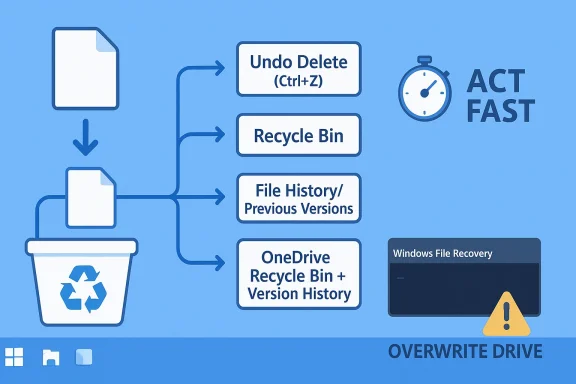
Accidentally deleting a file on Windows is frustrating, but it is rarely the end of the road. In many cases, the file is still recoverable through the Recycle Bin, File History, OneDrive, or Microsoft’s Windows File Recovery utility. The right fix depends on how the file was deleted, how long ago it happened, and whether you’ve written new data to the same drive since then. The key rule is simple: act fast and avoid overwriting the storage space where the file used to live.
Deleted files on Windows are often more “hidden” than truly gone. When you remove a file, Windows typically marks its disk space as available rather than wiping the data immediately, which is why recovery tools can sometimes find it later. Microsoft explicitly notes that deleted-file space is marked as free space, and that minimizing computer use improves your chances of recovery
That distinction matters because not all deletion paths behave the same way. A normal Delete key press usually sends the item to the Recycle Bin, while Shift + Delete skips the bin and makes recovery harder. Likewise, deleting from USB devices or external drives often bypasses the local Recycle Bin entirely, which is why those cases demand faster action and usually a recovery utility instead of a simple restore
Windows also has several built-in safety nets that many users overlook. File History can preserve versions of personal folders on an external drive or network location, Previous Versions can surface snapshots from File History or system snapshots, and Backup and Restore (Windows 7) still exists in modern Windows for legacy backup sets and system images
Cloud sync changes the equation further. If the file lived in OneDrive, deletion may only mean that the cloud copy moved to a recycle bin with its own retention rules, and Microsoft documents separate retention windows for personal and work/school accounts
For businesses and power users, the broader lesson is that recovery is a layered problem. The Recycle Bin is the fastest, easiest layer. Backups are the most reliable layer. Specialized recovery tools are the last line of defense when the easy paths fail. That hierarchy is what makes a good recovery plan both fast and realistic.
The next place to check is the Recycle Bin. Files deleted normally through Delete or the context menu are typically moved there instead of being permanently erased. Microsoft’s own Windows guidance emphasizes restoring deleted items from the bin before trying more advanced recovery methods
Cloud sync can be even more forgiving than local storage. If the file was in OneDrive, you may find it in the OneDrive Recycle Bin or recover it through version history, depending on how it was deleted and which account type you use. Microsoft states that deleted files remain in the OneDrive recycle bin for 30 days for personal accounts and 93 days for work or school accounts, unless an administrator changed the setting
If you need multiple files, you can select them together with Ctrl-click or use select-all. That said, it is wise to restore only what you need instead of dumping everything back at once. A cluttered restoration can make it harder to figure out what was actually lost.
Not every deletion lands in the bin. Shift + Delete bypasses it, files deleted from USB drives often skip it, and large files may exceed the bin’s storage limit. Microsoft’s current help content also notes that synced files deleted from a device can still be recovered from the OneDrive or SharePoint recycle bin if they were downloaded locally first
File History is especially useful when the file existed in Documents, Pictures, Videos, Music, or Desktop, because those are the standard locations it protects. It can also work for custom libraries. That makes it more useful than many users realize, though it does require prior setup and an external drive or network location.
A related option is Previous Versions, which can surface copies from File History or from system snapshots. Microsoft’s support guidance says you can right-click the folder location, choose Restore previous versions, and inspect older snapshots before deciding whether to restore or just extract a single file
This tool serves a different purpose from File History. File History is great for multiple versions of personal files. Backup and Restore is better for scheduled backup sets and broader recovery, including fuller system restoration. That makes it especially useful in small-business or enthusiast setups where someone deliberately built a backup routine long ago and never removed it.
The main limitation is obvious: it only helps if it was configured before the deletion. Like every backup system, it cannot retroactively save you from an event that already happened. But if it exists, it can be a much cleaner solution than file carving or data reconstruction.
This matters because cloud services separate the sync copy from the local device state. A problem on one PC does not automatically mean the file is gone everywhere. In practice, that means you should always check the browser-based OneDrive interface if the file was ever synced.
OneDrive also has account-specific retention behavior. Personal accounts keep deleted files in the recycle bin for 30 days, while work or school accounts generally keep them for 93 days unless the admin changed settings. Microsoft also notes that if a Microsoft 365 subscriber needs to recover a large-scale issue, the Restore your OneDrive feature can roll back many changes made within the last 30 days
The tool is not glamorous, but it is powerful. Microsoft says it works better when you minimize or avoid using the affected computer, because deleted file data may still exist in free space until overwritten. That makes the utility especially useful for recent deletions, formatted drives, and some corruption scenarios.
Windows File Recovery offers regular and extensive modes. Regular mode is meant for recently deleted files, while extensive mode is appropriate for older deletions, formatted drives, corrupted file systems, or USB devices. That distinction is important because using the wrong mode can waste time or reduce your odds of success.
If the Recycle Bin is empty and no backup exists, the realistic options narrow quickly. At that point, Windows File Recovery becomes the best native choice, and a professional recovery service may be the only remaining option if the data is highly valuable. Microsoft’s own guidance suggests minimizing computer use because time and activity work against recovery
If the files disappeared after a Windows update or upgrade, the problem may not be true deletion at all. Microsoft’s support guidance notes that files can appear missing because of profile issues, account changes, or temporary storage locations such as Windows.old after upgrades. That means the first move should be checking the right account and searching the machine carefully before assuming data loss
Corruption is equally tricky. If Windows asks you to format a drive before use, the file system may be damaged, but the data itself could still be intact. In those cases, recovery should generally come before repair, not after. Repair tools can help the file system, but they can also make some recovery scenarios worse if used too early on a failing disk.
A full system crash adds another layer. If Windows will not boot, the data drive may still be perfectly fine. You can often remove the drive and attach it to another computer with a USB-to-SATA adapter or external enclosure, then copy the files off manually. That approach can be far safer than trying to fix the original machine first.
The most practical framework is the 3-2-1 backup rule: keep three copies of important data, on two different storage types, with one copy off-site or in the cloud. This reduces the odds that one hardware failure, one ransomware incident, or one accidental deletion wipes out everything at once.
For most Windows users, that means turning on File History, syncing important folders with OneDrive, and keeping at least one external backup drive. Those three layers cover different failure modes, and together they create much better odds than any single feature can provide.
The opportunity for most users is not just emergency recovery. It is better everyday protection. If you enable the right tools now, accidental deletion becomes an inconvenience instead of a crisis.
Another concern is delay. The longer you keep using the affected drive, the more likely deleted data gets overwritten. Even “harmless” activity such as browsing, installing updates, or downloading files can quietly reduce your chances of recovery.
The real shift in 2026 is that recovery is increasingly ecosystem-based. Your file may be on your PC, in the Recycle Bin, in OneDrive, in a backup set, or inside a snapshot created by Windows. The more of those layers you use, the more likely it is that one wrong click stays reversible.
Source: ExpressVPN How to recover deleted files on Windows
 Background
Deleted files on Windows are often more “hidden” than truly gone. When you remove a file, Windows typically marks its disk space as available rather than wiping the data immediately, which is why recovery tools can sometimes find it later. Microsoft explicitly notes that deleted-file space is marked as free space, and that minimizing computer use improves your chances of recoveryThat distinction matters because not all deletion paths behave the same way. A normal Delete key press usually sends the item to the Recycle Bin, while Shift + Delete skips the bin and makes recovery harder. Likewise, deleting from USB devices or external drives often bypasses the local Recycle Bin entirely, which is why those cases demand faster action and usually a recovery utility instead of a simple restore
Windows also has several built-in safety nets that many users overlook. File History can preserve versions of personal folders on an external drive or network location, Previous Versions can surface snapshots from File History or system snapshots, and Backup and Restore (Windows 7) still exists in modern Windows for legacy backup sets and system images
Cloud sync changes the equation further. If the file lived in OneDrive, deletion may only mean that the cloud copy moved to a recycle bin with its own retention rules, and Microsoft documents separate retention windows for personal and work/school accounts
For businesses and power users, the broader lesson is that recovery is a layered problem. The Recycle Bin is the fastest, easiest layer. Backups are the most reliable layer. Specialized recovery tools are the last line of defense when the easy paths fail. That hierarchy is what makes a good recovery plan both fast and realistic.
What actually changes after deletion?
The file’s name and directory entry may disappear, but the underlying bytes may remain on disk for some time. That is why recovery often succeeds when the drive has seen little or no new activity since deletion. Microsoft’s guidance for Windows File Recovery is blunt: avoid using the computer if you want the best odds of getting the data backWhy timing matters so much
Every new save, download, browser cache write, or install can overwrite the freed space. Once that happens, recovery becomes partial at best and impossible at worst. That is why the first instinct should not be to “keep trying everything” on the affected drive; it should be to stop and choose the least destructive method first.The Fastest Wins: Undo, Recycle Bin, and OneDrive
The quickest recoveries usually require no special software at all. If you just deleted something in File Explorer, you may be able to reverse the action immediately with Ctrl + Z or by right-clicking in the folder and choosing Undo Delete. This only works for the most recent action and is easy to lose by closing the window or restarting, but when it works, it is the simplest fix by far.The next place to check is the Recycle Bin. Files deleted normally through Delete or the context menu are typically moved there instead of being permanently erased. Microsoft’s own Windows guidance emphasizes restoring deleted items from the bin before trying more advanced recovery methods
Cloud sync can be even more forgiving than local storage. If the file was in OneDrive, you may find it in the OneDrive Recycle Bin or recover it through version history, depending on how it was deleted and which account type you use. Microsoft states that deleted files remain in the OneDrive recycle bin for 30 days for personal accounts and 93 days for work or school accounts, unless an administrator changed the setting
The order that usually saves the most time
- Try Ctrl + Z immediately in the same File Explorer window.
- Open the Recycle Bin and restore the file.
- Check OneDrive Recycle Bin if the file was synced.
- Look for Version history if the file existed in a cloud-backed location.
- Move to backup or recovery utilities only if the easy paths fail.
Why cloud sync helps
Cloud services often keep a deleted file longer than local Windows settings do. They also provide versioning, which can recover a file even if the problem was not deletion but unwanted edits, corruption, or overwrite. That makes cloud backups especially valuable for documents, spreadsheets, and project files that change often.- Recycle Bin is the easiest recovery path for normal deletions.
- OneDrive may preserve both deleted items and earlier versions.
- Version history can rescue files that were changed, not just deleted.
- Immediate action matters more than technical skill.
Recycle Bin Recovery: The Obvious First Stop
The Recycle Bin remains the most user-friendly recovery method in Windows. It is designed precisely for accidental deletions, and restoring from it usually takes only a few clicks. If the file is there, right-click it and choose Restore, and Windows will return it to its original location.If you need multiple files, you can select them together with Ctrl-click or use select-all. That said, it is wise to restore only what you need instead of dumping everything back at once. A cluttered restoration can make it harder to figure out what was actually lost.
Not every deletion lands in the bin. Shift + Delete bypasses it, files deleted from USB drives often skip it, and large files may exceed the bin’s storage limit. Microsoft’s current help content also notes that synced files deleted from a device can still be recovered from the OneDrive or SharePoint recycle bin if they were downloaded locally first
Common reasons the file is not in the bin
- It was deleted with Shift + Delete.
- It came from a USB or external drive.
- The Recycle Bin size limit was exceeded.
- The file was removed by a script, command-line action, or app cleanup.
- The file was synced to cloud storage and removed through the cloud side instead.
Why the Recycle Bin still matters in 2026
Even with newer tools and cloud backup, the Recycle Bin is still the cheapest form of insurance Windows offers. It is instant, familiar, and low-risk. The simple habit of checking it first saves a surprising amount of time, especially in consumer setups where formal backup is often missing.File History and Previous Versions: The Built-In Safety Net
If the Recycle Bin does not help, File History is the next native Windows feature to check. Microsoft describes it as a way to automatically back up personal files and folders so you can recover previous versions if something is deleted or changedFile History is especially useful when the file existed in Documents, Pictures, Videos, Music, or Desktop, because those are the standard locations it protects. It can also work for custom libraries. That makes it more useful than many users realize, though it does require prior setup and an external drive or network location.
A related option is Previous Versions, which can surface copies from File History or from system snapshots. Microsoft’s support guidance says you can right-click the folder location, choose Restore previous versions, and inspect older snapshots before deciding whether to restore or just extract a single file
File History versus Previous Versions
File History is best thought of as an ongoing backup system. Previous Versions is more like a retrieval interface that may draw from File History or from System Protection snapshots. If both exist, you have two chances to recover; if neither was enabled beforehand, you likely need another method.A practical caution
Always preview before restoring when possible. Restoring a whole folder version can overwrite current files you still need, which is an easy way to fix one problem and create another. If your goal is one document, open the snapshot first and pull only that item out.- File History protects personal folders when configured in advance.
- Previous Versions may reveal older folder snapshots.
- Preview first if you only need one file.
- External storage is required for File History backups.
Backup and Restore (Windows 7): Old Name, Still Useful
The legacy Backup and Restore (Windows 7) tool remains available in Windows 10 and Windows 11, and Microsoft still documents it as a valid recovery path for users who previously configured it The name is outdated, but the feature can still recover files from a backup set or restore a system image.This tool serves a different purpose from File History. File History is great for multiple versions of personal files. Backup and Restore is better for scheduled backup sets and broader recovery, including fuller system restoration. That makes it especially useful in small-business or enthusiast setups where someone deliberately built a backup routine long ago and never removed it.
The main limitation is obvious: it only helps if it was configured before the deletion. Like every backup system, it cannot retroactively save you from an event that already happened. But if it exists, it can be a much cleaner solution than file carving or data reconstruction.
Why it still deserves attention
Many Windows users assume older Control Panel tools disappeared when Settings became the primary interface. In practice, a number of these legacy utilities still matter because they are linked to older backup habits, external disks, and migration workflows. For a surprising number of PCs, the best recovery tool is not the newest one; it is the one that was actually turned on.Best use cases
- Recovering from an old scheduled backup set.
- Restoring a prior file snapshot.
- Rebuilding a machine after a major problem.
- Pulling data from a full system image.
OneDrive and Cloud Recovery: Local Deletion Is Not Always Final
OneDrive is now one of the most important recovery layers for Windows users because it often mirrors desktop and document folders by default. If a file disappeared from your PC but was synced, it may still be available in the cloud even after local deletion. Microsoft’s documentation also shows that deleted items can be restored from the OneDrive recycle bin, and files may be recoverable from version history if they were changed rather than removedThis matters because cloud services separate the sync copy from the local device state. A problem on one PC does not automatically mean the file is gone everywhere. In practice, that means you should always check the browser-based OneDrive interface if the file was ever synced.
OneDrive also has account-specific retention behavior. Personal accounts keep deleted files in the recycle bin for 30 days, while work or school accounts generally keep them for 93 days unless the admin changed settings. Microsoft also notes that if a Microsoft 365 subscriber needs to recover a large-scale issue, the Restore your OneDrive feature can roll back many changes made within the last 30 days
When OneDrive is the best answer
If the file was a document, photo, or folder that routinely synced in the background, OneDrive often gives you three recovery chances: the device Recycle Bin, the OneDrive Recycle Bin, and version history. That layered approach can outperform local-only backups in everyday use, especially for mobile users who switch between laptop and desktop frequently.What to remember
- Deleted synced files may still exist in OneDrive Recycle Bin.
- Version history can restore older edits.
- Restore your OneDrive can undo broader changes for eligible subscribers.
- Personal and work accounts do not share the same retention rules.
Windows File Recovery: The Last Native Resort
When the easy options fail, Microsoft recommends Windows File Recovery, a command-line utility available from the Microsoft Store. It is designed to recover deleted files from local storage devices, including internal drives, external drives, and USB devices, when they cannot be restored from the Recycle BinThe tool is not glamorous, but it is powerful. Microsoft says it works better when you minimize or avoid using the affected computer, because deleted file data may still exist in free space until overwritten. That makes the utility especially useful for recent deletions, formatted drives, and some corruption scenarios.
Windows File Recovery offers regular and extensive modes. Regular mode is meant for recently deleted files, while extensive mode is appropriate for older deletions, formatted drives, corrupted file systems, or USB devices. That distinction is important because using the wrong mode can waste time or reduce your odds of success.
Basic command structure
The syntax is built around a source drive, a different destination drive, a mode, and an optional file filter. Microsoft’s examples show the recovered files being saved to a separate drive, which is critical because you do not want to write recovered data back onto the source disk and risk overwriting what remainsBest practices before running it
- Stop saving files to the affected drive.
- Install or run recovery from a different drive if possible.
- Choose regular mode for recent deletions.
- Use extensive mode for formatted or damaged drives.
- Save recovered data somewhere else entirely.
- Command-line does not mean complicated once the pattern is understood.
- Destination must differ from source.
- Extensive mode is slower but broader.
- Speed and restraint improve success rates.
Different Scenarios, Different Playbooks
Not all file-loss incidents are created equal. A thoughtful recovery strategy starts by identifying what kind of loss occurred, because the right tool for an emptied Recycle Bin is not always the right tool for a crashed PC or a formatted USB drive.If the Recycle Bin is empty and no backup exists, the realistic options narrow quickly. At that point, Windows File Recovery becomes the best native choice, and a professional recovery service may be the only remaining option if the data is highly valuable. Microsoft’s own guidance suggests minimizing computer use because time and activity work against recovery
If the files disappeared after a Windows update or upgrade, the problem may not be true deletion at all. Microsoft’s support guidance notes that files can appear missing because of profile issues, account changes, or temporary storage locations such as Windows.old after upgrades. That means the first move should be checking the right account and searching the machine carefully before assuming data loss
A scenario-based decision tree
- Normal delete: check Recycle Bin first.
- Sync-related loss: check OneDrive or other cloud trash.
- Edited, not deleted: use Version history or Previous Versions.
- Shift + Delete or emptied bin: try Windows File Recovery immediately.
- Upgrade issue: verify your account and search for Windows.old or hidden files.
- Formatted or corrupted drive: use extensive recovery mode first.
Why this matters for enterprise users
In managed environments, the file may exist in a backup tier, a cloud retention tier, or an admin-controlled SharePoint/OneDrive policy even if the local workstation copy is gone. That is why IT teams often recover files faster than individual users: they are checking all the places the file might have been mirrored, retained, or archived.Formatted, Corrupted, and Crashed: The Hard Cases
Formatting a drive is not always as final as it sounds. A format can remove the file system, but the underlying data may still remain on the disk until new writes replace it. That makes the window for recovery narrow, but not necessarily closed, which is why Windows File Recovery in extensive mode is the first native tool to try when a format happens accidentallyCorruption is equally tricky. If Windows asks you to format a drive before use, the file system may be damaged, but the data itself could still be intact. In those cases, recovery should generally come before repair, not after. Repair tools can help the file system, but they can also make some recovery scenarios worse if used too early on a failing disk.
A full system crash adds another layer. If Windows will not boot, the data drive may still be perfectly fine. You can often remove the drive and attach it to another computer with a USB-to-SATA adapter or external enclosure, then copy the files off manually. That approach can be far safer than trying to fix the original machine first.
Why repair tools are a double-edged sword
CHKDSK and similar utilities can help if file system metadata is damaged, but they are not a magic wand. On a failing or physically unhealthy drive, repair attempts may accelerate failure. If the drive is making unusual noises, disappearing intermittently, or becoming extremely slow, stop and prioritize extraction over repair.What professionals do differently
Data recovery labs often image the drive first, then work from the image instead of the original hardware. That preserves the current state and reduces the chance that retries or repairs will make things worse. It is more expensive, but for business records, photos, or irreplaceable work, the cost can be justified.- Format does not always mean permanent loss.
- Corruption should be treated carefully.
- Crash may spare the data even if Windows is unusable.
- Drive health should guide whether you repair or recover first.
Building a Recovery Habit Before Disaster Strikes
The best file recovery strategy is the one you do not need in the first place. Microsoft’s own backup ecosystem exists because recovery after deletion is always less certain than recovery from a known backup. That is why a sensible plan combines local copies, cloud copies, and versioned backups rather than relying on a single safeguard.The most practical framework is the 3-2-1 backup rule: keep three copies of important data, on two different storage types, with one copy off-site or in the cloud. This reduces the odds that one hardware failure, one ransomware incident, or one accidental deletion wipes out everything at once.
For most Windows users, that means turning on File History, syncing important folders with OneDrive, and keeping at least one external backup drive. Those three layers cover different failure modes, and together they create much better odds than any single feature can provide.
Why this is not overkill
People often think backups are only for businesses or “careless” users. In reality, backups are for anyone who has photos, schoolwork, client files, taxes, creative projects, or years of personal documents. Accidental deletion is common, and the cost of prevention is tiny compared with the cost of trying to reconstruct lost work.Good backup habits
- Back up automatically, not manually.
- Use at least one off-site copy.
- Test recovery occasionally, not just backup creation.
- Keep versioned backups for documents that change often.
- Separate system backups from file backups when possible.
Strengths and Opportunities
Windows gives users more recovery options than many people realize, and that is a real strength of the platform. The combination of local undelete, versioning, cloud retention, and command-line recovery means there is often a path back if you move quickly and know where to look.The opportunity for most users is not just emergency recovery. It is better everyday protection. If you enable the right tools now, accidental deletion becomes an inconvenience instead of a crisis.
- Recycle Bin handles the most common deletions.
- File History protects frequently changed personal files.
- OneDrive adds cloud retention and version history.
- Windows File Recovery covers tougher cases.
- 3-2-1 backups dramatically improve resilience.
- Previous Versions can recover folders and snapshots.
- Legacy Backup and Restore still helps in older backup setups.
Risks and Concerns
The biggest risk is false confidence. Many users assume Windows automatically backs up everything, when in reality several recovery features require prior setup or specific folder locations. If you never enabled them, they cannot rescue you after the fact.Another concern is delay. The longer you keep using the affected drive, the more likely deleted data gets overwritten. Even “harmless” activity such as browsing, installing updates, or downloading files can quietly reduce your chances of recovery.
- No backup set up means fewer rescue options.
- Overwriting can destroy recoverable data.
- Repair tools can worsen some drive failures.
- Cloud retention windows are limited.
- Account confusion can make files look missing when they are not.
- Partial recovery may leave files damaged or unusable.
- Ransomware or sync errors can spread damage quickly.
Looking Ahead
Microsoft’s current approach suggests that Windows recovery will continue to lean on a mix of local tools and cloud-backed services. That is a sensible direction, because no single feature can solve accidental deletion, corruption, version mistakes, and device loss all at once. The practical challenge for users is not the absence of tools, but learning the right sequence before a crisis happens.The real shift in 2026 is that recovery is increasingly ecosystem-based. Your file may be on your PC, in the Recycle Bin, in OneDrive, in a backup set, or inside a snapshot created by Windows. The more of those layers you use, the more likely it is that one wrong click stays reversible.
- Keep File History or another backup enabled.
- Use OneDrive or another cloud sync layer for key files.
- Know how to reach Windows File Recovery before disaster strikes.
- Verify your account if files “disappear” after an upgrade.
- Treat Shift + Delete and drive formatting as urgent events.
Source: ExpressVPN How to recover deleted files on Windows


