

Microsoft’s support guidance for USB hardware starts with the physical path: unplug the device, try a different port, remove any unpowered hub, and inspect the cable. That is the right starting point here. The error text is misleading: it does not prove the drive has vanished, nor does it diagnose a corrupt Windows installation. It tells you that Windows could not complete an I/O request to the device it expected to be available.
The quickest way to solve it is to identify whether the failure follows the drive and cable or follows the PC and its USB controller. Do that before reinstalling drivers or running repair tools that could put a marginal disk under additional stress.
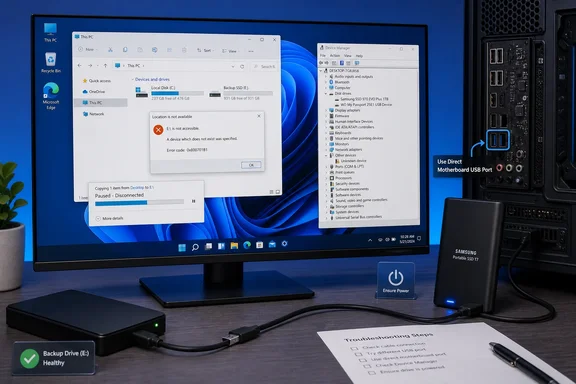 Test the USB path before changing Windows
Cancel the transfer and safely eject the external drive if Windows still permits it. If the device repeatedly disconnects, wait until disk activity stops, shut down the PC, then disconnect it. Do not keep retrying a multi-gigabyte copy to a drive that is dropping offline; repeated writes can leave incomplete files and make it harder to determine what data is intact.
Reconnect the drive directly to the computer. Avoid front-panel ports, passive hubs, monitor USB ports, extension leads, keyboard hubs, and docking stations for this test. For a desktop PC, a rear motherboard port is the useful comparison. For a laptop with USB-C, try a different USB-C port if one is available, and test without a dock or display adapter in the chain.
Then change one component at a time:
- Try another port on the same PC, preferably one using a different connector type or controller path.
- Replace the USB cable if the external enclosure uses one. A cable can provide enough power for Windows to detect a drive while failing during sustained data transfers.
- Test the same drive and cable on a second computer.
- Test a known-good flash drive or external SSD on the original PC and port.
Microsoft’s USB troubleshooting advice specifically recommends bypassing hubs and checking damaged cables; it also notes that externally powered USB devices should have their own power connected. This is especially relevant to 2.5-inch hard drives, multi-bay enclosures, docks, and high-performance portable SSDs, where power delivery can be sufficient at idle but unstable under load.
The results narrow the cause quickly. If the problem follows one drive or enclosure to another PC, treat the drive, cable, enclosure, or its power source as the primary suspect. If multiple known-good drives fail only on one computer, focus on that computer’s ports, chipset software, USB controller driver stack, firmware, or power settings.
Before continuing, copy any irreplaceable files that remain accessible to a separate healthy drive. A transfer error is not a storage-health verdict, but a device that disappears under load should not be trusted with the only copy of important data.
Use a controlled copy test to separate a bad file from a bad connection
A failure on one particular file can point to source-disk corruption, a damaged file, or an application keeping the file open. A failure that occurs at varying percentages during large transfers is more consistent with an unstable path between Windows and the external device.
Create a small test folder containing several ordinary files, then copy it in both directions: from the PC to the external drive, and from the external drive back to the PC. Next, test a single large file, such as a video or disk image, after confirming that enough free space exists on the destination.
Watch File Explorer and Device Manager while the transfer runs. If the drive disappears from File Explorer, the transfer speed falls to zero and never recovers, Windows plays the disconnect sound, or Device Manager refreshes, Windows is losing the device rather than merely rejecting a file operation. Microsoft’s Device Manager documentation confirms that the tool exposes device status, driver details, and event information that can help distinguish a recognized but unhealthy device from one with an installation problem.
Open Device Manager by right-clicking Start and choosing Device Manager. Expand Disk drives and Universal Serial Bus controllers, then locate the external disk or the entry that appears and disappears when you reconnect it. Open Properties and review the General and Events tabs. A yellow warning icon, repeated install/remove events, or a message that the device cannot start supports continuing with driver and controller checks.
Do not jump to formatting, DiskPart clean, or partition deletion. Those actions can erase the evidence and the data while doing nothing to correct a failing USB cable, enclosure bridge, power supply, or disk mechanism.
Stop USB power saving from interrupting the test
Windows supports USB selective suspend, a power-management feature that can suspend an idle USB port without affecting every device attached to the hub. Microsoft documents that the feature is designed to reduce power use and that some devices expose a Power Management setting in Device Manager.
A normal file copy should keep a healthy external drive active. Still, temporarily disabling hub power-down is a reasonable diagnostic step when the error occurs after a period of inactivity, after sleep and resume, or only on battery power.
In Device Manager, expand Universal Serial Bus controllers. Open the properties of entries such as USB Root Hub, Generic USB Hub, or USB Hub. If a Power Management tab is present, clear Allow the computer to turn off this device to save power, then select OK. Repeat only for the hub entries associated with the problem if you can identify them; not every USB controller exposes the same options, and the setting is absent on some modern systems.
Restart Windows, reconnect the drive directly, and rerun the controlled copy test. If the transfer becomes stable only after this change, update the PC manufacturer’s chipset, USB controller, and BIOS/UEFI packages rather than leaving broad power-saving features disabled indefinitely. The setting reduces battery efficiency and masks, rather than repairs, a driver or firmware compatibility issue.
For an external drive with optional external power, connect that power supply before retesting. Do not substitute a random adapter: use the enclosure or dock manufacturer’s approved supply with the proper voltage and polarity.
Reinstall the affected storage device and USB controller entry
If Windows sees the device consistently but transfers still fail, reinstall the device instance before considering a wider Windows repair. Microsoft’s Device Manager guidance says that unplugging a device before uninstalling it prevents Windows from immediately detecting and reinstalling it, which makes the process cleaner.
First unplug the external drive. In Device Manager, expand Disk drives, right-click the external drive entry, and choose Uninstall device. Then expand Universal Serial Bus controllers and uninstall the related USB Mass Storage Device entry if it is clearly identifiable. Do not begin by removing every USB host controller on a working business PC, particularly if you depend on USB keyboard, mouse, security token, or network adapters.
Restart the computer. After Windows loads, reconnect the drive directly to a tested port and allow Plug and Play to reinstall the standard storage driver. If Device Manager still reports trouble, obtain current chipset, USB, storage-controller, and enclosure firmware updates from the PC, motherboard, or drive-enclosure manufacturer. Vendor packages matter more here than generic “driver updater” utilities, which often offer opaque or incorrect driver selections.
Windows Update can also deliver drivers, but enterprise administrators should check policy first. Microsoft documents that organizations can exclude drivers from normal quality-update delivery, so a managed Windows 10 or Windows 11 PC may not receive optional vendor drivers automatically. That is a reason to check the hardware vendor’s support package and the organization’s approved driver-management process rather than assuming Windows Update has supplied the latest controller driver.
Check the file system only after the connection is stable
Once the drive can remain connected through several copy tests, check its file system. Open Command Prompt or Windows Terminal as Administrator and run the following command, replacing E: with the external drive’s actual letter:
chkdsk E: /f
Microsoft’s chkdsk documentation is clear about what this does: /f fixes logical file-system errors, and the volume must be locked for repairs. Close File Explorer windows, backup software, media players, and any other application accessing the external drive before running it.
If chkdsk reports bad sectors or the drive remains unreliable, use a more thorough scan:
chkdsk E: /r
The /r option includes /f, looks for physical disk errors, and attempts to recover readable information. It can take a long time on large hard drives, and the extra read workload is precisely why it should follow a backup attempt—not precede one—when the drive contains important data.
A successful chkdsk result does not clear the hardware. It validates the file system, not the USB cable, enclosure bridge, port power, controller firmware, or a disk that intermittently resets. If 0x800701B1 returns after a clean file-system check and after testing another cable and computer, replace the failing component and retire the drive from important storage duty.