

cleanmgr.exe will not launch, the fix is usually less dramatic than downloading a mystery “PC cleaner” from the internet. In fact, please don’t. Disk Cleanup is built into Windows, and restoring it should begin with Windows’ own files and tools.This guide applies to Windows 11 and Windows 10. Note, however, that Microsoft ended free Windows 10 security updates and support on October 14, 2025. The repair steps still apply to existing Windows 10 PCs, but moving supported hardware to Windows 11 remains the safer long-term plan.
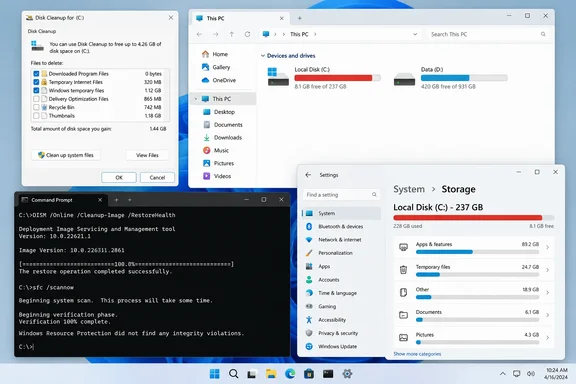 First: establish what is actually broken
There are three distinct problems that can all look like “Disk Cleanup is missing”:
Quick walkthrough
- Search or a shortcut is broken — Disk Cleanup itself is still present.
cleanmgr.exeexists but will not open — a Windows component, system file, or policy issue may be involved.cleanmgr.exeis genuinely missing — Windows system files may be corrupted or altered.
Before repairing anything, try launching the tool directly:

- Press Windows + R.
- Enter the following command:
%SystemRoot%\System32\cleanmgr.exe - Press Enter.
%SystemRoot% normally resolves to the Windows installation folder, usually C:\Windows. If Disk Cleanup opens, the utility was never missing; its Search result, Start-menu entry, or desktop shortcut was the culprit.
You can also choose a drive immediately:
cleanmgr /d C:
Microsoft documents cleanmgr as the command-line Disk Cleanup utility for Windows 10 and Windows 11. The /d switch specifies the drive to evaluate.
Quick takeaway: Do not start by reinstalling Windows or copying executable files from another PC. First determine whether the application, its shortcut, or Windows Search is at fault.
Check whether cleanmgr.exe is present
Open File Explorer and paste this into the address bar:
%SystemRoot%\System32
Then look for cleanmgr.exe.
Alternatively, open Command Prompt and run:
where cleanmgr
A normal installation should return a path under the Windows directory. If it does, but clicking the file does nothing, continue to the repair section below.
If Windows says it cannot find cleanmgr.exe, do not download a replacement executable. A copied file can be the wrong version, lack required registrations, or—far worse—be malware wearing a familiar name tag. Windows system utilities are not collectible trading cards.
Repair Windows system files: DISM first, then SFC
When an inbox Windows utility disappears or fails to run, the most sensible repair path is to repair the operating system image first. Microsoft recommends running DISM before System File Checker because DISM can restore the component files that SFC relies on.
1. Open an elevated Command Prompt
- Open Start.
- Type Command Prompt.
- Select Run as administrator.
- Approve the User Account Control prompt.
2. Repair the Windows component store
Run:
DISM.exe /Online /Cleanup-Image /RestoreHealth
Leave the window open until it completes. This may take a while, and the progress meter can appear to loiter around certain percentages. That is normal; resist the urge to “help” by closing it.
By default, DISM can use Windows Update to obtain repair content. On managed PCs, an organization may instead use a configured internal repair source or restrict Windows Update access, so the command may fail for reasons that are not related to Disk Cleanup itself.
3. Scan and repair protected Windows files
After DISM completes, run:
sfc /scannow
Wait for verification to reach 100 percent. Then restart the PC and test Disk Cleanup again with:
cleanmgr /d C:
What the results mean
| Result | What to do |
|---|---|
| SFC reports no integrity violations | The issue is likely a shortcut, Search, user-profile, or policy problem rather than a missing protected system file. |
| SFC says it repaired corrupt files | Restart and test Disk Cleanup again. |
| SFC cannot complete | Restart, make sure Windows is fully updated where supported, then run the commands again. |
| SFC finds corruption it cannot repair | Run DISM again, then rerun SFC. If failures persist, use Windows recovery options rather than manually replacing cleanmgr.exe. |
Microsoft’s support guidance confirms that DISM and SFC are the appropriate built-in tools for restoring missing or corrupted protected Windows files. That makes them a safer answer than registry “fixes” and third-party repair suites promising to tune the universe.
Rebuild a broken Disk Cleanup shortcut
If the direct command opens Disk Cleanup but a pinned or desktop shortcut does not, delete the broken shortcut and create a new one.
- Right-click an empty area of the desktop.
- Select New > Shortcut.
- For the location, enter:
%SystemRoot%\System32\cleanmgr.exe - Select Next.
- Name it Disk Cleanup.
- Select Finish.
To pin the repaired shortcut, right-click it and choose Pin to Start or Pin to taskbar, depending on the options Windows presents.
If you use Disk Cleanup frequently, a shortcut with a specific drive can be useful:
%SystemRoot%\System32\cleanmgr.exe /d C:
That skips the initial drive-selection prompt. It does not automatically delete anything; you still review the categories and confirm cleanup.
Use “Clean up system files” carefully
When Disk Cleanup opens, select Clean up system files to make it assess additional Windows-managed categories. This may include update cleanup, temporary installation files, error reports, device-driver packages, or a previous Windows installation.
Review every checked category before proceeding. The big space-saving options are often legitimate, but they can remove rollback material:
- Previous Windows installation(s): removes the ability to return to the earlier Windows version.
- Windows upgrade log files: useful for troubleshooting a recent upgrade.
- Recycle Bin: deletes files that may still be recoverable through the bin.
- Downloads: only remove it if you have personally reviewed what is there.
Disk Cleanup is conservative by Windows standards, but its checkboxes are still deletion checkboxes. The clue is right there in the job description.
If Disk Cleanup still will not open
If cleanmgr.exe is present, DISM and SFC complete cleanly, and the program still fails to launch, work through these checks:
- Restart Windows.
A full restart clears stuck processes and pending servicing operations more effectively than repeatedly closing and reopening windows. - Try another local administrator account.
If Disk Cleanup works there, the issue may be limited to the original user profile, its shortcuts, or its per-user settings. - Check corporate management policies.
On a work-managed PC, Intune, Group Policy, endpoint security controls, or application-control rules may limit which tools can run. Do not try to bypass those controls; ask the IT administrator whether Disk Cleanup has been restricted. - Use Windows recovery options if wider problems exist.
If other built-in Windows tools also fail, the problem is larger than Disk Cleanup. System Restore or an in-place repair/reinstallation route may be appropriate after backing up important files.
Storage settings: the modern, reliable alternative
A missing Disk Cleanup window does not mean you are stuck with a full drive. Windows 11 and Windows 10 include storage tools in Settings that cover many of the same cleanup jobs.
Go to:
Settings > System > Storage
From there, use one of the following.
Cleanup recommendations
In Windows 11, Cleanup recommendations can review:
- Temporary files
- Large or unused files
- Cloud-synced files
- Unused apps
This is especially useful when the problem is not merely Windows debris but an old game install, a forgotten video folder, or an application that has been camping on the SSD since the last ice age.
Temporary files
Select Temporary files in Storage settings to review categories of removable data. Read the descriptions before removing anything. The previous Windows installation category, for example, can reclaim substantial space but removes the rollback option.
Storage Sense
Storage Sense automates cleanup of eligible temporary files and Recycle Bin contents when space is low or on a schedule you choose.
A few important limitations:
- Storage Sense works on the system drive, normally
C:. - It does not automatically clean Downloads or cloud content unless you explicitly configure it to do so.
- Its settings are per user, so one person’s preferences do not automatically apply to every account on a shared PC.
For ordinary maintenance, Storage Sense is often the better set-it-and-forget-it companion; Disk Cleanup remains handy for manual, targeted cleanup and scripted administrative workflows.
Optional: save a repeatable Disk Cleanup selection
For advanced users and administrators, Disk Cleanup supports saved cleanup profiles:
cleanmgr /sageset:1
Choose the categories you want in the dialog box, then run:
cleanmgr /sagerun:1
Microsoft documents these switches for configuring and reusing a cleanup selection. Treat the saved profile with care: if it includes files you later decide you need, automation will not pause to hold a committee meeting.
The sensible repair order
When Disk Cleanup is missing or broken, use this sequence:
- Launch it directly with
%SystemRoot%\System32\cleanmgr.exe. - Verify that
cleanmgr.exeexists. - Rebuild a damaged shortcut if the direct launch works.
- Run DISM, then
sfc /scannow, if the tool is missing or refuses to open. - Restart and retest.
- Use Settings > System > Storage while repairing—or as a permanent alternative.
- Escalate to Windows recovery only if other Windows components are also failing.
Disk Cleanup may be a veteran utility, but it is not obsolete dead weight. Microsoft still documents cleanmgr for current Windows releases, while Storage settings and Storage Sense provide a more integrated alternative for routine maintenance. Restore the classic tool if you need its workflow; use Storage tools if they better fit the job. Either way, the goal is the same: reclaim space without turning a small housekeeping task into a Windows rescue operation.