

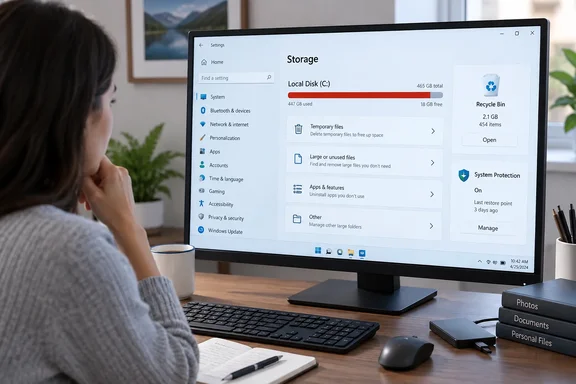
 Confirm which drive is actually full
Before deleting anything, identify the affected volume. A nearly full C: drive needs different attention from a secondary data drive such as D: or an external USB drive.
- Press Windows key + E to open File Explorer.
- Select This PC in the left navigation pane.
- Under Devices and drives, note the free space shown beneath each drive.
- Write down the affected drive letter and its current free space. For example:
C:has 1.8 GB free.
This is your baseline. Check it again after every cleanup step rather than deleting everything at once.
Warning: Do not manually delete folders in the root ofC:such asWindows,Program Files,ProgramData, or hidden system folders in an attempt to free space. Use the Windows cleanup tools below so Windows can remove files safely.
Empty the Recycle Bin and verify the files are gone
Files sent to the Recycle Bin still occupy space on the drive from which they were deleted. Emptying the bin permanently removes those files and should increase the free-space figure for the affected drive.
- Open the Recycle Bin from the desktop.
- If it is not visible, press Start, type Recycle Bin, and open it.
- You can also restore the desktop icon through Settings > Personalization > Themes > Desktop icon settings, then select Recycle Bin and choose OK.
- Review the contents before deleting them.
- Select an item and use Restore if you recognize a file you still need.
- Sort the list by size if the column is available, or review large video archives, disk images, installers, and Downloads-folder files carefully.
- When you are certain the contents are not needed, select Empty Recycle Bin on the command bar or right-click an empty area of the Recycle Bin and select Empty Recycle Bin.
- Select Yes when Windows asks for confirmation.
- Return to File Explorer > This PC and check the free-space number for the drive that was full.
Warning: Emptying the Recycle Bin is permanent. The files will no longer be available through Restore. If a file is important, copy it to another drive or cloud storage first.
If the Recycle Bin was empty, or emptying it made little difference, the deleted files may have bypassed the bin, been stored on a different volume, or not have been the main cause of the storage shortage. Continue with Storage settings.
Remove temporary files with Windows Storage settings
Windows Storage settings show where space is being used and provide supported cleanup options. The categories can include temporary files, installed apps, documents, pictures, system files, and reserved storage.
Windows 11
- Select Start > Settings > System > Storage.
- Wait for Windows to calculate the usage categories for the system drive.
- Select Temporary files.
- Let the list finish scanning, then review each category before selecting it.
- Select the file categories you are comfortable removing.
- Select Remove files, then confirm the action if prompted.
- Return to the Storage page and check whether the capacity bar and free-space figure have changed.
Windows 10
- Select Start > Settings > System > Storage.
- Select the system drive, usually Local Disk (C🙂.
- Select Temporary files.
- Review the listed categories.
- Select the categories you want Windows to remove.
- Select Remove files.
- Return to File Explorer and confirm the available space on the affected drive.
Temporary-file cleanup can remove items such as thumbnails, temporary app files, delivery optimization files, and some Windows update cleanup data. The exact categories vary by PC and by Windows update history.
Treat these Storage options with care
Some Storage categories can free a substantial amount of disk space but have consequences:
- Downloads: This can contain your installers, documents, photos, and other personal files. Review it manually before selecting it for cleanup.
- Previous Windows installation(s): This can remove the
Windows.oldfolder after an upgrade. Once removed, you cannot use that folder to roll back to the previous Windows version. - Recycle Bin: Selecting it removes files permanently, just as emptying the Recycle Bin does.
- Cloud files: A cloud file can be made online-only when it is not needed locally, but opening it later requires network access.
If Windows estimates only a small amount of recoverable temporary storage, do not keep retrying the same cleanup. Move to System Protection and shadow-copy checks.
Use Cleanup recommendations to find overlooked files
Cleanup recommendations can identify other common sources of recoverable space, including large or unused files and applications you no longer use.
Windows 11
- Go to Start > Settings > System > Storage.
- Select Cleanup recommendations.
- Review these sections one at a time:
- Temporary files
- Large or unused files
- Files synced to the cloud
- Unused apps
- Select only items you have reviewed and no longer need.
- Select Clean up for the applicable section.
- Check the drive’s free space again in File Explorer > This PC.
Windows 10
The exact layout varies by Windows 10 release. Start at Start > Settings > System > Storage, select the drive, and review its categories. If your PC does not show Cleanup recommendations, use Temporary files or the Disk Cleanup method later in this guide.
For large personal files, File Explorer is often safer than deleting them from a general list:
- Open File Explorer and select a personal folder such as Downloads, Videos, Pictures, or Documents.
- Select View > Details.
- Right-click a blank area in the file list and select Sort by > Size.
- Move files you want to keep to an external drive, or delete files you have confirmed are no longer needed.
- Empty the Recycle Bin afterward if you deleted files normally.
Check System Protection restore-point storage
Classic System Protection can use disk space for restore points. Restore points help roll Windows system files, installed applications, the Registry, and system settings back to an earlier state. They are useful for recovery, so check their current storage use before removing them.
The following steps apply to Windows 11 and Windows 10.
- Press Start and type Create a restore point.
- Select Create a restore point from the search results.
- Alternatively, press Windows key + R, type the following command, and press Enter:
systempropertiesprotection.exe - In the System Properties window, open the System Protection tab if it is not already selected.
- Under Protection Settings, select the drive that is nearly full. Usually this is
C:. - Select Configure.
- Under Disk Space Usage, check the current amount used and the maximum usage setting.
If the current usage is small, restore points are not your immediate storage problem. Select Cancel and investigate other Storage categories or large files instead.
Reduce future restore-point use
If System Protection is using a significant amount of the full drive, reduce the Max Usage slider to a level that leaves enough free space for Windows, applications, and updates.
- In the Configure window, move the Max Usage slider left to lower the allowed storage limit.
- Select Apply.
- Select OK.
Windows manages restore points within this limit. Lowering it can cause older restore points to be removed sooner, so do not set it so low that you lose the recovery history you need.
Warning: Reducing the System Protection allocation may delete older restore points. Once those restore points are gone, you cannot recover them by increasing the slider again.
Delete all restore points for the selected drive
Use this only when reclaiming space is more important than keeping existing System Restore recovery points.
- In System Properties > System Protection, select the affected drive.
- Select Configure.
- Under Disk Space Usage, select Delete.
- Read the confirmation message carefully. It applies to the restore points for the selected drive.
- Select Continue to delete them.
- Select Apply, then OK.
The free-space figure may not refresh instantly. Wait a moment, close File Explorer, reopen This PC, and check the drive again.
Warning: Deleting restore points is permanent. You lose the ability to use those restore points for System Restore and may lose prior file versions that depend on those shadow copies. There is no rollback for the deletion itself.
After clearing old restore points, leave System Protection enabled if you use it as part of your recovery plan. Create a new restore point after the system is stable and you have recovered sufficient free space.
Verify hidden shadow-copy storage from an elevated command prompt
If the System Protection window does not explain the missing space, Windows can report the space used by Volume Shadow Copy storage. This is an inspection step; it does not change anything.
- Press Start, type Command Prompt.
- Select Run as administrator.
- Approve the User Account Control prompt.
- Enter the following command:
vssadmin list shadowstorage - Review the output for the affected volume. It reports:
- The volume being shadow copied
- The storage volume
- Used Shadow Copy Storage space
- Allocated Shadow Copy Storage space
- Maximum Shadow Copy Storage space
If the used figure is large, return to Create a restore point > System Protection > Configure for that volume and review the limit or delete restore points using the supported interface.
Do not use deletion commands from copied web posts unless you fully understand which volume and shadow copies they target. Removing shadow copies with command-line tools can permanently delete restore points and previous versions.
Turn on Storage Sense for ongoing cleanup
Storage Sense can automatically remove unneeded temporary files and, if you choose, older Recycle Bin files. It works on the system drive, normally C:. It does not automatically clean other drives in the same way.
Windows 11
- Go to Start > Settings > System > Storage.
- Turn Storage Sense on.
- Select Storage Sense to configure its behavior.
- Choose when Windows should run it.
- Review the settings for deleting files in the Recycle Bin and Downloads folder.
- Only set Downloads cleanup if you are comfortable with Windows removing files there after the selected period.
Windows 10
- Go to Start > Settings > System > Storage.
- Turn on Storage Sense.
- Select Configure Storage Sense or run it now.
- Review when it runs and what it can delete.
- Choose Clean now if that option is available and you have reviewed the settings.
Storage Sense is a maintenance tool, not a substitute for reviewing your personal files. Its defaults do not clean the Downloads folder or cloud content unless you configure it to do so.
If the drive is still nearly full
Use these checks to narrow down the cause rather than deleting system files blindly:
- The full drive is not
C:: Go to Settings > System > Storage > Advanced storage settings > Storage used on other drives. Select the full drive to review its categories. Storage Sense focuses on the system drive. - Free space did not increase after emptying the Recycle Bin: Recheck that you emptied the bin after deleting files, then confirm that the files were originally stored on the full drive.
- Storage shows “System & reserved” as unusually large: Check System Protection and shadow-copy storage first. Reserved storage also supports Windows updates and temporary system operations, so it is not a folder to delete manually.
- Temporary files return quickly: If a low-space warning returns soon after cleanup, reset the Microsoft Store cache by pressing Windows key + R, entering
wsreset.exe, and selecting OK. After it completes, restart Windows. If needed, run the Windows Store Apps and Windows Update troubleshooters from the Troubleshoot area of Settings. - You still cannot identify the space: Check large folders under your own profile first, especially Downloads, Videos, Pictures, Documents, and cloud-sync folders. If storage use changes rapidly without an obvious reason, run a full scan with Windows Security and investigate recent applications, backup software, virtual machines, or game libraries.