

The good news: this is usually a settings issue, and it can normally be fixed in a few minutes.
 First: make sure you are looking at the right feature
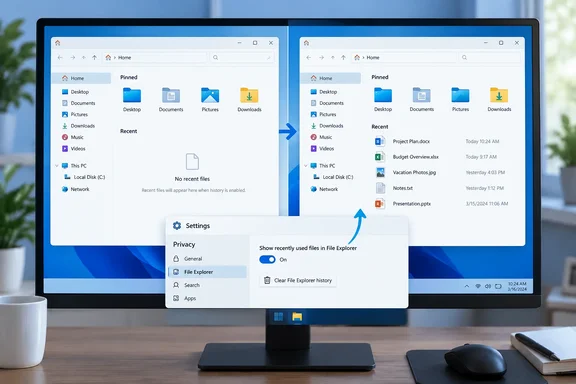
Windows 11 renamed Quick access’s main landing page to Home. It can contain a mixture of:
Quick walkthrough
- Pinned folders — items you deliberately keep at hand
- Recent files — files Windows has recorded as recently opened
- Favorites — files or folders you marked for easy retrieval
- In some configurations, cloud and Office files from connected accounts
Those categories are separate. A folder pinned to Home will remain there even if the recent-files history is disabled; conversely, an empty Recent section does not mean your pins are broken.
Open File Explorer with Windows key + E, then select Home in the left navigation pane. Open a local document, close it, return to Home, and see whether it appears. Testing with a file stored in Documents is useful because a disconnected network drive, removed USB drive, or unavailable cloud service can complicate the picture.
Quick takeaway: Pinned folders are permanent shortcuts. Recent files are a history-based list. Fixing one does not automatically alter the other.
Turn recent items back on in Windows Settings

The most important switch is not buried inside File Explorer. Windows has a broader privacy and personalization control for recently opened items that affects Start, Jump Lists, and File Explorer.
Windows 11
- Open Settings.
- Select Personalization.
- Select Start.
- Turn on Show recently opened items in Start, Jump Lists, and File Explorer.
Microsoft documents this setting as the common control for recent items across these Windows surfaces. If it is switched off, File Explorer Home has no recent activity to show—rather like asking a librarian to keep no checkout log and then wondering where the log went.
Windows 10
- Open Settings.
- Choose Personalization.
- Select Start.
- Enable the option that refers to showing recently opened items in Jump Lists and File Explorer Quick access.
The exact wording can vary slightly between Windows releases, but the key phrase is recently opened items. If this option is off, turn it on, then open two or three local files and revisit Quick access.
Check File Explorer’s own privacy options
Windows also gives File Explorer a separate set of controls. These determine whether Quick access or Home displays recent files and frequent folders.
In Windows 11
- Open File Explorer.
- Select the three-dot See more menu on the command bar.
- Choose Options.
- On the General tab, find the Privacy section.
- Enable Show recently used files in Quick access.
- Optionally enable Show frequently used folders in Quick access.
- Select Apply, then OK.
In Windows 10
- Open File Explorer.
- Select the View tab.
- Choose Options, then Change folder and search options if required.
- Under Privacy on the General tab, enable:
- Show recently used files in Quick access
- Show frequently used folders in Quick access
- Select Apply and OK.
Microsoft’s File Explorer guidance confirms that clearing these check boxes deliberately restricts Quick access to pinned folders. In other words, an empty Recent area can be a feature—not a malfunction.
If the list returns after you enable the setting, job done. If not, continue with the history reset below.
Clear history, then let Windows rebuild it
It sounds backward, but clearing File Explorer history can repair a recent-files list that has become stale, inconsistent, or stuck empty.
- Return to File Explorer Options using the steps above.
- In the Privacy section, select Clear beside Clear File Explorer history.
- Select Apply, then OK.
- Close all File Explorer windows.
- Open File Explorer again.
- Open several files from ordinary local folders, such as Documents or Downloads.
- Return to Home in Windows 11 or Quick access in Windows 10.
At first, the recent list should be empty—that is expected, because you just cleared it. The test is whether newly opened files begin appearing afterward.
Do not expect cleared entries to be restored from thin air. Clearing history removes File Explorer’s shortcuts to older items; it does not delete the real files, but it does remove the list Windows used to display them.
Review files and folders you removed manually
A single file can be removed from Quick access or Home without disabling the whole feature. Right-clicking an item and choosing Remove from Quick access tells Windows not to keep presenting that shortcut. This is handy for embarrassing spreadsheet names and equally handy for accidentally hiding something you genuinely use every day.
If only certain items seem to be missing:
- Open the file directly from its actual folder.
- Confirm that the global recent-items setting and File Explorer’s privacy options are enabled.
- Give Windows a moment to register the newly opened file.
- Avoid assuming pinned folders and recent files behave identically.
For folders you want to keep visible regardless of history, right-click the folder and choose Pin to Quick access. In Windows 11, pinned folders are also visible through Home and the navigation pane. This is the better solution for project folders you use constantly; recent history is convenience, not a filing system with a pension plan.
Do not confuse Activity History with File Explorer history
Windows also includes Activity history under privacy settings. It tracks certain device activities and has changed substantially across Windows releases, especially after Microsoft deprecated cloud syncing of activity history in later Windows 10 and Windows 11 updates.
That setting is related to broader activity and privacy behavior, but it is not the primary control to fix an empty File Explorer Recent list. Start with:
- Settings > Personalization > Start
- File Explorer Options > Privacy
Only investigate Activity history if you are troubleshooting broader Windows activity records, not simply missing recent files in Home or Quick access. Mixing the two is an easy detour into Settings-land, where every hallway looks suspiciously similar.
Check for work or school policies
On a managed work or school PC, an IT administrator can prevent Windows from creating or showing recent document history. In that case, the Start toggle may be grayed out, revert after you change it, or appear enabled while the list still stays empty.
On Windows Pro, Enterprise, and Education editions, a local policy check may be available:
- Press Windows key + R.
- Type
gpedit.mscand press Enter. - Go to:
User Configuration > Administrative Templates > Start Menu and Taskbar - Find Do not keep history of recently opened documents.
- Set it to Not Configured or Disabled if you manage the PC and the policy was enabled.
- Also review Clear history of recently opened documents on exit.
The first policy stops Windows and supported apps from creating and displaying recent-document shortcuts. The second can clear the history whenever you sign out, making the list seem to work during a session but disappear after every restart.
Microsoft’s policy documentation also notes that organizations can deploy these controls through device management. So if this is a company-owned PC, do not fight the policy with registry edits or workaround scripts. Ask IT whether recent-document history is intentionally restricted. Privacy rules and compliance requirements may be the reason the setting exists.
When the issue is not really a history problem
A few situations can mimic a missing Recent list:
- The file was opened from a disconnected USB drive or network share. The shortcut may remain, but reopening it will fail until the location is available.
- The file was moved, renamed, or deleted. The history shortcut is not a copy of the file.
- You are expecting an app’s own recent list. Microsoft Word, Excel, Adobe apps, and other software can maintain separate lists. Fixing File Explorer will not necessarily repopulate those.
- File Explorer is set to open to This PC. The history may be working, but you are landing on This PC instead of Home or Quick access. In File Explorer Options, change Open File Explorer to back to Home or Quick access if that is your preferred starting point.
A reliable recovery checklist
Work through these in order:
- Enable Show recently opened items in Start, Jump Lists, and File Explorer.
- Enable Show recently used files in Quick access in File Explorer Options.
- Clear File Explorer history once.
- Open a few local files to rebuild the list.
- Check whether you are viewing Home/Quick access, rather than This PC.
- Pin folders you need permanently.
- On managed PCs, check with IT about the recent-document policies.
For most home PCs, steps one through four solve the problem. File Explorer’s Recent list is a useful shortcut system, but it is also intentionally governed by privacy controls. Once those controls are understood, restoring the list is far less dramatic than Windows makes it look.