

Start with Settings rather than the registry. The registry repair later in this guide is intended for cases where the visible controls are set correctly but Explorer does not refresh or the theme values appear corrupted.
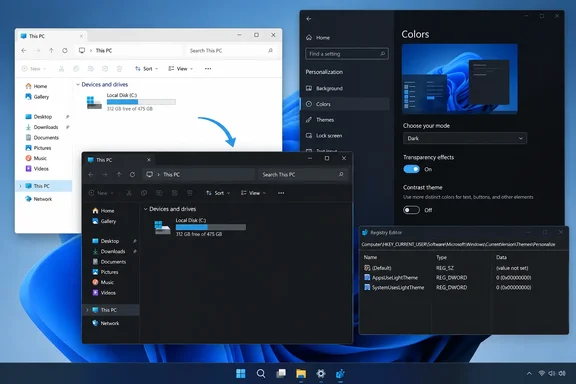 Confirm Windows and app color modes
Windows can use different modes for Windows interface elements and for apps. This is useful when intentional, but it can make the desktop appear partly dark and partly light.
Quick walkthrough
- Open Settings with
Windows + I. - Go to Personalization > Colors.
- Under Choose your mode or Choose your color, select Dark.
If you prefer Custom, check both controls:
- Set Choose your default Windows mode to Dark.
- Set Choose your default app mode to Dark.
The Windows mode controls shell elements such as Start and the taskbar. The app mode is used by supported applications. Setting both to Dark removes an accidental mixed-mode configuration and is the simplest baseline for diagnosing a light File Explorer window.
Close every File Explorer window, then open a new one with Windows + E. If the new window is dark, no further repair is needed.

Disable a contrast theme before treating this as a dark-mode fault
Contrast themes are accessibility themes designed to prioritize legibility with a limited, high-contrast palette. They can override the normal light and dark appearance, so a dark gray Explorer interface is not necessarily the expected result while one is enabled.
On Windows 11:
- Open Settings > Accessibility > Contrast themes.
- Set the drop-down menu to None.
- Select Apply.
On Windows 10:
- Open Settings > Ease of Access > High contrast.
- Turn off Turn on high contrast.
Microsoft also documents a keyboard shortcut that can toggle the selected contrast theme: Left Alt + Left Shift + Print Screen. If the Windows colors changed unexpectedly after a key combination, check the contrast setting before editing anything else.
A contrast theme should not be disabled when it is deliberately required for accessibility. In that case, Explorer’s colors are being selected by the contrast theme rather than the standard Dark mode palette.
Restart the Explorer shell
File Explorer is part of the explorer.exe shell process, which also runs the taskbar, notification area, and desktop. Restarting it reloads its interface without signing out or rebooting the PC.
- Press
Ctrl + Shift + Escto open Task Manager. - If Task Manager opens in its compact view, select More details.
- Find Windows Explorer in the Processes list.
- Right-click it and select Restart.
The taskbar and desktop icons may disappear briefly. That is expected; they should return within a few seconds.
Open File Explorer again. If it now uses the dark appearance, the setting was already correct and Explorer simply had not applied the updated theme state.
Repair the per-user theme values in the registry
Use this section only if Dark mode is selected, contrast themes are off, and restarting Explorer changes nothing.
The relevant settings are stored for the signed-in user at:
HKEY_CURRENT_USER\Software\Microsoft\Windows\CurrentVersion\Themes\Personalize
Two DWORD (32-bit) values control the normal light-versus-dark preference:
| Value | Data for Dark mode | Purpose |
|---|---|---|
AppsUseLightTheme | 0 | Requests dark mode for supported apps. |
SystemUsesLightTheme | 0 | Requests dark mode for Windows interface components. |
A value of 1 represents the light preference. The values are per-user, so changing them affects the account currently signed in; it does not automatically change another local account, a Microsoft account on a separate PC, or a managed work profile.
Back up the key first
- Press
Windows + R, typeregedit, and select OK. - Approve the User Account Control prompt if it appears.
- Browse to:
Computer\HKEY_CURRENT_USER\Software\Microsoft\Windows\CurrentVersion\Themes\Personalize - Right-click Personalize in the left pane and select Export.
- Save the
.regfile somewhere easy to find, such as Documents.
The export gives you a direct rollback option: double-click the saved file and approve the prompts to restore the key’s prior values.
Set the values for Dark mode
- With the Personalize key selected, look in the right pane for
AppsUseLightTheme. - Double-click it and set Value data to
0. - Repeat for
SystemUsesLightTheme, also setting Value data to0. - Leave Base set to Hexadecimal or Decimal; the value is zero either way.
- Close Registry Editor.
- Restart Windows Explorer through Task Manager, or sign out and sign back in.
If either value is absent, do not assume it proves a fault. Windows normally maintains these values after the color setting has been changed, but behavior can vary with a fresh profile or third-party theming utilities. The safer first action is to switch Settings to Light, then back to Dark, which can recreate the preference. If it remains absent, create a DWORD (32-bit) value using the exact names above and assign it 0.
Do not change unrelated entries under Themes, and do not use registry “cleaners” as a substitute for correcting these two preference values. They can remove settings without identifying why Explorer failed to follow the selected mode.
When the setting changes back on its own
If AppsUseLightTheme or SystemUsesLightTheme returns to 1 after a restart, sign-in, or company policy refresh, something is writing the preference again. Common causes include a third-party automatic theme scheduler, desktop customization software, a profile synchronization tool, or device management on an organization-owned PC.
On a work or school PC, avoid trying to override an enforced configuration through registry permissions or policy edits. The user-level change may be reverted automatically, and modifying policy-controlled settings can conflict with the organization’s configuration requirements. Record the behavior—such as “Explorer returns to light mode after sign-in despite both values being zero”—and provide it to the IT administrator.
If the values stay at 0, contrast themes are disabled, and a newly opened Explorer window remains light after an Explorer restart and a sign-out/sign-in cycle, the issue is no longer a straightforward personalization mismatch. At that point, remove or update any third-party theming tools before making broader Windows repairs.