

Microsoft’s current Windows 10 and Windows 11 troubleshooting guidance identifies the same core causes: the wrong output device is selected, a playback device is disabled, or its driver is missing, disabled, or corrupted. Intel’s support documentation adds an important point often missed in generic sound guides: on systems using Intel graphics, the HDMI audio component is packaged with the graphics driver. The same general architecture applies to NVIDIA and AMD cards, whose display drivers install their own HDMI or DisplayPort audio devices.
That means reinstalling only Realtek audio is often the wrong first move. Realtek commonly handles the PC’s 3.5 mm headphone, microphone, and speaker jacks; audio sent to a TV or receiver over HDMI normally travels through the GPU’s display-audio driver.
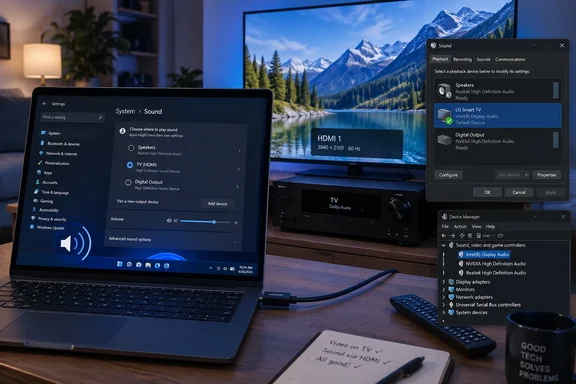 Select the TV, monitor, or receiver in Windows Sound settings
Start by confirming Windows is pointed at the HDMI-connected device.
In Windows 11, open Settings > System > Sound. Under Output, choose the TV, monitor, soundbar, or AV receiver. It may appear by the display’s model name, or with a generic label such as Digital Audio (HDMI), NVIDIA High Definition Audio, AMD High Definition Audio, or Intel Display Audio.
In Windows 10, open Settings > System > Sound and make the same selection under Choose your output device. Then play audio from a browser or media app while the Sound page remains open. The output meter should move for the selected device; if it does, Windows is sending audio to it even if the display itself is muted or configured for another input.
The small speaker icon in the notification area is also useful for quick switching. Select it, then use the output-device selector next to the volume control to choose the HDMI display. This is especially worth checking after docking a laptop, connecting Bluetooth headphones, launching a remote-desktop session, or waking the computer from sleep, all of which can change the active endpoint.
Do not assume the device named “Speakers” is the television. Windows may retain old entries for USB audio, Bluetooth headsets, virtual-audio software, monitor docks, and disconnected displays. Choose the endpoint that identifies the connected TV, monitor, receiver, or GPU display audio.
Restore an HDMI device that Windows has disabled or hidden
If no HDMI destination appears in Settings, open the traditional playback-device list. It exposes disabled endpoints that the newer Settings interface does not make as obvious.
On Windows 11, go to Settings > System > Sound > More sound settings. On Windows 10, open Settings > System > Sound > Sound Control Panel. Select the Playback tab.
Right-click an empty area in the device list and enable Show Disabled Devices and Show Disconnected Devices. If the TV, monitor, receiver, or a display-audio entry appears grayed out, right-click it and select Enable. Then right-click it again and select Set as Default Device.
A green check mark identifies the default playback endpoint. If an application keeps playing through the old device after the default is changed, close and reopen that application. Some apps select their output only when they launch, while conferencing programs, browsers, and games may have their own audio-device selector.
If the HDMI device is visible but silent, open Properties for that device. Check that its level is not muted, then use the Test button if it is available. A successful test confirms Windows can deliver the test tone to the device; it does not prove that the TV, receiver, or soundbar is set to the correct physical input.
Check the cable, the active display, and the receiver path
HDMI audio is negotiated between the graphics adapter and the connected display. A video image proves the cable is passing a picture, but it does not always prove that the display’s audio capability has been read correctly after a hot-plug, sleep, docking, or receiver switch.
Confirm that the television or monitor is powered on and set to the HDMI input used by the PC. If the display has built-in speakers, verify that its own volume is raised and that its audio output has not been disabled in the on-screen menu. Many monitors have no speakers at all; their HDMI connection may appear as an audio device in Windows even though the monitor cannot produce sound without headphones or external speakers connected to its audio-out jack.
For an AV receiver or soundbar, follow the entire signal path. The PC must be connected to an audio-capable HDMI input on the receiver, the receiver must be on the matching input, and the receiver must be routed to the correct speakers or listening mode. If the PC is connected to the TV first and the TV is expected to return sound to a receiver, the TV and receiver must support and correctly configure ARC or eARC. That is a separate connection path from sending audio directly from the PC to the receiver.
Use a direct connection as a diagnostic step. Bypass an HDMI switch, capture device, KVM, dock, or receiver temporarily and connect the PC directly to the TV or monitor. If the HDMI audio endpoint returns, the intermediary device is involved in the handshake failure or does not expose the expected audio capabilities to Windows.
Then disconnect and firmly reconnect the HDMI cable at both ends. If the device still does not appear, turn off the PC and display or receiver, disconnect power from the display chain briefly, reconnect the HDMI cable, power the display or receiver first, and then start Windows. This forces a fresh display detection sequence rather than relying on the state Windows retained from the previous connection.
Also confirm that Windows is actively using the display. Press Windows key + P and choose Duplicate or Extend rather than “PC screen only.” If a laptop’s HDMI screen is disabled in the projection mode, its audio endpoint may disappear or remain unavailable because Windows is not treating that output as active.
Use Device Manager to identify the missing driver
If the HDMI device is absent from both Sound settings and the Playback tab, inspect Device Manager before uninstalling drivers.
Open Device Manager, expand Sound, video and game controllers, and look for a display-audio entry such as Intel Display Audio, NVIDIA High Definition Audio, AMD High Definition Audio, or High Definition Audio Device. Microsoft recommends selecting View > Show hidden devices and then Action > Scan for hardware changes when an audio device is not visible.
A down-arrow icon means the device is disabled. Right-click it and choose Enable device. A yellow warning icon means Windows has detected a driver or device problem; open Properties and note the Device status message before making changes. That message can distinguish a disabled device from a driver that failed to load.
Next, expand Display adapters. The graphics device itself must be present and functioning because its driver provides the HDMI audio function. A warning symbol on the Intel, NVIDIA, or AMD display adapter is more significant than a missing generic audio entry: address the graphics driver first.
Microsoft advises using Windows Update as the first route for current audio drivers. Go to Settings > Windows Update, install available updates, and restart. Check the optional updates area too, because hardware drivers may be offered there rather than installed automatically.
For a laptop, mini PC, or prebuilt desktop, use the computer manufacturer’s driver package before reaching for a generic GPU package. Intel specifically warns that PC makers can customize graphics driver packages and recommends the manufacturer’s version first. This is particularly relevant to laptops with switchable Intel and NVIDIA or AMD graphics, where the HDMI port may be electrically connected to only one of those adapters.
Reinstall the display-audio driver before escalating
If Device Manager shows the display-audio device but Windows still cannot offer HDMI sound, update it first. Right-click the relevant entry under Sound, video and game controllers, select Update driver, and choose the automatic search option. Restart Windows afterward.
If updating changes nothing, reinstall the display-audio device:
- In Device Manager, expand Sound, video and game controllers.
- Right-click the HDMI/display-audio entry and choose Uninstall device.
- Restart the PC and allow Windows to detect the hardware again.
- Recheck Sound settings and the Playback tab after Windows has restarted with the HDMI display attached and powered on.
Microsoft explains that a normal device uninstall removes the device-driver association, while the driver package can remain in the Windows driver store. On restart or when the hardware is rediscovered, Plug and Play can reinstall the available package. This is why a basic uninstall-and-restart is a measured first repair, rather than a reason to remove every audio driver from the machine.
Avoid selecting any option to delete driver software on the first pass unless you already have the correct replacement package downloaded from the PC maker or graphics vendor. Removing the package can leave the device without a suitable local driver and complicate recovery, particularly on a machine without another working network connection.
If the display-audio device fails to return, reinstall the graphics driver package for the GPU that owns the HDMI port. Intel’s documentation explicitly treats Intel Display Audio as part of its graphics driver package. NVIDIA’s Control Panel likewise identifies audio-capable HDMI and DisplayPort connectors on its GPUs, underscoring that this sound path belongs to the display adapter rather than the analog motherboard audio chip.
A driver rollback is appropriate only when the problem began immediately after a graphics or audio driver update and Device Manager’s Roll Back Driver option is available. Microsoft lists rollback as a recovery option for audio failures that start after an update. Do not roll back at random; it replaces a known installed driver with an older one and can also remove fixes required by the rest of the system.
Test one change at a time
Once the HDMI endpoint reappears, set it as the default device and test audio before changing more settings. Do not disable unrelated outputs, purge drivers, or install third-party “driver updater” utilities merely because the TV is still quiet. Those actions make it harder to tell whether the issue was an output selection, an HDMI handshake, or a GPU driver problem.
Windows 10 remains covered by the steps above, but Microsoft ended free security updates, technical assistance, and regular Windows Update support for Windows 10 on October 14, 2025. Its HDMI audio stack can still work, yet a Windows 10 PC that needs a new vendor driver may receive less ongoing validation than a comparable Windows 11 system.
The practical dividing line is simple: if the TV or receiver appears under Playback devices, fix selection, enablement, volume, and the physical HDMI route. If it does not appear there at all, treat the issue as display detection or a graphics-linked display-audio driver problem, and repair that layer before touching the PC’s separate analog audio driver.