

lettters instead of letters is usually caused by one of three things: a key switch sending more than one signal, Windows treating a brief press as a held key, or a connection/driver problem. This guide applies to Windows 11 and Windows 10. Start by testing the keyboard and its connection, then use Filter Keys and repeat settings to rule out Windows input timing, and finally update or reinstall the affected keyboard driver. If the same physical key duplicates on another PC, the keyboard itself is the likely failure point.
Windows 10 note: Microsoft ended free Windows 10 security updates and technical support on October 14, 2025. The steps below still apply to Windows 10 systems that remain in use, including supported managed or long-term servicing deployments.
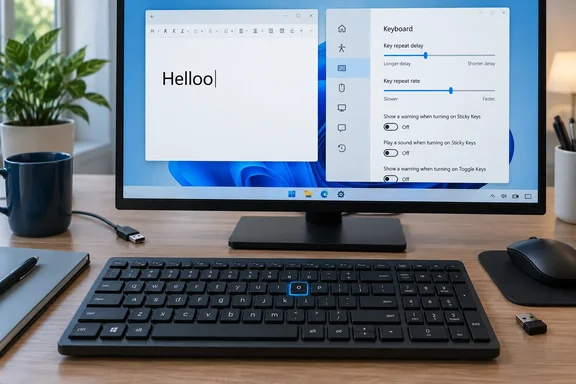 Confirm that Windows is receiving duplicate keystrokes
Before changing settings, determine whether the issue affects the whole system or only one program.
Quick walkthrough

- Open Notepad:
- Press Windows key, type
Notepad, and press Enter. - Press a troublesome key slowly 15 to 20 times. Do not hold it down.
- Test several different keys, including:
- A letter key
- Spacebar
- Backspace
- Enter
- Note the pattern:
- One or two specific keys double-type: this strongly suggests dirt, wear, liquid damage, or a failing switch beneath those keys.
- Many keys repeat: check Windows accessibility and repeat settings, drivers, and the keyboard connection.
- Only one app shows duplicate text: close and reopen that app, then test in Notepad. If Notepad is normal, the keyboard is not the primary cause.
You can also open the Windows On-Screen Keyboard with Windows key + Ctrl + O. Click letters with the mouse. If mouse-clicked on-screen keys enter normally while your physical keyboard repeats, the problem is in the physical keyboard, its connection, or its driver path—not the application where you are typing.
Check the keyboard connection before changing Windows settings
A loose USB connection, underpowered hub, depleted wireless battery, or damaged cable can cause unreliable input. Do these quick checks first.
- If you use a USB keyboard, unplug it.
- Wait a few seconds, then connect it directly to a different USB port on the PC.
- Do not use a USB hub, monitor USB port, docking station, or extension cable for this test.
- Test again in Notepad.
For a wireless keyboard:
- Replace or recharge the batteries.
- Remove the USB receiver, wait about 10 seconds, and reconnect it directly to the PC.
- If the keyboard has a physical reset button or a pairing procedure, use the instructions supplied by its manufacturer.
- For a Bluetooth keyboard, turn Bluetooth off and back on, then reconnect the keyboard if necessary.
Inspect the keyboard at the same time:
- Check that no crumbs, dust, or debris are lodged around the affected key.
- Check the USB cable for bends, exposed wire, or damage near the plug and where the cable enters the keyboard.
- If liquid was spilled on the keyboard, disconnect it immediately and do not continue using it until it is properly cleaned or replaced.
Do not spray liquid cleaner into a powered keyboard. A key that repeatedly duplicates after a spill is often a hardware issue rather than a Windows setting.
Use Filter Keys to ignore accidental repeated presses
Filter Keys is a Windows accessibility feature that can ignore brief or repeated keystrokes. It is useful when the keyboard is generally functional but a light touch sometimes creates two characters.
Windows 11
- Select Start > Settings > Accessibility > Keyboard.
- Find Filter keys.
- Turn Filter keys On.
- Test the previously affected keys in Notepad.
Depending on your Windows 11 build, selecting the Filter Keys entry may reveal additional controls for repeated, quick, or unintended keystrokes. Use these only if the basic switch improves the problem but typing still feels unreliable.
Windows 10
- Select Start > Settings > Ease of Access > Keyboard.
- Under Use Filter Keys, turn on Use Filter Keys.
- Test in Notepad.
Filter Keys can make fast typing feel slower because Windows may ignore very short presses or delay repeated input. If normal keystrokes begin to disappear, or you must hold keys longer than usual, turn Filter Keys back Off and continue to the repeat-rate test.
When Filter Keys is the right fix
Keep it enabled if:
- Duplicate characters occur only occasionally.
- The duplicates happen when you brush a key or type lightly.
- The keyboard works normally once repeated presses are filtered.
Do not treat Filter Keys as proof that the keyboard is healthy. If one physical key remains unreliable, the setting may only mask a failing key switch.
Increase the keyboard repeat delay
Windows repeats a character when it interprets a key as being held down. Increasing the delay before repeat begins can stop a short accidental hold from turning into aaaa or ss.
This adjustment does not usually fix a true key-bounce problem where a switch sends two separate presses. It is still a worthwhile test because it clearly distinguishes “held-key repeat” from “duplicate keypress” behavior.
Windows 11
On current Windows 11 builds, open Start > Settings > Accessibility > Keyboard and look for Character repeat delay and rate.
- Move Character repeat delay toward a longer delay.
- Move Character repeat rate toward a slower rate.
- Test in the keyboard test box if one is shown, or return to Notepad.
- Make one change at a time so you can tell which adjustment helped.
On Windows 11 installations where these controls are not shown in Settings, use the Control Panel method below.
Windows 10 and the Control Panel method
- Press Windows key + R.
- Type the following command, then press Enter:
control keyboard - In Keyboard Properties, open the Speed tab.
- Under Character repeat:
- Move Repeat delay toward Long.
- Move Repeat rate toward Slow.
- Type in the test field at the bottom of the window.
- Select Apply, then select OK.
A good diagnostic result is this: normal taps no longer create long strings of the same letter, but intentionally holding a key still repeats after a noticeable delay.
Roll back the repeat setting
If typing becomes frustratingly slow, reopen Keyboard Properties or the Windows 11 keyboard settings and move the controls back toward your previous preference. These changes do not require a restart.
Install Windows and optional keyboard-driver updates
Windows normally installs recommended drivers through Windows Update, but optional driver updates are not always installed automatically. Check Windows Update before reinstalling a driver.
Windows 11
- Select Start > Settings > Windows Update.
- Select Check for updates.
- Install available updates.
- Select Advanced options.
- Under Additional options, select Optional updates.
- If Driver updates are available, select the keyboard, chipset, Bluetooth, or USB-related update that matches your hardware.
- Select Download and install.
- Restart the PC after the updates finish, even if Windows does not explicitly request a restart.
Windows 10
- Select Start > Settings > Update & Security > Windows Update.
- Select Check for updates.
- Install available updates.
- If View optional updates appears, select it.
- Open Driver updates.
- Select relevant keyboard, Bluetooth, USB, or chipset driver updates.
- Select Download and install.
- Restart the PC.
If Windows Update has no keyboard driver, use only the PC maker’s or keyboard maker’s official support site for model-specific software. Avoid generic “driver updater” utilities and unknown driver-download sites.
Update or reinstall the keyboard driver in Device Manager
Use this step when the issue affects multiple keys, began after a system or driver change, or continues after testing another USB port.
Update the driver first
- Save open work and close applications.
- Right-click Start and select Device Manager.
- Expand Keyboards.
- Identify the affected keyboard. A USB or laptop keyboard may appear as HID Keyboard Device, Standard PS/2 Keyboard, or a manufacturer-specific name.
- Right-click the relevant device and select Update driver.
- Select Search automatically for drivers.
- Follow the on-screen instructions.
- Restart Windows if prompted, then test in Notepad.
If Device Manager reports that the best driver is already installed, that does not prove the installed driver is working correctly. Continue to driver reinstallation if the fault remains.
Reinstall the affected keyboard driver
Warning: On a laptop, do not uninstall multiple unknown input devices at once. Remove only the keyboard device you are testing. Keep a mouse, touchpad, or touch screen available so you can sign in and navigate after restarting.
- Save work and close all applications.
- Right-click Start and select Device Manager.
- Expand Keyboards.
- Right-click the affected keyboard entry and select Uninstall device.
- In the confirmation window, select Uninstall.
- Restart the PC from Start > Power > Restart.
After restart, Windows attempts to detect the keyboard and reinstall its driver. Test the keys in Notepad before reinstalling any third-party keyboard utility or remapping software.
Roll back a recent driver update
If double-typing started immediately after a driver update:
- Open Device Manager.
- Expand Keyboards.
- Right-click the affected keyboard and select Properties.
- Open the Driver tab.
- Select Roll Back Driver if the button is available.
- Choose the reason requested by Windows and confirm.
- Restart if Windows asks you to do so.
The Roll Back Driver button is unavailable when Windows has no previous driver version stored for that device.
Decide whether the keyboard hardware is failing
A failing keyboard usually has a repeatable pattern: the same letter, number, or key duplicates much more often than others. Software settings may reduce the symptom, but they do not repair a worn switch or liquid-damaged keyboard matrix.
Use this final isolation test:
- Connect the keyboard to a second PC, if possible.
- Test the affected keys in a simple text editor.
- If the same keys double-type on the second PC, replace or repair the keyboard.
- If the keyboard works normally on the second PC, return to the original PC and focus on USB ports, Bluetooth connectivity, Windows updates, drivers, and keyboard software.
For a laptop’s built-in keyboard, connect a known-good external USB keyboard:
- If the external keyboard types normally while the built-in keyboard duplicates characters, the laptop keyboard or its internal connection likely needs hardware service.
- If both keyboards repeat on the same PC, Windows settings, drivers, or another system-level input issue is more likely.
If duplicate typing persists after testing another port, another keyboard, Windows Update, Filter Keys, repeat delay, and driver reinstallation, document which keys fail and whether the behavior follows the keyboard to another PC. That information is the clearest basis for a manufacturer warranty claim, keyboard replacement, or laptop repair.