

clean command merely to remove write protection; neither is required for the normal fix, and both can destroy data.This guide applies to supported Windows 10 and Windows 11 editions. The Local Group Policy Editor procedure applies to Pro, Enterprise, Education, and comparable managed editions. A work- or school-managed PC may reapply a domain or device-management policy after you change local settings, so do not bypass an organization’s security controls without authorization.
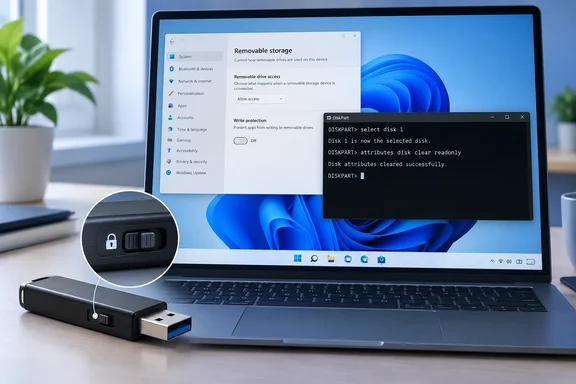 Confirm what is actually read-only
Before changing Windows settings, determine whether the restriction follows the drive or follows the PC.
- Connect the drive directly to the computer if possible. Avoid USB hubs, front-panel ports, and adapters while troubleshooting.
- If the drive is an external hard drive or SSD, check its enclosure, adapter, or manufacturer utility for a lock function.
- Try the drive on a second computer you are authorized to use:
- If it is read-only everywhere, the cause is likely on the drive itself: a physical switch, hardware fault, controller safety mode, or a persistent disk attribute.
- If it is writable on another PC, focus on policies or configuration on the original Windows installation.
- If files can be opened but not copied, deleted, renamed, or edited, note the exact error message. “The disk is write protected” points to a disk attribute or policy. “Access is denied” can also indicate permissions, encryption requirements, or organization-managed controls.
Check for a physical write-protect switch
Some USB devices, SD-card adapters, and older external media have a small sliding lock switch. A locked device can appear normally in File Explorer but refuse all changes.
- Safely eject the drive if it is currently connected.
- Inspect every side of the USB drive, card adapter, or external enclosure for a slider marked Lock, a padlock icon, or a write-protect symbol.
- Move the switch to the unlocked position.
- Reconnect the device directly to a USB port.
- In File Explorer, create a small test text file and then delete it.
If the device remains read-only after the switch is unlocked, continue with DiskPart.
Warning: A switch on an SD-card adapter controls the adapter’s write-protect signal, not necessarily the card itself. A damaged or loose adapter can falsely report that a card is locked. Test with a different adapter before making policy or registry changes.
Clear the disk read-only attribute with DiskPart
DiskPart can display and clear the readonly attribute for a disk. It requires administrator rights. The critical step is selecting the correct disk: commands act on whichever disk currently has focus.
Warning: Selecting the wrong disk can affect an internal drive. Use the disk’s size and, where available, its model information to identify the USB device. Do not runclean,format,delete partition,convert, or any other destructive DiskPart command in this procedure.
- Save and close files that are open from the USB drive.
- Right-click Start and choose Terminal (Admin) on Windows 11, or Windows PowerShell (Admin) / Command Prompt (Admin) on Windows 10.
- Approve the User Account Control prompt.
- Type the following command, then press Enter:
diskpart
The prompt changes toDISKPART>. - List the disks attached to the PC:
list disk
DiskPart displays each disk number and size. Compare the listed size with the capacity printed on the USB drive or external disk. For example, a 64 GB USB drive may be shown as roughly 57–60 GB. - Select the USB disk, replacing
Nwith its actual disk number:
select disk N
DiskPart should report that the selected disk is now the chosen disk. - Confirm the selection before changing anything:
detail disk
Check the displayed model, type, volumes, and size. If it does not clearly identify the intended USB drive, stop and return tolist disk. Select the correct disk before continuing. - Display its attributes:
attributes disk
Look for the read-only status in the output. A disk can be restricted by a persistentRead-onlyattribute or by its current read-only state. - Clear the selected disk’s read-only attribute:
attributes disk clear readonly
DiskPart should confirm that it cleared the disk attributes. - Check the result:
attributes disk
The disk should no longer report a read-only attribute. - Exit DiskPart:
exit - Disconnect the USB drive using the Safely Remove Hardware notification icon if it is available, reconnect it, and test writes in File Explorer. Create a folder, copy a small nonessential file into it, rename that file, and delete it.
A restart is not normally required after clearing the disk attribute, but reconnecting the device helps Windows remount it with the updated state.
Check removable-storage write policies
A policy can make every removable disk read-only even when DiskPart reports no persistent read-only attribute. This is common on domain-joined business PCs, school devices, and systems managed through device-management software.
The relevant policy is Removable Disks: Deny write access. When it is enabled, Windows blocks writing to removable disks. A broader setting, All Removable Storage classes: Deny all access, overrides individual removable-storage policies. Windows can also be configured to permit writes only to BitLocker-protected removable drives.
Review the policy on Windows Pro, Enterprise, or Education
- Sign in with an administrator account.
- Press Windows + R, type:
gpedit.msc
Then select OK. - In Local Group Policy Editor, browse to:
Code:Computer Configuration > Administrative Templates > System > Removable Storage Access - Open Removable Disks: Deny write access.
- Set the policy to one of the following:
- Not Configured if you want Windows to use its normal default behavior.
- Disabled if you are deliberately overriding a locally configured deny-write policy.
- Select Apply, then OK.
- Also inspect All Removable Storage classes: Deny all access. It should be Not Configured or Disabled if you need normal access to USB storage.
- Check the BitLocker removable-drive policies at:
Review Deny write access to removable drives not protected by BitLocker. If enabled, Windows mounts unencrypted removable drives as read-only. Do not disable an organization’s encryption requirement yourself; encrypt the drive or ask the IT administrator which approved method is required.Code:Computer Configuration > Administrative Templates > Windows Components > BitLocker Drive Encryption > Removable Data Drives - Open an elevated Terminal or Command Prompt and apply local policy changes:
gpupdate /force - Unplug and reconnect the USB drive, then repeat the create-and-delete test.
Check whether a domain policy will undo your changes
If the policy reverts after a restart, sign-in, or a short period of time, a domain Group Policy Object or management service is likely enforcing it. A local registry edit or local policy change will not permanently override that centrally managed configuration.
- Open Command Prompt as administrator.
- Generate an applied-policy report:
gpresult /h "%USERPROFILE%\Desktop\gp-report.html" - Open
gp-report.htmlfrom the Desktop. - Look for policies related to:
- Removable Storage Access
- Removable Disks: Deny write access
- All Removable Storage classes: Deny all access
- BitLocker Drive Encryption
- USB device control or endpoint security
- If the computer belongs to a workplace or school, provide the report and the exact write-protection message to the IT administrator. The administrator must change the source policy, not merely the local setting.
Use the Registry only to inspect policy evidence
The Registry can show that a removable-storage policy is present, but it is not the preferred way to override policy. Local manual changes can be reversed by Group Policy, Microsoft Intune, endpoint protection, or another management system.
Warning: Incorrect Registry edits can affect system behavior. Before modifying any value, select the key in Registry Editor and choose File > Export to save a backup of that key. On a managed PC, do not delete or alter organization policy entries; use the policy report and contact the administrator.
- Press Windows + R, type:
regedit
Select OK and approve the administrator prompt. - Check the computer-level policy location:
HKEY_LOCAL_MACHINE\SOFTWARE\Policies\Microsoft\Windows\RemovableStorageDevices - Check the current-user policy location:
HKEY_CURRENT_USER\SOFTWARE\Policies\Microsoft\Windows\RemovableStorageDevices - Within either location, look for entries associated with removable-disk write restrictions. The removable disk device-class subkey is:
{53f5630d-b6bf-11d0-94f2-00a0c91efb8b}
Policy-backed write restrictions use the value nameDeny_Write. A broader restriction may useDeny_Allat theRemovableStorageDeviceslevel. - Treat these values as evidence of a configured policy. Return to Local Group Policy Editor or the organization’s management console to change the policy properly. If the value reappears after you remove it, do not keep deleting it; the device is managed and the policy source must be corrected.
- Close Registry Editor, run
gpupdate /forceif you changed a legitimate local policy, and reconnect the drive.
Verify the drive is writable again
A successful repair should allow normal file operations, not simply let DiskPart finish without an error.
- Open File Explorer and select the USB drive.
- Right-click an empty area and choose New > Text Document.
- Name the file, open it, add a short line of text, save it, and close it.
- Rename the file, then delete it.
- Empty the Recycle Bin only if you want to confirm deletion from the drive; removable-drive deletion behavior can vary by configuration.
- If the device is an external disk with important data, safely eject and reconnect it once more. Confirm the test folder or file operation persisted as expected.
If the drive is still write-protected
Use the symptom to narrow the next step:
- DiskPart says the attribute was cleared, but File Explorer still blocks writes: Check removable-storage and BitLocker policies. A policy restriction can override the disk attribute.
- The policy setting changes back after restart or sign-in: The PC is likely managed by a domain, Intune, security product, or another configuration service. Use
gpresultand contact the responsible administrator. - Only this one USB drive is read-only on multiple computers: The device may have entered a hardware protection or failure state. Back up readable files immediately. DiskPart cannot repair a controller-enforced read-only state.
- Windows reports file-system errors after write access returns: Back up important data first, then run an elevated Command Prompt command using the drive’s letter:
chkdsk X: /f
ReplaceX:with the USB drive letter. This repairs logical file-system errors and may require exclusive access to the volume. Do not disconnect the drive while the check is running. - The drive appears as 0 bytes, disappears, repeatedly reconnects, or generates I/O errors: Stop attempting writes. Try a different USB port and another known-good cable or enclosure for external disks. If the behavior follows the drive, prioritize data recovery or replacement over repeated formatting attempts.