

A wallpaper that stays black, snaps back to an old image, or refuses every selection in Windows 10 and Windows 11 is usually being blocked at one of four layers: the current Personalization choice, an accessibility setting, a theme/cache problem, or a policy applied by an administrator. Start with Settings before editing policies or the registry; the symptom often tells you which layer is responsible.
Microsoft Support’s current instructions confirm that both Windows 10 and Windows 11 set backgrounds from Settings > Personalization > Background. Microsoft Learn’s policy documentation adds an important distinction: an organization can either specify a corporate wallpaper or separately prevent the user from changing it. Those are different controls, and fixing the wrong one is why many wallpaper troubleshooting attempts appear to do nothing.
Windows 10 reached end of free support on October 14, 2025, but its wallpaper controls and local-policy paths remain relevant on PCs that are still in use.
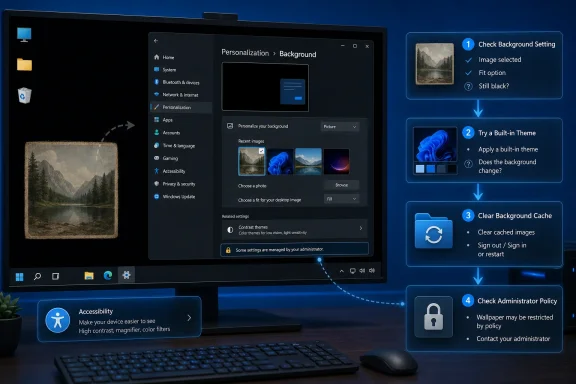 Set a known-good background first
Right-click an empty area of the desktop and select Personalize, then open Background. Under Personalize your background, choose Picture, select Browse, and pick an ordinary local JPG or PNG stored in your Pictures folder—not a file on a removable drive, a network share, a cloud-only OneDrive location, or inside a temporary download folder.
Windows supports Picture, Solid color, Slideshow, and Windows spotlight. For diagnosis, use Picture and a single local file. A slideshow can look like Windows is reverting a wallpaper when it is simply rotating through a folder; Windows spotlight intentionally changes the image as well. Select Fill or Fit under Choose a fit so a mismatched aspect ratio does not leave large black borders that can be mistaken for a failed background.
If selecting the image works but the picture changes back after a few minutes or at the next sign-in, do not keep reapplying it. Something is restoring the prior state: a theme, wallpaper utility, sync client, management policy, or a damaged local cache. Move on to the sections below.
Multiple monitors and virtual desktops can also produce false alarms. With Picture selected, Windows can assign different images to individual displays; right-click a recent image in Background settings and choose the display or desktop deliberately. Microsoft’s documentation also notes a limitation that is easy to overlook: per-monitor background assignment is unavailable when using multiple virtual desktops, while slideshow backgrounds cannot be set separately for each virtual desktop.

Restore a normal Windows theme
A Windows theme is more than a wallpaper file. It bundles a background, colors, sounds, cursor choices, and other appearance settings. A damaged or third-party theme can therefore keep restoring an unwanted background after you set a new one manually.
Open Settings > Personalization > Themes. Apply a built-in Windows theme first, then return to Background and select the local test image again. If this fixes the issue, save your repaired configuration as a new theme rather than immediately reinstalling the old one.
Be cautious with wallpaper managers, animated-wallpaper tools, OEM personalization utilities, and “desktop enhancer” software. These programs can run at sign-in and overwrite Windows’ selection after Settings has successfully applied it. Exit the program completely, including from the notification area, then restart Windows and test a regular static picture. If the wallpaper stays in place only while that software is closed, Windows itself is not the component refusing the change.
For a wallpaper that keeps reverting even after a standard theme is applied, reset the local theme cache. Microsoft Community troubleshooting threads repeatedly point to the per-user Themes folder, though this is not presented as a formal Microsoft Support repair procedure. Open File Explorer and enter the following in its address bar:
%AppData%\Microsoft\Windows\Themes
Rename, rather than delete, the TranscodedWallpaper file to TranscodedWallpaper.old. If a CachedFiles folder exists, rename it to CachedFiles.old. Restart the PC, then select your desired local image again. Renaming preserves a rollback path and causes Windows to create fresh cache data when the background is reapplied.
Do not confuse this cache repair with a cure for a wallpaper that changes predictably after sign-in. A cache cannot defeat an active Group Policy, Intune profile, or third-party wallpaper agent.
Check the accessibility settings that can hide the picture
A black or plain-color desktop is not always a broken wallpaper. Windows has an accessibility option specifically intended to reduce visual distractions by hiding desktop background images.
In Windows 11, open Settings > Accessibility > Visual effects and make sure Show desktop background image is turned on. In Windows 10, go to Settings > Ease of Access > Display and turn on Show desktop background image. Microsoft Support documents this setting for both operating systems.
Also inspect contrast settings. In Windows 11, go to Settings > Accessibility > Contrast themes, choose None, and select Apply. In Windows 10, use Settings > Ease of Access > High contrast and turn the feature off. Contrast themes are legitimate accessibility features, so do not disable them on a PC where they are needed; but they can replace an ordinary photographic desktop with a high-contrast color scheme and make the wallpaper appear to have disappeared.
The keyboard shortcut Left Alt + Left Shift + Print Screen can toggle high-contrast mode on some configurations. If the desktop changed immediately after that key combination—or after a keyboard was bumped—checking contrast settings should come before deeper repairs.
Identify a work or school policy lock
If the Background controls are greyed out, missing, accompanied by a message that settings are “managed by your organization,” or every image is immediately rejected, assume policy until proven otherwise. This is especially likely on employer-owned, school-managed, domain-joined, or Intune-enrolled PCs.
Microsoft Learn documents the relevant user policy as:
User Configuration > Administrative Templates > Control Panel > Personalization > Prevent changing desktop background
On a Windows Pro, Enterprise, or Education PC that you personally administer, press Win + R, enter gpedit.msc, and navigate to that path. Open Prevent changing desktop background. Set it to Not Configured unless you deliberately want to stop wallpaper changes. Then sign out and sign back in, or restart the PC.
There is a second setting that matters:
User Configuration > Administrative Templates > Desktop > Desktop > Desktop Wallpaper
An administrator can use Desktop Wallpaper to specify a particular BMP or JPG file and its display style. Microsoft Learn says that when this policy is set, users cannot choose an alternative image; if the specified file cannot be reached during sign-in, Windows can show no wallpaper at all. That explains a common managed-device failure: a company wallpaper points to an unavailable network location, then the user is left with a black desktop and disabled controls.
Do not set these policies to Not Configured on an employer or school device without approval. Local changes can be reversed at the next Group Policy refresh, and changing them may violate the organization’s configuration rules. The right fix is for IT to repair or remove the assigned policy, update the image location, or correct the Intune profile.
For a quick evidence check on a managed PC, open Command Prompt and run:
gpresult /scope user /r
Microsoft documents gpresult as the command that displays the policy settings actually enforced for the signed-in user. Look for applied Group Policy Objects that reference Personalization, desktop controls, branding, or corporate configuration. The command does not itself remove anything; it helps separate a real policy lock from a local Windows problem.
Avoid registry fixes unless the policy source is gone
Registry advice is common because the local policy behind Prevent changing desktop background maps to this per-user value:
HKEY_CURRENT_USER\Software\Microsoft\Windows\CurrentVersion\Policies\ActiveDesktop
NoChangingWallPaper
Microsoft Learn identifies that mapping directly. A value left behind by an old local policy, an image-customization tool, or a previous management script can disable wallpaper changes even when the Settings interface provides little explanation.
However, registry editing is the last step, not the first. It is easy to delete an unrelated policy value, and a device still enrolled in Intune or Active Directory will simply receive the setting again. Before changing anything, export the relevant key from Registry Editor so you can restore it. Then check whether NoChangingWallPaper exists under the ActiveDesktop key.
On an unmanaged personal PC, a clearly unwanted NoChangingWallPaper entry can be removed after the backup, followed by a restart. If the value reappears, stop editing the registry: a policy, script, or application is recreating it. Check installed wallpaper tools, Task Scheduler entries, startup apps, and management enrollment rather than repeatedly deleting the same value.
A separate policy path can also enforce a specific wallpaper through HKEY_CURRENT_USER\Software\Microsoft\Windows\CurrentVersion\Policies\System. That is another reason a black or locked desktop deserves a policy check before a cache reset.
The fastest repair sequence is therefore simple: apply one local picture, restore a built-in theme, enable Show desktop background image, turn off contrast themes only if they were enabled unintentionally, and then check for enforced policy. If Settings accepts the image but it returns later, treat the timing as evidence—immediate rejection points to policy, a change after sign-in points to a theme or startup program, and a persistent old image after ordinary changes points to the local theme cache.