

The important distinction is between a clock that is hidden and one that is present but wrong. A hidden clock calls for taskbar or Date & time settings. An incorrect clock calls for the date, time-zone, and daylight-saving controls. If the entire taskbar has frozen, restarting Windows Explorer is the narrow, low-impact repair to try before rebooting.
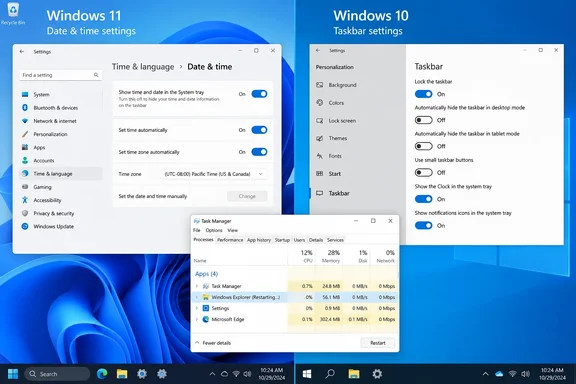 Windows 11 taskbar clock settings now live under Date & time
On current Windows 11 builds, Microsoft places the control for the clock’s visibility in Settings > Time & language > Date & time. This is easy to miss because the clock sits in the taskbar, but Microsoft no longer treats it as a conventional app icon that belongs in the overflow area.
To restore the Windows 11 system-tray clock:
Quick walkthrough

- Open Start, then select Settings.
- Select Time & language.
- Open Date & time.
- Find Show time and date in the System tray.
- Turn the switch On.
The system tray is the right-hand portion of the taskbar containing status indicators such as network, sound, power, notifications, and the clock. On a standard Windows 11 desktop, the clock should reappear there immediately after the switch is enabled.
Microsoft documents that the date and time are shown in the taskbar system tray by default. If the toggle is already on but neither the time nor date appears, do not keep changing unrelated taskbar options. Move to the Explorer restart procedure below.
Windows 11 can also display seconds in the tray clock. In the same Date & time page, enable Show seconds in system tray clock if you want that detail. Microsoft cautions that showing seconds uses more power, which is more relevant to laptops and tablets than desktop PCs. It is a display preference, not a fix for a missing clock.
Windows 10 uses the Notification area’s system-icon control
Windows 10 uses a different route for the same outcome. The clock is controlled as a system icon in the Notification area, the older name for the system tray section of the taskbar.
To turn the Windows 10 taskbar clock back on:
- Right-click an empty space on the taskbar.
- Select Taskbar settings.
- Scroll to Notification area.
- Select Turn system icons on or off.
- Locate Clock and turn it On.
If the Clock switch is on, leave it on. Turning it off and on again may redraw the icon, but it should not be the first response to a taskbar that is otherwise unresponsive. Restarting Windows Explorer is more direct and affects the component that provides the taskbar itself.
Windows 10 and Windows 11 share many interface elements, but their settings paths should not be treated as interchangeable. In particular, Windows 10’s Notification area controls are not proof that every Windows 11 installation will expose a Clock toggle in the same location. Follow the route that matches the version running on the PC.
Restarting Windows Explorer redraws the taskbar without restarting Windows
Windows Explorer is more than the File Explorer window used for folders. It also provides the desktop, Start-related shell components, and taskbar experience. If the clock vanishes along with other taskbar elements, or the setting is already enabled and changes have no visible effect, restarting Explorer refreshes that shell session.
Microsoft includes restarting Windows Explorer among its supported troubleshooting steps for Windows 10 and Windows 11. The process is safe for ordinary taskbar-display problems, but expect the taskbar and desktop icons to disappear briefly while Explorer relaunches.
Before doing this, save any work in open applications. Restarting Explorer does not normally close apps such as Word, a browser, or a game, but saving first is good practice whenever the desktop interface is behaving unexpectedly.
Use Task Manager to restart Windows Explorer
- Press Ctrl + Shift + Esc to open Task Manager.
- If Task Manager opens in its compact view, select More details if that option appears.
- In the list of processes, locate Windows Explorer.
- Right-click Windows Explorer and select Restart.
- Wait a moment for the taskbar, desktop, and system tray to disappear and return.
The successful result is straightforward: the taskbar redraws, and the clock returns if its display setting is enabled. It may take a few seconds for the taskbar icons and notification area to repopulate.
If Windows Explorer is not listed, Microsoft’s documented alternative is to use Task Manager’s Run new task command, type explorer.exe, and press Enter. This starts the Explorer shell process. Use it only when Explorer is absent from the process list, not as an extra step after a normal restart has already restored the taskbar.
A full restart remains reasonable if Explorer will not restart, the taskbar does not return, or other parts of Windows are also failing. But a missing clock alone does not justify jumping straight to recovery tools, registry modifications, or a forced shutdown.
A wrong Windows clock needs Date & time settings, not a taskbar fix
A visible clock can still be misleading if it has the wrong time, date, or time zone. In that case, the clock is functioning; the system’s time configuration needs attention.
In both Windows 10 and Windows 11, go to Start > Settings > Time & language > Date & time. Microsoft documents separate controls for the clock itself, time zone, and daylight-saving behavior.
For most personal PCs that are regularly connected to the internet:
- Turn on Set time automatically to let Windows maintain the current date and time.
- Turn on Set time zone automatically if location-based time-zone detection is appropriate for the device.
- If the time zone is set manually, choose the correct entry in the Time zone drop-down menu.
- When automatic time-zone detection is off, keep Adjust for daylight saving time automatically enabled unless there is a specific reason to manage the clock manually.
Manual settings are useful for a device that remains in one place, an offline system, or a PC whose location permissions or network conditions prevent automatic detection from working as expected. To set the clock manually, turn off Set time automatically, select Change next to the manual date-and-time setting, enter the correct values, and confirm the change.
Do not confuse a time-zone problem with a one-hour clock problem. A PC that is consistently several hours ahead or behind is commonly set to the wrong time zone. A PC that is exactly one hour off around a seasonal change may need its daylight-saving setting checked. Manually changing only the displayed time may conceal the issue temporarily while leaving the time zone wrong.
Taskbar controls and time controls solve different problems
The temptation when the clock is missing is to browse every Taskbar settings category. That is rarely useful. Windows 11’s System tray icons and Other system tray icons sections primarily control items such as the pen menu, touch keyboard, virtual touchpad, and application icons. They are not a substitute for the dedicated time-and-date visibility switch.
Likewise, the taskbar’s auto-hide setting can make the clock appear to have disappeared when the entire taskbar is merely hidden. If the taskbar only appears when the pointer reaches the bottom of the screen, open Settings > Personalization > Taskbar > Taskbar behaviors and review the automatic-hide option. The clock has not been removed in that situation; the entire bar is being concealed until needed.
Multiple displays introduce a second source of confusion. Windows may show taskbars differently across screens depending on the taskbar configuration. Confirm first whether the clock is absent from every taskbar or only from one display. The visibility switch controls the system-tray time and date; monitor-specific taskbar behavior is a separate display preference.
For managed work PCs, a setting may be unavailable or revert after a change. Do not try to bypass organization controls through registry tweaks or downloaded scripts. If the Clock switch is missing, locked, or repeatedly disabled after sign-in, record what you observed and contact the organization’s IT administrator. The relevant boundary is the managed Windows configuration, not whether the same setting can be changed on a personal PC.
What this means for you
Start with the setting that corresponds to your Windows version, then restart Windows Explorer only when the clock remains absent despite being enabled. Treat an incorrect time as a Date & time configuration issue rather than a taskbar repair job.
- Windows 11 users should enable Show time and date in the System tray under Settings > Time & language > Date & time.
- Windows 10 users should enable Clock under Taskbar settings > Notification area > Turn system icons on or off.
- Restart Windows Explorer from Task Manager when the taskbar appears stuck or does not redraw after the setting is corrected.
- Check Set time automatically, the selected Time zone, and daylight-saving behavior when the clock is visible but inaccurate.
- Avoid registry cleaners, third-party taskbar repair utilities, and forced shutdowns for this isolated symptom.
- Windows 10 reached end of support on October 14, 2025; the clock fix remains applicable, but the broader security position of an unsupported Windows 10 PC is a separate concern.
A missing Windows taskbar clock is normally a small shell or settings problem, and the right repair is correspondingly small: enable the correct display control, refresh Explorer if the interface has failed to catch up, and correct Date & time settings only when the display is wrong rather than absent.