

The cleanest fix is to first remove layouts you do not use, then disable the shortcuts most likely to trigger accidental changes, and finally make input behavior consistent across apps.
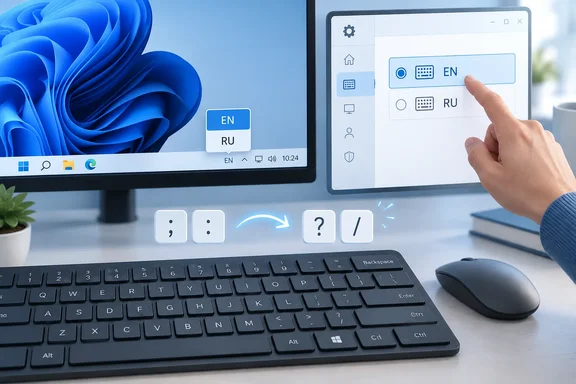 First: confirm it is a layout switch, not a language change
Windows separates three related settings:
- Windows display language changes parts of the Windows interface, such as Settings and File Explorer.
- Preferred languages control the languages and keyboard resources installed for your account.
- Keyboard layouts/input methods determine what your physical key presses produce.
For example, English (United States) can have more than one layout installed. If you use a US physical keyboard but Windows switches to a UK, International, Dvorak, or another layout, the display language may remain English while symbols and key positions change.
Look near the clock on the taskbar for an input indicator such as ENG, EN, or a language abbreviation. Select it to see every layout Windows can currently cycle through. If there is more than one entry and you only need one, you have found the prime suspect.
Remove keyboard layouts you do not need
Removing unused layouts is the best permanent cure. With just one layout installed, there is nothing for Windows to switch to—hotkey or no hotkey.
Windows 11
- Open Settings.
- Select Time & language > Language & region.
- Under Preferred languages, find the language that contains the unwanted layout.
- Select the three dots beside that language, then choose Language options.
- Scroll to Keyboards.
- Select the unwanted keyboard layout and choose Remove.
Keep the layout that matches both your physical keyboard and your actual typing needs. A typical US English setup, for instance, usually needs only US.
Windows 10
- Open Settings.
- Go to Time & Language > Language.
- Under Preferred languages, select the language with the unwanted keyboard.
- Select Options.
- Under Keyboards, select the layout you do not need and choose Remove.
Do not remove a layout merely because its name looks similar to another one. If you regularly type in multiple languages, retain the layouts you genuinely use and remove only duplicates or accidental additions.
Quick check: Press Windows key + Spacebar after cleanup. If nothing changes, Windows has only one available layout to cycle through. Microsoft documents this shortcut as the standard way to rotate through installed keyboard layouts.
Stop Alt+Shift and Ctrl+Shift from changing input
The classic accidental switch happens when an application uses modifier keys heavily. A rushed Alt+Shift, Ctrl+Shift, or similar combination can change the input language before you notice. That is especially irritating in games, creative applications, remote sessions, and software with shortcut-dense workflows.
To turn off the configurable language-switching shortcuts in either Windows 10 or Windows 11:
- Open Settings.
- Go to Time & language > Typing.
- Select Advanced keyboard settings.
- Choose Input language hot keys.
- In the legacy Text Services and Input Languages window, open the Advanced Key Settings tab.
- Select Between input languages, then choose Change Key Sequence.
- Set Switch Input Language to Not Assigned.
- Set Switch Keyboard Layout to Not Assigned.
- Select OK, then Apply.
This is the important distinction: input language and keyboard layout can each have their own key sequence. Disable both if your goal is stability rather than rapid multilingual switching.
Microsoft’s Windows shortcut documentation still lists Ctrl+Shift as a way to switch keyboard layouts when multiple layouts are available, so eliminating unused layouts remains more reliable than relying on muscle memory alone.
What about Windows+Spacebar?
Windows key + Spacebar cycles through installed layouts and input methods. The normal Windows input-hotkey dialog does not provide a built-in switch to disable that particular shortcut.
For most people, the sensible answer is simple: remove every layout except the one you use. With no alternatives installed, pressing Windows+Spacebar has nowhere to go.
If you must keep several layouts installed but want to block Windows+Spacebar, Microsoft PowerToys offers a more advanced workaround:
- Install and open PowerToys.
- Enable Keyboard Manager.
- Select Remap a shortcut.
- Record Windows key + Spacebar as the physical shortcut.
- Set the mapping to Disable.
This is optional, not mandatory. PowerToys must remain running for its remaps to apply, and keyboard remapping may not work in elevated administrator windows unless PowerToys is also running with appropriate permissions. It also will not alter the sign-in screen. For a beginner-friendly fix, trimming the list of installed layouts is still the less fiddly route.
Prevent different apps from remembering different input methods
Sometimes Windows does not change layouts at random; it restores the last input method used in a particular app window. You may type in one layout in a browser, open Word or a chat client, and suddenly see another one. That can look like a spontaneous switch when it is actually per-window memory doing exactly what it was told to do.
To use one input method consistently across applications:
- Open Settings > Time & language > Typing.
- Select Advanced keyboard settings.
- Clear the checkbox for Let me use a different input method for each app window.
With that option turned off, Windows uses one selected input method across your open app windows instead of allowing each one to keep its own separate choice.
This setting is useful for multilingual writers who deliberately want Word, a browser, and a messaging app to remember different inputs. For everyone else, it is a splendid way to create tiny, recurring moments of keyboard confusion.
Verify the fix
After making changes, test the setup before returning to important work:
- Open Notepad.
- Type characters that reveal a layout mismatch: quotation marks, the at sign, question mark, slash, and brackets.
- Press Alt+Shift, Ctrl+Shift, and Windows key + Spacebar once each.
- Check the taskbar input indicator.
- Open a second application and confirm that it retains the same input method.
If the indicator still shows an unexpected layout, return to Language & region or Language and inspect the keyboard list beneath every installed preferred language—not just the one at the top. An extra layout can be tucked under a language you rarely use.
If keyboard switching has stopped working altogether
This guide is designed to stop unwanted switching, but the reverse problem can occur after a cleanup: the input indicator may be unresponsive or Windows+Spacebar may do nothing even when multiple layouts remain installed.
First, confirm there are genuinely at least two layouts available. If there is only one, Windows+Spacebar correctly has nothing to switch.
If several input methods exist and switching still fails, Microsoft identifies the Text Input Management Service as a component involved in initializing the input framework. On older Windows 11 releases, the service may appear under its former name, Touch Keyboard and Handwriting Panel Service. Do not disable it as a “performance tweak”; that sort of tweak often saves approximately nothing and breaks something surprisingly specific.
The practical Windows keyboard-layout checklist
For a stable, single-layout Windows 10 or Windows 11 PC:
- Keep only the keyboard layout you actually use.
- Remove duplicate, accidental, or legacy layouts under each preferred language.
- Set both configurable input-language and keyboard-layout shortcuts to Not Assigned.
- Turn off per-app input-method switching unless you intentionally work in multiple languages.
- Treat Windows+Spacebar as a reminder to simplify installed layouts, or use PowerToys only if you must keep multiple layouts and need that shortcut blocked.
One final Windows 10 note: Microsoft support for Windows 10 ended on October 14, 2025. These steps still apply to existing installations, but a Windows 11 upgrade is the stronger long-term choice for machines that support it—especially where ongoing security updates matter.