

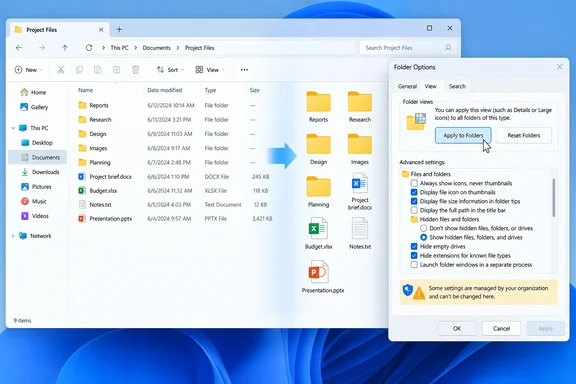
 Confirm that this is a saved-view problem
Before resetting anything, test with an ordinary local folder such as a new folder created in Documents. Do not use Home, This PC, a search-results page, or a library as the test location. Those are special Explorer locations and may not follow the same saved-view behavior as a normal folder.
Quick walkthrough
- Press Windows + E to open File Explorer.
- Create a test folder in Documents:
- Open Documents.
- Right-click an empty area.
- Select New > Folder.
- Name it
Explorer View Test. - Open the new folder and select your preferred layout:
- Windows 11: Select View on the command bar, then choose Details, List, Medium icons, Large icons, or another layout.
- Windows 10: Open the View tab on the ribbon, then select the preferred layout.
- Close the File Explorer window entirely.
- Open File Explorer again and return to
Documents\Explorer View Test.
If that new folder keeps the view but an existing folder does not, the existing folder probably has a conflicting saved layout or a different folder template. Continue with the reset and template steps below.
If even the new test folder immediately reverts, skip ahead to the policy and registry checks.

Reset saved Folder View settings
The built-in reset is the safest starting point. It clears the saved view settings for folders of the current type and returns them to their defaults. It does not delete your files.
- Open File Explorer and browse to a normal folder, preferably the
Explorer View Testfolder created earlier. - Open Folder Options:
- Windows 11: Select See more (…) on the command bar, then select Options.
- Windows 10: Select the View tab on the ribbon, select Options, then select Change folder and search options.
- Select the View tab.
- Select Reset Folders.
- Select Yes when Windows asks for confirmation.
- Still on the View tab, select Restore Defaults if you have also changed advanced File Explorer options and want to return those options to their default state.
- Select Apply, then OK.
- Close all File Explorer windows.
- Reopen File Explorer and return to the problem folder.
At this point, do not judge the result by a special location such as Downloads, Home, This PC, or Search. Test an ordinary folder first.
Set the correct folder template before applying a view
Explorer classifies folders into templates such as General items, Documents, Pictures, Music, and Videos. A Pictures folder may reasonably open with thumbnails while a Documents folder opens in Details. If you apply a Details view while the folder is treated as Pictures, the result may seem inconsistent when you later browse a folder using another template.
Set the template deliberately before setting the default view.
- Right-click the folder that keeps reverting.
- Select Properties.
- Open the Customize tab.
- Under Optimize this folder for, select the template that matches the folder’s contents:
- General items for mixed files, project folders, installers, and most work folders.
- Documents for document-heavy folders.
- Pictures, Music, or Videos for media collections.
- If all direct child folders should use the same template, select Also apply this template to all subfolders.
Warning: This changes the template assigned to subfolders. It does not move, rename, delete, or alter files, but it can change the default columns, grouping, and view behavior of child folders. - Select Apply, then OK.
- Close and reopen the folder.
- Choose the desired view again from the View menu.
For a folder that should remain in Details, also set the sorting and grouping you actually want. For example, choose Sort > Name, and if unwanted grouping is the problem, choose Group by > None. Explorer can preserve grouping separately from the icon or Details layout.
Apply the preferred view to folders of the same type
After choosing the correct template and view, use Apply to Folders. This is the important step when many folders of one type keep opening with an unwanted layout.
- Open a normal folder using the template you want to configure. For example:
- Use a mixed-file folder for General items.
- Use a photo folder for Pictures.
- Use a document-heavy folder for Documents.
- Set the view exactly as wanted:
- Choose Details, List, or an icon size.
- Set Sort and Group by choices.
- In Details view, add or remove columns if needed.
- Open Folder Options:
- Windows 11: … > Options.
- Windows 10: View > Options > Change folder and search options.
- Select the View tab.
- Select Apply to Folders.
- Select Yes to confirm.
- Select OK.
Repeat this procedure once for each template where you need a different default. For example, you might configure:
- General items for Details view with no grouping.
- Documents for Details view sorted by Name.
- Pictures for Large icons.
- Videos for Large icons or Details, depending on the work you do.
Do not expect one use of Apply to Folders to force every location in Windows into one universal layout. It applies the selected view to folders using the same template.
Verify that Explorer is saving the setting
Use this sequence after applying a view. It separates a successful setting from a temporary display change.
- Open the configured folder and confirm its view, sorting, grouping, and columns.
- Open one of its ordinary subfolders.
- Close every File Explorer window.
- Press Windows + E, return to the same folder, and check the result.
- Sign out of Windows and sign in again.
- Recheck the folder after sign-in.
If the setting survives this test, the view is being written successfully. If it changes only after sign-in, reboot, or connecting a work account, investigate policy or device management before performing an advanced reset.
Check whether policy is blocking Folder Options
A common, documented restriction can prevent access to Folder Options. Its policy name is Do not allow Folder Options to be opened from the Options button on the View tab of the ribbon. When enabled, Explorer displays an error when a user attempts to open Folder Options.
On a work, school, or otherwise managed PC, do not attempt to override policy. A Group Policy or mobile-device-management service can restore the restriction at the next sign-in or policy refresh.
Check the applied user policy
- Open Command Prompt.
- Run:
gpresult /scope user /r
- Review the Applied Group Policy Objects section.
- If your PC belongs to an organization, save a fuller report for the IT administrator:
gpresult /scope user /h "%USERPROFILE%\Desktop\gpresult.html"
- Open the resulting
gpresult.htmlfile from your desktop and look for File Explorer or user-configuration restrictions.
gpresult reports the Group Policy settings applied to the signed-in user. It is especially useful on domain-joined PCs, but a device can also be managed through an organization’s device-management service.
Review the policy in Local Group Policy Editor
This method is available on editions of Windows that include Local Group Policy Editor, typically Pro, Enterprise, and Education editions.
- Press Windows + R.
- Type:
gpedit.msc
- Select OK.
- Browse to:
User Configuration
  > Administrative Templates
  > Windows Components
> File Explorer- Open Do not allow Folder Options to be opened from the Options button on the View tab of the ribbon.
- If this is your personally managed PC and the setting is Enabled, change it to Not Configured or Disabled.
- Select Apply, then OK.
- Sign out and sign back in, or restart the PC.
If the setting is managed by your employer or school, leave it unchanged and contact the administrator. Changing a local setting will not reliably defeat a centrally applied policy.
Check the policy registry values without changing them
Windows records the Folder Options policy under the current user’s policy branch. Checking the value is useful when Folder Options is blocked but Local Group Policy Editor is unavailable.
- Open Command Prompt.
- Run:
reg query "HKCU\Software\Microsoft\Windows\CurrentVersion\Policies\Explorer" /v NoFolderOptions
- If the value is not present, Command Prompt reports that it cannot find the registry value. That is normal.
- If
NoFolderOptionsis present, first determine whether the PC is managed. On a work or school device, stop here and contact IT.
You may also see a value named NoSaveSettings in the same policy branch:
reg query "HKCU\Software\Microsoft\Windows\CurrentVersion\Policies\Explorer" /v NoSaveSettings
That policy is documented as preventing certain desktop changes from being saved at sign-out. It is not a reliable diagnosis or fix for Explorer folder views, so do not add, remove, or modify it simply to solve a folder-layout problem.
Advanced recovery: rebuild the saved Explorer view cache
Use this only if the built-in reset, template assignment, and policy checks did not resolve the problem. This process deletes Explorer’s stored per-folder view mappings for the current Windows user. Your files remain untouched, but previously customized folder layouts, views, sort orders, grouping, and some Explorer window preferences will need to be recreated.
Warning: Registry changes can affect the current Windows profile. Back up the exact keys before deletion, use only the commands shown, and do not use this method on an organization-managed PC without approval.
- Close all File Explorer windows.
- Open Windows Terminal or Command Prompt as the signed-in user.
- Export backups of the two view-storage keys:
reg export "HKCU\Software\Classes\Local Settings\Software\Microsoft\Windows\Shell\Bags" "%USERPROFILE%\Desktop\Explorer-Bags-backup.reg" /y
reg export "HKCU\Software\Classes\Local Settings\Software\Microsoft\Windows\Shell\BagMRU" "%USERPROFILE%\Desktop\Explorer-BagMRU-backup.reg" /y- Delete the saved view mappings:
reg delete "HKCU\Software\Classes\Local Settings\Software\Microsoft\Windows\Shell\Bags" /f
reg delete "HKCU\Software\Classes\Local Settings\Software\Microsoft\Windows\Shell\BagMRU" /f- Sign out of Windows and sign back in. A restart is also acceptable.
- Open a normal folder, set its template and preferred view, then use Apply to Folders again.
To roll back, import the backup files created on the desktop:
reg import "%USERPROFILE%\Desktop\Explorer-Bags-backup.reg"
reg import "%USERPROFILE%\Desktop\Explorer-BagMRU-backup.reg"
Then sign out and sign back in. Import only the backup files you created yourself; registry files from downloads or email can make unwanted changes to Windows.
If the view still will not stay saved
Use the symptom to narrow the remaining cause:
- Only one folder reverts: Recheck that folder’s Properties > Customize template, then set the view again after the advanced reset.
- Many folders of one kind revert: Configure one representative folder for that template, then select Apply to Folders.
- Folder Options is missing or produces an error: Check
NoFolderOptionsand the applied user-policy report. This is a restriction issue, not a damaged view cache. - The change works until signing in at work or connecting to a managed account: Treat it as an administration issue. Policy or device management may be restoring the setting.
- The problem happens only in an application’s Open or Save dialog: Test in File Explorer separately. Application file dialogs can retain their own location and layout history, so a successful Explorer fix does not guarantee that an already-used dialog will immediately match it.
- A new Windows account does not reproduce the issue: The problem is likely confined to the original user profile’s Explorer settings. Copying files to a new profile will not copy the old view problem, but migrate profile data carefully rather than replacing registry settings wholesale.