

Microsoft’s current desktop-background documentation confirms that the built-in slideshow can rotate a selected image folder on a schedule, shuffle its order, and advance manually from the desktop’s right-click menu. The part that catches many laptop users is power behavior: Windows can pause the rotation while the PC is running on battery, leaving the current wallpaper in place until AC power returns.
A desktop slideshow is best treated as a small, self-contained photo collection rather than an entire Pictures library. Putting only your chosen wallpaper images into one folder makes the rotation predictable, prevents screenshots and work images from appearing unexpectedly, and makes it easy to replace the collection later.
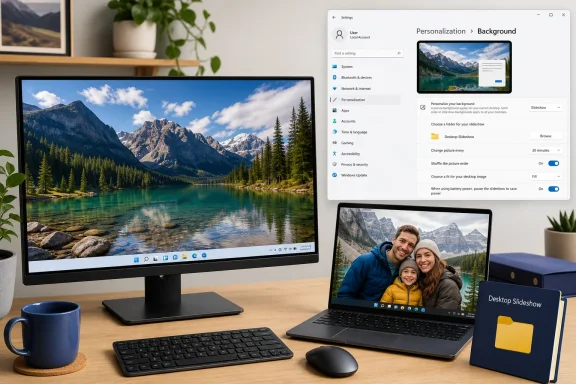 Prepare a wallpaper folder first
Create a dedicated folder before changing the Windows setting. For example, in File Explorer, create a folder such as Pictures\Desktop Slideshow and copy your favorite landscape photos, family images, artwork, or downloaded wallpapers into it.
Windows uses the folder you select as the slideshow source. It does not provide a useful per-photo picker in the Settings workflow, so the folder is the control point: if an image is in that folder, Windows may show it; if it is removed, it is out of the rotation.
For the cleanest result, choose images that suit the resolution and shape of your display. Wide images generally work better on a typical widescreen monitor, while portrait images may leave empty areas or require cropping depending on the fit option you choose. Mixed image sizes are allowed, but a carefully curated folder avoids wallpapers that look stretched, blurry, or awkwardly cropped.
If your photos are stored in OneDrive, an external drive, or a network location, make sure they remain available when Windows tries to change the background. A local folder on the PC is the simplest and most reliable choice for a beginner setup.
Turn on Slideshow in Windows Settings
In both Windows 10 and Windows 11, start from the desktop:
- Right-click an empty area of the desktop and select Personalize. You can also open Settings manually and go to Personalization > Background.
- Find the Personalize your background drop-down menu.
- Select Slideshow.
- Under Choose a picture album for a slideshow, select Browse.
- Choose the folder you prepared and select Choose this folder.
Windows should apply one image from the selected folder immediately. The remaining slideshow controls appear beneath the folder selector.
This is a desktop-background feature, not the same thing as a Photos app slideshow or a lock-screen slideshow. Microsoft documents all three options separately. Selecting Slideshow under Personalization > Background changes the wallpaper behind your icons and open windows; it does not start a full-screen photo presentation, and it does not automatically change your lock screen.
If you only want one static image, choose Picture instead. If you want Microsoft-provided images that update periodically, choose Windows spotlight where it is available. A personal slideshow is the option to use when you want Windows to rotate files you control.
Set the interval, shuffle order, and image fit
Once Slideshow is selected, Windows offers several controls that determine whether the background feels like a subtle rotation or a constantly changing distraction.
Use Change picture every to choose the rotation interval. The available values range from a very short interval to longer periods, including daily rotation. A one-minute setting is useful for confirming that the feature works, but it is usually too frequent for an everyday work PC. Ten minutes, 30 minutes, one hour, or one day are more practical choices depending on how many images you have and how often you want to see something new.
Turn on Shuffle the picture order if you do not want Windows to display the folder in a predictable sequence. With shuffle off, Windows works through the collection in an established order; with it on, the next wallpaper is selected more randomly. Shuffle is the better choice for a mixed collection of personal favorites. Leave it off if the folder is a deliberately ordered set, such as seasonal images or artwork arranged by filename.
The Choose a fit for your desktop image menu controls how each picture is placed on the screen:
- Fill enlarges the image to cover the display and may crop the edges. This is usually the best default for high-resolution landscape photos.
- Fit keeps the entire image visible but can add borders when its proportions do not match the monitor.
- Stretch fills the screen but can distort the image.
- Tile repeats smaller images across the display.
- Center places the image in the middle without enlarging it.
- Span is designed for a single image stretched across multiple monitors.
Microsoft notes an important multi-monitor limitation: with a slideshow, each display can show a different image from the selected folder. That is useful if you want variety across a dual-monitor desk, but it is not the setting for someone who expects one panoramic image to remain synchronized across all screens.
Also be aware of the virtual-desktop limitation. Microsoft says a slideshow background is not supported when you use multiple virtual desktops. If your background unexpectedly becomes a fixed picture after you start using separate desktops for work, gaming, or projects, use a single static background per virtual desktop instead.
Keep the slideshow from changing on battery power
On a laptop or tablet, the relevant switch is Let slideshow run even if I’m on battery power. Leave this switch off if you want Windows to pause wallpaper changes whenever the charger is disconnected.
Windows 10 may phrase the same idea in reverse, such as When using battery power, pause the slide show to save power. In that version, turn the pause option on to prevent changes while on battery. The result is the same: Windows keeps the current background rather than rotating to another file until you reconnect power.
This setting is worth using even though a changing wallpaper is a small part of total power use. Battery life is usually affected more by display brightness, screen-on time, refresh rate, and demanding applications. Still, pausing the slideshow eliminates unnecessary background activity and prevents a visual change from occurring while you are presenting, reading, or trying to preserve as much charge as possible.
Microsoft’s Windows power guidance continues to emphasize display and sleep settings as the biggest user-controlled battery levers. For a laptop that spends much of its time away from a charger, pair the paused slideshow setting with shorter screen-off and sleep timers in Settings > System > Power & battery on Windows 11, or Settings > System > Power & sleep on Windows 10.
Check the result and fix the common surprises
After the slideshow is configured, right-click an empty part of the desktop. The context menu should include Next desktop background, which lets you force Windows to move to another image without waiting for the selected interval. It is a quick way to confirm that Windows can read the chosen folder.
If the wallpaper does not change at all, first verify that the slideshow source folder still contains compatible image files and is still reachable. Then return to Settings > Personalization > Background and check that the background type has not reverted to Picture. On a portable PC, check the battery-power slideshow switch before assuming the feature has failed.
A work-managed PC can be a different case. Microsoft’s enterprise policy documentation includes settings that can enable or disable desktop background slideshows separately for AC and battery power. If the Slideshow option is unavailable, repeatedly switches back to Picture, or will not run even after the basic Settings controls are correct, an organization’s policy or power configuration may be overriding the personal preference. In that situation, the fix belongs with the IT administrator rather than in a registry tweak.
For everyone else, the setup is intentionally simple: maintain one folder, choose an interval that does not interrupt your day, enable shuffle if you want variety, and leave battery playback disabled if you want the wallpaper to remain stable away from a charger.