

Microsoft Support’s current performance guidance points to Task Manager, startup applications, background permissions, and power mode as the built-in controls for finding heavy activity. HP’s support guidance reaches the same basic conclusion from the hardware side: sustained CPU work, corrupt software, malware, and restricted airflow can all keep a notebook’s fans active. The important practical distinction is whether fan noise follows measurable system load.
A fan ramping up briefly during a game, video export, Windows update, antivirus scan, or while a browser restores dozens of tabs is normal. A fan that stays loud after the machine has been sitting at the desktop for several minutes, with little processor activity, deserves a more structured check.
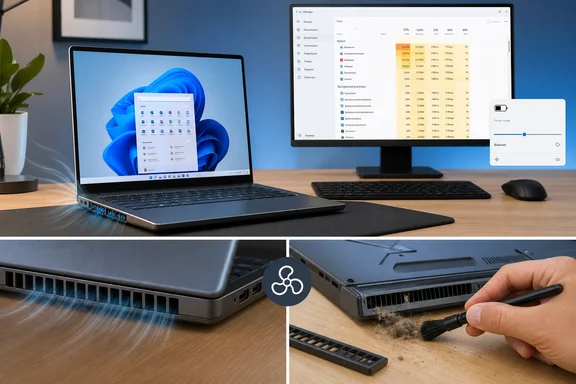 Start with Task Manager while the fan is loud

Press Ctrl + Shift + Esc to open Task Manager, then select Processes. Click the CPU column header to sort applications and background processes from highest to lowest CPU use. Keep this window open for a few minutes rather than reacting to one instant reading; short bursts are common, while a process holding a meaningful share of CPU capacity is the useful clue.
Look first for recognizable applications: a browser with active tabs, a game launcher downloading updates, cloud-sync software, video-conferencing tools, RGB utilities, virtual-machine software, or an installer. Close work you do not need, then use the app’s normal Exit command where possible. If it does not close, select it in Task Manager and choose End task.
Do not end processes simply because their names look unfamiliar. Windows components, hardware drivers, endpoint-security software, and business-management tools may use opaque names. Ending the wrong process can interrupt a task, disable a device function, or cause the process to restart immediately, which teaches nothing about the original cause.
A useful test is simple: note the process at the top of the CPU list, close or pause the related application, and watch both its CPU figure and the fan for two to three minutes. If CPU use falls and fan noise fades, you have found a software-load problem. If CPU use remains low but the fan does not change, move to the cooling checks later in this guide.
Microsoft describes Task Manager as both a system monitor and startup manager, so it is the right first tool—not a third-party “PC cleaner.” Its Performance tab also provides a quick sanity check: sustained high CPU, disk, or network activity suggests that the PC is still doing work even when no foreground app appears busy.
Use Resource Monitor to identify the work behind a process
Task Manager tells you which executable is consuming CPU; Resource Monitor can help show what it is connected to. Open Start, type resmon, and select Resource Monitor, then open the CPU tab. Microsoft’s high-CPU troubleshooting guidance uses this same tool and tab to investigate processor use.
Select the checkbox beside a process that remains near the top of Task Manager. Resource Monitor narrows the lower panes to show associated services, handles, and modules. For ordinary home users, the most useful pane is Services: it can reveal whether a svchost.exe instance is associated with a particular Windows service instead of leaving you with a generic process name.
This is also where patience prevents false diagnoses. A process such as Microsoft Defender Antivirus, Windows Update, Search Indexer, or a cloud-sync client may legitimately consume resources for a limited period. Microsoft notes that full antimalware scans can make a PC slower because they inspect files and programs across the device. If the load steadily declines and the fan follows it down, let the task finish rather than repeatedly killing it.
If the same process returns to high CPU every time you boot, record its name and publisher before changing anything. Right-click it in Task Manager and choose Open file location only if you need to establish what installed it; files in a familiar vendor folder are different from an unknown executable running from a temporary or user-profile directory. For a process you cannot identify and that remains persistently busy, run a security scan rather than assuming it is harmless.
Open Windows Security and go to Virus & threat protection. A quick scan is appropriate for an initial check; a Full scan is more thorough and will itself create temporary system load. Microsoft recommends a full scan when infection is a concern, and an offline scan is available if you suspect persistent malware. Do not judge the fan while the scan is running—wait until it completes and the PC has been idle again.
Set Windows to Balanced before blaming the fan
Windows power settings influence how aggressively the PC favors speed over power consumption. Microsoft explicitly warns that Best performance increases power use and may make a laptop run warmer. If the fan is a concern during ordinary work, this is the wrong setting to leave enabled as a default.
On most Windows 11 PCs, open Settings > System > Power & battery and set Power mode to Balanced. On Windows 10, open Settings > System > Power & sleep, then select Additional power settings and choose the Balanced plan if your PC exposes the older Control Panel plans.
The exact choices vary by device. Microsoft’s documentation says Modern Standby systems may expose only Balanced or plans derived from it, while some laptop makers add their own quiet, cool, or performance profiles in a vendor utility. Those profiles can alter fan behavior, processor limits, and charging behavior, so use the utility provided by the PC manufacturer rather than a generic fan-control application.
Windows 11 version 24H2 and later also includes Energy saver, which replaced the former Battery saver feature. It can reduce energy use and can be configured even while the PC is plugged in. It is useful when battery life and lower heat matter more than maximum responsiveness, although some devices prevent manual power-mode changes while Energy saver is active.
Balanced is a diagnostic baseline, not a universal performance recommendation. A gaming laptop, workstation, or desktop performing sustained rendering may still need a vendor performance mode for its intended workload. The point is to check whether an unnecessarily aggressive power preference is holding clocks high during email, web browsing, or idle time.
Remove startup and background work that you do not use
A loud fan immediately after signing in often traces back to startup applications. In Task Manager, select Startup apps and review the enabled entries. Microsoft’s startup-app guidance lets you disable an application from this list without uninstalling it; select an item and choose Disable, then restart the PC.
Prioritize software you recognize but do not need at every sign-in: game launchers, chat clients, creative-suite helpers, phone-sync utilities, consumer updaters, and duplicate cloud-storage clients. Leave hardware utilities, corporate-management software, security products, and anything you cannot identify enabled until you know what it does.
Task Manager’s “startup impact” rating is helpful but limited. It measures the app’s effect on the startup experience, principally its CPU and disk activity while Windows starts. A high-impact item is a good candidate for review, but a low-impact app can still run constantly after startup and contribute to heat. Recheck the Processes tab after the next restart; that is the evidence that matters for fan noise.
Windows also permits some apps to work in the background. For an app that offers this setting, go to Settings > Apps > Installed apps, choose the three-dot menu beside the app, select Advanced options, and change Background app permissions to Never or leave it on Power optimized. Microsoft notes that background apps may sync and send notifications even when they are not open, and the Always option can use more power.
If removing obvious startup items does not change the behavior, Microsoft’s clean-boot procedure is the safer way to isolate a software conflict. It starts Windows with non-Microsoft services and startup apps disabled, then restores them in batches until the offender is found. This is a more involved step than routine troubleshooting: document every change, hide Microsoft services before disabling anything, and restore normal startup after testing. It is far safer than randomly disabling services in System Configuration.
Know when Windows is no longer the likely cause
The decisive test is the relationship between load and noise. After a restart, wait five minutes without opening a browser or other apps, then look at Task Manager. If CPU use is low and stable but the fan remains fast, Windows has not supplied a clear software explanation.
Check the physical basics next. Put a laptop on a hard, flat surface, verify that intake and exhaust vents are not blocked, and inspect them for visible dust. Do not balance the machine on a bed, couch, blanket, or lap where fabric can obstruct the underside. HP and Dell both identify restricted airflow as a common contributor to persistent fan noise and overheating.
A fan that runs hard in the BIOS or UEFI setup screen, or during the manufacturer’s pre-boot diagnostics before Windows loads, points away from a Windows process. It does not prove a failed fan—firmware can deliberately use a conservative cooling policy—but it means Task Manager and startup cleanup will not solve the underlying issue. Run the PC maker’s built-in diagnostics and install BIOS, chipset, graphics, and thermal-management updates only from that manufacturer’s support page for the exact model.
Treat these signs as a reason to stop experimenting with software and arrange service:
Quick walkthrough
- The chassis is unusually hot at idle, emits a burning smell, or repeatedly shuts down without warning.
- The fan makes grinding, rattling, clicking, or scraping noises rather than smooth airflow noise.
- The fan stays at maximum speed in firmware diagnostics or reports a fan, thermal, or sensor error.
- The fan never runs under a heavy workload even as the PC becomes hot.
Do not open a laptop or remove its cooling assembly unless the manufacturer’s service instructions authorize the work and you are comfortable with it. A clogged heatsink, failed fan, degraded thermal interface, or faulty temperature sensor requires a hardware remedy, and an improvised fan-control tool can mask the symptom without restoring safe cooling.
The practical outcome should be clear after one restart and a few minutes of observation: sustained CPU activity means address the identified application, scan, update, or startup item; low activity with sustained fan noise means check airflow, firmware diagnostics, and the manufacturer’s hardware support path.