

winget, for a precise uninstall when you have identified the exact application.
Microsoft’s support documentation confirms that both Windows 10 and Windows 11 provide an Installed apps page for removing ordinary applications, while Microsoft Learn documents that winget list can inventory software installed both through winget and by other methods. That second detail is the useful one: winget is not limited to programs you installed at a terminal. It can often find conventional desktop software, Microsoft Store apps, and OEM-installed software too.
The goal is not to make Windows look as empty as possible. Removing a 20 MB shortcut app will not transform a PC’s speed, and aggressive removal commands can break features you later rely on. A sensible cleanup targets software you recognize, do not use, and can reinstall from a legitimate source if necessary.
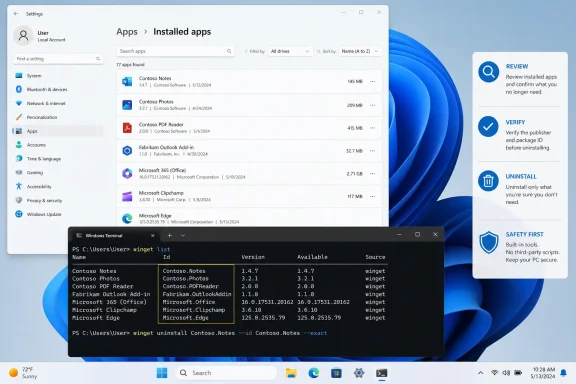 Start with Settings, where app names are easiest to verify
Open Settings > Apps > Installed apps in Windows 11. In Windows 10, open Settings > Apps > Apps & features. Sort the list by size, installation date, or name, then use the search box to investigate one program at a time.
This view is particularly useful for identifying manufacturer utilities, game launchers, expired security-suite trials, old creative software, duplicate communications clients, and applications left behind by work or school accounts. Do not make a decision solely because a name looks unfamiliar. Check the publisher, installed size, and whether the app appears in Start before removing it.
Use the three-dot menu next to an application in Windows 11, or select the application in Windows 10, and choose Uninstall. Follow the application’s own removal prompts. Some traditional desktop programs open a separate uninstaller; that is normal.
If Windows does not offer an Uninstall button, do not try to defeat that restriction with a random PowerShell command found online. Microsoft notes that some apps are built into Windows and cannot be removed through Settings. A missing button may also mean that the program must be removed from Control Panel’s Programs and Features instead.
Before deleting a large application because it is malfunctioning, check its Advanced options in Settings. Some apps support Repair or Reset. Repair is normally the lower-risk choice because it attempts to fix the installation without removing the app; Reset can erase its local app data.
Confirm that winget is available before using it
winget is delivered through Microsoft’s App Installer infrastructure. On supported systems, open Windows Terminal, PowerShell, or Command Prompt, then run:
winget --version
If Windows returns a version number, the command-line tool is ready. If it says that winget is not recognized, check Microsoft Store for updates to App Installer, then reopen the terminal. Microsoft documents App Installer as built into Windows 11 and Windows 10 version 1803 and later, although an unmanaged, outdated, or modified installation can still be missing the command.
Windows 10 remains relevant for older PCs, but it is no longer a supported consumer operating system: Microsoft ended free Windows Update security fixes and technical support for Windows 10 on October 14, 2025. Removing unused apps can free storage on such a machine, but it does not address the operating system’s lack of current security servicing.
Do not launch an elevated terminal just because you are cleaning apps. Start with a normal terminal window. If an application’s own uninstaller requires administrator permission, Windows can request it at the point it is needed. An elevated terminal reduces those visible permission checks and makes it easier to remove a machine-wide application by mistake.
Build an inventory before you uninstall anything
The basic inventory command is:
winget list
It displays the installed applications winget can detect, commonly with columns for Name, ID, Version, Available, and Source. The ID is more valuable than the friendly name because names can be duplicated, truncated, or nearly identical.
The output can be long. Search for a likely candidate instead of scanning every entry:
winget list spotify
Or search by its displayed name:
winget list --name "Spotify"
Use broad searches only to find the target. Do not treat a partial match as confirmation. A query for “Microsoft,” “Adobe,” “Teams,” or “Gaming” can return several separate products, and some can be dependencies or components rather than the app you had in mind.
A good cleanup pass follows a simple order:
- Remove applications you installed and have not opened in months, especially large games, old utilities, obsolete VPN clients, and duplicate tools.
- Review trialware and vendor promotional apps that came with the PC, but retain hardware utilities you actually use for firmware, battery charging limits, keyboard controls, audio processing, or warranty support.
- Leave applications alone when you cannot identify their purpose, their publisher is absent, or the name suggests a driver, runtime, update component, framework, or hardware service.
The last rule prevents most avoidable breakage. Items such as Microsoft Visual C++ Redistributables, .NET runtimes, device-driver packages, audio drivers, chipset software, Windows App Runtime, and components with “Update,” “Installer,” or “Driver” in their names are often shared by other software. They consume some space, but removing them to chase a minimalist app list can create harder-to-diagnose failures later.
Use the exact package ID for the uninstall
Once winget list has shown the application’s ID, use that identifier with exact matching and interactive mode:
winget uninstall --id <Package.ID> --exact --interactive
For example, the command structure might look like this:
winget uninstall --id Contoso.SampleApp --exact --interactive
Replace Contoso.SampleApp with the ID shown on your computer. Do not copy the example as though it were a real target.
The --exact switch tells winget not to treat the ID as a partial match. The --interactive switch is deliberate in a beginner workflow: it allows the program’s own removal interface to appear, so you can read options such as “keep user data,” “remove shared settings,” or “restart later.” Microsoft’s winget documentation lists both options and notes that winget will present multiple choices when a query does not resolve to one application.
When winget completes, verify the result:
winget list --id <Package.ID> --exact
If the application no longer appears, also search for it in the Start menu and check Installed apps. A leftover Start-menu shortcut is not always proof of a failed uninstall, but a remaining entry in Installed apps, a running background process, or an error from winget deserves a closer look.
Avoid these options during ordinary cleanup:
--silent
--force
--purge
--all-versions
Silent mode hides the app publisher’s prompts. Force can continue past non-security warnings. Purge is intended for portable packages and may delete package directories. Removing all versions is inappropriate unless you know why multiple versions exist. These switches have legitimate administrative uses, but they are a poor fit for a first-pass, one-app-at-a-time cleanup.
Treat “debloat” lists as suggestions, not removal plans
Many Windows 11 debloat guides publish huge commands designed to remove Store apps, provisioned packages, services, or bundled features in one operation. They save time only by skipping the review step. That tradeoff is risky on a personal PC and even less suitable on a work-managed device.
A package can be removable yet still useful. Xbox components, Phone Link, Media Player, OneDrive, Web Experience Pack features, language tools, camera support, printer utilities, and OEM control panels all have users who need them. An app being unpopular online is not evidence that it is unnecessary on your device.
The practical distinction is between removing an application and dismantling a Windows feature. winget uninstall is best used for applications that already present an uninstall relationship to Windows. It is not a license to remove protected operating-system components, and it should not replace normal corporate software management tools on an employer-owned PC.
If the device is managed through Microsoft Intune, Configuration Manager, Group Policy, a workplace security agent, or an employer’s remote-support platform, do not remove software that you did not install without checking policy first. A cleanup can remove VPN access, endpoint protection, compliance tooling, or a required line-of-business dependency.
Keep a record, but do not mistake export for a backup
For a major cleanup, take a screenshot of Installed apps or save a text record before you begin. You can also use winget’s export feature:
winget export --output apps-before-cleanup.json
Microsoft documents winget export primarily as a way to create a JSON file that can later help reinstall matched applications. It is useful as a reference, but it is not a full system backup. Winget may warn when it cannot match an installed program to a configured package source, and an import does not restore application data, licenses, custom settings, or every legacy program.
For a cautious user, the better recovery plan is simple: remove one app, confirm the PC works normally, then proceed to the next. If a program refuses to uninstall or leaves a broken entry behind, restart first. Microsoft’s Program Install and Uninstall troubleshooting guidance is the next step for stubborn desktop applications; a mass-removal script is not.
A clean Windows installation is not the one with the fewest entries in winget list. It is the one where every remaining app has a known purpose, unwanted software is gone, and you still know how to recover what you chose to remove.