

Microsoft’s current Start menu documentation and its Appx PowerShell reference point to a less destructive sequence: confirm the app is still installed, restore its Start visibility, repair the individual package where Windows offers that option, then re-register the package only if its registration is damaged. Microsoft also explicitly documents that Windows 10 support ended on October 14, 2025, so Windows 10 users can use these steps, but should not mistake a successful repair for restored security support.
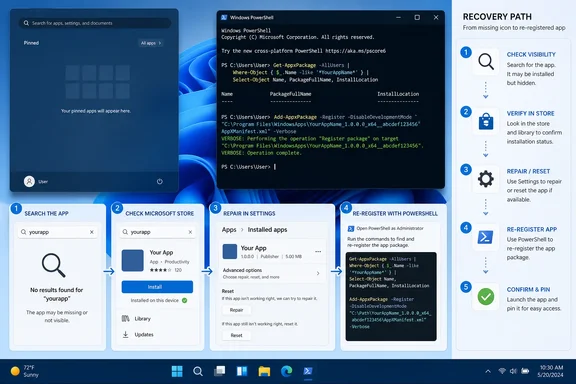 Confirm whether the app is missing or merely unpinned
Start with Windows Search. Press the Windows key, type the app’s name—such as Calculator, Photos, Notepad, or Microsoft Store—and look for it in the results. If it appears, launch it once, then right-click its result and choose Pin to Start. In Windows 11, also open Start and select All to check the installed-app list rather than relying on the pinned area.
This distinction saves time. The pinned portion of Start is a collection of shortcuts, not an inventory of installed software. An app can disappear from the first Start screen simply because it was unpinned, because the pin was removed during a profile or layout change, or because Windows has rearranged the visible Start layout.
On Windows 10, open Settings > Personalization > Start and make sure Show app list in Start menu is enabled. Microsoft’s Start documentation confirms that Windows 10 can hide the app list, leaving users with tiles and pins that make installed applications appear to have vanished. Windows 11 uses the All view for its full installed-app list; its current interface can display apps in category, grid, or list views.
If the app turns up in Search or All apps, it is not an Appx deployment emergency. Pin it back and stop there.
Microsoft Store itself deserves a separate check. Microsoft says the Store may merely have been unpinned from the taskbar or Start. Search for Microsoft Store before assuming it has been removed. On a work or school device, the Store may also be intentionally blocked by policy; Microsoft’s enterprise documentation shows that administrators can deny access through the “Turn off the Store application” Group Policy or its equivalent Intune policy. Re-registering the Store does not override that policy.
Use Windows’ per-app repair before PowerShell
If the app is listed but will not open, opens and immediately closes, or fails to return to Start after being launched, use the repair controls built into Settings before touching package registration.
In Windows 11, go to Settings > Apps > Installed apps, select the three-dot menu beside the affected app, choose Advanced options, and select Repair. In Windows 10, the route is Settings > Apps > Apps & features, select the app, then open Advanced options and choose Repair.
Microsoft’s support guidance makes the hierarchy clear: try Repair first; use Reset only if Repair is unavailable or fails. Repair attempts to correct the app without wiping its data. Reset is more disruptive because it returns the app to its initial state and can remove its local settings, offline files, cached sign-ins, and app-specific data.
For example, resetting Microsoft Store is reasonable if Store itself is broken, but resetting a productivity app can remove data stored only inside that app. Check whether the application has local content before choosing Reset.
If the missing item is specifically Microsoft Store and the Store package still appears in Search but will not launch, Microsoft also documents wsreset.exe as a Store-cache reset. Press Windows + R, enter the command below, and wait. A blank command window may appear briefly; Microsoft says the Store should open automatically when the reset is complete.
wsreset.exe
This clears the Store cache. It does not reinstall Microsoft Store, repair a removed package, or restore apps an administrator has blocked.
Check whether Windows still has the package
PowerShell re-registration works only when Windows can still locate the application package and its AppxManifest.xml file. It is a registration repair, not a download mechanism and not a substitute for an app that was deliberately removed.
Open Windows Terminal (Admin) or PowerShell (Admin), then query a missing package by its package name. Use a wildcard if you do not know the precise internal name.
Get-AppxPackage -Name "*WindowsCalculator*"
For Microsoft Store, use:
Get-AppxPackage -Name "Microsoft.WindowsStore"
Microsoft’s Get-AppxPackage documentation says the command lists Appx and MSIX packages installed in the current user profile. The useful field is InstallLocation: if PowerShell returns a package and an installation path, Windows has a package to re-register.
For a fuller view of the current account’s Microsoft packages, run:
Get-AppxPackage -Publisher "CN=Microsoft Corporation, O=Microsoft Corporation, L=Redmond, S=Washington, C=US" |
    Select-Object Name, PackageFullName, InstallLocation
Do not confuse an empty result with a broken Start shortcut. An empty result means the package is not registered for the profile you queried, or no matching package is installed for that profile. In that situation, the broad “re-register everything” command found in many forum posts cannot recreate the missing package because it has no manifest to register.
For a Store app that is genuinely absent, reinstall it from Microsoft Store after confirming that Store access is permitted. If the Store is unavailable because of organizational policy, the proper fix is administrative: the IT team must review the policy or deploy the application through its managed software channel.
Re-register only the app that is broken
Once Get-AppxPackage returns the app, re-register the specific package. This is the controlled version of the commonly recommended repair. Microsoft Learn documents that Add-AppxPackage -Register -DisableDevelopmentMode can register an existing installed package that did not register correctly or whose registration has become corrupted.
For Calculator, run:
Get-AppxPackage -Name "*WindowsCalculator*" |
    ForEach-Object {
        Add-AppxPackage -DisableDevelopmentMode -Register "$($_.InstallLocation)\AppxManifest.xml"
    }
For Microsoft Store, run:
Get-AppxPackage -Name "Microsoft.WindowsStore" |
    ForEach-Object {
        Add-AppxPackage -DisableDevelopmentMode -Register "$($_.InstallLocation)\AppxManifest.xml"
    }
For Photos, a commonly matching package name is:
Get-AppxPackage -Name "*Windows.Photos*" |
    ForEach-Object {
        Add-AppxPackage -DisableDevelopmentMode -Register "$($_.InstallLocation)\AppxManifest.xml"
    }
Then restart Windows and test Search, All in Start, and the app itself. A restart is not ceremony here: Start, Search, and package-related background components may continue showing cached state until the session is refreshed.
The important limitation is scope. Get-AppxPackage without -AllUsers works on the profile that runs the command. That is often exactly what a home user needs because the symptom belongs to one Windows account. Microsoft documents -AllUsers as an administrative inventory option, but using it casually in a repair command can create confusing results on multi-user PCs and does not make every app available to every profile.
Why “re-register all apps” should be the last package step
The well-known all-packages command is useful when many inbox apps are visibly broken in one profile, but it is a blunt instrument:
Get-AppxPackage |
    ForEach-Object {
        Add-AppxPackage -DisableDevelopmentMode -Register "$($_.InstallLocation)\AppxManifest.xml"
    }
It walks through every Appx package registered to the current account, including frameworks, resource packages, system components, and apps unrelated to the missing Start entry. Expect PowerShell to produce warnings or errors for packages that cannot or should not be registered in that context. A wall of red text does not automatically mean the repair failed, which makes this command a poor first diagnostic.
Use it only after targeted re-registration has failed and only when the problem affects multiple built-in apps, not a single missing pin. Before running it, close Store apps and save work. Do not add -AllUsers to this command as a guess; package state differs by profile, and a multi-user repair should be handled deliberately rather than by pasting a one-line command across every account.
If the command completes but the app remains absent from Get-AppxPackage, PowerShell has confirmed the core problem: there is no locally installed package available to register. Return to Microsoft Store, your organization’s software deployment tool, or the original application installer.
Repair Windows only when the damage is broader
A missing app package is usually an app-level problem. A broken Start menu, failed Settings pages, multiple missing inbox apps, and package-registration errors across the system can indicate Windows component corruption instead.
Microsoft’s current support procedure is to run DISM first, then System File Checker, from an elevated Command Prompt or Terminal:
DISM.exe /Online /Cleanup-image /Restorehealth
sfc /scannow
DISM repairs the Windows component store and may obtain needed repair content from Windows Update, subject to your organization’s update policies. sfc /scannow then checks protected system files and replaces damaged copies where possible. Restart after both commands finish, then repeat the targeted package check and re-registration step if necessary.
This is also the point to check the timeline. If apps vanished immediately after a Windows update, a profile migration, a cleanup tool, or an administrator’s policy change, identify that event before escalating to Reset this PC. Microsoft’s recovery guidance places reinstall and reset options after less disruptive troubleshooting. Resetting the computer can preserve personal files under “Keep my files,” but it still removes installed applications and settings—far more collateral damage than repairing a Start shortcut or one Appx registration.
The practical outcome is simple: Start visibility first, individual app repair second, targeted re-registration third, system repair only when the evidence points to wider corruption. That sequence restores most missing built-in and Store app entries without turning a Start menu problem into a Windows reinstallation project.