

On Windows 11 version 24H2 and later, Energy Saver replaces the older Battery Saver label. The purpose is similar, but Microsoft expanded the feature so it can also reduce energy use on some plugged-in PCs, including desktops.
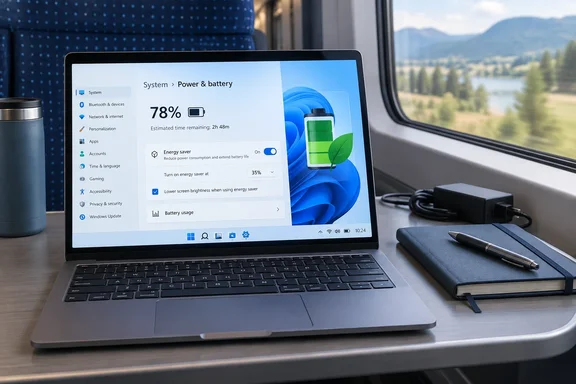 Turn on Energy Saver now
Quick walkthrough
- Open Start and select Settings.
- Go to System > Power & battery.
- Expand Energy saver.
- Turn on Always use energy saver.
That enables the mode immediately and keeps it on until the next time you connect the charger. On a laptop, you should also see its status reflected in the taskbar’s battery area—typically with the familiar leaf indicator.
For an even faster route:
- Select the battery, network, or volume area at the right end of the taskbar to open Quick Settings.
- Select Energy saver.
That is the five-second option when you are heading out the door and your charger is still enjoying a quiet day at home.
Schedule Energy Saver for low-battery moments
Leaving energy saving enabled all day is not necessary for most people. A better approach is to have Windows enable it automatically before the battery gets uncomfortably low.
- Open Settings > System > Power & battery.
- Expand Energy saver.
- Find Turn energy saver on when battery level is at.
- Select the percentage that suits your routine.
The best threshold depends on how predictable your day is:
- 20% is a sensible last-resort threshold if charging opportunities are common.
- 30% to 40% works well for commuters, students, and field workers who may need several more hours away from an outlet.
- 50% or higher can make sense on a long travel day, but it also means the PC spends more time prioritizing efficiency over responsiveness.
Microsoft’s current Windows support guidance confirms that users can choose the battery percentage at which Energy Saver activates, or enable it immediately until the next charge. That is more practical than treating the feature as an emergency-only switch.
What Energy Saver actually changes
Energy Saver is not a magic battery-elixir app. It cannot repair a worn battery, make a power-hungry game sip electricity, or repeal the laws of thermodynamics. What it can do is reduce waste from background work and encourage Windows to operate more efficiently.
Microsoft describes it as a feature that automatically manages system processes and power consumption to balance performance with longer battery life. In the earlier Battery Saver implementation that Energy Saver superseded, Windows limited background activity, delayed certain nonessential activity, reduced display brightness by default, and prevented non-critical update downloads while conserving power.
In daily use, that can mean:
- Background apps may update less often.
- Some sync activity may wait until normal power behavior resumes.
- The display may be dimmer, depending on the device and configured options.
- Windows may be less eager to spend power on background tasks.
- The PC can feel slightly less responsive under sustained heavy workloads.
The trade-off is deliberate. You are telling Windows: keep the essentials moving, but stop treating this battery like it is plugged into a wall socket.
Know when to leave it off
Energy Saver is excellent for writing, web browsing, email, video playback, meetings, and general office work. It is less ideal when consistent performance matters more than endurance.
Consider turning it off temporarily for:
- PC gaming, especially games sensitive to frame-time stutter.
- Video editing, rendering, and 3D work.
- Large software builds or virtual-machine workloads.
- Data analysis and other CPU-intensive tasks.
- Time-sensitive file uploads, downloads, and synchronization, if delayed background work would be a problem.
For these jobs, also check Settings > System > Power & battery > Power mode. Microsoft offers Best power efficiency, Balanced, and Best performance modes on supported hardware. Energy Saver and a power mode are related but not identical controls: Energy Saver is the “make the battery last” switch, while Power mode is the broader preference for how Windows balances speed and energy use.
If the Power mode menu is unavailable, a custom power plan may be selected. Microsoft’s guidance is to open Control Panel > System and Security > Power Options and select Balanced before trying again.
Pair Energy Saver with the settings that matter most
Energy Saver is a strong first move, but the display is often the biggest and least dramatic battery drain. A few companion changes can deliver a more noticeable result than obsessing over one toggle.
Reduce screen-on time
Go to Settings > System > Power & battery > Screen and sleep.
Set shorter timeouts for:
- Turn off my screen after when on battery.
- Put my device to sleep after when on battery.
A laptop left awake in a bag is a portable radiator with an anxiety disorder. Sleep settings are cheap insurance.
Lower brightness manually
Open Settings > System > Display and reduce the Brightness slider to a comfortable level. Microsoft also notes that a lower refresh rate uses less power, so devices with 90Hz, 120Hz, or higher displays may gain additional runtime by switching to a lower available refresh rate under Display > Advanced display.
Identify battery-hungry apps
Go to Settings > System > Power & battery > Battery usage.
Look at Battery usage per app and investigate programs that consume unusual amounts of power in the background. For supported apps, select the app’s More options menu and choose Manage background activity. This is particularly useful for software that has no business waking up repeatedly while you are not using it.

Use Energy recommendations carefully
Windows 11 also includes Energy recommendations under Settings > System > Power & battery. This section can suggest changes to brightness, sleep timing, screen savers, and other power-related settings.
Use Apply all only if you are happy for Windows to make several changes at once. Otherwise, review the suggestions one by one. The best battery settings are the ones you can live with; a perfect configuration that makes the PC irritating to use will not survive the afternoon.
If Energy Saver is missing
First, check your Windows version. Energy Saver is the name Microsoft uses for Windows 11 version 24H2 and later; older Windows 11 releases may still show Battery saver instead.
To check:
- Open Settings > System > About.
- Look for the Windows version under Windows specifications.
Also remember that settings availability can vary by hardware. Laptop makers control portions of the power-management experience, and options such as adaptive or content-aware brightness may not appear on every device.
If you cannot find the Energy Saver quick setting, use the reliable route: Settings > System > Power & battery. If the setting still is not there, install available Windows updates, restart the PC, and confirm that you are using a supported Windows 11 release.
The practical takeaway
Enable Energy Saver automatically at 30% or 40% if you want a low-maintenance battery plan. Use it manually when travel, meetings, or a long day away from mains power makes runtime the priority. Turn it off when you need maximum performance for demanding work or games.
It is not glamorous, but neither is being tethered to a wall outlet. Energy Saver gives Windows 11 permission to spend power like it belongs to you—which, remarkably, it does.