

Windows uses Attachment Manager and a download-origin marker commonly called Mark of the Web (MOTW) to identify files obtained from the internet, email, messaging apps, another computer, or certain untrusted locations. That origin information lets Windows, File Explorer, Microsoft Office, and browsers apply extra caution before a file is opened, previewed, edited, or allowed to run active content.
The correct fix is normally not to turn off the protection for every future download. Instead, verify the individual file, remove the block only when the file earns that trust, and investigate unusual warnings from company shares rather than blindly bulldozing the guardrail.
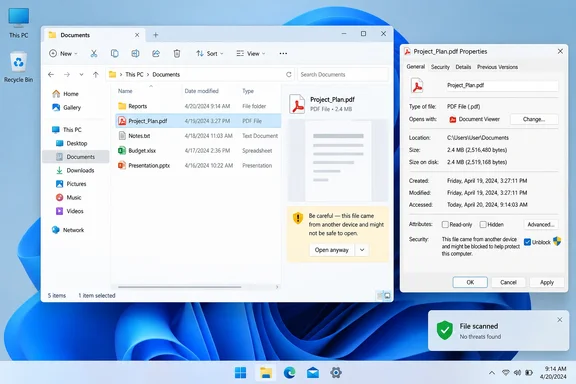 Why File Explorer blocks a preview
File Explorer’s Preview pane is convenient: select a file and inspect it without opening its full application. But “preview” does not mean “nothing happens.” Windows may need a preview handler to parse document contents, metadata, images, fonts, embedded references, or other data.
When a file carries Mark of the Web, Windows knows it originated outside the PC’s normal trusted boundary. Attachment Manager can then prompt, block automatic opening behavior, or trigger additional safeguards in Windows apps.
The warning is therefore a trust decision, not a diagnosis:
- It does not prove the file is malicious.
- It does not prove File Explorer is broken.
- It does mean Windows has information suggesting the file came from a source that deserves scrutiny.
- It should make you verify the file before asking Windows to stop warning about it.
That distinction matters. A legitimate invoice PDF and a malicious file wearing an invoice-shaped costume can both arrive by download. Windows does not know your supplier; it only knows the file crossed a boundary.
The safest way to unblock one trusted file
If you recognize the file, expected it, and can confirm where it came from, unblock that file only.
- Open File Explorer and locate the downloaded file.
- Right-click the file and choose Properties.
- Stay on the General tab.
- Near the bottom of the dialog, look for a security notice indicating the file came from another computer and might be blocked.
- Select the Unblock checkbox or button.
- Select Apply, then OK.
- Return to File Explorer and try the Preview pane again.
Windows documents this as the standard per-file method for removing the block.
What success looks like
After unblocking a trustworthy file:
- File Explorer should be able to preview it if a suitable preview handler is installed for that file type.
- Opening the file should no longer produce the same Attachment Manager warning.
- Office documents may still show their own security controls, especially if they contain macros, embedded links, or active content.
Unblocking removes the file’s download-origin marker. For an Office document containing macros, that can have a much larger effect than simply restoring a preview: it can permit macros to run unless another Office policy blocks them. Treat macro-enabled files such as .docm, .xlsm, and .pptm with an extra helping of suspicion.
Verify first, unblock second
Before you press Unblock, run through this short checklist. It takes less time than recovering from a bad download, which is a famously poor use of an afternoon.
1. Confirm the source independently
Do not rely solely on the filename or the sender’s display name.
Ask:
- Did you expect this file?
- Did it come from the vendor, colleague, or website you intended to use?
- Can you reach that source through a known website, phone number, or existing conversation to confirm the download?
- Was the file shared through an unexpected email, chat message, shortened link, or cloud-storage notification?
If the answer is “I’m not sure,” leave the file blocked.
2. Check the real file extension
A filename can be misleading. Turn on extensions in File Explorer:
- Open File Explorer.
- Select View.
- Select Show.
- Turn on File name extensions.
Now a file that looks like Quarterly_Report.pdf cannot quietly masquerade as something like Quarterly_Report.pdf.exe. File Explorer supports showing extensions specifically so users can see the actual type of a file rather than relying on a friendly-looking name.
Be particularly cautious with executable and script-capable formats, including:
.exe,.msi,.bat,.cmd,.ps1,.js,.vbs- Shortcut files such as
.lnk - Disk images such as
.iso - Macro-enabled Office files such as
.docm,.xlsm, and.pptm - Password-protected archives, especially when the password arrives separately in the same unsolicited message
3. Scan the file with your security software
Use Microsoft Defender Antivirus or your organization’s approved endpoint security product to scan the file before opening it. Microsoft’s guidance is uncomplicated: verify the origin, scan the file, confirm that its type is what you expected, and avoid unexpected attachments from unknown senders.
A clean antivirus result is useful evidence, but not a personal guarantee from the universe. New threats and highly targeted malware may not be detected immediately. Source verification still matters.
4. Re-download from the official source when possible
If the download is corrupted, incomplete, or came through an email attachment you cannot validate, delete it and retrieve a fresh copy directly from the publisher, vendor portal, or known company share.
For software installers, avoid “download mirror” sites, pop-up download buttons, and ads dressed as buttons. The internet has many of those; apparently, subtlety remains optional.
Do not disable download markings globally
You may find advice suggesting that you disable the Attachment Manager policy named “Do not preserve zone information in file attachments.” That setting stops Windows from recording origin-zone information on future attachments and downloads.
It is a poor default for home PCs and a worse default for most businesses. Microsoft explicitly notes that when Windows does not preserve zone information, it cannot make proper risk assessments. The policy applies per user and relies on NTFS; it is intended for managed policy decisions, not as a routine cure for preview-pane annoyance.
Likewise, do not turn off Microsoft Defender SmartScreen just to make downloads quieter. SmartScreen is designed to help protect against unsafe downloads and sites, and disabling it weakens that protection.
The better rule
Use this hierarchy:
- Leave protections on for normal downloading.
- Unblock a single file after verifying it.
- For repeat business workflows, have IT establish a controlled and trusted delivery method.
- Change system-wide Attachment Manager, browser, Office, or security policy only when an administrator understands the risk and has a documented business reason.
That keeps security decisions narrow, reviewable, and reversible.
When the warning appears on an internal network file
A File Explorer preview warning is more suspicious when it appears on files that were never downloaded from the public internet — for example, documents stored on an internal department share.
Do not immediately unblock hundreds of files or disable Attachment Manager. First check whether the affected location is:
- A mapped drive pointing to a corporate file server
- A Distributed File System (DFS) path
- A cloud-synced folder
- A network share accessed by IP address rather than its normal name
- A location classified by Windows as Internet-zone rather than Local intranet
This is especially important for administrators. Microsoft has documented a Windows 11 issue in which files on a DFS mapped drive could be incorrectly treated as internet-originated after a device started offline and later reconnected. That behavior could produce the same Preview pane warning and add an unexpected Mark of the Web to copied files; Microsoft addressed it in a July 28, 2026 Windows 11 preview update for affected builds.
For a managed environment, the durable answer is usually to review Windows security-zone assignments, DFS behavior, current Windows updates, and organization-wide policies — not to teach every user to click Unblock until their wrist files a support ticket.
If there is no Unblock option
The absence of an Unblock control does not automatically mean the file is safe or unsafe. Common explanations include:
- The file does not have a removable Mark of the Web.
- The file resides on a file system that does not retain the marking in the same way.
- A workplace policy hides the Unblock option.
- The issue is a preview-handler problem rather than Attachment Manager.
- The file is on a network location that Windows classifies differently from a local download.
In a work-managed PC, check with IT before changing policies. Administrators can intentionally hide the Unblock mechanism through Attachment Manager policy, precisely because removing the origin marker can allow users to open potentially dangerous attachments.
The practical takeaway
The Preview pane warning is Windows doing its job with all the bedside manner of a smoke alarm. It is not always a sign of malware, but it is a signal that the file arrived with an origin Windows considers potentially risky.
For a known, expected document, scan it, confirm its source and extension, then unblock the individual file in Properties. For unknown downloads, leave the block in place. For recurring corporate-share warnings, investigate the network path, zone classification, policies, and Windows updates instead of weakening download protections across the PC.
That approach restores useful previews while preserving the little bit of friction that can stop a dangerous download from becoming a much bigger story.