

Microsoft now calls the classic desktop program Windows Media Player Legacy to separate it from the newer Media Player app included with Windows 11. Microsoft Support confirms that the legacy player remains available as an optional Windows feature, while independent walkthroughs from Micro Center and At Home Computer document the older player’s library-management workflow: point it at folders, then drag songs into a saved list.
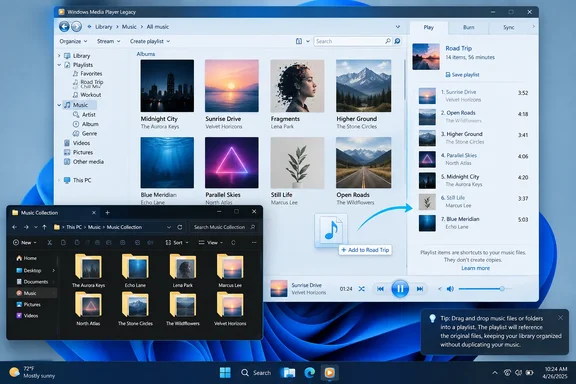
This guide uses Windows Media Player Legacy. If the window has an Organize menu near the upper-left corner and tabs such as Play, Burn, and Sync on the right, you are in the right application.
 Install Windows Media Player Legacy on Windows 11
Many Windows 11 PCs already have Windows Media Player Legacy installed, even if the newer Media Player app is the result Windows Search shows first. Press the Windows key, type Windows Media Player Legacy, and open it if it appears.
If it is missing, install it as an Optional Feature:
- Open Settings and select System.
- Select Optional features.
- Choose View features next to Add an optional feature.
- Search for
Windows Media Player Legacy. - Select the result, choose Next, and then select Add.
Windows will download and enable the component. Once installation completes, search the Start menu for Windows Media Player Legacy rather than simply “Media Player,” which may open Microsoft’s newer app instead.
Windows 10 normally includes the classic player, although it can also appear as an optional feature on some editions or installations. Microsoft’s current path for Windows 10 is Settings > Apps > Apps & features > Manage optional features > Add a feature, then search for Windows Media Player and install it.
Windows 10 N and Windows 11 N editions need one extra step. Those editions omit some media technologies, so install the Media Feature Pack from Optional Features first, restart Windows, and then install Windows Media Player Legacy if it is still absent. Microsoft says the Media Feature Pack restores the underlying media capabilities needed for Windows Media Player to manage a library and create playlists.
Add the folders that hold your music
Windows Media Player’s library is an index of files stored elsewhere on the PC, an external drive, or an available network location. Adding a folder tells the player where to look; it does not import the tracks into an application-owned vault.
Open Windows Media Player Legacy and switch to Library view if it opens in compact Now Playing mode. Then select:
Organize > Manage libraries > Music
A Music Library Locations dialog opens. Select Add, browse to the top-level folder that contains your music, select it, and then choose Include folder or Add, depending on the dialog version. Finish by selecting OK.
Choose the highest sensible folder in your collection. For example, if your files live in D:\Music\Albums, add D:\Music rather than adding every artist and album folder separately. Windows Media Player scans included folders and their subfolders, so one well-organized root location makes future additions much less tedious.
Give the scan time to finish before assuming files are missing. A small folder will appear almost immediately; a large archive on a USB hard drive or network share can take longer, especially when Windows is also reading metadata such as album, artist, track number, and genre.
The player’s library presentation depends heavily on embedded metadata. An album whose songs lack consistent artist, album, disc, and track-number tags may appear split into several entries or sort unexpectedly. That is a file-tagging problem, not evidence that the files were copied or damaged by the player.
A useful check is to browse Music > Folder in the left navigation pane, if that view is available, instead of relying only on Artist or Album. Folder view lets you verify whether Windows Media Player found the files before you spend time correcting metadata or rebuilding the library.
Build a playlist from the library
Select Music in the left pane and find the first track, album, or artist you want. You can use the search box at the top of the player to narrow a large library, then select one item or hold Ctrl while selecting several separate tracks.
Drag the selection to the right-hand list pane under the Play tab. The pane initially shows an unsaved list. This is the staging area for the custom queue you are building.
You can also right-click a selected track and use Add to to send it to an existing playlist. Dragging is usually faster for a new mix because it leaves the entire working list visible while you continue browsing.
When the list contains the songs you want, select Save list near the top of the right-hand pane. Enter a descriptive name, such as Morning Commute, Jazz for Reading, or Road Trip 2026, and press Enter. The new playlist appears under Playlists in Windows Media Player’s left navigation pane.
Avoid treating the Play tab’s temporary list as permanent. If you close the player or replace the unsaved list before using Save list, the queue can disappear. A saved playlist remains available the next time you open Windows Media Player, as long as its referenced music files remain accessible.
Put the songs in the order you actually want
A playlist is more than a filtered set of tracks: its saved order becomes its intended play order when shuffle is off. To adjust it before saving, drag a song within the right-hand Play pane and drop it where you want it to appear.
For an existing playlist, select its name under Playlists, then use the same drag-and-drop method to reposition tracks. Windows Media Player updates the saved playlist order when you edit it, but it is worth pausing a moment after a large rearrangement before closing the program.
If you cannot drag a track where you expect, make sure you are editing the playlist itself rather than browsing a sorted music-library view. The central library pane may sort tracks alphabetically, by artist, or by album; that ordering is separate from the custom sequence stored in the playlist.
For a strict beginning-to-end sequence, turn off shuffle before playback. The shuffle control changes playback behavior without rewriting the playlist, so a carefully arranged list can look correct yet still play in a random order if shuffle remains enabled.
Windows Media Player can use the same audio file in multiple playlists. Adding one song to a workout list, a party list, and a favorites list creates multiple references to that file, not three copies of the audio. Deleting a playlist likewise removes the list, not the underlying music files.
Keep local playlists from breaking
The weak point of a local-media setup is usually the file location. A playlist stores references to tracks, so changing a drive letter, unplugging an external disk, deleting a song, or moving an album to a new folder can leave entries unavailable.
For a collection stored on an external drive, assign the drive a consistent letter in Disk Management rather than accepting whichever letter Windows happens to give it after reconnection. If E:\Music becomes F:\Music, playlists that point to the older location may need repair even though every song still exists.
Network folders require similar care. The PC must be connected to the share, the account running Windows Media Player must have permission to read it, and the path should remain consistent. A playlist is not an offline cache; it cannot play a track from a disconnected server or removable drive.
There is also a practical difference between a playlist and a burn list. The Play tab is for listening queues and saved playlists. The Burn tab is for assembling files to write to a CD or DVD, and Microsoft notes that disc capacity and format compatibility apply there. Do not build a playlist on the Burn tab unless the goal is actually to create a disc.
If an expected folder does not show up, first confirm that the files can play directly from File Explorer and that the folder is still listed under Organize > Manage libraries > Music. Re-adding a missing folder is safer than deleting the entire player database. Microsoft’s troubleshooting guidance includes rebuilding the media database for persistent library problems, but that should be a recovery step—not the first response to a newly added album taking a few minutes to index.
The result is a durable local queue that remains under your control: add folders once, save playlists after arranging them, and keep the music paths stable. Windows Media Player Legacy may be an older interface, but for a straightforward collection of files on a Windows PC, it still performs the one task many modern media apps complicate—playing your music in the exact order you chose.