
📎 AI Summary:
The forum thread discusses a memory leak issue in Windows 10 causing RAM usage to reach nearly 100% over extended use. The original poster seeks advice on diagnosing and fixing the problem, with responses recommending tools like PowerShell, Process Explorer, and Resource Monitor to identify high memory-consuming processes, especially during active problem periods. Overall, participants suggest practical methods to monitor and analyze memory usage to troubleshoot the recurring issue.

CGil

New Member
Joined
Dec 22, 2015
Messages
2
Thread Author #1
Can someone explain me how i can solve this problem?
My memory seems to go near the 100% when i use my computer for a long time.
I had no problem before windows 10 and i have read there is some memory leak but no idea how to fix it.
The weird thing is that sometimes it does not occur for days and sometimes it occur several days in a row.
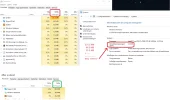
 

Attachments

  • PC geheugen Probleem.webp
    PC geheugen Probleem.webp
    89.7 KB · Views: 381
Solution
Yes you can also use Process Explorer to diagnose issues such as these, especially if it's a service running under svchost.exe, etc. Normally you do not see the sub services well using taskmanager alone of shared processes like these, but Process Explorer can help reveal the issue.

Link: Process Explorer

Neemobeer

Windows Forum Team
Staff member
Joined
Jul 4, 2015
Messages
8,995
Open an elevated powershell window and post the results of Get-Process | sort WorkingSet -Descending | select -First 10
 

CGil

New Member
Joined
Dec 22, 2015
Messages
2
Thread Author #3
I guess i need to do that when i am having problems or is it good any time?

Ps: Sry for slow reaction but i am sick for t moment :(
 

Josephur

Windows Forum Admin
Staff member
Premium Supporter
Microsoft Certified Professional
Joined
Aug 3, 2010
Messages
1,283
Yes you can also use Process Explorer to diagnose issues such as these, especially if it's a service running under svchost.exe, etc. Normally you do not see the sub services well using taskmanager alone of shared processes like these, but Process Explorer can help reveal the issue.

Link: Process Explorer
 

Solution

Saltgrass

Excellent Member
Microsoft Community Contributor
Joined
Oct 16, 2009
Messages
15,153
I like to use the Resource Monitor which you can get to from the Task Manager on the Performance tab and look at the bottom of the window.

You can pull out a overview of memory usage on the Memory tab or look at the listing. If you check a box in the listing, it will filter for just that item.