📎 AI Summary:
The thread discusses a user’s issue with an unwanted line or bar in Windows File Explorer after their nephew's usage, with attempts to restore default settings and move or hide the line that initially failed. Contributors suggest checking folder options, restoring defaults, and verifying if toolbars or status bars are enabled or locked, with some noting differences between Windows 7 and Windows 8 File Managers. Overall, the community exchanges troubleshooting ideas, but the problem persists, indicating a complex or version-specific issue.
Solution
Try this. Right click the file explorer icon. This will produce another window. Right click "File Explorer", which you will now see there, and select "properties"
delete everything you see in the line "target"
Insert, instead C:\ Apply
Now see if the bar is as you want it.
Just had another read of your post. This bit "I didn't have this line before " jumped out.
Now I am thinking that the line has always been there, but your nephew has moved it?
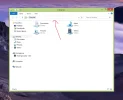
Try clicking the arrow, as in my picture, and move the line to the top. That maybe what you had before?
Link Removed
delete everything you see in the line "target"
Insert, instead C:\ Apply
Now see if the bar is as you want it.
Just had another read of your post. This bit "I didn't have this line before " jumped out.
Now I am thinking that the line has always been there, but your nephew has moved it?
Try clicking the arrow, as in my picture, and move the line to the top. That maybe what you had before?
Link Removed
Member details
- Joined
- May 1, 2008
- Messages
- 5,546
Try this. Right click the file explorer icon. This will produce another window. Right click "File Explorer", which you will now see there, and select "properties"
delete everything you see in the line "target"
Insert, instead C:\ Apply
Now see if the bar is as you want it.
Just had another read of your post. This bit "I didn't have this line before " jumped out.
Now I am thinking that the line has always been there, but your nephew has moved it?
Try clicking the arrow, as in my picture, and move the line to the top. That maybe what you had before?
Link Removed
delete everything you see in the line "target"
Insert, instead C:\ Apply
Now see if the bar is as you want it.
Just had another read of your post. This bit "I didn't have this line before " jumped out.
Now I am thinking that the line has always been there, but your nephew has moved it?
Try clicking the arrow, as in my picture, and move the line to the top. That maybe what you had before?
Link Removed
Last edited by a moderator:
Member details
- Joined
- May 1, 2008
- Messages
- 5,546
darn you, Kemical! Now I have to google. Mine are also bottom right!!!!!
BUT. If you mean you did not have those little guys at all, they are enabled through the folder options -"Show status bar"
Mitchell_A
Former Moderator
Member details
- Joined
- Feb 7, 2009
- Messages
- 4,978
Have you checked to see if toolbars are locked? Right click on an empty area in the top menu.
Member details
- Joined
- May 1, 2008
- Messages
- 5,546
The OP is showing the Windows 8 File Manager. I believe the lock option is only in the browser? (or the windows 7 file manager)
But, his problem and comment intrigued me. You may have the solution. I have always had that line in Windows 8 File manager. But, in Windows 7, the layout was totally different and, of course, the line was not there. I wonder if the user has not been using the Windows 7 file manager, through a third part fix, and the nephew has reverted to the Windows 8 version??
( I think the "Classic" start menu has that option?)
But, his problem and comment intrigued me. You may have the solution. I have always had that line in Windows 8 File manager. But, in Windows 7, the layout was totally different and, of course, the line was not there. I wonder if the user has not been using the Windows 7 file manager, through a third part fix, and the nephew has reverted to the Windows 8 version??
( I think the "Classic" start menu has that option?)