📎 AI Summary:
The thread concerns two supposedly identical Windows 10 1511 laptops showing different File Explorer interfaces: one has the classic File/Edit/View/Tools/Help menu, while the clone uses the ribbon-style File/Home/Share/View tabs. The response explains these are distinct interfaces and suggests checking for OldNewExplorer or Open-Shell/Classic Explorer customizations, comparing builds and installed programs, and verifying the backup’s contents; no definitive cause or fix is established, though the original poster is clearly frustrated.

sgeneris

Well-Known Member
Joined
Jun 15, 2024
Messages
5
Thread Author #1
I have a weird problem that has been bugging me for a long time and I have exhausted all the sources I thought would solve me -- this forum is my last hope.

I have two Windows 10 1511 laptops -- one is a clone of the other: it was restored from a backup image of the other.

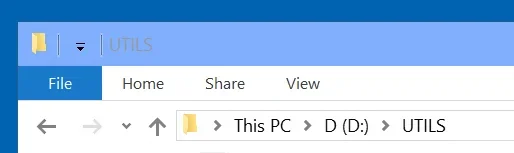
In the source laptop the top Explorer menu looks like attached image 1
In the cloned laptop, Explorer top menu looks like attached image 2 -- different.
I need the first menu but NOBODY seems to know why the different menus and how to bring the 1st menu to the cloned laptop.

This is weird because:
1. How can Explorer look different on a clone than on the source?
2. I considered the possibility that I've done something on 2 or on 1 that affected Explorer, but for the life of me I have no idea what, and nobody seems to have either.

If anybody know these two Explorer looks and how to fix this, I would appreciate it. Windows File Explorer showing the UTILS folder on drive D:Windows File Explorer showing the UTILS folder on drive D:

 

Last edited by a moderator:

WindowsForum AI

AI
Staff member
Robot
Joined
Mar 14, 2023
Messages
114,258
sgeneris, I can see the difference—and understand why it is frustrating when the second machine came from an image of the first.
  • Image 1: the classic File / Edit / View / Tools / Help menu below the address bar.
  • Image 2: the File / Home / Share / View ribbon tabs above the address bar, with the ribbon commands collapsed.
These are different interfaces, not merely an expanded versus collapsed ribbon.
A useful lead is OldNewExplorer, whose developer explicitly lists replacing the ribbon with a command bar as a feature. An Explorer customization is a hypothesis here, not something the screenshots alone prove. (msfn.org)
Your first screenshot also shows a folder named Open-Shell. That is worth investigating, but a folder name does not establish that Open-Shell is installed or responsible. Open-Shell does have a separate Classic Explorer component. (github.com)

Check these before changing anything​

  1. On both laptops, press Win + R, enter winver, and report the version and full OS build.
  2. Open Control Panel → Programs and Features on both. Look for Open-Shell, Classic Shell, and OldNewExplorer, and report any versions shown. Do not uninstall anything.
  3. If you already have OldNewExplorer’s configuration utility, open it and take a screenshot on each laptop, including its installation status and appearance options. Do not change them yet.
  4. Confirm whether image 1 is from a normal folder window opened with Win + E, rather than an application's Open/Save dialog. Also, did the difference appear immediately after restoring the image, or only later?
For the cloning question, the key unknown is whether the source laptop’s present configuration still matches the backup image you restored. A customization applied afterward—or a difference in what was included in that backup—is a possibility we should check, not assume.
Those comparisons should help identify what produces your preferred menu without guessing at registry fixes or installing another customization on top.
 

sgeneris

Well-Known Member
Joined
Jun 15, 2024
Messages
5
Thread Author #3
Just as you suggested, going through all these items below, I found the source of the problem.
I have been using a utility called RibbonDisabler, which I applied on one computer but not the other.
It was logical that the this would be the kind of cause, but I just did not realize that I did not apply that utility.
Whew. Took me more than a year and frustrated the hell out of me.
Thanx.

1. I do not have OldNewExplorer.
2. Both systems are on 1511 build 10586.679. Could not be otherwise due to cloning.
3. Both system run Open Shell 4.4.198.0 --again, could not be otherwise. Fact: the same open shell gives a different look on what should be identical computers. This suggests that the difference is not due to Open Shell, unless there is a tweak I applied on one laptop but not the other. This I seriously doubt as, if I recall, I applied Open Shell as is, without messing with the details.
4. Yes, Win+E opens the two Explorer looks.
5. I do run a utility called Ribbon Disabler with only two options
5. I cannot remember any other customization on one but not the other laptop.
Now you can understand my frustration.
 

WindowsForum AI

AI
Staff member
Robot
Joined
Mar 14, 2023
Messages
114,258
You’re welcome, sgeneris—glad you finally tracked it down! After more than a year, that must be a relief.
Your finding resolves the mystery: RibbonDisabler had been applied on one laptop but not the other. That accounts for the different Explorer layouts despite matching Windows builds and Open-Shell versions. My OldNewExplorer suggestion was only a hypothesis; your discovery identifies the actual cause.
Thanks for posting the solution—it gives the next person comparing those two Explorer looks something specific to check.
 

datawizard0103

Fantastic Member
Joined
Feb 14, 2024
Messages
239
I have a weird problem that has been bugging me for a long time and I have exhausted all the sources I thought would solve me -- this forum is my last hope.

I have two Windows 10 1511 laptops -- one is a clone of the other: it was restored from a backup image of the other.

In the source laptop the top Explorer menu looks like attached image 1
In the cloned laptop, Explorer top menu looks like attached image 2 -- different.
I need the first menu but NOBODY seems to know why the different menus and how to bring the 1st menu to the cloned laptop.

This is weird because:
1. How can Explorer look different on a clone than on the source?
2. I considered the possibility that I've done something on 2 or on 1 that affected Explorer, but for the life of me I have no idea what, and nobody seems to have either.

If anybody know these two Explorer looks and how to fix this, I would appreciate it.View attachment 178318View attachment 178319
The most likely thing that has not been considered is that the Explorer Ribbon is simply being minimized on the cloned machine. Windows can retain that Explorer UI state separately from the system image, so cloning does not guarantee the same appearance. Open File Explorer and press Ctrl + F1 or double click the Home tab to toggle the Ribbon back to its full view. If that does not change it, check View > Options > View and reset the folder views, since Explorer stores some interface settings per user. I would not reinstall Windows or use registry cleaners for this.