
Neowin reported the Stable-channel release as version 152.0.4191.52 on August 28. Microsoft’s own Stable release notes identify the public major release as 152.0.4191.53, released August 27, 2026. That version-number mismatch is worth correcting before administrators use the report for inventory or deployment validation: 152.0.4191.53 is Microsoft’s current primary record for the Edge 152 Stable release, while updates also arrive progressively over one or more days.
The important part is the mechanism. Edge does not broadly scan and revoke every permission granted to a suspicious-looking site. Microsoft says the unsubscribe occurs when a web notification takes the user to a destination that SmartScreen blocks. Edge then stops the original notification source from sending further alerts and informs the user that it has done so.
That is a targeted cleanup of an already-compromised notification permission. It will help users who have clicked through a deceptive notification prompt and only discover the mistake when a subsequent alert routes them to a known-bad page. It is also a narrower safeguard than the headline may suggest: a scam sender that has not yet produced a SmartScreen-blocked destination can still retain its notification permission.
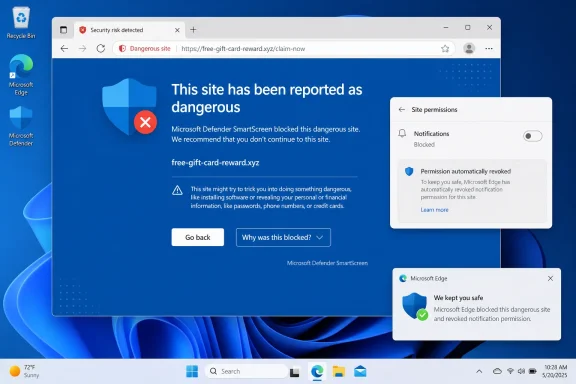 Edge turns a SmartScreen verdict into permission cleanup
Browser notifications occupy an awkward place in desktop security. Once permitted, they can appear as native-looking alerts outside the browser window, carrying site-controlled titles, icons, and messages. That makes them useful for legitimate web apps—and useful to scammers trying to make a fake “virus detected” notice resemble a Windows or security-product warning.
Microsoft had already tried to reduce the problem at the front door. In Edge 113, the company began showing notification requests from unfamiliar sites more quietly rather than placing an attention-grabbing permission dialog in front of the user. Microsoft also said at the time that it removed permissions from sites identified as spammy notification senders.
Edge 152 adds a distinct second-stage response. Instead of relying only on reputation at the moment a site asks for permission, it reacts after a notification’s click-through path results in a SmartScreen block. SmartScreen evaluates sites for indicators including suspicious behavior and reported phishing history; Microsoft documents that it can show warning pages for sites it judges unsafe.
The practical implication is that Edge is connecting two signals that have traditionally been separate: notification permissions and safe-browsing reputation. A user need not recognize the alert as fraudulent or know where Edge stores site permissions before the browser intervenes. For household PCs and lightly managed Windows devices, that removes an annoying and often confusing remediation step.
There is a limit that matters in incident response. This is notification-permission cleanup, not malware removal. If a user installed a remote-access tool, browser extension, or unwanted application after acting on a fake alert, stopping the notifications does not reverse those actions. IT staff should continue treating a report of recurring “Windows security” pop-ups as a reason to determine whether the source is a browser permission, an installed program, or a genuine endpoint alert.
The rollout is controlled, so inventories will not tell the whole story
Microsoft labels the automatic-unsubscribe feature a controlled rollout. In plain terms, having Edge 152 installed does not guarantee the feature is immediately active on every device. The same rollout qualification applies to Edge’s revised credential panel and Apple-account sign-in option.
That distinction matters for help desks. A user whose Edge reports version 152.0.4191.53 may still lack the automatic-removal behavior initially. Microsoft has not published a date by which every eligible Edge 152 installation will receive it, nor has it specified whether rollout selection varies by geography, account type, or Windows management state.
Users can review sites whose notification access has been removed—or restore a permission—in Edge’s site-permission settings at:
edge://settings/privacy/sitePermissions/allPermissions/notifications
Restoration should be deliberate. A legitimate website can be incorrectly classified, and Microsoft provides a SmartScreen reporting route for site owners that believe a block is mistaken. But on a personal PC, restoring permission to a sender associated with a SmartScreen-blocked destination defeats the protection that Edge just applied. The safer course is to leave the permission removed unless the site and the notification’s purpose can be independently verified.
For a user who is still receiving unwanted browser alerts, the first check remains the complete notification-permission list. Removing the offending site prevents future alerts even if the notification has not produced a SmartScreen detection. Windows notification controls can suppress Edge alerts more generally, but that is a blunt workaround which also hides wanted notifications from legitimate web applications.
Enterprise admins still need a notification baseline
The new Edge behavior is useful for unmanaged endpoints, but it does not replace a browser-notification policy. Microsoft’s Edge policy documentation says sites are allowed to display desktop notifications by default unless an organization changes that setting. Administrators can configure DefaultNotificationsSetting to allow notifications, block them, or prompt users each time a site requests access.
Organizations that do not rely on browser notifications should consider setting the default to block them. That prevents the permission request from becoming a social-engineering decision in the first place. Organizations that do use web notifications—for internal dashboards, ticketing tools, communication platforms, or line-of-business applications—will likely prefer the prompt setting combined with an approved-site strategy and clear user guidance.
The release notes do not announce a dedicated Edge 152 policy for disabling or forcing the new automatic-unsubscribe behavior alone. Microsoft’s newly listed policies concern Copilot Cowork actions, background updating after all windows close, and back/forward cache behavior for WebSockets. Administrators therefore should not assume that a broad notification policy offers a granular switch for this new SmartScreen-triggered cleanup.
That absence creates a modest operational consideration. A business with an internally hosted web application that sends notifications could encounter user confusion if a link in a notification goes to a domain that SmartScreen blocks. The browser may remove the sender’s notification permission, while the underlying cause is the destination’s reputation or a misconfigured redirect chain. The proper fix is to investigate the blocked destination and, if appropriate, pursue SmartScreen remediation—not to train users to restore permissions reflexively.
Microsoft’s Edge documentation says SmartScreen determinations can factor in URL reputation, page content, dynamic behavior, TLS security, file behavior, and user feedback. For web teams, that means the notification sender may not be the only property worth reviewing. Links routed through abandoned campaign domains, redirect services, newly registered domains, or compromised third-party pages can turn a valid notification channel into the trigger for an Edge block.
Edge 152 carries other changes, but the security feature is the useful one
The notification protection arrives alongside several Edge 152 changes that are more consequential to specific groups than to most users. Microsoft has retired Edge Drop, its cross-device sharing feature; files placed in Drop were saved in OneDrive, while text notes must be downloaded separately. Anyone who used Drop for ad hoc notes should export them rather than assume OneDrive preserves that content.
Microsoft is also retiring real-time video translation through a gradual rollout. Its corresponding LiveVideoTranslationEnabled policy is due to be deprecated in a future update. Edge’s address-bar password key now opens a more detailed credential view, including options to copy usernames and passwords and add notes to saved entries, though that interface is also rolling out gradually.
For organizations using Microsoft 365 Copilot, Edge 152 adds the CopilotCoworkToolActionsEnabled policy. It controls whether Cowork can take actions such as opening tabs, capturing screenshots, and interacting with web pages on a user’s behalf, provided Cowork Browsing is enabled for the tenant. That deserves separate review in managed environments because it governs an agentic browsing capability, whereas the notification protection works as an end-user safety measure.
Edge 152 also includes Apple-account sign-in on Windows and macOS, controlled by the existing NonMicrosoftAccountSignInEnabled policy. Microsoft’s documentation makes clear that disabling this policy hides and disables non-Microsoft sign-in paths while leaving Microsoft-account sign-in available. It is a useful option for mixed-account personal use, but managed deployments should decide whether it fits their identity policy before users discover the new button.
A faster release cycle raises the value of clear update validation
Version 152 completes Microsoft’s move to a two-week major-version cadence for Edge. The associated WebView2 Runtime is following that schedule: Microsoft says version 152 is the last major WebView2 release on the old four-week timing, with version 153 due on the two-week rhythm beginning the week of September 10.
That cadence gives security and web-platform fixes a quicker route to users, but it narrows the window for compatibility testing and version verification. The Edge 152 release also begins a staged change to the web platform’s unload event: in versions 152 and 153, unload handlers stop firing by default for 60 percent of page loads unless a site explicitly opts in through Permissions Policy. Web developers relying on unload for cleanup, session-end reporting, or saving state should treat this as an immediate compatibility task, not a distant deprecation notice.
For everyone else, the immediate action is simpler: update Edge, verify the browser reports 152.0.4191.53 or later, and audit existing notification permissions if suspicious Windows alerts are already appearing. Edge 152 will reduce the chance that a SmartScreen-blocked scam notification keeps returning, but the browser can only revoke a permission after it has enough evidence to make that call.
