
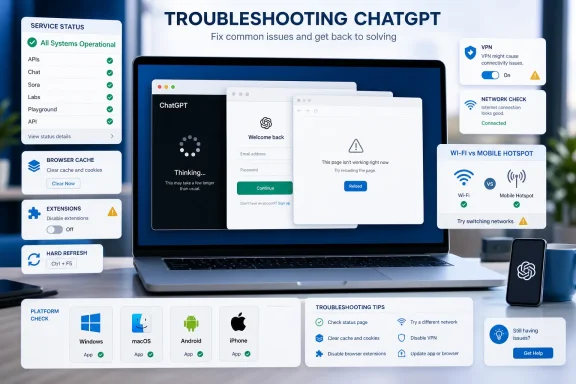
 Overview: Diagnose Before You Reset Everything
“ChatGPT not working” can describe several entirely different failures. A blank page is not the same problem as an endless response spinner; a “Wrong authentication method” warning is not a password failure; and an iPhone integrity error is not necessarily an OpenAI account issue.
That distinction matters because indiscriminately clearing all browser history, disabling every security feature, or deleting an application can be disruptive without resolving the actual fault. OpenAI’s own troubleshooting guidance groups common problems around server availability, browser extensions and cached data, VPN or proxy interference, network restrictions, and individual device configuration. OpenAI’s ChatGPT error troubleshooting guide makes the same distinction across loading, login, network, and generation failures.
A disciplined sequence also protects valuable configuration. Start with the least invasive check—service status—then test the current session, then isolate the browser or network, and only then reset app data or involve IT.
1. Check Whether ChatGPT Is Actually Down
Before changing a browser, Windows setting, or router configuration, open the OpenAI Status page and look for an active incident affecting ChatGPT. A confirmed service incident means a local reset is unlikely to help, and repeated login or retry attempts may only create more confusion.
This first step is particularly important when several people report the same symptoms at once:
- ChatGPT loads but cannot generate replies.
- The service displays generic “Something went wrong” messages.
- Conversations will not refresh or stream.
- Login succeeds but the chat interface remains unavailable.
- The app and website both fail across different devices and networks.
OpenAI explicitly recommends checking its status page before troubleshooting long-running responses, generic errors, and authentication problems. Its current error guidance treats an outage check as an early step rather than a last resort.
What a clear status page does—and does not—prove
A healthy status page is useful, but it does not automatically mean the problem is your account or PC. It primarily tells you that there is no listed broad incident. Regional routing problems, corporate network filtering, a damaged browser profile, or a specific account sign-in path can still prevent access.
The next test should therefore be simple: open the current service address, ****, rather than relying on an old bookmark. If a bookmark points to a legacy path, replace it with the current address before spending time on deeper repairs.
2. Fix a Frozen Page, Blank Screen, or Endless “Thinking” Response
A response that appears to stall is often recoverable without abandoning the conversation. OpenAI’s recommended sequence is pragmatic: wait briefly, stop generation, regenerate, and move the prompt into a fresh chat if needed. OpenAI’s support guidance specifically advises waiting 30 to 60 seconds for a response that appears stuck before retrying it.
Use the least destructive recovery sequence
For a chat trapped on Thinking, Generating, or an endless spinner:
- Wait 30–60 seconds in case the request is delayed rather than failed.
- Select Stop generating.
- Select Regenerate.
- If the failure repeats, open New chat, paste the original prompt, and send it again.
- If available, try a different model from the model picker before resending.
- Hard-refresh the browser:
- Windows/Linux:
Ctrl + Shift + R - macOS:
Cmd + Shift + R
A new chat is not merely a cosmetic workaround. Very long conversations can carry more context, attachments, tool state, and accumulated rendering work than a clean thread. OpenAI consequently lists starting a new chat among its direct responses to slow, frozen, and unresponsive ChatGPT sessions. The official troubleshooting sequence also includes hard refresh, sign-out/sign-in, and browser isolation when the problem persists.
When the page itself is blank or frozen
A blank ChatGPT page, endless loading animation, or interface that will not respond generally points to a cached session, a content blocker, a browser extension, or a network control altering traffic. The initial recovery steps are:
- Hard-refresh the page.
- Sign out, then sign back in.
- Open ChatGPT in a private browsing session.
- Clear site data for ChatGPT and OpenAI.
- Disable extensions that alter scripts, cookies, ads, privacy settings, or page content.
- Turn off a VPN, proxy, secure DNS tool, or web-filtering product temporarily.
- Test another browser, device, or network.
Those are not random rituals. OpenAI identifies extensions, browser data, VPNs, secure DNS, proxies, and security filters as recurring sources of blank pages, stalled conversations, and generic errors. Its error troubleshooting article maps each of those controls to specific symptoms.
3. Solve Login Loops and “Wrong Authentication Method” Errors
The most common login mistake is treating every sign-in failure as a password problem. In many cases, the account is valid, but the chosen sign-in route does not match the route used when the account was created.
Open **** and use the original method:
- Email address and password
- Continue with Google
- Continue with Microsoft
- Continue with Apple
- Phone, where applicable
- Organization SSO, for managed workspaces
OpenAI explains that errors such as “Wrong authentication method” and “There is already a user with email” occur when the attempted route differs from the account’s established identity provider. Its login troubleshooting guide recommends returning to the login page and selecting the original sign-in method rather than repeatedly resetting a password.
Apple Hide My Email needs special handling
Apple users who selected Hide My Email at sign-up may have an account associated with an Apple private relay address rather than their normal personal address. Typing a personal email into an email-and-password flow can therefore create a confusing mismatch, a fresh account, or an error that suggests the account already exists.
OpenAI’s documentation is clear: use Continue with Apple and the same Apple ID that created the account. Its authentication-method guidance notes that personal email login, password reset, or another provider can lead to a different account when Apple’s relay address was used.
The important exception for email-and-password accounts
An email-and-password account can later be joined with Google, Microsoft, or Apple when the email matches, according to OpenAI. However, accounts originally created via social login or SSO cannot simply be converted into email-and-password accounts in the normal flow. OpenAI’s account login documentation also warns that password-reset emails will not work for social-login and SSO-only accounts.
That is why deleting an account is not a fix for a sign-in method mismatch. It does not retroactively convert the account’s authentication path and risks losing access to chats, subscriptions, and workspace data.
Suspicious-login warnings: slow down rather than brute-force it
If ChatGPT says “We have detected suspicious login behavior,” stop retrying continuously. OpenAI advises clearing cache and cookies, switching between Wi-Fi and mobile data, disabling the VPN, and waiting up to an hour before attempting the login again. The login troubleshooting guide warns that repeated failures can trigger temporary restrictions.
A suspicious-activity message is a security safeguard, not proof that the account is compromised. Still, it is wise to use one trusted device and network while testing, change a reused password if applicable, and avoid sharing the account. OpenAI lists unusual locations, concurrent sessions, and irregular usage patterns among circumstances that can lead to a security alert. Its suspicious-activity explanation also recommends securing the account and enabling multi-factor authentication where available.
4. Use Private Browsing to Expose Browser Conflicts
Private browsing is one of the highest-value diagnostics for ChatGPT login and loading problems. It separates the service from much of the ordinary browser profile: accumulated cookies, cached files, stored local data, and—depending on the browser—many extensions.
Open a private session and sign in at ****:
- Google Chrome:
More→ New Incognito Window - Microsoft Edge:
Settings and more→ New InPrivate window - Mozilla Firefox: Menu → New private window
- Safari:
File→ New Private Window
If ChatGPT works privately but fails in the normal window, the account and core service are likely fine. The problem is then local to the standard browser profile.
Extensions that commonly interfere
The highest-priority suspects are extensions or tools that modify, block, inspect, or rewrite web traffic:
- Ad blockers and tracker blockers
- Script blockers
- Cookie-management extensions
- Privacy extensions
- Antivirus browser add-ons
- VPN browser extensions
- Download managers
- Corporate web-security agents
- Automation and page-modification tools
OpenAI specifically states that browser extensions and URL blockers can interfere with the chat interface and its preparation flow. The official error guide recommends disabling content-changing or script-blocking extensions and retrying in an incognito window.
Cloudflare verification loops require cookies and JavaScript
If ChatGPT keeps showing “Checking your browser…” or repeatedly returns to a verification screen, check whether the browser allows JavaScript and cookies, including any required third-party cookies, for:
chatgpt.comopenai.comauth.openai.com
OpenAI’s login guidance specifically identifies VPNs, proxies, ad blockers, privacy tools, script blockers, blocked cookies, and blocked JavaScript as possible causes of Cloudflare verification loops. Its login help article also recommends testing a clean private window and a different network.
The security trade-off is straightforward: do not permanently disable every privacy control. Instead, identify the specific blocker and create a narrowly scoped exception for the required sites if the product supports it.
5. Clear ChatGPT Site Data, Not Your Entire Digital Life
If private browsing fixes ChatGPT, clear the relevant site data in the regular browser. This removes corrupt session tokens, stale cached files, and site-specific settings while preserving unrelated browsing data where the browser offers granular controls.
Start by removing data associated with chatgpt.com, openai.com, and, when needed, auth.openai.com. Then close the browser, reopen it, and sign in again.
Windows browser cleanup
In Chrome, open:
More → Settings → Privacy and security → Third-party cookies → See all site data and permissions
Search for the relevant OpenAI and ChatGPT domains, then remove their stored data.
In Microsoft Edge, open:
Settings and more → Settings → Privacy, search, and services → Clear browsing data → Choose what to clear
Select Cookies and other site data and Cached images and files, then choose Clear now. If possible, prefer targeted removal before a full purge.
In Firefox, open:
Settings → Privacy & Security → Cookies and Site Data → Clear Data
Choose Cookies and Site Data and Temporary Cached Files and Pages.
OpenAI’s own guidance includes clearing cache, cookies, or site data as a response to login loops, frozen pages, and generic ChatGPT errors. The error troubleshooting documentation emphasizes this alongside private browsing rather than recommending deletion of all browser history.
Why targeted clearing is better
Clearing every cookie signs you out of banking portals, work tools, shopping sites, and many other services. It can also remove stored preferences and create an unnecessarily disruptive recovery task.
Targeted ChatGPT site-data removal is therefore the better first-line repair. Escalate to a full cache-and-cookie clearing only if the browser does not expose per-site controls or if the targeted reset fails.
6. Test the Network: VPNs, Proxies, Secure DNS, and Managed Wi-Fi
ChatGPT depends on more than a single ordinary web page request. Login verification, response streaming, uploads, notifications, and voice features can involve multiple domains and long-lived connections. A network that allows basic web browsing can still block a piece of that chain.
The quickest network test is to switch paths:
- Move from home or office Wi-Fi to a mobile hotspot.
- Or move from cellular data to trusted Wi-Fi.
- Disable a VPN or proxy temporarily.
- Pause secure DNS, Web Protect, or similar security filtering only long enough to test.
- Reload ChatGPT and attempt the same action.
If ChatGPT works on a hotspot but not on the original network, the diagnosis is strong: the original network, DNS provider, proxy, firewall, or filtering product is interfering. OpenAI explicitly recommends comparing company Wi-Fi with a cellular hotspot when determining whether a network is responsible. Its network recommendations describe this as a critical troubleshooting test.
Why WebSocket traffic matters
A chat that loads normally but will not stream responses, disconnects frequently, or reports a WebSocket error may be blocked by a corporate proxy or security gateway. OpenAI states that certain ChatGPT features use secure WebSocket connections in addition to standard HTTPS requests, and it asks organizations to permit WebSocket traffic over TCP port 443 and allow the standard upgrade handshake. OpenAI’s network documentation identifies wss://ws.chatgpt.com for conversation updates and notifications.
For school, office, and managed Wi-Fi, IT should review OpenAI’s current allowlist rather than adding one outdated hostname. The published list includes OpenAI, ChatGPT, authentication, static-content, upload, Cloudflare, WorkOS, and support-related domains, and OpenAI notes that the list should not be blocked or rewritten by URL filtering. The current network recommendations page is the appropriate source of truth because these dependencies can change.
SSL inspection can break desktop access
Enterprise networks sometimes decrypt and inspect HTTPS traffic. That can be valuable for security policy, but it can also create certificate problems or interrupt persistent connections. OpenAI says SSL inspection or decryption may cause a macOS ChatGPT desktop app “Network configuration issue” and recommends excluding public OpenAI domains from that inspection where possible. Its network guidance also suggests using ChatGPT on the web as a temporary workaround while administrators resolve the policy conflict.
7. Repair the ChatGPT App on Windows, macOS, Android, and iPhone
When ChatGPT works in a browser but fails in the app, do not assume the account is broken. The web version and native app use different local storage, update paths, permission settings, and network integrations.
Windows: update, then reset the app
For Windows users, begin with Microsoft Store:
Microsoft Store → Library → Get updates
If updating does not help, reset the application:
Settings → Apps → Installed apps → ChatGPT → three-dot menu → Advanced options → Reset
OpenAI’s Windows app documentation gives this same reset path and notes that the app is distributed through the Microsoft Store, which means a workplace IT policy can also govern installation and updates. The official Windows app guide confirms that Reset is the intended recovery mechanism when the Windows client needs a clean start.
Resetting removes local app data, so sign-in may be required afterward. It should come after checking the web version, since a web failure points elsewhere.
macOS: understand the new app and ChatGPT Classic
The current desktop application combines Chat, Work, and Codex on macOS and Windows. OpenAI says the older macOS client was renamed ChatGPT Classic, and both applications can remain installed at the same time. Its macOS download guide advises using the current download page for the appropriate installer.
This change creates a practical troubleshooting hazard: users may update or delete one app while continuing to open the other. Check the app name in Applications, remove the malfunctioning copy only if necessary, and reinstall from the official ChatGPT download page.
OpenAI lists macOS 14 or later and either Apple Silicon or an Intel processor as the macOS app requirement. The macOS support page is more reliable than third-party download sites or unofficial wrappers.
Android and iPhone: update first, then reinstall
On Android, use Google Play to update the official ChatGPT app. OpenAI states that the Android app requires a device with Google Play running Android 7.0 or newer. Its Android requirements article provides that baseline.
On iPhone or iPad, update the app in the App Store. If the web version works but the mobile app does not, log out and back in, then reinstall the app if necessary. This is especially appropriate for an iOS message that says “Unusual activity has been detected from your device. Try again later.”
OpenAI’s current iOS sequence is: sign out and back in, reinstall the app, disable the VPN, and update from the App Store. If the error persists, OpenAI suggests testing with DNS servers 8.8.8.8 and 8.8.4.4, then gathering a Safari screenshot of the Apple App Attest endpoint for support. The network troubleshooting guide presents that as an advanced diagnostic path, not as a universal first fix.
8. Address DeviceCheck Errors and Missing Permissions
A mobile message about device date and time, internet stability, and restarting the app can correspond to DeviceCheckError. OpenAI says that error generally means it could not generate a token for the device, and it directs users to verify time settings, connectivity, app and OS updates, and device-integrity status. OpenAI’s DeviceCheckError guide also notes that rooted or jailbroken devices can fail integrity checks.
For this type of failure:
- Set date and time automatically.
- Confirm the connection is stable.
- Update both the ChatGPT app and the operating system.
- Restart the device.
- Avoid rooted or jailbroken device configurations.
- Clear app data before retrying where the platform permits.
- Wait before retesting if an integrity result may still be cached.
OpenAI cautions that integrity-check results can remain cached for up to 24 hours, so an immediate retry after a device-integrity change may not tell the full story. Its DeviceCheck support article specifically calls out that caching behavior.
Voice, camera, and photo failures are often permissions failures
If the app opens but voice input, camera capture, dictation, or photo uploads fail, check the operating system permission rather than reinstalling first.
- Windows:
Settings→Privacy & security→ Microphone or Camera - macOS:
System Settings→Privacy & Security→ Microphone or Camera - iPhone/iPad:
Settings→Privacy & Security→ Microphone or Camera - Android:
Settings→Apps→ChatGPT→Permissions
Give ChatGPT only the permissions required for the feature you intend to use. This preserves privacy while restoring functionality.
9. When to Escalate to OpenAI Support or IT
After testing service status, a fresh browser session, another network, and the web-versus-app split, recurring failures become much easier to describe and resolve. The key is to provide evidence rather than a vague report that “ChatGPT is broken.”
OpenAI requests the exact error, affected account email or sign-in method, date and time with time zone, browser or app version, operating system, device, network type, screenshots, and the troubleshooting steps already attempted. Its authentication support guidance also cautions users not to share passwords, one-time codes, private keys, or other secrets.
For persistent browser failures, collect:
- A screenshot of the error.
- The precise timestamp and time zone.
- Browser name and version.
- Windows, macOS, iOS, or Android version.
- Whether private browsing changes the result.
- Whether a cellular hotspot changes the result.
- Whether a VPN, proxy, secure DNS product, or corporate filter is active.
- A sanitized HAR file and browser console errors, if the problem is reproducible.
OpenAI specifically asks for a HAR file and browser console information when a ChatGPT failure continues across browsers, devices, and networks. The official error guide frames these as the useful next-level artifacts for support, not something most users need to collect for a one-time glitch.
For managed networks, bring the results to IT rather than attempting to bypass organizational security controls. The useful message is concrete: ChatGPT works over cellular, fails over corporate Wi-Fi, and needs the documented OpenAI domains plus secure WebSocket traffic on TCP 443 permitted. That gives administrators a focused path to investigate without broadly weakening the network’s protections.
The Practical Bottom Line
The best ChatGPT not working fix is a short diagnostic ladder, not a destructive reset spree. Check the service status, use the current ChatGPT address, recover stalled responses with regenerate or a new chat, sign in through the original identity provider, and test in a private browser window.
If private browsing succeeds, remove the blocker or clear targeted site data. If a hotspot succeeds, investigate the network, VPN, DNS, proxy, or corporate security policy. If the browser works but the app fails, update and reset the app through its official store. And if the error survives all of those tests, a well-documented support report—with timestamps, screenshots, network comparison, and sanitized diagnostics—turns an opaque failure into a solvable technical case.
