
The important correction to early coverage is that this is not a feature update that every Windows 11 PC will receive immediately. Microsoft’s release notes describe KB5120998 as a non-security preview update, with its headline interface features arriving through a gradual rollout. The update itself can install while the corresponding controls remain absent for some time, depending on Microsoft’s feature-rollout targeting, device configuration, and market.
Microsoft first exposed most of these changes to Release Preview Insiders on August 14 in builds 26100.9267 and 26200.9267. The August 27 release moves the same KB number forward to builds ending in .9278 and makes it available as an optional update for the stable 24H2 and 25H2 servicing branches. Pureinfotech and Windows Central both identify the release as the preview of changes expected to become part of the September 2026 cumulative update cycle, rather than a new Windows version.
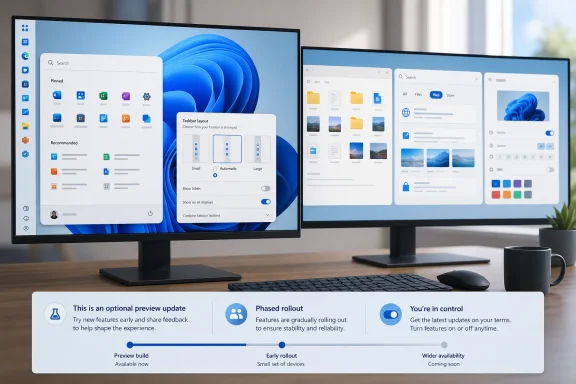 Taskbar placement returns, with limits on vertical layouts
The most visible change is the return of taskbar placement controls that Windows 10 and earlier releases treated as ordinary desktop settings. In Windows 11, users can now select Bottom, Top, Left, or Right under Settings > Personalization > Taskbar > Taskbar behaviors > Taskbar position.
That sounds simple, but Microsoft has done more than move a strip of icons. Taskbar flyouts, tooltips, and animations are intended to originate from the active edge, and settings such as never combining taskbar buttons are supported across all positions. On a vertical taskbar, users can also choose top or centered icon alignment; top and bottom taskbars can use left or centered alignment.
For developers, administrators, and users on ultrawide monitors, a side-mounted taskbar can reclaim vertical code or document space that the bottom placement consumes. It is an old Windows capability returning to an interface where it had been conspicuously missing since Windows 11 launched in 2021. Ars Technica noted when Microsoft began testing the feature in May that side docking had been possible in Windows 10 and substantially earlier Windows releases.
There are material constraints that the headline announcement glosses over. Microsoft says the full Search box and the new smaller-taskbar option work only when the taskbar is at the top or bottom of the display. Put the bar on the left or right and Search falls back to an icon, while the compact-size control is unavailable. Microsoft’s earlier Insider notes also said auto-hide and the tablet-optimized taskbar were not yet supported in alternate positions, and touch gestures for those positions remained in progress.
Windows Central has reported one further behavior based on hands-on use: moving the taskbar to the left also moves Notification Center to that side. That is not necessarily a defect, but it changes a muscle-memory target that has stayed anchored at the right edge for years. Organizations considering a standardized left-side layout should test it with their users rather than assuming that “Windows 10-style taskbar placement” means identical interaction behavior.
The new compact setting is separate from taskbar placement. Under Taskbar behaviors > Taskbar size, selecting Small reduces both taskbar height and icon size while retaining Start, Search, and the system tray. Unlike earlier Windows 11 behavior that could shrink controls automatically in constrained situations, this is an explicit preference. It should be useful on small laptops, remote desktops, and dense multi-window setups, although its top-and-bottom limitation makes it less flexible than the restored docking control.
Start menu controls finally separate content from layout
KB5120998 also adds Small and Large Start menu choices alongside the existing Automatic default. The control lives at Settings > Personalization > Start > Start menu size. This is a layout selection, not a return to the freeform resizing handle familiar from earlier Windows versions, but it gives users a direct way to trade screen area for more visible pinned items and recent content.
Microsoft is renaming Start’s “Recommended” section to “Recent,” a change that is more than cosmetic in the setting page. The new Start settings design exposes separate toggles for Pinned, Recent, and All, letting users decide which sections appear instead of treating Start as one fixed composition. Users can also hide their account name and profile picture from Start.
The useful part is the decoupling of Start recommendations from other recent-item features. Microsoft’s May Insider announcement acknowledged the earlier coupling: disabling Recommended could also remove jump lists and recent files in File Explorer. The new controls are intended to let users remove recommendation-style material from Start while preserving recent files and jump lists elsewhere in the shell.
That distinction will matter in managed environments. A user or IT department may want a sparse Start menu with pinned work apps, but still rely on File Explorer’s recent files and taskbar jump lists to resume work. Windows 11 previously made that a blunt all-or-nothing choice. KB5120998 provides a more granular policy surface, though Microsoft has not announced an equivalent centralized management policy for every new Start layout preference in these release notes.
Search adds controls Microsoft should have exposed earlier
Windows Search receives the other significant usability change: users can turn off web results and Microsoft Store suggestions from Settings > Privacy & security > Search. Microsoft says the page now provides a setting to decide whether those sources appear alongside local results.
For a desktop search tool, that is a practical correction. Searching for an installed application, a local setting, or a file has often shared space with Bing results and Store suggestions. After the new settings arrive, users who want Search to behave chiefly as a local launcher and file finder can suppress those extra result classes without relying on registry changes, Group Policy workarounds, or third-party tools.
Microsoft is also simplifying Search Home and adding origin labels that distinguish apps, settings, files, web results, and Store suggestions before a user opens a result. The visual cleanup should reduce ambiguity, particularly where similarly named apps, system settings, and web queries collide.
The trade-off is a new automatic-indexing option. Windows can identify frequently used folders and index them so their contents appear in later searches; the setting is located under Privacy & security > Search > Automatically find additional relevant locations. This can improve discoverability for users who keep active files outside standard libraries, but it also means administrators should examine how the behavior interacts with locally stored sensitive material, redirected folders, and existing Windows Search index-management practices. Microsoft says the feature is configurable, which is preferable to silently broadening indexing coverage with no user control.
A preview release, not a change-control free pass
Outside the Start, taskbar, and Search work, Microsoft lists a faster and more responsive File Explorer Home experience, touch scrolling for its Recommended carousel, updated progress indicators during startup and update operations, smoother virtual-desktop switching, and display-settings reliability improvements. The update also includes changes with enterprise implications, including the continuing rollout of Administrator Protection and the removal of the legacy WMIC command-line utility from Windows 11 24H2 and 25H2.
The WMIC change is worth separating from WMI itself. Microsoft says Windows Management Instrumentation remains supported; what disappears is the old wmic.exe utility, which is no longer present as a Feature on Demand. Administrators with old batch files, deployment scripts, or inventory jobs calling wmic should inventory them now and move to PowerShell CIM cmdlets or another supported interface. KB5120998 is therefore more than a coat of paint, even if the consumer-facing controls will dominate discussion.
Still, this is an optional, non-security preview update. Businesses that do not need the taskbar, Start, or Search changes immediately have little reason to rush it into broadly managed fleets before the regular September cumulative update. Pilot groups should verify taskbar placement behavior with multiple displays, virtual desktop workflows, remote-access software, kiosk restrictions, and any support documentation that assumes the taskbar remains at the bottom.
For individual users, the practical path is to install KB5120998 through Windows Update only if they are comfortable taking a preview cumulative update, then check the Taskbar, Start, and Search pages in Settings. If the new options are missing, that does not mean the installation failed: Microsoft has explicitly put the marquee features behind a phased rollout. The build may be on the PC today; the controls can still arrive later.
