

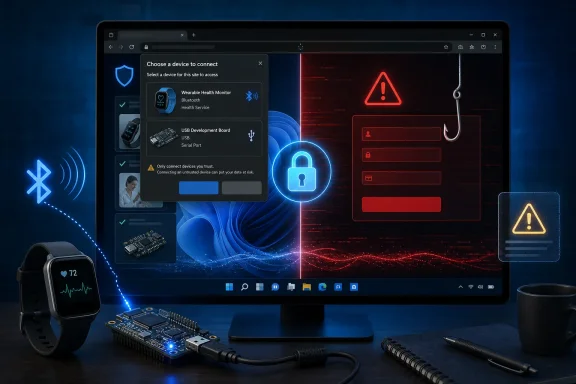
The July 30 support article is new documentation, not evidence of a newly introduced Edge feature. Microsoft’s own Edge policy documentation shows that Web Bluetooth and WebUSB controls have been supported on Windows and macOS since Edge 77. What has changed is that Microsoft is now putting consumer-facing instructions around a browser permission many users will encounter without recognizing that it grants a web page a path to physical hardware.
For Windows users, that deserves a more cautious interpretation than “click Pair.”
Edge is brokering hardware access for a web page
Microsoft’s support guidance describes the normal sequence: switch on Bluetooth or attach a USB device, visit the device maker’s site in Edge, interact with its connection control, choose the device offered in the browser picker, then approve the connection. The webpage determines the exact interface, so there is no universal Edge button to find first.
Under the hood, those connections use web platform interfaces generally referred to as Web Bluetooth and WebUSB. They are browser-mediated permissions: a site must request access and the user selects a device from a browser-controlled picker. That is materially safer than allowing a page to scan or take arbitrary control of every nearby device silently, but it does not make the selected device harmless.
A legitimate portal can use the connection to display live sensor readings, synchronize data, update settings, or install firmware. Those same capabilities explain Microsoft’s unusually direct warning. A site that can issue device commands may be able to alter configuration, and a device that reports health, activity, location-adjacent, diagnostic, or other personal information can expose that data to the site’s operator once the connection is approved.
The key boundary is the website origin, not the device’s Windows pairing status. Seeing a familiar device name in the chooser is not sufficient validation. Users should verify the full website address before approving a request, especially when arriving through a link in email, a QR code, an ad, or a support chat message.
Refreshing ends a Bluetooth session, but it is not the same as revoking trust
Microsoft’s instructions say refreshing the webpage disconnects a paired Bluetooth device. That is useful operational advice, but it leaves out an important distinction: closing an active connection is different from withdrawing the website’s authorization to access the device later.
The Web Bluetooth API includes a mechanism for a website to retrieve devices it has previously been granted permission to use. In other words, an approved site can potentially recognize a previously authorized device without making the user select it again in the same way. Whether it can reconnect at a given moment still depends on factors such as the device being powered, in range, and its supported protocol — but a refresh should be treated as a session reset, not as a comprehensive privacy cleanup.
Microsoft’s USB guidance is clearer and more useful. To disconnect a USB device from the site, Edge users can select the lock or site-information icon beside the address bar, locate the connected device in the site-information flyout, and select the remove control. That explicitly severs the site-device association visible in Edge.
The Bluetooth instructions do not provide an equivalent site-permission removal path. Microsoft’s general Edge privacy guidance directs users to the browser’s Site permissions pages to inspect permissions by website. Anyone who has connected sensitive hardware should review that site’s stored permissions rather than assume a refresh has erased the approval.
This is also why deleting the device from Windows Bluetooth settings is not necessarily the cleanest response to a browser-access concern. Windows pairing and an Edge site’s browser permission are related in the user experience, but they are not the same control plane. Removing the Windows pairing can disrupt normal desktop applications while leaving the user uncertain whether the browser’s stored site authorization was also addressed.
The published support scope is narrower than the policy record
Microsoft labels the new support page as applying to Microsoft Edge on Windows 10 and Windows 11. Yet the same article includes instructions for enabling Bluetooth in macOS. That is an awkward documentation mismatch: the stated applicability metadata is Windows-only, while the troubleshooting content acknowledges a Mac path.
Microsoft Learn’s Edge policy documentation gives the fuller picture. The Web Bluetooth and WebUSB policies are available on Windows and macOS from Edge 77 onward, while Android support is listed from Edge 138. Neither is supported on iOS, according to those policy pages.
For ordinary users, the implication is simple: the support article is best read as a Windows-focused walkthrough, not as a complete compatibility matrix. For IT teams, the policy documentation is the more important record because it confirms where these capabilities can be centrally managed — and where they cannot.
The support article also does not identify a list of compatible devices. That omission is sensible but consequential. A device being physically connected by USB, or paired in Windows Bluetooth settings, does not establish that it can communicate with a website. The manufacturer must expose a web-compatible interface, and the specific website must implement a compatible connection flow. A standard USB storage drive, an ordinary headset, or any other familiar peripheral should not be expected to appear simply because Edge offers WebUSB or Web Bluetooth support.
Administrators can block browser-to-device requests before users see a picker
Microsoft’s Edge policy documentation provides a direct answer for managed environments that do not want staff connecting browser tabs to hardware.
The DefaultWebBluetoothGuardSetting policy can block every website from requesting access to nearby Bluetooth devices through the Web Bluetooth API. The corresponding DefaultWebUsbGuardSetting policy can block websites from requesting access to connected USB devices through WebUSB. Microsoft documents both policies as mandatory, dynamically refreshable, profile-specific settings that can apply to Edge profiles signed in with Microsoft accounts.
Their Group Policy location is:
Administrative Templates/Microsoft Edge/Content settings
The two relevant policy names are:
DefaultWebBluetoothGuardSetting, which controls Web Bluetooth access.DefaultWebUsbGuardSetting, which controls WebUSB access.
In both cases, Microsoft maps policy value 2 to blocking sites from requesting access and value 3 to allowing sites to ask the user. If left unconfigured, Edge’s documented default is to allow websites to prompt, leaving the decision to the user.
That default is reasonable for consumer machines that need to use vendor portals for a fitness tracker, programmable keyboard, test instrument, or device updater. It is less defensible on shared kiosks, privileged administrator workstations, clinical endpoints, industrial workstations, or systems handling devices that should be managed only through approved native software.
Microsoft also provides URL-based WebUSB controls. WebUsbBlockedForUrls can stop specified site patterns from requesting USB-device access, while WebUsbAskForUrls can create exceptions to the broader default. Microsoft says the allow and block URL lists cannot conflict, so an organization needs to decide whether it is operating a deny-by-default model with tightly defined exceptions or allowing requests generally and blocking known unwanted sites.
The significant operational detail is that these policies govern the browser request, not Bluetooth radios or USB ports throughout Windows. Blocking Web Bluetooth does not prevent a mouse, headset, Windows app, or device-management client from using Bluetooth. Blocking WebUSB does not disable a USB device in Device Manager. It prevents a webpage in Edge from opening this particular route to the hardware.
The safe rule is to treat device prompts like software-install prompts
Microsoft’s plain-language warning is the correct model: allowing a website to connect to a device is a high-trust action. It should be evaluated more like installing the manufacturer’s configuration tool than like accepting a cookie banner.
Use a manufacturer’s known support or setup page reached independently, rather than following an unsolicited link. Confirm the precise domain before opening the chooser. Select only the device you intended to connect, and disconnect or remove the site’s access once a one-time configuration or update is finished.
For managed Windows endpoints, the most defensible baseline is to block Web Bluetooth and WebUSB with Edge policy, then allow exceptions only where a business application demonstrably requires browser-to-device communication. Microsoft’s support page makes the consumer workflow easier to follow; Microsoft’s policy record makes clear that IT does not need to leave the decision to every browser prompt.