
The feature is listed as rolling out to worldwide standard multi-tenant environments, with preview availability beginning in February 2026 and general availability targeted for July 2026. It applies to the web-based Microsoft Purview experience and is available across both Preview and General Availability release rings, according to the Microsoft 365 roadmap entry.
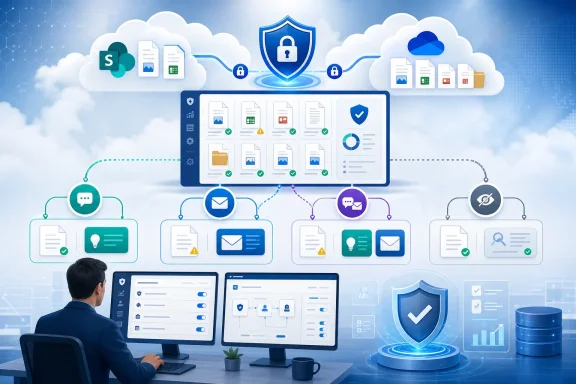
Rather than treating a DLP match as a single, fixed alerting event, Purview administrators can now choose whether the user sees an in-context warning, receives an email, receives both, or receives neither. That flexibility matters because a SharePoint or OneDrive DLP policy is rarely just a technical control. It is also a communication mechanism that affects document owners, site administrators, security teams, and the broader collaboration culture around sensitive information.
 Overview: What Is Changing in Microsoft Purview DLP?
Microsoft Purview DLP policies are designed to identify, monitor, and protect sensitive information across Microsoft 365 services. In SharePoint Online and OneDrive for Business, a policy can detect material such as personally identifiable information, financial information, credentials, health data, or organization-defined sensitive data, then apply actions including access restrictions, notifications, or user override options. Microsoft positions policy tips and notification emails as tools that help users understand and resolve compliance issues without automatically preventing legitimate work. Microsoft’s DLP notification documentation describes both mechanisms as part of the user-facing side of DLP enforcement.
Before this rollout, the configuration model linked policy tips and email notifications. Enabling one meant enabling the other. That may have been convenient for simpler deployments, but it reduced the ability to tailor DLP communications to the sensitivity of the event, the audience, and the operational response needed.
With the decoupling introduced under Roadmap ID 394279, administrators can configure four distinct notification modes:
- No policy tips and no email notifications
- Policy tips only
- Email notifications only
- Both policy tips and email notifications
The change is specific to rule configuration for DLP policies scoped to SharePoint and OneDrive. It does not alter the core detection engines, sensitive information types, sharing controls, or access-blocking actions available in Microsoft Purview. Instead, it gives organizations more granular control over how they communicate when a rule is matched.
That distinction is crucial. DLP enforcement and DLP communication are related, but they are not the same thing. A company may want to restrict an external recipient’s access to a sensitive document without interrupting the document author with repeated prompts. Another organization may prefer an immediate in-context warning before escalating to email only when an action is blocked or a high-risk sharing event occurs.
Policy Tips and Email Notifications Serve Different Jobs
The old coupling made sense only if policy tips and email alerts were viewed as interchangeable. They are not.
Policy tips are contextual and immediate
A policy tip appears where a user is interacting with content. For documents stored in SharePoint or OneDrive, Purview can display a warning or blocked-status icon on an item. Users can select the file, open the information pane, and view the relevant policy tip. In supported desktop versions of Word, Excel, and PowerPoint, policy tips can also appear in the Message Bar and the File > Info experience when the document is stored in a protected SharePoint or OneDrive location. Microsoft’s documentation outlines these user-facing experiences.
This is the strongest option when the primary objective is just-in-time education. A user who has added customer financial data to a spreadsheet, for example, can be warned while working on the file rather than discovering the policy problem later in an inbox.
Policy tips can also support remediation-oriented workflows. Depending on the rule configuration, a user may be able to override the policy, provide a business justification, or report a false positive. These interactions can give compliance teams useful evidence that a rule is too broad, a sensitive information type is generating noise, or a particular business process needs a formal exception path. Microsoft Purview’s configuration guidance notes that override and false-positive reporting can be configured as part of policy-tip behavior.
Email notifications are asynchronous and auditable communications
Email notifications take a different path. They can be sent to the person who owns, shared, or last modified the content; the site owner; or a designated individual recipient. The notification itself can be customized with HTML, Markdown, policy variables, document information, and rule-specific text. Microsoft documents support for recipient selection and customizable notification templates for Exchange, SharePoint, and OneDrive workloads.
An email is better suited to workflows that require follow-up beyond the person currently viewing the document. Consider a finance department’s sensitive workbook stored in a team SharePoint site. The employee who uploaded it may need a clear notification, but the site owner or data steward may also need visibility when the file is externally shared or when Purview blocks access.
Email notifications can be more actionable in another important way. Microsoft currently documents actionable email notifications for SharePoint and OneDrive as a preview capability, with controls that may enable users to stop file sharing, delete the file, apply a sensitivity or retention label, override a policy, report a false positive, or report that they cannot take action. Microsoft’s Purview documentation states that these actions can be included in customized notifications, although organizations should validate preview behavior carefully before making it central to a production incident-response process.
The Four New Configuration Patterns
The new Microsoft Purview DLP configuration flexibility is best understood as a set of communication patterns rather than four arbitrary switches.
1. Neither policy tips nor email notifications
This option may sound counterintuitive, but it has legitimate uses. A DLP rule may be intended to apply a control silently, collect telemetry, support a staged deployment, or generate administrative alerts and incident reports without notifying every end user.
For example, an organization could deploy a rule in a testing or observation-oriented mode to understand where regulated data resides before moving to user messaging or blocking. It might also use a silent rule for automated service accounts, backend-generated files, or controls where end-user messaging would add little value.
The risk is obvious: a user who cannot see a policy tip and does not receive an email may not understand why a sharing action failed or why access changed. Silent controls therefore work best when the action is non-disruptive, when an alternate support process exists, or when notifications would create unnecessary noise.
2. Policy tips only
Policy tips only are ideal for user education and low-friction correction. The user gets immediate feedback in the location where the document is being created, edited, shared, or reviewed, but the organization does not add inbox traffic for every routine DLP match.
This approach is particularly attractive for policies that are intended to nudge behavior rather than trigger an escalation. A marketing employee who adds a small amount of potentially sensitive data to a draft document may simply need a clear reminder to apply the correct label, remove the data, or use an approved location.
There is an operational advantage as well. Microsoft states that editing existing content can trigger policy tips, while email notifications are only triggered by new content. Microsoft’s notification guidance makes that distinction explicit. For rules focused on iterative document editing, policy tips may therefore offer the more relevant user signal.
The trade-off is that a policy-tip-only design assumes that the relevant person will encounter the warning in a supported experience. It is not a substitute for escalation when a site owner, security analyst, or compliance manager must be informed independently.
3. Email notifications only
Email notifications only are a better fit when a company needs a persistent, direct communication record but does not want to interrupt a user in the document experience. This can be helpful for higher-volume policies, scheduled remediation programs, or policies aimed at content owners and site administrators rather than the person actively editing a file.
A notification email may contain a link to the affected SharePoint or OneDrive content, which can direct recipients to the location where the policy issue can be reviewed. Microsoft explains that document-related notifications include a link to the stored item and its policy-tip experience.
Email-only rules can also improve the separation between frontline collaboration and governance. Not every DLP event should look like an interruption. A legal operations team, for instance, may prefer the data owner to receive a tailored notice instructing them to move a document into a restricted library, while the document editor continues working without a pop-up that may be confusing or premature.
However, email-only policies introduce a timing and attention risk. People may overlook an alert, particularly in organizations where automated compliance email is frequent. Microsoft also cautions that notification emails are sent unprotected, a factor that should influence what an organization includes in custom templates. Microsoft’s policy reference specifically flags the unprotected nature of these messages.
4. Both email notifications and policy tips
The combined setting remains the strongest option for high-risk situations where the organization wants both immediate awareness and a traceable follow-up message. A policy tip can stop the user at the moment of action, while email ensures that the owner, last modifier, or designated administrator has a record of the event and a route to remediation.
This is likely to remain the preferred configuration for rules involving external sharing of highly sensitive documents, detected credentials, payment data, health information, or regulated personal data. In those cases, the cost of a missed warning is usually greater than the inconvenience of dual notification.
Still, using both channels everywhere can rapidly create alert fatigue. The point of decoupling is not simply to make more notifications possible. It is to make better-targeted notifications possible.
Why the Change Matters for SharePoint and OneDrive Governance
SharePoint and OneDrive have become foundational repositories for business documents, spreadsheets, presentations, project files, and ad hoc collaboration. Their flexibility is valuable, but it also means data can be copied, edited, shared, synchronized, and exposed to external parties rapidly.
Microsoft Purview can proactively block external guest access to sensitive documents in SharePoint and OneDrive after detecting sensitive information, while internal users may retain access under the relevant rule configuration. Microsoft’s DLP policy reference describes this proactive behavior for SharePoint and OneDrive controls. In that environment, communication settings determine whether users see the block as an intelligible security measure or as an unexplained obstacle.
The decoupling therefore helps administrators align the user experience with the enforcement action.
- A block external sharing rule may need both a policy tip and an email to the site owner.
- A low-confidence policy match may be better suited to a policy tip only.
- A back-office governance exception may need email only to a data steward.
- A silent monitoring rule may need neither user-facing channel, while still generating administrative signals elsewhere in Purview.
This is a more mature model for Microsoft 365 compliance administration. It recognizes that DLP is not a single binary control. It is a layered process of detection, prevention, notification, remediation, reporting, and policy tuning.
Important Operational Limits Administrators Should Not Miss
Greater flexibility does not remove existing Purview constraints. Administrators should assess those limitations before redesigning their policies around the new options.
Email notifications are not a streaming event feed
Microsoft notes that a user notification is only sent once per document. If a document that matches a content-sharing condition is shared twice, there will still be only one notification. Microsoft’s DLP policy reference also applies that single-notification behavior to alert emails and incident report emails in the referenced context.
That is generally a sensible anti-noise safeguard, but it means email-only policies should not be treated as a complete audit or monitoring channel. Security teams should continue to rely on the appropriate Purview reporting, alerting, audit, and investigation capabilities for event visibility.
Recipient targeting has boundaries
Purview can notify selected people such as the content owner, the last modifier, the site owner, or a specific user. But Microsoft says email notifications can be sent only to individual recipients, not groups or distribution lists. Microsoft’s configuration documentation makes this restriction clear.
For larger compliance operations, that means administrators may need to use purpose-built mailboxes, automated workflows, administrative alerts, or other escalation mechanisms rather than assuming a DLP user notification can reach a broad operations distribution group.
Policy-tip visibility depends on supported experiences
Policy tips are supported in the SharePoint and OneDrive web client, and Microsoft lists supported conditions such as content detection, sharing conditions, document properties, file extensions, document names, sizes, and document creators. Microsoft’s SharePoint and OneDrive policy-tip reference also confirms support for policy tips with preconfigured sensitive information types, exact data match types, custom sensitive information types, and sensitivity labels in the applicable scenarios.
However, administrators should test the exact combinations used in their tenant. A policy tip is only useful if it appears in the application, file type, location, and user workflow that the policy designer expects.
Custom policy tips and emails have different design capabilities
Microsoft allows much richer customization for notification emails than for policy tips. Email templates can use HTML or Markdown and tokens such as document names, policy names, rule names, content URLs, workload names, and file-owner information. Policy-tip custom text, by contrast, is plain text with a 256-character limit. Microsoft’s documentation distinguishes these two customization models.
That limitation reinforces the value of decoupling. A concise policy tip can tell a user what to do immediately—“Remove customer account numbers or apply the Confidential label”—while an email can provide the longer explanation, help-desk path, regulatory context, and remediation instructions.
Recommended Design Approach for the New Controls
The best use of decoupled notifications is not to revisit every DLP rule indiscriminately. It is to classify policies by risk, user impact, and response ownership.
Start with a rule-by-rule communications review
For every SharePoint and OneDrive DLP rule, administrators should define:
- Who needs to know immediately?
This is usually the person editing, uploading, or sharing the file. - Who needs a durable follow-up record?
This could be the file owner, site owner, data steward, or a specific responsible individual. - Is the match educational, corrective, or enforcement-driven?
A low-risk match may require a tip. A blocked external share may require both channels. - Can the user remediate the issue independently?
If yes, a concise policy tip may be enough. If not, an email with clear escalation guidance may be more appropriate. - Could the message itself create data exposure?
Since DLP notification emails are unprotected, avoid putting sensitive values, detailed detection logic, or excessive document context into the message body. Microsoft warns that external senders receive only a templated notification without full policy details to help avoid unnecessary disclosure.
Use policy tips for behavior change
Policy tips should be written in plain language, not policy language. They should state the practical issue and the immediate action.
Effective examples include:
- This file contains customer payment information. Remove the data or apply the approved sensitivity label before sharing.
- External sharing is blocked because this document contains employee personal data. Contact the document owner if an approved exception is required.
- This file may contain credentials. Move secrets to the approved password-management service and remove them from the document.
The key is specificity without exposing sensitive values. A user should understand what happened and what to do next in seconds.
Reserve email for ownership, escalation, and remediation
Email notifications should identify the affected file, state the policy outcome, and provide a controlled route to resolve the problem. Where appropriate, they can include the file URL, policy name, and a help resource. The content should remain proportionate because notification messages may be forwarded, stored, or viewed outside the document’s normal access context.
For high-impact rules, consider sending email to both the content actor and the responsible owner. For lower-risk rules, notify only the relevant person. The new model makes it possible to apply that distinction without giving up immediate policy tips where they are useful.
A Small Configuration Change With a Larger Governance Impact
The decoupling of policy tips and email notifications does not reinvent Microsoft Purview DLP. It does something more pragmatic: it gives administrators a missing control over how compliance enforcement is communicated in SharePoint and OneDrive.
That matters because the effectiveness of a DLP policy depends on more than detection accuracy. It also depends on whether the right person sees the right message at the right time, whether they can understand it, and whether they have a realistic path to correct the problem.
For organizations managing sensitive content in Microsoft 365, the new configuration options make DLP rules more adaptable. Policy tips only can support user education. Email only can support governance workflows. Both can reinforce high-risk enforcement. Neither can support silent monitoring or narrowly targeted automated controls.
As the rollout of Microsoft 365 Roadmap ID 394279 reaches more tenants, Microsoft Purview administrators should treat it as an opportunity to reduce unnecessary alert noise while making the most important DLP events clearer, more actionable, and easier to govern.
