
 Overview
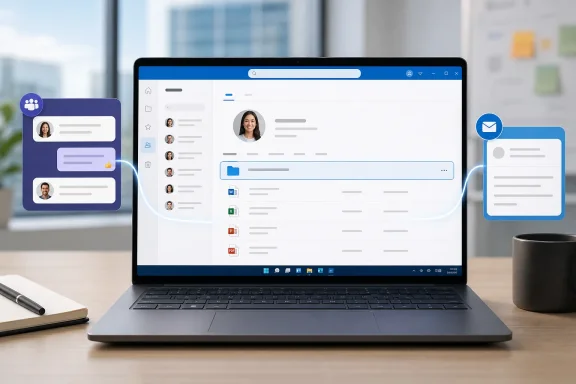
The upcoming OneDrive shared-folder experience is a modest interface change with potentially meaningful consequences for how Microsoft 365 users navigate collaborative content. Microsoft’s roadmap description says that clicking a shared-folder link from Teams, email, or other locations will take the recipient to the folder within the People view of their own OneDrive. That people-oriented space will show files and folders shared with the user, organized by the person who shared them. Roadmap ID 479965
In practical terms, Microsoft is attempting to make the destination more useful than a single deep link. Rather than opening a lone project folder with little surrounding context, the user is expected to land in a view that exposes the broader relationship: this is content shared by this person, and other materials from that same collaborator should be close at hand.
The listing applies to OneDrive on the web for the Worldwide (Standard Multi-Tenant) cloud, under the General Availability release phase. It was created on February 6, 2025, and last modified on July 28, 2026. The entry carries an In development status, although it lists May 2026 as the general-availability timing. That mismatch is important: Microsoft describes roadmap timing as estimated and subject to change, while its status taxonomy defines “In development” as work that remains in development and testing. Microsoft’s roadmap guidance
For Windows users who rely on Microsoft Teams and OneDrive as the backbone of daily document work, the change is less about new storage and more about improving re-entry. A shared folder link becomes an on-ramp into OneDrive’s collaboration map rather than an endpoint that users must bookmark, pin, or search for later.
Why Shared Folders Need Better Context
Shared folders are among the most common—but also most easily misplaced—objects in Microsoft 365 collaboration. A teammate sends a folder in Teams. A manager forwards a link by email. A project owner drops one into a channel conversation. The folder opens, the immediate task gets done, and then the folder disappears into the background of an increasingly crowded workday.
OneDrive already has a Shared experience for finding content shared with and by a user. Microsoft’s support documentation explains that shared files and folders appear there, while work and school users can use filtering and grouping options, including filters for the people who shared content. Microsoft Support’s Shared view guide
The proposed change matters because it takes that discoverability model and inserts it directly into the link-opening flow. Instead of asking users to remember that the Shared section exists, OneDrive can surface it at the moment a shared folder is opened.
That is a sensible design decision. In an organization where dozens of people can share documents, files are often remembered through human context rather than exact folder names. Users may not recall whether a financial model lived in “FY26 Planning,” “Forecast Final,” or “Revised Budget.” They are more likely to remember that it came from the finance lead or a particular project coordinator.
The people-centric organization principle
The People view uses a simple premise: collaboration is often navigated through people, not only through formal information architecture. This is particularly valuable in organizations where file naming is inconsistent, projects overlap, or teams communicate primarily through Microsoft Teams chats rather than carefully maintained SharePoint sites.
Microsoft already exposes a similar idea inside Teams. Its documentation says that the OneDrive experience in Teams offers ways to browse files by People, Meetings, and Media, alongside standard views such as Home, My files, Shared, Favorites, and Recycle bin. Microsoft’s Teams Files documentation
Roadmap ID 479965 appears to extend that logic to an important moment of friction: opening a shared-folder link. It effectively acknowledges that collaboration navigation should not reset every time a user follows a link from a chat or inbox.
What Will Change When Users Open a Shared Folder Link
The clearest way to understand this OneDrive update is to distinguish the file location from the navigation context.
A shared folder remains hosted in the owner’s OneDrive. The update does not turn that folder into a local folder owned by the recipient, nor does it grant new permissions simply because a recipient has opened a link. Microsoft’s existing OneDrive documentation is explicit that items shared by other people remain stored in the other person’s OneDrive. Microsoft Support
What changes is the browser experience around the destination.
Before the change
A user might receive a folder link in:
- A Teams chat
- A Teams channel post
- An Outlook email
- A meeting follow-up
- A copied Microsoft 365 sharing link
- Another collaboration application that passes through the OneDrive URL
The link typically functions as a direct route to the item. The user can open the folder and work within it, but that immediate entry point does not necessarily make related material from the same sharer easy to discover.
To make a shared folder persistently easier to find, eligible users can already add a shortcut to it in My files. Microsoft says this requires edit permission for the folder in the work or school experience, and the shortcut enables the folder to be viewed on the user’s computer. Microsoft’s shared-folder guidance
After the change
Under the new flow described on the roadmap, a click on a shared-folder link will navigate the user to that folder within OneDrive’s People view. The People view groups accessible material around the individual who shared it. Roadmap ID 479965
That should create several useful outcomes:
- The intended folder remains the immediate focus.
- Other files and folders shared by the same person become easier to locate.
- The user gains a consistent OneDrive context after arriving from Teams or email.
- The experience better reflects the relationship-based nature of collaborative work.
- Users may need to rely less on repeatedly searching Teams messages for the original link.
This should be particularly helpful for projects run through one-to-one Teams chats, where a manager or teammate shares an evolving collection of documents over time. Rather than treating each link as a separate event, OneDrive can group the collaboration trail in a single person-based view.
What the Update Does Not Change
As with many Microsoft 365 user-experience updates, the practical value is easy to overstate if navigation changes are confused with security or storage changes. This is not a new permission model, a migration mechanism, or a replacement for SharePoint document libraries.
Permissions still control access
Opening a shared folder through the People view does not override the original sharing settings. Owners and administrators retain control over who can access the content and what they can do with it.
Microsoft supports several sharing configurations for OneDrive content, including links for anyone who receives the link, people inside the organization with the link, existing-access recipients, and specifically named people. Organizations can restrict available options through administrative policy. Microsoft’s OneDrive sharing documentation
The essential rule remains straightforward: the view may improve discovery, but it does not create authorization.
A user who loses access because the owner stops sharing the folder should no longer see it in the Shared experience. Microsoft documents that shared items disappear from the Shared view when their owner stops sharing them. Microsoft Support
Shared content still belongs to the owner’s OneDrive
OneDrive’s shared-content model can be conceptually confusing because the item becomes visible in the recipient’s experience without being copied into their personal drive. Microsoft notes that shared items reside in the owner’s OneDrive, which means recipients should take care when editing someone else’s content. Microsoft Support
That distinction matters for version control. If a recipient uses Copy to and saves a copy in their own Files view, later changes to that copy are not reflected in the original shared item. Microsoft Support
The new People-view landing point may actually help clarify this ownership relationship. By making the sharer visible in the navigation structure, OneDrive reinforces the idea that the folder is part of someone else’s workspace, shared into the recipient’s working context.
This is a web-focused update
The roadmap lists Web as the platform for the feature. That designation matters for users who primarily work through File Explorer, the OneDrive sync client, mobile apps, or Teams desktop. The intended new behavior should be expected when following applicable links into OneDrive on the web, not assumed to be a complete redesign of every OneDrive surface. Roadmap ID 479965
Windows users may still benefit indirectly. A shared folder added as a shortcut can remain accessible through the OneDrive sync client, while the web experience provides the richer person-centered discovery layer. Microsoft’s developer documentation describes shared folders added to a user’s drive as remote items and notes that their contents can synchronize through the OneDrive sync client. Microsoft Learn’s remote-item documentation
The Benefits for Teams and OneDrive Users
The strongest argument for this feature is not that it adds a major new capability. It is that it reduces a routine source of wasted effort in modern collaboration: the need to reconstruct where a shared folder came from and how it relates to other material.
Less link archaeology in Teams
Teams chat is often used as an informal document repository. Even where files are properly stored in OneDrive or SharePoint, users may return to old conversations simply to find the message that contained the original link.
That behavior is understandable but inefficient. Chat search can produce a noisy mix of replies, repeated links, copied documents, and similarly named files. A People-view landing experience gives users an alternative path: open one relevant folder and then browse other content from the same person.
For frequent Teams users, this creates a more coherent boundary between messaging and document work. Teams remains the place where the link is shared and discussion happens. OneDrive becomes the place where the user manages the broader shared-content relationship.
Better continuity across email and Teams
The feature also recognizes that documents move across communication tools. A folder might be sent by Outlook one day, pasted into Teams the next, and referenced in a meeting invitation later in the week.
Without a consistent landing experience, each route can feel disconnected. OneDrive’s People view is designed to make the source of the shared content persistent even when the delivery mechanism changes.
That is especially valuable when a recipient is handling multiple projects with the same stakeholder. A program manager may share working folders for budget, status reports, launch materials, and meeting notes. Grouping those resources by person could make related files much easier to rediscover.
A gentler path to OneDrive’s collaboration tools
OneDrive is more than a personal cloud folder, but many users still treat it as one. They save their own documents under My files and interact with shared material only when a link arrives.
The revised flow may encourage users to engage with the broader Shared and People experiences without requiring formal training. Microsoft already presents shared files as a distinct category in OneDrive and Teams, and the People grouping is available as a file-browsing dimension in Teams. Microsoft’s Teams Files documentation
This kind of contextual onboarding can be more effective than introducing a new feature through documentation alone. Users learn where shared material lives by arriving there naturally while completing real work.
Risks and Friction Points to Watch
The change is directionally useful, but it is not without potential drawbacks. A people-oriented view can improve discovery, yet it can also alter the mental model of users accustomed to direct, folder-first navigation.
The destination may feel less direct
Some users prefer a link to do exactly one thing: open exactly one folder with no surrounding interface shift. Landing inside a People view may introduce a moment of uncertainty, particularly if the page shows a broader collection of shared material before the user visually identifies the intended folder.
The success of the update will depend heavily on visual focus. The linked folder needs to be unmistakable, with the person-based organization serving as supporting context rather than a distraction.
If the interface makes users feel as though they have been redirected somewhere adjacent to the folder rather than to the folder, the feature could create friction instead of removing it.
People are not always the best organizing principle
People-centric browsing works best when one person is a clear source of related work. It is less helpful in complex, cross-functional environments where files are shared by service accounts, project coordinators, large groups, or automated workflows.
A folder shared by a generic account such as “PMO Documents” may have limited human context. Likewise, a person may share hundreds of unrelated files, making their People view a broad and potentially cluttered container.
Microsoft’s current Shared experience supports filters based on person, file type, and modified date, and it allows sort and grouping options for work and school users. Microsoft Support Those controls will become increasingly important if People view is used more often as an entry point.
Privacy perception needs careful handling
The update does not appear to expose new data or access rights. Still, users may notice more clearly that files are connected to the people who shared them. That can create understandable questions about visibility, especially in organizations with strict collaboration, legal, or information-barrier expectations.
Administrators should emphasize the difference between discoverability of already-authorized content and new sharing exposure. The feature surfaces files and folders that have been shared with the recipient; it does not turn OneDrive into an open directory of another employee’s files.
The basic safeguards remain administrative sharing settings, least-privilege access, expiration where appropriate, and careful use of anonymous or organization-wide links. Microsoft allows organizations to constrain sharing options, including the ability to restrict “Anyone” links. Microsoft’s OneDrive sharing documentation
Roadmap timing remains uncertain
There is also a release-management wrinkle. The Roadmap ID 479965 entry lists May 2026 for general availability, but it remains labeled In development in the details supplied with the July 28, 2026 update. That should be read as a status signal, not ignored because the estimated rollout month has passed.
Microsoft states that roadmap information is subject to change and differentiates between In development, Rolling out, and Launched. Microsoft’s roadmap page For IT teams, that means the feature should be monitored through Microsoft 365 change-management channels rather than assumed to be universally deployed merely because a target month is listed.
What IT Administrators Should Do Now
This feature should not require a major migration or a new security configuration. Nevertheless, it is worth preparing users and support teams because it changes a familiar journey from Teams and Outlook into OneDrive.
Validate the user journey
Administrators and Microsoft 365 champions should test the intended experience with a small set of ordinary sharing scenarios:
- Share a OneDrive folder with a specific internal user.
- Send the folder link through a Teams chat.
- Send the same link through a Teams channel where appropriate.
- Send it in an Outlook email.
- Open the link as the recipient in OneDrive on the web.
- Check whether the folder opens within the People view and whether the surrounding content is understandable.
- Confirm that permissions, link expiration, and access revocation behave as expected.
The objective is not simply to see whether the folder opens. It is to evaluate whether users can understand why they are seeing the People view and how to get back to their own files, Shared content, and the original Teams conversation.
Update internal help material
Organizations with user guides that say “click the link to open the folder” may want to refresh screenshots and wording. A short note can prevent helpdesk tickets:
Shared OneDrive folder links may open inside the People area of OneDrive. This helps you locate other content that the same person has shared with you.
The message should be framed as a productivity improvement, not as a permissions change. Users do not need to relearn sharing rules; they need to recognize a different navigation context.
Revisit shared-folder hygiene
The feature is also a reason to reinforce basic collaboration discipline:
- Use descriptive folder names.
- Avoid sharing broad folders when a narrower folder is sufficient.
- Remove access when a project ends.
- Use Specific people links for confidential material where appropriate.
- Apply expiration dates to eligible links.
- Avoid assuming that a copied file remains connected to the original.
- Encourage users to add a shortcut to frequently used shared folders when they have the necessary permission.
Microsoft notes that folder editors can copy, move, edit, rename, share, and delete content in a shared folder, while view-only recipients cannot make changes to the hosted version. Microsoft’s OneDrive sharing guidance That is a reminder that the convenience of better discovery should be matched by careful permission design.
The Bigger OneDrive Strategy Behind the Change
This update fits a wider Microsoft 365 pattern: files should be accessible from the communication and work context where users encounter them, but they should ultimately be managed through a consistent document experience.
Teams and OneDrive are already closely linked. Microsoft says the Files and OneDrive experience in Teams is powered by OneDrive for Business, and the Teams interface groups content into Home, My files, Shared, Favorites, and other categories. Microsoft’s Teams Files documentation
The shared-folder change adds another layer of continuity. A link sent in Teams should not strand users in a detached browser destination. It should carry them into a OneDrive experience that understands the shared item, the sharer, and the user’s existing collaboration history.
That is an intelligent direction for enterprise storage tools. Traditional folder trees remain essential, particularly for governed document libraries and structured departmental repositories. But everyday knowledge work is rarely navigated only through hierarchy. It is navigated through recency, conversation, meetings, projects, and people.
The People view does not replace those other paths. It gives OneDrive another way to answer the question that often matters most after a shared link is opened: what else did this person send me, and where does this folder fit?
Conclusion
Microsoft’s upcoming OneDrive shared-folder experience is a small but practical refinement to Microsoft 365 collaboration. By routing shared folder links from Teams, email, and similar sources into a People-organized view in the recipient’s OneDrive, the company is trying to turn isolated link clicks into a more durable way of finding shared work.
The feature’s strengths are clear: it can reduce Teams message hunting, preserve context across email and chat, and make shared content easier to rediscover through the people who supplied it. Its limitations are equally clear: permissions do not change, shared folders remain in the owner’s OneDrive, and the People view will not be equally useful for every organization or sharing pattern.
With Roadmap ID 479965 still marked In development despite its listed May 2026 general-availability timing, IT teams should treat deployment as something to monitor rather than a completed rollout. Microsoft’s roadmap guidance Once it reaches affected tenants, however, the change has the potential to make one of the most repetitive Microsoft Teams and OneDrive workflows feel considerably more coherent.
