
Microsoft’s Roadmap ID 562341 lists the feature as rolling out to general availability across Commercial, GCC, and GCC High environments, with general availability scheduled for July 2026. Microsoft’s Teams Rooms on Windows release notes independently describe the capability as two-way Direct Guest Join: Teams Rooms on Windows can join Google Meet meetings, Google Meet devices can join Teams meetings, and users can enter through a calendar-based one-touch experience or with a meeting ID. Microsoft’s release notes place the capability among current Teams Rooms on Windows improvements.
This is not a cosmetic calendar integration. It is a meaningful shift in the practical usefulness of Windows-based meeting rooms for organizations that operate across Microsoft 365 and Google Workspace, work frequently with external customers, or have acquired offices standardized on a competing room platform.
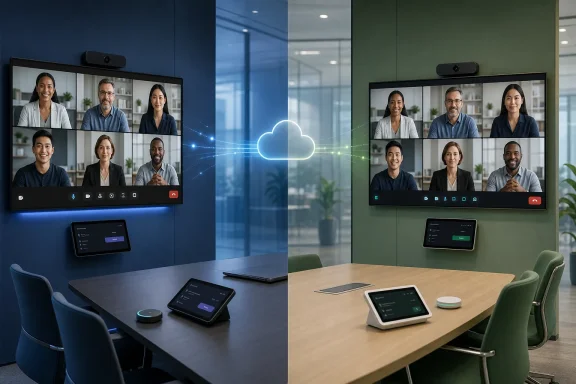 Overview: What Two-Way Direct Guest Join Changes
For years, meeting interoperability has been a source of expensive and avoidable complexity. A company might standardize on Microsoft Teams Rooms on Windows, while a client, partner, school, public agency, or subsidiary uses Google Meet hardware and Google Calendar. The actual meeting can be scheduled in seconds, but getting a room system into it often involves a chain of compromises.
That may mean adding a laptop as an audio-video endpoint, navigating a browser on a front-of-room display, dialing in by phone, or relying on a cloud video interoperability provider. Each workaround introduces its own problems: echo risks, lost camera framing, inconsistent content sharing, unclear ownership of meeting controls, and, most importantly, a poor experience for people who expect the conference room console’s Join button to simply work.
The newly expanded model aims to address this at both ends:
- A Teams Rooms on Windows device can join a scheduled Google Meet meeting from its calendar.
- A Teams Rooms on Windows device can use meeting ID-based joining for a Google Meet meeting.
- ChromeOS-based Google Meet hardware can join a scheduled Teams meeting when its invitation details are present in Google Calendar.
- Compatible Google Meet hardware can also join Teams meetings manually with the Teams meeting ID and passcode.
Google’s own support documentation confirms that ChromeOS-based Google Meet hardware can join Teams meetings, either from a scheduled room calendar event or by entering a meeting ID and passcode. Google also cautions that some Teams features may not work in this interop mode. Google Meet hardware documentation makes another critical distinction: Android-based Meet hardware cannot currently join Teams meetings through this direct capability, although Google points customers toward Pexip for an Android-based alternative.
That qualification matters. “Google Meet devices can join Teams meetings” is accurate at the platform level described by Microsoft, but IT teams must validate the exact device operating system and supported interoperability path before presenting it as universal across every Google Meet deployment.
Why Teams Rooms on Windows Is at the Center of the Update
Microsoft Teams Rooms is not one homogeneous product category. Microsoft offers Teams Rooms on both Windows and Android, with feature development sometimes arriving at different times or varying because of technical and platform constraints. Microsoft’s current comparison documentation lists Google Meet Direct Guest Join on Teams Rooms for Windows, while the Android entry lists Cisco Webex and Zoom rather than Google Meet. Microsoft’s Teams Rooms feature comparison is therefore clear on the immediate platform boundary: this Google Meet DGJ scenario is a Windows-room capability.
That makes sense from an architectural and operational standpoint. Many larger Teams Rooms installations use Windows-based systems with dedicated compute appliances, touch consoles, certified cameras, audio DSP hardware, one or two front-of-room displays, and mature device-management workflows. These rooms are often where the cost of meeting friction is highest.
A typical executive conference room does not want to become a BYOD space every time an external Google Meet invitation arrives. The value of Teams Rooms on Windows is the ability to treat the room itself as the endpoint: the room account accepts an invitation, the event appears on the room console, and attendees press one button.
Microsoft’s documentation describes Direct Guest Join as a WebRTC-based solution, in contrast to its SIP-based cross-platform meeting option. DGJ supports both a calendar join button and join-by-ID functionality for Google Meet on Windows, without requiring a paid SIP dialing plan. Microsoft’s third-party meetings guidance also says that DGJ is available with Teams Rooms Basic or Teams Rooms Pro, which is particularly important for smaller rooms that may not carry the more expensive Pro license.
The trade-off is that DGJ is not a full native Teams experience inside a Google Meet call, nor a full native Google Meet room experience inside a Teams call. It is a purpose-built interoperability connection, with third-party platform behavior and feature availability shaped by the platform being joined.
Direct Guest Join Versus SIP Cross-Platform Meetings
The phrase “interoperability” can conceal important technical differences. Microsoft supports two broad pathways for Teams Rooms to enter third-party meetings:
- Direct Guest Join, based on WebRTC.
- Cross-platform meeting via SIP join, based on SIP video calling.
For Teams Rooms administrators, the distinction has direct consequences for quality, network design, licenses, sharing, and display behavior.
Microsoft’s capability matrix states that DGJ provides up to 720p at 30 frames per second for sent and received video. SIP cross-platform meetings can reach up to 1080p at 30 frames per second. DGJ supports receiving shared content, but Microsoft lists HDMI content sharing and content-camera sharing as unavailable under DGJ. It is also restricted to a maximum of one front-of-room display, compared with up to two for the SIP option. Microsoft’s published comparison makes the limitations explicit.
The DGJ advantages
Direct Guest Join has several notable strengths:
- It is designed around the familiar one-touch join model from a room calendar.
- It supports joining Google Meet from Teams Rooms on Windows through both a scheduled event and meeting ID.
- It does not require a paid SIP dialing plan.
- It works with Teams Rooms Basic as well as Teams Rooms Pro.
- It uses a direct connection to the third-party service, reducing dependence on a separate interoperability bridge.
- It has a comparatively straightforward administrative model once the room mailbox, network controls, and device setting are correctly configured.
For organizations that mainly need reliable participation in external Google Meet calls, those benefits can be more valuable than the higher-quality or dual-screen characteristics of SIP. A room that joins every meeting consistently at 720p is often more useful than a theoretically richer integration that is harder to deploy or support.
The DGJ constraints
The limitations require equally serious attention:
- Native platform feature parity should not be assumed. Features such as chat, participant lists, breakout rooms, layout control, and whiteboard behavior may vary by third-party platform and evolve over time.
- HDMI sharing is not available through the DGJ path. A presenter who assumes the room’s HDMI cable will share into the Google Meet meeting may have an unpleasant surprise.
- Only one front-of-room display is supported for DGJ, even in rooms that physically have two displays.
- Camera PTZ controls are unavailable through the DGJ table Microsoft publishes.
- Microphone mute synchronization is unavailable, potentially creating a small but consequential usability gap between the local console and the remote meeting state.
- DGJ requires direct internet access to the third-party platform, which may conflict with some organizations’ network-security designs.
The feature should therefore be seen as a major usability upgrade, not a guarantee that every advanced feature from Teams or Meet transfers cleanly across platforms.
How Calendar-Based Joining Works
The most valuable aspect of Direct Guest Join is the calendar experience. Users should be able to walk into a booked room, see the meeting on the console, and tap Join. Microsoft’s setup requirements show why getting to that deceptively simple result depends on correct Exchange configuration.
When a Teams Room joins a native Teams meeting, Microsoft says the system uses hidden properties in the Outlook invitation to identify the meeting link. For a third-party meeting such as Google Meet, however, the Teams Room reads the message body of the calendar invitation. The invitation body must therefore be retained so the room can recognize the Google Meet join information and generate the join button. Microsoft’s configuration guidance specifically instructs administrators to enable external meeting-message processing and prevent comments from being deleted.
The documented Exchange Online PowerShell configuration is:
Set-CalendarProcessing <UserPrincipalName> -ProcessExternalMeetingMessages $True -DeleteComments $False
The practical lesson is straightforward: a room’s calendar can look normal while DGJ remains broken if the resource mailbox is sanitizing or discarding the information the Teams Room needs. This is one of those configuration details that can turn a promising interoperability rollout into a recurring “why isn’t the Join button there?” support ticket.
URL rewriting can quietly break the room experience
Security software often rewrites meeting URLs in email and calendar traffic to inspect them or route them through a protective service. That can be appropriate for ordinary links, but Microsoft warns that third-party meeting URLs must remain readable for Teams Rooms to recognize them.
Microsoft notes that Defender for Office 365 Safe Links does not require extra configuration for this purpose, but organizations using third-party URL-scanning products may need to configure a rewrite exception. For Google Meet, Microsoft identifies *.meet.google.com/* as the relevant pattern, while also warning administrators to add only URLs they trust. Microsoft’s DGJ deployment instructions should be treated as a baseline, not an invitation to broadly exempt unrelated domains from security controls.
This is a classic meeting-room deployment issue: the most visible failure happens at the console, but the root cause can reside in mail-flow handling or URL-security policy far away from the room itself.
Join by Meeting ID: Essential for Ad Hoc Calls
Calendar integration handles the planned meeting. Join by ID covers the reality of external collaboration, where an attendee may receive a meeting code minutes before a customer call or need to enter a Google Meet meeting that was not sent to the room mailbox.
Microsoft’s Teams Rooms release notes say users can join these two-way DGJ meetings with a meeting ID. Microsoft’s release notes also describe Microsoft’s ongoing work to make joining third-party meetings by ID clearer in the Teams Rooms interface.
On the Google side, the documented workflow is similarly explicit. A user selects the option to enter a code or nickname, chooses Teams from the join-meeting menu, enters the Teams meeting ID, and then supplies the passcode when it is required. Google says this works for scheduled and impromptu Teams meetings as long as the credentials are available. Google’s Teams interoperability instructions add an operational caveat: the meeting begins when the Teams host joins.
Meeting ID support is important because it changes the room from a calendar-dependent endpoint into a practical external-collaboration tool. It also gives organizations an escalation path when calendar processing fails or when an invitation cannot be forwarded cleanly to the room.
Still, administrators should train users on the difference between a meeting link, a meeting ID, and a passcode. The user experience is better than browser-based workarounds, but it is not magic: accurate credentials and appropriate host policies still determine whether entry succeeds.
Google Meet Hardware Joining Teams Meetings
The reverse direction is one of the most consequential elements of the announcement. Google Meet hardware can now be part of a Teams meeting without requiring every organization to replace room hardware solely for cross-platform compatibility.
Google’s documentation says that a Teams meeting can be placed on a Meet hardware room schedule by creating a Google Calendar event containing Teams meeting details and adding the room resource. If the external invitation cannot be added to the room directly—such as when it originates outside the organization or comes from another scheduling system—Google recommends duplicating the event, assigning the room to the duplicate, and removing participants to avoid sending duplicate invites. Google’s scheduling guidance also states that pasting the Teams join details into a Calendar event description can allow the Meet hardware to recognize the call.
Once scheduled, the Google Meet device displays the meeting with a “Via Microsoft Teams” subtitle, after which users select it through the touch controller or remote. That is a practical and deliberate UX decision: it tells people in the room they are entering an external service while preserving a room-native join workflow.
ChromeOS support is the key qualification
The important technical boundary is Google’s limitation to ChromeOS-based Meet hardware for this direct Teams joining scenario. Android-based Meet hardware is excluded from the direct workflow described in Google’s support documentation, though Google notes that Pexip can provide a separate alternative path. Google’s support page should be a mandatory reference during any inventory assessment.
Organizations with mixed Google Meet hardware generations should avoid a blanket statement that “all Google rooms can join Teams now.” The safer and more accurate message is that supported ChromeOS-based Meet hardware has a direct Teams interoperability experience, while Android-based units require a different approach.
That distinction will be especially relevant to enterprises that have deployed room hardware incrementally, through mergers, office relocations, or individual department budgets. A successful pilot in one room may not predict identical behavior elsewhere.
Commercial, GCC, and GCC High: A Significant Government Cloud Expansion
Microsoft’s roadmap information for the feature identifies GCC and GCC High alongside Commercial cloud availability. That is a meaningful addition because interoperability is often hardest to manage in regulated and public-sector environments, where separate tenants, security boundaries, restricted network egress, and approved-device lists are common.
The inclusion does not erase the need for compliance review. Government cloud availability means the feature is available within the specified cloud environments; it does not automatically mean a particular agency’s security policy permits direct connections to every external conferencing platform. Network teams will still need to assess web filtering, firewall behavior, authentication requirements, and logging expectations.
Microsoft’s documentation is direct on the networking issue: a Teams Room using Direct Guest Join connects directly to the third-party platform’s website, and firewalls or web filters must allow that traffic without authentication. Microsoft also recommends assigning the traffic to an appropriate Quality of Service class where applicable. Microsoft’s network requirements for DGJ are particularly important for government and highly managed enterprise networks, where captive portals or proxy authentication can prevent a purpose-built room endpoint from reaching the service it needs.
This is where the feature’s potential becomes most impressive—and where deployment discipline matters most. The product capability may be present, but an agency still needs a coherent policy for external meeting participation.
A Practical Rollout Plan for IT Administrators
The best way to deploy Teams Rooms Google Meet interoperability is not to flip the setting across every room at once. A staged approach makes it easier to isolate calendar, networking, licensing, and device-specific issues.
1. Inventory room platforms and operating systems
Start by identifying:
- Teams Rooms on Windows versus Teams Rooms on Android.
- Google Meet hardware running ChromeOS versus Android.
- Room accounts and their Exchange mailbox configuration.
- Existing third-party meeting workflows, including laptop-based workarounds.
- Rooms with single versus dual front-of-room displays.
- Spaces that depend heavily on HDMI ingest or content-camera workflows.
This inventory will make it clear where DGJ improves the experience immediately and where its constraints may cause confusion.
2. Confirm licensing and device support
Microsoft lists Direct Guest Join as supported with Teams Rooms Basic and Teams Rooms Pro, but organizations should still verify supported room hardware and current app state with their device vendor. Microsoft’s feature comparison explicitly advises customers to confirm supportability with the hardware vendor they select.
For Google hardware, validate that the room is based on ChromeOS before planning direct Teams joins. Do not rely solely on branding, because the same organization may own different Meet hardware families.
3. Configure the room mailbox correctly
Make the Exchange calendar-processing changes Microsoft requires so that external invitation messages are processed and the meeting body remains intact. Without that, a calendar-based Google Meet join may never appear on the Teams Rooms console.
Test with several real-world invitation types:
- A Google Meet meeting created inside the organization.
- A Google Meet meeting sent by an external organization.
- A forwarded invitation.
- A recurring invitation.
- A meeting containing a long agenda or rich-text body.
- An event delivered through a scheduling system rather than a standard Outlook workflow.
4. Review URL security and network egress
Ensure meeting links are not being altered in a way that prevents recognition. Then confirm that rooms can directly access the appropriate Google Meet service endpoints without an authentication prompt or proxy challenge.
This is also the point to test network quality rather than merely checking that a page loads. Video conferencing depends on stable, real-time behavior; a network path that technically reaches the destination but introduces excessive latency, jitter, or packet loss is not sufficient.
5. Enable Google Meet under room meeting settings
Microsoft says administrators can enable third-party platforms through the Teams Pro Management Portal by selecting a room, opening its meeting settings, toggling the desired platform such as Google Meet, and applying the change. The same setting can also be enabled locally from the Teams Rooms console by an authorized administrator. Microsoft’s setup steps support both centralized and local deployment models.
Central management is preferable for consistency, but a local test room is useful for validating the end-to-end flow before a broader rollout.
6. Create user guidance around feature boundaries
The training message should be short and concrete:
- For a calendar invitation, use the room console’s Join button.
- For an unscheduled Google Meet call, use Join by ID.
- Expect a third-party meeting experience, not all native Teams Rooms capabilities.
- Use a personal device or platform-native workflow if a meeting requires advanced sharing, specialized controls, or features unavailable through DGJ.
- Report the meeting link, room name, time, and platform when escalating a failed join.
This is not just help-desk hygiene. It prevents users from assuming that an interoperability call will behave identically to a native Teams meeting.
The Strengths: Less Friction, Better Asset Use, More Choice
The strongest argument for this capability is not that it makes Teams or Google Meet “win.” It makes the conference room more useful in a world where organizations cannot dictate every external participant’s platform.
A Windows-based Teams Room becomes less insular when it can open Google Meet calls without a laptop. A Google Meet room becomes less isolated when it can attend Teams meetings through a room-native interface. That reduces pressure to duplicate hardware fleets or maintain costly workaround processes.
The update also makes existing investments more durable. Organizations that have spent heavily on Teams Rooms on Windows can improve their external-meeting readiness without replacing the room system. Businesses with ChromeOS-based Google Meet hardware can participate in Teams calls more directly, rather than treating external Teams invitations as exceptions.
For IT leaders, the operational value is equally clear:
- Fewer last-minute requests to “make the room work.”
- Less dependency on employee laptops for conference-room calls.
- Reduced likelihood of audio feedback caused by parallel room and laptop connections.
- More consistent support procedures.
- Better utilization of purpose-built cameras, speakers, microphones, and displays.
- A clearer path for cross-platform collaboration in mixed Microsoft 365 and Google Workspace estates.
The Risks: Interoperability Is Not Full Feature Parity
The risk is not that Direct Guest Join fails to solve a real problem. It does. The risk is that organizations oversell it as complete platform convergence.
Microsoft explicitly notes that third-party platform features can vary and may change over time. Its DGJ feature matrix reflects that reality. Video quality ceilings, display limits, missing HDMI sharing, and inconsistent access to meeting features are not minor edge cases for all rooms. They can be central constraints in boardrooms, training spaces, design reviews, and hybrid workshops.
Security is another consideration. Allowing a room system to reach a third-party meeting platform directly requires intentional network design. The correct response is not to abandon the feature, but to ensure firewall, web-filtering, URL-security, and monitoring policies are adapted with the same rigor applied to other business-critical SaaS traffic.
There is also a user-expectation challenge. Once one-touch Google Meet joining appears in a Teams Room calendar, users may assume they can share a laptop through HDMI, use both front-of-room displays, control every camera position, access every chat feature, or replicate native Teams layouts. Clear communication and a small pilot program can prevent those reasonable assumptions from becoming meeting-day frustration.
The Bottom Line
Two-way Direct Guest Join between Teams Rooms on Windows and Google Meet is a practical interoperability milestone, especially for organizations that work across Microsoft 365 and Google Workspace boundaries. Its biggest achievement is restoring the room console to its intended role: a reliable, dedicated place to join a meeting, regardless of whether the invite originates in Teams or Google Meet.
The rollout across Commercial, GCC, and GCC High environments broadens the feature’s relevance beyond ordinary enterprise deployments. Yet the platform boundaries remain important: Teams Rooms on Windows is the Microsoft endpoint in scope, while Google’s direct Teams join guidance applies to ChromeOS-based Meet hardware and not Android-based Meet hardware.
Organizations that configure room mailboxes carefully, preserve recognizable meeting links, permit the necessary direct network connections, and train users on DGJ’s feature limits can gain a far more seamless cross-platform meeting experience. The room no longer has to become a workaround simply because the meeting is hosted somewhere else.
