
That last instruction is backwards. A user who completes the local-to-Microsoft conversion should sign in again with the Microsoft account they just connected, not with a new local account. The reverse procedure—moving from a Microsoft account to a local account—correctly tells the reader to sign back in using the newly created local credentials.
The wording appears in Microsoft Support’s current “Change From a Local Account to a Microsoft Account in Windows” page, which applies to both Windows 10 and Windows 11. The rest of the procedure is straightforward, but the typo lands at the moment when Windows signs the user out and changes the credential used at the lock screen. That is precisely where a vague or contradictory instruction can turn a routine account change into an unnecessary recovery exercise.
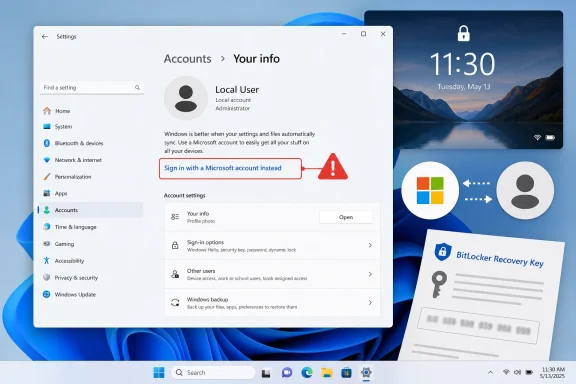 The correct local-to-Microsoft account path
For a personal Windows PC currently signed in with a local account, Microsoft’s intended route is:
- Open Settings, then go to Accounts > Your info.
- Select Sign in with a Microsoft account instead. Windows shows this option only when the current Windows profile is using a local sign-in.
- Complete the Microsoft account sign-in prompts.
- Select Next, then Sign out and finish if prompted.
- At the next sign-in screen, use the Microsoft account credentials that were just attached to that Windows profile.
The key point is that the wording of the Settings link tells you which state the account is in now. If Windows displays “Sign in with a Microsoft account instead,” the profile is local. Once the conversion completes, the available option should flip to “Sign in with a local account instead,” indicating that Windows recognizes the profile as connected to a Microsoft account.
Microsoft Support’s guidance for the opposite direction follows that logic correctly. A Microsoft-account user selects “Sign in with a local account instead,” creates a local username, password, and password hint, signs out, and then uses those new local credentials to return to the desktop.
This changes the Windows sign-in, not every account on the PC
Microsoft’s documentation presents the switch as a way to connect a Windows profile with the company’s cloud services: OneDrive, Microsoft Store, Outlook.com, Xbox, Skype, and Microsoft 365 services among them. It also says settings and files can sync across devices after a Microsoft account is used to sign in to Windows.
Users should read that as account integration, not a promise that every application, subscription, purchase, or cloud file will silently move to a different identity. The support page does not say that subscriptions tied to another Microsoft account will transfer, nor does it explain how an existing OneDrive folder, Microsoft Store purchase history, or separately signed-in Office application behaves after the Windows sign-in changes.
That omission is important for people switching because they accidentally used the wrong email address during initial Windows setup. Linking a new Microsoft account to the Windows sign-in is not the same thing as transferring ownership of services attached to the old one. Before changing the Windows account, verify which Microsoft account owns any Microsoft 365 subscription, OneDrive data, Store purchases, Xbox content, and recovery information that matter to you.
A Microsoft Q&A response addressing this scenario says users may need to sign out and back in separately within OneDrive, Office, Microsoft Store, and other applications after changing the Windows sign-in identity. Microsoft labels AI-generated answers on that forum as potentially incorrect, so it should not be treated as a product guarantee. Still, it identifies a practical boundary that the formal support article leaves unexplained: Windows sign-in and app sign-in are related, but they are not always the same session.
Check encryption recovery information before changing accounts
The most consequential item to check is the BitLocker or Device Encryption recovery key. Microsoft’s Device Encryption documentation says that, when encryption is enabled automatically during setup or first sign-in with a Microsoft account or work/school account, the recovery key is attached to that account. Microsoft’s BitLocker guidance also notes that a recovery key may be required after Windows detects a hardware, firmware, or software change that it treats as a possible unauthorized access attempt.
That does not mean changing a local Windows account into a Microsoft account will immediately trigger a recovery-key prompt. It does mean that users should not treat the operation as mere cosmetic cleanup of an email address on the lock screen.
Before the switch, record where the recovery key is stored and make sure the destination Microsoft account is accessible with its password and recovery methods. If the computer is already encrypted, do not assume that a newly connected Microsoft account automatically becomes the place where every pre-existing recovery key is recoverable. Microsoft’s account-switching article does not make that promise.
For a Windows 11 Home device, this deserves extra attention because Device Encryption is available more broadly than the full BitLocker Drive Encryption interface. On Windows Pro, Enterprise, and Education, BitLocker management may have been configured manually or by policy, which makes checking the recovery-key location even more important.
The account switch is for personal Windows profiles
Microsoft’s page is written for the ordinary consumer Windows profile shown under Settings > Accounts > Your info. It should not be confused with changing a work or school account, joining or leaving a Microsoft Entra ID environment, changing an Active Directory domain identity, or replacing a managed corporate sign-in.
In an organization-managed environment, IT may control encryption, Windows sign-in policy, Microsoft 365 licensing, OneDrive redirection, or application access. Microsoft’s BitLocker documentation says organizational policy can manage encryption and may hold the recovery key. An employee who converts a local account to a personal Microsoft account without checking policy could create support problems without gaining access to the organization’s resources.
The safer rule for managed PCs is simple: do not use the consumer account-switching instructions as a workaround for a work-account problem. Check Settings > Accounts > Access work or school and contact the administrator if the machine is enrolled or company-owned.
Microsoft needs to fix one line—and add the missing safeguards
The core Windows procedure remains useful. A local account is confined to the device and can be used without internet connectivity for sign-in, while a Microsoft account connects the Windows profile to Microsoft’s services and sync features. Users who want OneDrive integration, Store continuity, easier multi-device setup, or cloud-backed recovery options may reasonably choose the Microsoft-account route.
But Microsoft’s support article should correct the post-sign-out sentence immediately. Telling a user who has just converted to a Microsoft account to sign in with a new local account contradicts both the preceding action and the reverse procedure on the same page.
The page would also be stronger if it plainly stated what does not change: cloud-service ownership, app-specific sign-ins, subscriptions, and pre-existing recovery-key storage. Until it does, the practical takeaway is to make the Windows sign-in change through Accounts > Your info, sign back in with the account selected during the conversion, and verify OneDrive, Microsoft 365, Store, and BitLocker recovery access afterward.
