
shutdown /r /fw /t 0
Microsoft documents /fw as a shutdown.exe option that sends the next restart to the firmware user interface. For people who regularly miss the manufacturer-specific F2, Delete, Esc, or F10 startup window, it is a legitimate shortcut—and a cleaner one than deliberately interrupting boot or relying on Fast Startup timing.
The important qualification is that this is an existing Windows capability, not a newly added feature or a magic workaround for every PC. It depends on Windows being able to communicate with a UEFI firmware implementation. A computer booting in Legacy BIOS or Compatibility Support Module mode may not offer a firmware-settings handoff at all.
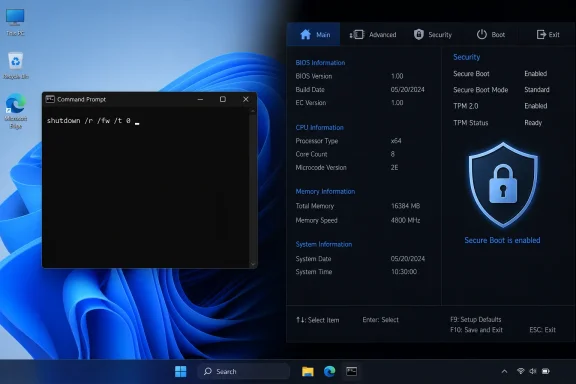 What the command actually asks Windows to do
The command combines three separate shutdown switches:
/rrequests a restart./fwtells Windows that the next restart should open the UEFI firmware interface./t 0removes the normal shutdown countdown.
Microsoft’s command reference is explicit that /fw must be paired with a shutdown or restart action. In practical terms, Windows sets a one-time firmware boot request, closes the current session, and reboots. The UEFI menu then appears before Windows loads again.
That distinction matters for troubleshooting. shutdown /r /o /t 0 is a different command: /o restarts into the Windows Recovery Environment’s Advanced Startup menu, where the user must still select Troubleshoot, Advanced options, and UEFI Firmware Settings. /fw skips that Windows recovery menu and requests the firmware screen directly.
For administrators and advanced users, the direct command can be useful when preparing a system to enable Intel VT-x or AMD-V, check Secure Boot status, change a boot device, inspect TPM-related settings, or verify a firmware version. It is also easy to place in a desktop shortcut, deployment script, or remote-support runbook—provided the machine’s firmware and Windows installation support the handoff.
“BIOS” is usually UEFI now—and the difference affects whether this works
The video’s wording uses “BIOS,” as many PC owners and vendors still do, but nearly all current Windows PCs expose a UEFI setup utility. Microsoft likewise uses “UEFI (or BIOS)” in consumer documentation because the label seen by a user depends on the hardware vendor.
The command is aimed at UEFI firmware, not every system that can display a pre-Windows setup screen. On machines configured for Legacy boot, Windows may not be able to schedule a jump into firmware. In that case, the traditional manufacturer key during power-on remains the route into setup.
A quick way to check the current boot mode is to open System Information by running:
msinfo32
Look for BIOS Mode in the System Summary. If it says UEFI, the direct firmware restart is a reasonable option to try. If it says Legacy, the command should not be treated as a fix for firmware access.
This also explains why some users cannot find “UEFI Firmware Settings” in Windows’ Advanced Startup menus. The missing option is often a configuration limitation rather than a Windows bug: the system may be using Legacy mode, the firmware may not expose the required interface, or an older device may not support the workflow.
Save work first; /t 0 does not make a restart harmless
The useful part of the command is its immediacy, but that is also the part most likely to surprise someone running it from an elevated Command Prompt, Terminal window, shortcut, or remote session. /t 0 means there is no 30-second delay to reconsider the restart.
Unlike the often-copied version shutdown /r /fw /f /t 0, the command above deliberately omits /f. Microsoft warns that /f forcibly closes running applications and can cause unsaved work to be lost. Leaving it out gives programs the opportunity to block or prompt for unsaved documents, which is safer for normal interactive use.
The absence of /f does not mean users should assume every application will protect their work gracefully. Save open documents, pause encryption-sensitive maintenance, and make sure no firmware update is currently in progress before restarting. If a restart is scheduled with a delay rather than /t 0, shutdown /a can cancel it during the countdown; it cannot undo a reboot that has already begun.
There is a second caution for managed PCs: entering UEFI is not the same thing as having permission to change it. Organizations may protect setup with an administrator password, lock boot settings through device-management policies, or use Microsoft BitLocker and other controls that react to changes in boot or security configuration. The command can open the door; it does not override firmware security.
Windows already provides a slower, supported path
Microsoft’s own Windows 10 and Windows 11 guidance offers the graphical alternative: go to Settings > System > Recovery > Advanced startup > Restart now, then choose Troubleshoot > Advanced options > UEFI Firmware Settings > Restart. Windows 10 places the Recovery setting under Update & Security rather than System.
That route remains preferable for people who are unsure why they need firmware access, because it makes the transition visible and provides a chance to stop before changing low-level settings. Microsoft specifically warns users changing Secure Boot or virtualization settings to modify only what they need; a mistaken boot-mode, storage-controller, or security setting can leave Windows unable to start normally.
The command-line route is best understood as an efficiency tool, not a repair tool. It will not resolve a forgotten UEFI password, a failed firmware update, a broken boot configuration, or hardware that cannot initialize. It also does not bypass vendor behavior inside the setup screen: motherboard menus, laptop firmware options, and available security controls remain manufacturer-specific.
A useful shortcut, with a narrower promise than the headline suggests
For supported UEFI-based Windows installations, shutdown /r /fw /t 0 is the shortest reliable path from a desktop session to firmware settings. It is particularly useful on systems where fast boot makes timing a startup key frustrating or where a technician needs a repeatable procedure.
But the command should be described accurately: it schedules a restart into the UEFI firmware interface, and it works only where the firmware, boot mode, and Windows installation support that path. If it fails or the PC returns to Windows normally, check msinfo32 for Legacy mode and use the manufacturer’s startup-key instructions rather than repeatedly forcing restarts.
