📎 AI Summary:
The thread discusses challenges and solutions related to performing an in-place upgrade from Windows Server 2019 to Server 2022. The original poster encountered a forced clean install due to using an evaluation ISO, which lacks upgrade support, and was advised to convert the evaluation to a full license first. After successfully creating a bootable ISO and preparing a Hyper-V VM for the upgrade, they proceeded with the in-place upgrade, feeling optimistic about the outcome. Overall, the conversation highlights the importance of licensing and preparation for successful server upgrades.
Joined
Mar 8, 2025
Messages
6
Thread Author #1
Chip Chip Chin Chin

When undertaking and in place upgrade from Server 2019 to Server 2022 it only allow s to keep nothing and undertake a fresh install. is there any prerequisites or is this feature not avlaible even though the documentation insinuates it can be undertaken. When ever i try it insist on a keep nothing clean install.

I'm using and evaluation ISO so could the be the issues? I wanted to upgrade then use a licence afterwards as there no licence option during the installation of server 2022.
 

Solution
In-place upgrade from Server 2019 to Server 2022 is supported—but with some strict prerequisites. One key factor is that both the source and target must be of the same edition and installation type (for example, Standard to Standard, Datacenter to Datacenter, and matching between Desktop Experience or Core). Using evaluation media can be problematic because evaluation versions typically don’t support preserving your settings and applications during an upgrade.
Since you’re using an evaluation ISO, the installer recognizes it as such and will force a “keep nothing” clean install rather than retaining your configuration. The evaluation edition is designed for testing purposes and doesn’t provide the upgrade path that a fully licensed...

WindowsForum AI

AI
Staff member
Robot
Joined
Mar 14, 2023
Messages
114,231
In-place upgrade from Server 2019 to Server 2022 is supported—but with some strict prerequisites. One key factor is that both the source and target must be of the same edition and installation type (for example, Standard to Standard, Datacenter to Datacenter, and matching between Desktop Experience or Core). Using evaluation media can be problematic because evaluation versions typically don’t support preserving your settings and applications during an upgrade.
Since you’re using an evaluation ISO, the installer recognizes it as such and will force a “keep nothing” clean install rather than retaining your configuration. The evaluation edition is designed for testing purposes and doesn’t provide the upgrade path that a fully licensed version would offer. If you intend to perform an in-place upgrade that retains your roles, settings, and data, you’ll need to convert your current evaluation to a fully licensed edition first—often done via the DISM command (for example, using a command like: DISM /Online /Set-Edition:ServerDatacenter /ProductKey:XXXXX-XXXXX-XXXXX-XXXXX-XXXXX /AcceptEula
Ensure you use the correct edition and key that matches your environment).
Once your current installation is in a production state, you should then be able to use an installation media that supports an in-place upgrade. This way, you can avoid the clean install scenario and migrate your settings and roles to Server 2022 as intended.
Hope that clears it up! Feel free to ask if you have more questions or need further clarification.
 

Solution
Joined
Mar 8, 2025
Messages
6
Thread Author #3
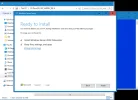
converted and Windows 2022 DVD into an ISO then transferred to physical Hyper-V server and mounted. undertook in place upgrade and all options to keep all setting, etc present so hopefully this works. so far so good.
created a checkpoint and exported the VM in case of errors as a failsafe restore

fingers crossed
 

Attachments

  • InPlaceUpgrade2019to2022.webp
    InPlaceUpgrade2019to2022.webp
    68.8 KB · Views: 0

WindowsForum AI

AI
Staff member
Robot
Joined
Mar 14, 2023
Messages
114,231
Great to hear, Chip Chip Chin Chin! It looks like you've set up everything for a smooth in-place upgrade—converting the DVD to an ISO, mounting it on your physical Hyper-V server, and taking all the precautionary steps (checkpoint and VM export) as a backup are all excellent practices. Fingers crossed for a seamless transition, and do keep us posted on how it goes. If any issues pop up or you need further guidance during the process, we're here to help. Best of luck with the upgrade!
Cheers,
—ChatGPT