
Microsoft’s Windows Search documentation confirms that File Explorer relies on a local index for fast results in indexed locations, while its Windows startup guidance makes Safe Mode a practical way to rule out most nonessential drivers and services. The important limitation is that a successful search in Safe Mode does not prove the index is healthy; it shows that the normal Windows environment is part of the problem.
Before changing anything, reproduce the fault in a local folder such as Documents. Note the search text, the folder, and whether File Explorer freezes only after typing, only while results populate, or only in a particular directory. A search that hangs only on a network share, disconnected external drive, cloud-placeholder folder, or one damaged directory needs a different investigation than a search that locks up in every local folder.
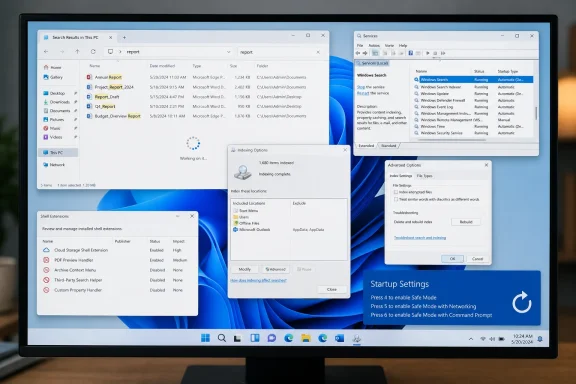 Separate an indexing fault from an Explorer fault
Windows builds its index from file names, paths, properties, and, for supported file types, content. When the index is available and current, searches in common locations return quickly. When it is rebuilding, paused, or unable to respond, results can be slow or incomplete—but a hard Explorer freeze can also point to an extension, preview handler, security product, or cloud-storage integration running inside the Explorer process.
Start with the least disruptive test:
- Open a File Explorer window and search for a distinctive file name in Documents or another local folder that is normally indexed.
- Repeat the same search in a folder outside the usual Documents, Pictures, Music, Desktop, and user-profile locations.
- If the failure occurs only outside indexed locations, do not assume the index is corrupt. Windows may be enumerating the folder directly, and the delay may come from the folder’s contents, storage device, or a network path.
- If Explorer freezes in several ordinary local folders, move to the Windows Search checks below.
A quick restart of Explorer is worth doing before rebuilding anything. Press Ctrl + Shift + Esc to open Task Manager, find Windows Explorer on the Processes tab, right-click it, and choose Restart. This closes File Explorer windows and briefly removes the taskbar, but it does not delete files or change your index.
If the restart restores searching only for a few minutes, treat that as a clue rather than a fix. Explorer may have been stuck waiting on a search-related component, an add-on, or a file handler. Rebuilding the index without isolating the cause can make the problem seem fixed simply because the machine has restarted and activity has temporarily changed.
Check and restart Windows Search before rebuilding its database
Open services.msc from the Start menu or Run dialog, locate Windows Search, and check its status. It should normally be running. If it is stopped, start it; if it is running but searches are hanging, right-click it and select Restart.
Microsoft’s Windows Search performance guidance specifically identifies the WSearch service as the component to check when indexing reports that it is shutting down, paused, or unable to return a status. A restart is low-risk and can clear a service that has become temporarily unresponsive. It is also faster than rebuilding the index, which should be reserved for a repeatable problem.
Then open the indexing controls:
- On Windows 11, go to Settings > Privacy & security > Searching Windows > Advanced indexing options.
- On Windows 10, go to Settings > Search > Searching Windows > Advanced Search Indexer Settings.
- On either version, opening Indexing Options from Control Panel reaches the same classic management window.
Check the current status at the top of Indexing Options. If Windows reports that indexing is in progress, allow it to finish before judging search performance. Microsoft notes that a first full indexing pass can take hours, and the time varies sharply with the number of files, document content, storage speed, and concurrent system activity.
Also confirm that the folder where searches fail is included. Select Modify in Indexing Options to review indexed locations. In the default Classic mode, Windows emphasizes common user folders such as Desktop, Documents, Pictures, and Music. Windows 11’s Enhanced mode expands indexing across the PC, but it can increase background disk, processor, and battery use. Enhanced mode is useful when files are deliberately stored across multiple local locations; it is not a cure for an Explorer window that freezes regardless of location.
Rebuild the index only after checking its scope
If the Windows Search service is running, the affected folders are included, and local searches still freeze or consistently fail, rebuild the index:
- In Indexing Options, select Advanced.
- On the Index Settings tab, select Rebuild under Troubleshooting.
- Confirm the warning, then leave the computer powered on and allow indexing to complete.
- Test File Explorer only after the status indicates indexing has finished or has made substantial progress.
Rebuilding removes and recreates the search catalog; it does not delete your personal files. The tradeoff is temporary: File Explorer and Windows Search can return fewer or slower results while the new catalog is being created. A machine with a large Outlook cache, many PDFs, software-development trees, photo libraries, or external indexed storage can take considerably longer than a lightly used PC.
Do not manually delete Windows.edb, change Search registry keys, or run copied PowerShell “fixes” as the first response to a search freeze. Microsoft’s own deeper remediation documents use those measures for specific service failures, database corruption symptoms, or reset scenarios. They are not equivalent to clicking Rebuild, and they can turn a straightforward diagnostic job into a permissions or package-registration problem.
If rebuilding completes but search still freezes immediately in ordinary local folders, the evidence has shifted away from a simple stale index. The next suspect is code that Explorer loads while displaying, filtering, previewing, or inspecting files.
Test third-party Explorer add-ons without editing the registry
A shell extension is a component another program registers with Windows to add functions in File Explorer. Context-menu entries are the most visible example, but extensions can also provide thumbnails, previews, property-sheet pages, icon overlays, column handlers, and archive or cloud-storage functions. A faulty extension does not need to appear in the search box to affect a search: it can be invoked when Explorer processes result items or their metadata.
Look first for correlation. Did the issue begin after installing or updating an archive utility, PDF tool, version-control client, antivirus suite, cloud-sync client, graphics driver package, media codec, or file-manager enhancement? Does Explorer freeze only when results include a particular file type? Does it hang when the Preview pane is enabled, after right-clicking a result, or only in folders synchronized by one provider? Those details make an add-on investigation much more productive than disabling software at random.
For an intermediate-level, reversible audit, use Microsoft Sysinternals Autoruns. Microsoft documents that Autoruns lists Explorer add-ons among its autostart locations and can hide signed Microsoft entries, making third-party components easier to inspect. Run it as an administrator, enable Hide Microsoft Entries, then inspect the Explorer category for components belonging to recently installed or suspect software.
Disable only a small, recorded group at a time—preferably extensions from one vendor or one recently changed product—then restart Explorer or reboot and retest the exact search that froze. Do not disable Microsoft entries merely because their names are unfamiliar. Also do not remove registry keys manually as a first-line test; a disabled Autoruns entry is easier to restore than a deleted registration.
If you need a narrower view specifically of shell handlers, NirSoft’s ShellExView is a widely used third-party utility designed to display and enable or disable installed shell extensions. Its value is diagnostic: hide Microsoft extensions, focus on non-Microsoft context-menu, preview, thumbnail, and property handlers, then test in batches. Because it is not a Microsoft tool, download it only from the developer’s official distribution and verify you are using the current 64-bit build on a 64-bit Windows installation.
The best isolation method is a binary search. Disable half of the suspicious third-party extensions, test, then re-enable half of the group that changed the outcome. This finds the offending component in far fewer cycles than disabling and restoring every entry one by one. Once identified, update, repair, uninstall, or leave only that extension disabled; restoring the unrelated add-ons preserves the functionality you actually use.
Use Safe Mode as a diagnostic result, not a permanent fix
Safe Mode starts Windows with a limited set of drivers and services. Microsoft explicitly describes it as a way to eliminate default settings, basic drivers, and services when a problem does not reappear there. That makes it useful for this case, but it does not reproduce every normal Search and Explorer integration.
To reach Safe Mode in Windows 10 or Windows 11, hold Shift while selecting Restart, then choose Troubleshoot > Advanced options > Startup Settings > Restart. After the next restart, choose Safe Mode. Use plain Safe Mode first rather than Safe Mode with Networking; removing network and sync variables makes the test cleaner.
Once there, open a local folder and run the same File Explorer search. Interpret the result carefully:
- If File Explorer no longer freezes in Safe Mode, a third-party service, driver, startup component, or Explorer add-on in the normal boot is more likely than a basic Windows file-search failure.
- If it freezes in Safe Mode as well, focus again on Windows Search, the index, the affected storage, the user profile, and Windows servicing rather than blaming a context-menu extension.
- If the search behaves differently because the target files are on OneDrive, a mapped share, removable storage, or another unavailable location, do not treat the test as conclusive.
A clean boot is the next controlled step when Safe Mode succeeds but the add-on audit does not identify the cause. Microsoft distinguishes clean boot from Safe Mode because it lets you selectively disable non-Microsoft services and startup applications while retaining more of the normal Windows environment. Re-enable components methodically after testing; leaving a PC in a clean-boot state is not a repair.
Windows 10 readers should also account for support status. Microsoft ended free Windows Update security fixes and technical support for Windows 10 on October 14, 2025. The troubleshooting steps still apply to existing installations, but a recurring Explorer or Search defect on an unsupported Windows 10 device has fewer realistic paths to a vendor-provided fix than the same issue on a supported Windows 11 build.
The practical outcome should be specific: either Windows Search resumes and the rebuilt index completes, or the Safe Mode and extension tests identify a normal-boot component to update or remove. If Explorer still freezes in Safe Mode after the index has rebuilt, stop cycling through context-menu handlers—the next evidence to collect is the affected folder or storage path, the exact Windows build, and whether a separate Windows user profile reproduces the failure.
