
bootrec commands: the operating system has loaded far enough to display its logon interface, so the more likely fault domain is a stalled driver, third-party startup component, damaged Windows files, a recent update, or—if the freeze happens only after entering credentials—a user-profile problem.Microsoft Support’s Windows Recovery Environment and Startup Settings documentation provides the recovery path used here, while Microsoft Learn’s Windows client troubleshooting guidance supports using Safe Mode and a clean boot to isolate drivers and services. The key is to establish when the machine freezes before changing anything: before any credentials are entered, immediately after one account is selected, or after every account authenticates.
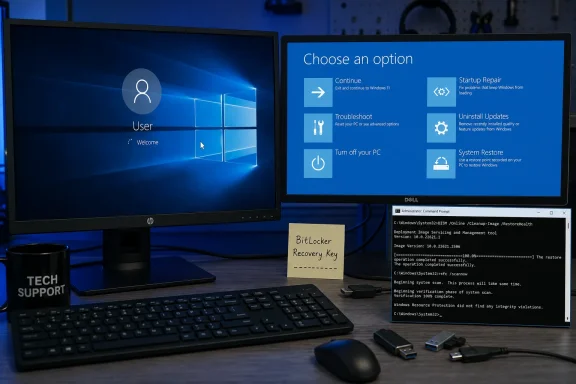
If the PC is encrypted with BitLocker, have the recovery key ready before using Windows Recovery Environment, or WinRE. Microsoft requires the key for certain repair options, and a missing key can turn a routine troubleshooting session into a lockout.
 Rule out an input or display stall first
At the frozen sign-in screen, wait two or three minutes once. Windows can appear inert while completing post-update work, initializing a driver, or trying to contact a network resource. Repeated hard power-offs during that period can compound a pending-update or file-system problem.
Then try the lowest-risk checks:
- Disconnect nonessential USB hardware, including docks, game controllers, card readers, external drives, and wireless-receiver dongles. Leave only a known-good wired keyboard and mouse attached if possible.
- Press
Ctrl+Alt+Delete. If the screen responds, Windows itself is not completely frozen; use the power icon on that screen to restart normally. - Press
Win+Ctrl+Shift+Bonce. This resets the graphics driver and normally produces a brief screen flicker or beep. It will not repair Windows, but it can distinguish a dead display compositor from a system-wide hang. - If a laptop’s built-in keyboard and touchpad are unresponsive, test a wired USB keyboard before assuming the login service or account database is broken.
Do not overinterpret a frozen mouse pointer. A pointer that moves while account tiles do nothing points to a different class of failure than a system where neither keyboard lights nor pointer movement respond. Likewise, a freeze after entering a password is materially different from a sign-in screen that cannot accept input at all.
One common mistake is blaming explorer.exe for a frozen login screen. File Explorer normally launches only after a user has signed in; a pre-authentication freeze is occurring earlier in the logon process. Explorer becomes relevant only if credentials are accepted and the desktop remains black, blank, or partially loaded afterward.
Enter Windows Recovery Environment without a working desktop
If the power icon on the sign-in screen still works, hold Shift while selecting Power > Restart. Windows should restart into the blue recovery menu.
If the sign-in screen cannot be controlled, Microsoft’s documented fallback is to interrupt startup twice:
- Turn the PC on and wait until the Windows logo or manufacturer logo appears.
- Hold the physical power button until the device turns off.
- Repeat that interruption once more.
- On the third startup, Windows should open Automatic Repair. Select Advanced options.
Use forced shutdown only to reach recovery when normal input is unavailable. It is not a repair method, and it should not become a loop of repeated restarts.
In WinRE, the main paths are:
- Troubleshoot > Advanced options > Startup Settings > Restart for Safe Mode.
- Troubleshoot > Advanced options > Startup Repair for automated startup diagnostics.
- Troubleshoot > Advanced options > Uninstall Updates if the failure began directly after a Windows update.
- Troubleshoot > Advanced options > System Restore if a restore point predates the freeze.
Microsoft’s current support documentation still lists these tools for both Windows 10 and Windows 11. However, Windows 10 reached end of support on October 14, 2025; its recovery tools still function, but an unrepaired Windows 10 installation no longer receives ordinary free security updates.
Use Safe Mode as the diagnostic fork
From Startup Settings, select 4 or F4 for Safe Mode. Select 5 or F5 for Safe Mode with Networking only if you need internet access for a repair download or vendor update. Safe Mode loads a minimal set of drivers and services, so a successful sign-in there is evidence against the normal startup configuration—not proof of one particular culprit.
If Safe Mode works, first protect what matters. Copy critical files to external storage or confirm they are synchronized before escalating repairs. A login issue can be recoverable today and become a larger disk or profile problem later.
Next, determine whether the issue follows the user account:
- If all accounts can sign in during Safe Mode but all freeze during a normal start, suspect a third-party service, startup app, display driver, security software, or other normal-mode dependency.
- If one account freezes after its password is accepted while another administrator account reaches the desktop, the affected profile is the stronger suspect. Back up that user’s files from Safe Mode before attempting profile-specific changes.
- If the sign-in screen itself remains unusable even in Safe Mode, skip the clean-boot work and move to WinRE repairs, System Restore, or update removal.
Avoid registry tutorials that instruct users to rename ProfileList entries ending in .bak without first proving a profile failure and backing up data. Those edits are frequently applied to the wrong symptom. A frozen account tile before credentials are submitted is not, by itself, evidence of a corrupt user profile.
Clean-boot the normal installation before removing software
When Safe Mode works, Microsoft Support recommends a clean boot to isolate background conflicts. Sign in with an administrator account, open msconfig, and on the Services tab select Hide all Microsoft services before choosing Disable all. Then open Task Manager from the Startup tab and disable each enabled startup app, recording what you disabled.
Restart normally. If the login screen and desktop now work, re-enable services and startup items in groups, restarting between tests, until the freeze returns. That is slower than uninstalling several programs at once, but it leaves a usable trail to the actual cause.
The most useful suspects are items installed or updated shortly before the failures began: endpoint security suites, VPN clients, RGB and peripheral-management tools, GPU overlays, remote-control agents, shell customization utilities, and driver packages. Do not leave the PC indefinitely in a clean boot state. Once the culprit is identified, return to msconfig, restore normal startup, and re-enable everything except the confirmed offending component.
On organization-managed PCs, stop before disabling corporate security agents or identity components without approval. Microsoft warns that policy on network-connected systems can restrict safe use of System Configuration, and an enterprise logon issue may need an administrator to inspect device-management or domain policy changes.
Repair Windows files from Safe Mode
If Safe Mode is stable but normal mode is not, repair the component store and protected system files before considering a reset. Microsoft Support’s current guidance is to run DISM first, then System File Checker, from an elevated Command Prompt or Windows Terminal.
Run:
DISM.exe /Online /Cleanup-Image /RestoreHealth
Wait for it to complete. DISM may use Windows Update to obtain known-good repair files, so use Safe Mode with Networking if the machine has no alternate repair source. Then run:
sfc /scannow
Do not close the terminal while SFC is running. A result saying that Windows Resource Protection found and repaired corrupted files is a concrete repair outcome; restart normally and retest the sign-in screen. A result reporting no integrity violations does not clear third-party services, drivers, or a damaged user profile—it only says SFC found no protected-file corruption.
If Safe Mode cannot sign in but WinRE’s Command Prompt is available, an offline SFC scan is the narrower next step. The Windows partition may not be C: in recovery mode, so identify it first:
diskpart
list volume
exit
Locate the volume containing the Windows folder, then substitute its letter below. For example, if Windows is on D:, run:
sfc /scannow /offbootdir=D:\ /offwindir=D:\Windows
Do not guess the drive letter. An offline scan aimed at the wrong partition produces misleading results or fails outright.
Use Startup Repair and rollback tools for the right job
Startup Repair is worth running from Troubleshoot > Advanced options > Startup Repair when Safe Mode will not start, system-file corruption is suspected, or the failure followed a startup interruption. Microsoft says it can address damaged system files, boot configuration data, incompatible drivers, registry errors, and related startup faults.
But Startup Repair is not a universal “frozen login” button. It is designed around startup failures, and it will not reliably remove a bad startup app, undo a broken user profile, or diagnose a normal-mode service conflict. If it reports that it could not repair the PC, move to the evidence-driven rollback options rather than rerunning it repeatedly.
If the freeze began immediately after a cumulative update, driver update, or feature upgrade, use Uninstall Updates in WinRE and choose the latest quality update first. Microsoft also supports System Restore from WinRE; it rolls system settings, drivers, installed applications, and registry state back to a saved restore point without deleting personal documents. It is the better choice when a recent software install or configuration change clearly aligns with the problem and a restore point exists.
Reset this PC belongs near the end of the sequence, not the beginning. A reset can preserve personal files, but it removes applications and changes settings. Windows 11 also offers Fix problems using Windows Update on eligible systems, which reinstalls the current Windows version while preserving apps, files, and settings; it is unavailable on Windows 10 and requires a working enough installation to reach Settings.
The practical stopping point is clear: if Safe Mode works, data is backed up, clean boot and DISM/SFC do not restore normal sign-in, and neither update removal nor System Restore changes the behavior, plan a repair reinstall or reset rather than continuing registry experiments. If Safe Mode also freezes and WinRE tools cannot complete, treat the machine as a recovery case—preserve data first, then reinstall Windows from trusted installation media.
