
For a laptop’s internal screen, however, the slider depends on cooperation between the graphics driver, the monitor/panel driver, and firmware-level power controls. Microsoft’s Windows driver documentation confirms that the operating system’s brightness control must communicate through the display driver or ACPI firmware interfaces. A broken, substituted, or incomplete driver can therefore remove the slider, leave it greyed out, or make the slider move without changing the backlight.
Work through the following checks in order. The sequence matters: it avoids reinstalling drivers when the “problem” is actually an external display limitation or an automatic-brightness feature overriding your chosen level.
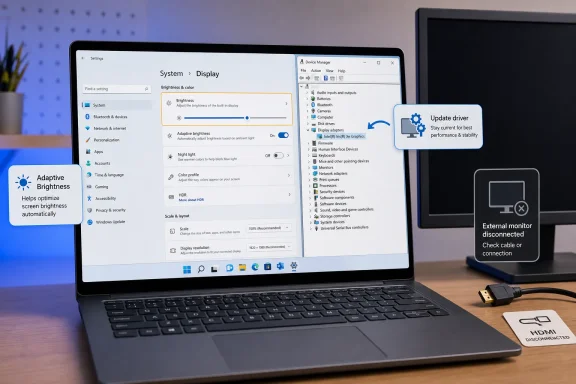 Confirm Which Screen Windows Is Trying to Control
Open Settings > System > Display. In Windows 11, select the display thumbnail representing the laptop’s internal screen if more than one display is listed. In Windows 10, use the same Display page and identify whether the active display is the built-in panel or an attached monitor.
If the Brightness section is present, move the slider several times and wait a few seconds between changes. Some HDR-capable laptop displays apply brightness transitions more gradually than older panels, so a rapid back-and-forth test can make a working control appear unresponsive.
If there is no brightness slider at all, disconnect any dock, USB-C display adapter, television, or external monitor temporarily. Then restart Windows with only the internal display active. This is a diagnostic step, not a permanent requirement: it tells you whether Windows can still detect the internal panel as a brightness-controllable display.
For a desktop PC or an external monitor, use the monitor’s buttons to open its on-screen display menu and adjust Brightness there. Windows can set brightness directly only when the monitor and connection support a separate control protocol; that is not guaranteed, and it is not the behavior Microsoft promises for normal external displays. Do not treat the missing Windows slider as proof that the monitor driver is faulty.
Rule Out Automatic and Content-Based Dimming
A working brightness slider can appear broken when Windows, the laptop manufacturer, or the display firmware is immediately changing the brightness again. First, go to Settings > System > Display > Brightness on Windows 11. If you see Change brightness automatically when lighting changes, turn it off temporarily and test the manual slider again.
This setting uses an ambient-light sensor on supported laptops. It will not be available on every model, and its absence does not indicate a fault. If the setting is present and disabling it stops the brightness swings, the slider was functioning; the light sensor was simply applying a different target level after your adjustment.
Next, look for Change brightness based on content. Microsoft calls this Content Adaptive Brightness Control, or CABC. It can alter brightness and contrast when a window, web page, image, or video scene changes from dark to light. Microsoft positions the feature as a power-saving measure, but it can be distracting in photo editing, video work, or any situation where stable luminance matters.
Set Change brightness based on content to Off if you want the panel to retain the level you select. The wording and available choices can vary by hardware. Some laptops offer options such as Always and On battery only; others do not expose the control because the panel, graphics driver, or manufacturer configuration does not support it.
Also check the laptop maker’s own control utility. Lenovo Vantage, Dell Optimizer, HP Power Manager, MyASUS, Armoury Crate, Intel Graphics Software, and similar tools can include power-saving display features under names such as Panel Self Refresh, Display Power Savings, Dynamic Contrast, Vari-Bright, Eco mode, or adaptive display. Disable only the feature that affects screen brightness, test the Windows slider, and leave unrelated battery or thermal settings alone.
On older Windows 10 installations, automatic brightness may also appear in the active power plan’s advanced settings as Enable adaptive brightness. Windows 10 reached end of free security support on October 14, 2025, so this remains a troubleshooting path for existing devices rather than a reason to delay an operating-system upgrade.
Repair the Graphics Driver Before Replacing Anything
If the Brightness control is missing on a laptop screen, or moves without changing the display, inspect the graphics driver next. Open Device Manager by right-clicking Start and selecting it, then expand Display adapters.
You should normally see a vendor-specific Intel, AMD, or NVIDIA adapter. On many laptops with switchable graphics, Windows may list both an integrated GPU and a discrete GPU. The integrated Intel or AMD GPU often controls the internal display backlight even when an NVIDIA or AMD discrete GPU handles games and rendering. Updating only the discrete GPU driver can therefore leave a brightness fault untouched.
Right-click the relevant display adapter and select Update driver, then choose the automatic search option. After the update completes, restart the PC and retest Settings > System > Display.
If Windows reports that the best driver is already installed but the slider remains missing, obtain the graphics driver from the laptop or tablet manufacturer’s support page using the exact model or service tag. This is preferable to installing a generic GPU package first. OEM driver packages can include panel-specific settings, firmware coordination, and power-management components that Windows Update or a reference driver may not supply.
Microsoft’s own support documentation recommends updating the display adapter when a laptop brightness slider does not appear or work. Its driver documentation also explains why: the display driver is one of the components that exposes the interface Windows uses to set brightness.
If updating does not help, reinstall the graphics driver:
- Download the current graphics driver from the PC manufacturer before removing the existing one.
- In Device Manager, expand Display adapters, right-click the integrated graphics adapter, and select Uninstall device.
- If Windows offers Attempt to remove the driver for this device, use that option only when you have the replacement package ready.
- Restart the PC. Windows should load a basic video driver or reinstall an available driver automatically.
- Install the OEM graphics package, restart once more, and test the slider before reconnecting external displays or re-enabling adaptive features.
The screen may briefly flicker, change resolution, or look oversized during this process. That is expected while Windows falls back to a basic display driver. If the brightness control returns after the restart but fails again after a particular GPU utility or manufacturer power utility loads, that software is the more likely conflict.
Check the Built-In Panel and Sensor Entries
In Device Manager, expand Monitors. A laptop’s internal screen may appear as Generic PnP Monitor even when everything is functioning correctly. Do not remove this entry merely because its name is generic; Windows frequently uses a generic monitor driver for an internal panel.
Instead, look for warning icons, disabled entries, or an obviously incorrect monitor device. If the laptop manufacturer provides a specific display, chipset, or monitor INF package for your exact model, install it alongside the OEM graphics driver. A panel-specific INF can supply identification and capability information, but it is not a universal cure for a missing brightness slider.
Then expand Sensors or System devices, depending on the PC. If your complaint is erratic automatic dimming rather than a missing slider, look for an ambient-light sensor with a warning symbol. Update the chipset, serial I/O, sensor, and BIOS or UEFI packages from the laptop manufacturer before disabling devices. Those components may be responsible for tablet mode, rotation, presence sensing, or other functions beyond display brightness.
Avoid registry fixes that promise to restore brightness by forcing an adaptive-brightness setting. They often target a vendor-specific configuration that may not exist on another laptop, and they cannot restore a driver or firmware interface Windows no longer sees. If the slider is absent, repair the hardware-control chain first.
When the Slider Still Does Not Return
If Windows sees the internal panel, the OEM graphics driver is installed, and the Brightness section is still absent, check whether the laptop’s brightness function keys change the panel level. If neither the keys nor Windows controls work, the issue is more likely below the Settings app: a graphics driver, chipset driver, firmware, or physical panel/backlight fault remains possible.
If the keys work but the slider does not, document the exact Windows version, laptop model, graphics driver version, and Device Manager entries before contacting the manufacturer. That record helps separate a Windows interface problem from a model-specific driver issue. Microsoft’s driver architecture places brightness control partly in the display driver and partly in firmware, so a clean Windows installation is not a reliable first fix for a fault that survives an OEM driver reinstall.
For most laptop users, the practical endpoint is straightforward: restore the manufacturer’s graphics and platform drivers, disable CABC or automatic brightness only if it conflicts with your work, and use the monitor’s own controls for external screens. If the internal display still has no brightness control after those steps, the next repair belongs with the laptop maker’s firmware and hardware support path—not another random brightness-slider utility.
