
Microsoft’s current Lock screen documentation confirms that a slideshow uses images from folders on the device, rather than a cloud photo library by itself. That wording is important for OneDrive users: a folder that looks present in File Explorer may still contain online-only files that have not been downloaded locally. Microsoft also documents that OneDrive Files On-Demand can keep files cloud-only until they are opened or explicitly marked for offline availability.
Start with the simple checks below before changing the registry, resetting Windows, or installing a third-party wallpaper tool.
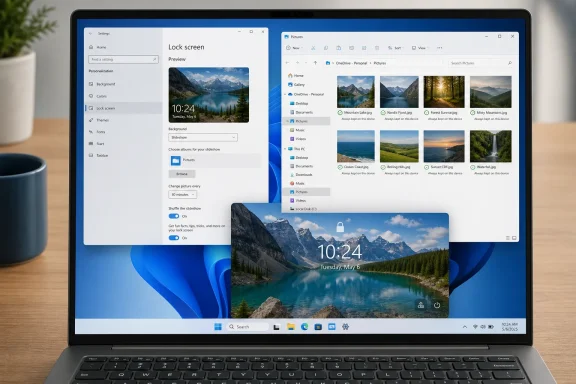 Confirm that Windows is using Lock screen Slideshow
Open Settings > Personalization > Lock screen.
On Windows 11, find Personalize your lock screen. On Windows 10, look for Background. Set the drop-down to Slideshow. If it says Picture, Windows is working as configured: it will retain one selected background image and will not rotate through a folder.
Next, inspect the folder list beneath the selection. Remove folders you do not intend to use, then add one small test folder containing several ordinary image files. A useful test folder might be:
C:\Users\<your-user-name>\Pictures\LockScreenTest
Put at least five JPG or PNG files into it. Avoid testing first with a huge photo archive, a removable drive, a network share, or a folder buried inside an application’s data directory. Those locations add variables when the immediate goal is to establish whether the slideshow engine can read local images at all.
Lock the PC with Windows key + L, wait briefly, then wake or unlock it and repeat several times. A lock screen slideshow is not the desktop background slideshow and is not a screen saver; it does not provide a documented, user-selectable interval for cycling images while you are actively working. If you expect a visible change every few seconds at the lock screen, the feature may appear broken even though it is simply not designed as a continuously animated photo viewer.
If the test folder works, the problem is the original folder or the availability of its files. Add your real photo folder back afterward, preferably one folder at a time.
Use a local folder Windows can read without delay
The most reliable slideshow source is a normal local folder under your Windows profile, such as Pictures\LockScreen or Pictures\Wallpapers. Microsoft’s setup guidance specifically describes lock screen slideshows as using folders on the device, so a local test is more than a generic troubleshooting trick: it checks the storage condition Microsoft describes.
In File Explorer, right-click the original folder, select Properties, and check the following:
- Make sure the folder and its image files still exist at the path Windows was given. An external USB drive, disconnected network location, renamed folder, or moved library can leave the slideshow pointing to an unavailable source.
- Open several photos directly from the folder. If Explorer cannot open them promptly, the lock screen cannot be expected to use them reliably.
- Select Security and verify that the account you use to sign in to Windows has at least Read & execute, List folder contents, and Read permissions. Do not grant broad permissions such as Full control merely to repair a slideshow.
- If the folder is encrypted with EFS, protected by a different user account, or belongs to another Windows installation, copy a few photos into a new folder in your own Pictures directory instead of weakening the original folder’s security.
Windows Privacy settings can also cause confusion here. Microsoft explains that Privacy & security > Pictures and File system control whether apps can access those libraries and files. Those controls matter for photo editors, gallery apps, and Store apps, but they are not a substitute for ordinary NTFS folder permissions. The built-in lock screen is a Windows component, not a typical app you can individually switch on under the Pictures permission list.
In practical terms, use Privacy settings to make sure you have not globally disabled file access for apps that manage or browse your photos. But if the slideshow itself fails, test a local folder under your own profile before treating Privacy permissions as the root cause.
A blank or solid-color lock screen after choosing a slideshow usually points to an unreadable, unsupported, or unavailable source folder. A slideshow that keeps showing an older single photo often means the Background control never remained set to Slideshow, or Windows is still using a different folder than the one you intended.
OneDrive Pictures need to be downloaded, not merely visible
OneDrive is a common source of lock screen slideshow failures because the sync client can show a folder name and image thumbnails even when the underlying files are not stored locally. Microsoft calls this feature Files On-Demand: cloud-only files save disk space and download when required.
For a slideshow source stored in OneDrive, open the folder in File Explorer. Right-click the folder that contains the slideshow images and choose Always keep on this device. Wait for OneDrive to finish downloading it before testing the lock screen again. The goal is to make every candidate image locally available rather than asking Windows to retrieve files after the machine has already been locked.
Also check the OneDrive cloud icon in the notification area. Microsoft’s OneDrive settings documentation notes that sync and backup settings can affect Desktop, Documents, and Pictures, and that a work or school account may have settings controlled by an administrator. If the folder shows a sync error, a paused state, or a pending status, fix that condition before expecting the slideshow to rotate.
Do not assume that your Pictures path is local simply because it is named “Pictures.” OneDrive’s folder backup can redirect that familiar location into OneDrive. Look at the address bar in File Explorer. A path resembling this is OneDrive-managed:
C:\Users\<your-user-name>\OneDrive\Pictures
That location can work when fully synced, but it has a dependency that a plain local folder does not. For laptops that are frequently offline, create a dedicated local copy under C:\Users\<your-user-name>\Pictures\LockScreen and point the slideshow there. This is the cleanest fix when a OneDrive folder only works intermittently.
Check the Lock screen’s advanced power behavior
A slideshow cannot visibly rotate after the display has turned off. In the Lock screen settings page, expand Advanced slideshow settings if that option is present on your Windows build.
Look for the setting that controls when the screen turns off after the slideshow has played. Choose a longer value or Don’t turn off if you need the locked display to remain visible. This is particularly relevant when the lock screen seems to show one image and then immediately goes dark: Windows may be conserving power, not failing to select another photo.
Battery settings deserve a separate check on portable PCs. If you see an option to let the slideshow run on battery power, enable it only if the rotating lock screen is worth the additional display and storage activity. It is reasonable for Windows to reduce background behavior during battery saving modes, and an aggressive screen-off timer will make normal slideshow changes hard to observe.
Do not confuse this setting with the desktop’s old Control Panel slideshow option under Power Options. That option controls desktop wallpaper slideshow behavior, not necessarily the lock screen source or timing. Changing it may have no effect on the problem described here.
Reset the configuration without deleting your photos
If the test folder works but the original slideshow still does not, rebuild the selection rather than escalating to registry edits.
Return to Settings > Personalization > Lock screen, temporarily set the background to Picture, select any built-in or local image, then return to Slideshow. Remove the old folders, add only the verified folder, lock the PC, and test again. Restart Windows after making the change if the previous image remains cached across several lock attempts.
If no local test folder works, verify whether the setting is locked down. On work-managed Windows devices, an organization can restrict personalization choices through policy. A message such as “Some settings are managed by your organization,” a disabled Slideshow choice, or a folder picker that immediately rejects every local folder points to device management rather than a damaged photo directory. In that case, the appropriate fix is with the IT administrator, not a local permissions workaround.
Windows 10 users should also account for support status. Microsoft ended free Windows 10 security updates and technical support on October 14, 2025. The lock screen slideshow remains usable on existing installations, but a reproducible issue on Windows 10 is less likely to receive a product fix than the same issue on a supported Windows 11 release.
The dependable configuration is uncomplicated: select Slideshow, point it to a small local folder that your signed-in account can read, keep the display awake long enough to see it operate, and ensure OneDrive content is downloaded before relying on it. Once that baseline works, adding a larger library is safe; adding cloud-only files, removable storage, or restricted folders is where the lock screen starts losing the ability to rotate reliably.