

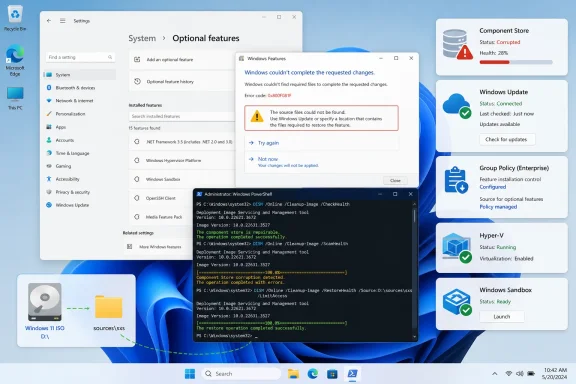
Microsoft’s documentation confirms that DISM uses the same repair-source policy for component-store repair and for Features on Demand. In a normal unmanaged Windows installation, that source is Windows Update. On managed PCs, though, Group Policy, Windows Server Update Services, or Configuration Manager policy can redirect or restrict where optional-feature files come from. That policy layer explains why a feature can install on a home PC but fail on a corporate laptop with the same Windows build.
There is also a new version-specific exception worth checking first. Microsoft says that beginning with Windows 11 26H1, build 28000, .NET Framework 3.5 is no longer a built-in optional Windows component; it must be installed with Microsoft’s standalone installer for that release. The familiar NetFx3 Windows Features checkbox and the sources\sxs DISM procedure apply to Windows 11 25H2 and earlier, plus applicable Windows 10 installations. Treating a 26H1 machine as though it still carries the old payload will send troubleshooting in the wrong direction.
 Confirm the feature is actually available
Start by recording the Windows version, build, edition, and the exact error message. Press Win + R, run winver, and note the version and OS build. Then open Settings > System > About and check the Windows edition.
This is more than paperwork. Windows Sandbox is supported on Windows Pro, Enterprise, Pro Education, and Education—not Windows Home—and it also requires hardware virtualization enabled in firmware. Hyper-V is likewise an edition-sensitive feature, while Sandbox requires Windows 10 version 1903 or later or a supported Windows 11 release. If the feature is missing from the Windows Features list, repeatedly resetting Windows Update will not add a component that the edition cannot license or hardware cannot run.
For Sandbox, open Task Manager with Ctrl + Shift + Esc, select Performance, then look for Virtualization: Enabled. If it is disabled, enable Intel VT-x, Intel VT-d where required by the platform, or AMD-V/SVM in UEFI or BIOS. A virtual machine also needs nested virtualization exposed by its host before Sandbox can work inside it.
For any feature that is listed but fails to enable, open Terminal (Admin) or Command Prompt (Admin) and inspect its servicing state. For example, use these commands for common components:
DISM /Online /Get-FeatureInfo /FeatureName:NetFx3
DISM /Online /Get-FeatureInfo /FeatureName:Microsoft-Hyper-V-All
DISM /Online /Get-FeatureInfo /FeatureName:Containers-DisposableClientVM
NetFx3 is .NET Framework 3.5, Microsoft-Hyper-V-All is the Hyper-V feature set, and Containers-DisposableClientVM is Windows Sandbox. A state of Enable Pending means a restart is needed to complete a prior request; do that before beginning repairs. A “feature name is unknown” message points to an edition, build, or feature-name mismatch rather than a damaged download cache.
Read 0x800F errors as source failures first
Errors beginning with 0x800F commonly surface during servicing, but they do not all mean the same thing. The especially common 0x800F081F means Windows could not find the source files it needed. It is a payload-source problem, not automatic proof that Windows itself is corrupt.
On a personal PC that can use Windows Update, make sure the connection is working, install pending cumulative updates, restart, and try the feature again. Microsoft describes Windows Update as the default repair source when policy allows it. If a metered connection, proxy, update deferral configuration, or security product is blocking the transfer, repair commands may appear to run normally before failing at the point Windows tries to acquire the missing package.
On organization-managed devices, do not work around management policy by downloading random CAB files or pointing DISM at an old ISO. Microsoft explicitly warns that a repair source must match the target Windows release and be kept current enough for the installed servicing level. Using mismatched installation media can create an unsupported or unserviceable state; it is not a harmless shortcut.
Administrators should inspect the policy named Specify settings for optional component installation and component repair, located at:
Computer Configuration
  > Administrative Templates
    > System
The policy can designate a network repair source and can allow Windows Update to act as a fallback. Microsoft also documents an important WSUS limitation: WSUS is not supported as a source for Features on Demand or feature-file-store repair. In environments where WSUS policy governs normal updates, the optional-content policy must be configured deliberately or the required payload supplied through an approved matching source.
Repair the component store before retrying installation
The component store, usually referred to as WinSxS, is the local inventory of Windows packages, manifests, and servicing data. If it is damaged, an optional feature may fail even when Windows Update is available. DISM repairs this store; System File Checker then checks the protected system files that depend on it.
Open an elevated Terminal or Command Prompt and run:
DISM /Online /Cleanup-Image /CheckHealth
DISM /Online /Cleanup-Image /ScanHealth
DISM /Online /Cleanup-Image /RestoreHealth
CheckHealth is quick and reports corruption already recorded in the image. ScanHealth performs a fuller scan. RestoreHealth is the repair operation and, unless a different source has been configured, can contact Windows Update for replacement files.
Do not add /LimitAccess to the standard online repair command unless a valid local or network source has already been supplied. That switch tells DISM not to contact Windows Update, which is useful for controlled offline servicing but counterproductive when Windows Update is the source you need.
After DISM reports that the restore completed successfully, run:
sfc /scannow
Restart Windows when both commands complete, then attempt the optional feature through Turn Windows features on or off or from Settings. This order matters: SFC is useful after the servicing store has been repaired, but it cannot substitute for a failed RestoreHealth operation.
If DISM fails, save the exact error and inspect the relevant logs rather than guessing. DISM writes its operational log at:
C:\Windows\Logs\DISM\dism.log
Windows servicing activity is also recorded in:
C:\Windows\Logs\CBS\CBS.log
The useful clue is normally the first source, package, or policy error around the failure time—not the last generic “operation failed” line.
Reset the Windows Update download cache only after repair
A corrupted Windows Update cache can interfere with downloading an optional-feature payload. Microsoft’s support guidance includes renaming the SoftwareDistribution and catroot2 folders to force Windows to build fresh working folders. This is a reasonable next step when the feature download repeatedly fails, Windows Update itself is also unreliable, or DISM can repair the store but cannot retrieve files.
In an elevated Command Prompt, run each line separately:
net stop bits
net stop wuauserv
ren %systemroot%\SoftwareDistribution SoftwareDistribution.bak
ren %systemroot%\System32\catroot2 catroot2.bak
net start wuauserv
net start bits
Restart the PC after the commands finish. Windows will recreate both folders. Renaming is preferable to manually deleting system directories because it preserves a rollback copy while still forcing Windows Update to reconstruct its local metadata and download cache.
This reset does have a consequence: it clears the local Windows Update download history display. It does not uninstall completed updates or reverse installed security patches. It also does not remove the actual policy or source restriction that caused an enterprise device to fail in the first place.
After restarting, check for Windows updates once, reboot again if a cumulative update installs, and retry the feature. For .NET Framework 3.5 on versions where it remains a Windows optional component, the standard online command is:
DISM /Online /Enable-Feature /FeatureName:NetFx3 /All
For Windows Sandbox on a supported edition:
DISM /Online /Enable-Feature /FeatureName:Containers-DisposableClientVM /All
A restart is normally required after either operation. For Hyper-V, enable it through the Windows Features dialog or use the appropriate Microsoft-Hyper-V-* feature names after confirming the edition supports it.
Use a matching local source when Windows Update is unavailable
If the PC is intentionally offline or Windows Update access is prohibited, use media that corresponds to the installed Windows release, language, architecture, and servicing level. For legacy .NET Framework 3.5 deployments on Windows versions that support it as a feature, Microsoft documents sources\sxs on matching installation media as the source location:
DISM /Online /Enable-Feature /FeatureName:NetFx3 /All /Source:D:\sources\sxs /LimitAccess
Replace D: with the mounted installation media drive. The command’s /LimitAccess switch is appropriate here because the local sources\sxs directory is explicitly supplied.
For other Features on Demand, sources\sxs may not contain the required package. Microsoft distributes Features on Demand and language resources separately for many Windows releases, and enterprise administrators should use the matching Optional Features media or an approved network repair source. Pointing every failed feature at an ISO’s sources\sxs folder is a common dead end because it only works when that folder actually contains the requested payload.
The shortest reliable path is therefore: confirm edition and build, repair the component store, verify the approved payload source, reset the update cache only when download metadata is suspect, and then install the feature again. If 0x800F081F remains after those steps, the remaining fault is usually the source path or organization policy—not another cache problem.