

Microsoft’s own support guidance identifies the VPN and System Reserved partition possibilities, while its newer Windows Update troubleshooting page also groups the error with low-storage and servicing-component failures. The important finding is that the hexadecimal code does not identify one root cause by itself. The update’s KB number, its failure stage, the device’s boot mode, and the servicing logs decide which branch to investigate.
There is also a recent reason to take the EFI angle seriously. Microsoft confirmed that the May 2026 Windows 11 cumulative update, KB5089549 for versions 24H2 and 25H2, could roll back at roughly 35–36 percent after restart when an EFI System Partition had 10 MB or less free. Microsoft later addressed that specific KB5089549 issue in KB5089573. That is a useful example, not proof that every 0x800F0922 failure is an EFI-space problem; Microsoft’s broader documentation still lists connectivity and component-store causes.
Start by identifying the failed update in Settings > Windows Update > Update history. Record the KB number, whether the failure happens during download, installation, or after the restart, and whether the machine is using a corporate VPN, proxy, or managed update service. This prevents a network problem from being “repaired” with boot-partition surgery.
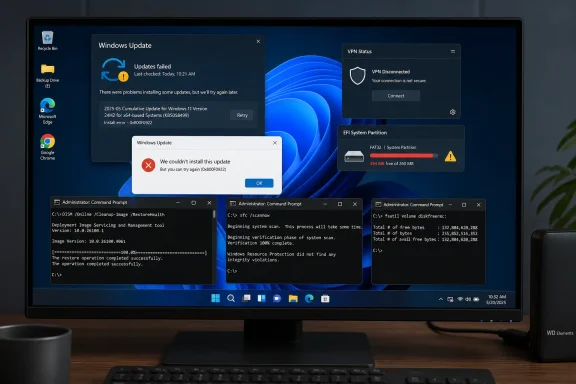 Disconnect the VPN before rebuilding anything
If the failure occurs while Windows Update is downloading or preparing an update, test the straightforward explanation first. Disconnect an active VPN, exit its client rather than merely disconnecting a tunnel, and retry from a normal trusted Internet connection. If the VPN client has a kill switch, always-on mode, split-tunneling policy, DNS filter, or corporate proxy configuration, the PC may still be routing update traffic through the organization after a visible disconnect.
For a work-managed computer, do not weaken the organization’s security controls simply to make an update install. Instead, contact IT and provide the failed KB number and 0x800F0922 result. Windows Update for Business, Windows Server Update Services, inspection proxies, and endpoint products can all affect the route an update takes; a successful test on an unmanaged home connection is evidence for the network path, not a license to bypass company policy permanently.
A quick test should be limited and reversible:
- Restart the PC, confirm it has ordinary Internet access, disconnect the VPN, and retry the same update once.
- Reconnect the VPN immediately after the test, particularly on a work device that requires it for resource access or endpoint compliance.
- If the update downloads normally but fails only during the restart phase and rolls back, move on to the EFI/System Reserved investigation instead of repeatedly changing network settings.
Microsoft still names VPN connectivity as a possible 0x800F0922 cause in its Windows 10 and Windows 11 installation-error guidance. But a reboot-stage rollback points elsewhere: Windows has already downloaded the package and is failing while applying it.
Repair the update client only after the simple test
Before resetting Windows Update, run the built-in Windows Update troubleshooter. On Windows 11, go to Settings > System > Troubleshoot > Other troubleshooters, then run Windows Update. On Windows 10, use Settings > Update & Security > Troubleshoot > Additional troubleshooters. It is not a universal fix, but it can restart a stopped service or resolve a simple cache state without changing boot configuration.
Next, open Command Prompt as administrator and repair the component store before checking protected system files:
DISM.exe /Online /Cleanup-Image /RestoreHealth
sfc /scannow
Microsoft directs users to run DISM first because it repairs the Windows component store that System File Checker relies on; SFC then validates and replaces protected system files. These commands are appropriate when the failure is accompanied by broader servicing problems, corrupted-file messages, or repeated update failures involving different KBs. They do not enlarge an EFI partition and will not fix a VPN that blocks update access.
If DISM and SFC finish successfully but the same KB still fails, reset the ordinary update cache. Use an elevated Command Prompt:
net stop bits
net stop wuauserv
net stop cryptsvc
ren %Systemroot%\SoftwareDistribution\DataStore DataStore.bak
ren %Systemroot%\SoftwareDistribution\Download Download.bak
ren %Systemroot%\System32\catroot2 catroot2.bak
net start cryptsvc
net start bits
net start wuauserv
Restart Windows and retry the update. This preserves the old folders under new names rather than deleting them immediately, which makes the operation easier to undo and diagnose. Microsoft documents those cache locations and cautions that more aggressive Windows Update reset procedures can overwrite service security descriptors; do not run random “all-in-one reset” scripts that change permissions, re-register dozens of DLLs, or reset BITS ACLs unless a specific support case calls for it.
A failed standalone installer from the Microsoft Update Catalog is also informative. If Windows Update and the matching manually downloaded MSU package fail at the same reboot point, the download cache and VPN path become less likely explanations. That pattern makes a boot-servicing or system configuration issue more credible.
Check whether the small partition is actually the bottleneck
On modern UEFI/GPT installations, Windows boots from a small FAT32 EFI System Partition, or ESP. Older BIOS/MBR installations instead use a System Reserved partition. Neither should be confused with the C: drive, so freeing 30 GB on C: may do nothing when the actual constraint is a nearly full 100 MB or 260 MB boot partition.
Disk Management can show the partition’s size but not reliably its remaining free space. The safest first diagnostic is to temporarily mount the active ESP, inspect capacity, then remove the mount point without changing partition contents.
Open Command Prompt as administrator and choose an unused drive letter; this example uses S::
mountvol S: /s
fsutil volume diskfree S:
dir S:\
mountvol S: /d
The first command mounts the current EFI System Partition. fsutil reports total, free, and available bytes; dir should show an EFI folder. The final command removes the temporary drive-letter mount. Do not delete folders or files from the ESP just because they look unfamiliar. Bootloaders from Windows, OEM recovery tools, encryption products, Linux dual-boot setups, and firmware utilities may store files there, and deleting the wrong one can turn an update problem into an unbootable PC.
Microsoft’s KB5089549 advisory made the threshold unusually concrete: devices with 10 MB or less free in the ESP could fail while Windows tried to update boot files. Its logged indicators included “SpaceCheck: Insufficient free space” and “ServicingBootFiles failed.” Check C:\Windows\Logs\CBS\CBS.log after a failed restart for those phrases. If they appear alongside a nearly full ESP, the evidence supports the partition diagnosis; if they do not, do not assume resizing will help.
The distinction is more than academic. Microsoft’s generic support pages mention a System Reserved partition but do not prescribe a one-size-fits-all resizing procedure. Partition layouts vary, and the ESP is often followed immediately by a Microsoft Reserved partition or the Windows volume, leaving no contiguous free space to extend into. A partition manager that advertises a one-click fix may have to move partitions, an operation that carries boot and recovery risk.
Escalate EFI repair only with a backup and a specific finding
If the ESP has ample free space, stop pursuing it. Return to the KB number, the CBS log, device-management policies, and the update’s known-issues page. Microsoft’s Windows Server documentation, for example, records separate 0x800F0922 cases caused by a corrupted scheduled task or permissions affecting servicing. The shared error code is why an “EFI fix” cannot be assumed safe or relevant across every Windows installation.
If the ESP is demonstrably full or nearly full, first install any later cumulative update that Microsoft identifies as resolving the affected update’s known issue. That was the correct response to the May 2026 Windows 11 KB5089549 incident: KB5089573 addressed it, making manual partition resizing unnecessary for that specific bug. A current update may service boot files differently than the one that failed.
When a low-space ESP remains the confirmed cause after later updates and normal repairs, create a full, restorable system image or verified backup before changing partitions. BitLocker users should confirm they have the recovery key and suspend BitLocker protection before any planned boot-partition work, then resume it after confirming a normal reboot. On managed machines, the repair belongs with the administrator because Secure Boot, BitLocker, endpoint encryption, dual-boot arrangements, and firmware policies can affect the outcome.
The safe dividing line is simple: diagnosing EFI free space is a routine intermediate task; resizing, recreating, formatting, or manually rebuilding EFI boot files is advanced recovery work. Commands such as bcdboot, DiskPart clean, formatting an ESP, or copying replacement boot folders are not “cleanup.” They can permanently change the boot path and should be used only with a known-good backup and a documented reason.
Windows 10 users should also separate this troubleshooting task from the support-status question. Microsoft ended free Windows 10 support on October 14, 2025, although eligible devices and organizations may have Extended Security Updates arrangements. Fixing 0x800F0922 can still matter for supported Windows 10 servicing scenarios, but it does not restore normal support to an edition or device outside its servicing program.
The practical outcome is to fix the cause the failure has demonstrated: remove the VPN from the update path when the failure is network-related, repair servicing files and the update cache when corruption is indicated, and inspect the EFI/System Reserved partition only when the reboot-phase behavior or CBS log points there. That order preserves a working boot configuration while eliminating the common causes of 0x800F0922.