

Microsoft’s ZIP guidance confirms that File Explorer supports the standard Extract All workflow on both Windows versions. Microsoft’s documentation on Attachment Manager and Windows path handling adds the pieces that the basic instructions leave out: internet-downloaded files can carry a security marker, and File Explorer still encounters path-length limits that a registry or Group Policy long-path setting does not reliably eliminate.
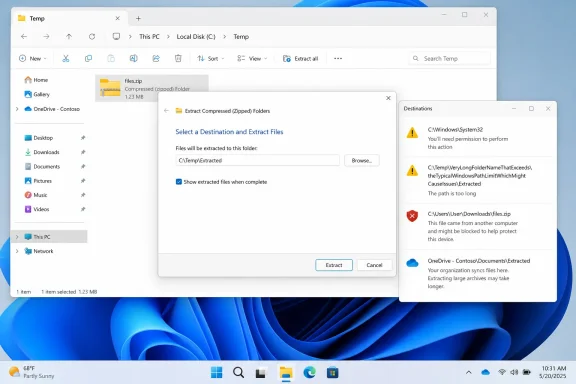 Start by proving the ZIP file is usable
Before changing permissions or editing any system setting, copy the ZIP file to a simple local location such as C:\Temp or your Desktop. Create C:\Temp first if it does not exist, then rename the archive to something short, such as files.zip.
Right-click the ZIP and choose Extract All. Set the destination to C:\Temp\Extracted rather than accepting a deeply nested default path. If extraction works there, the archive itself is probably fine; the original folder path, destination permissions, or a cloud/network location was the real obstacle.
This test is valuable because ZIP extraction expands every folder and filename stored inside the archive. A ZIP may have a short filename while containing a structure such as:
C:\Users\YourName\Downloads\Customer_Project_September_2026\release\source\components\documentation\examples\...
File Explorer must combine the destination path with every internal archive path. The error therefore can appear only after extraction begins, even when the ZIP opened normally and its own name looked harmless.
If extraction still fails in C:\Temp, open the ZIP in File Explorer and try dragging out one small file. A failure on every file, especially in a fresh local folder, raises the likelihood of an incomplete or corrupt download. Download the archive again from its original, trusted source rather than attempting to repair it by changing folder security.
Check the download block before extracting
Windows adds Mark of the Web information to many files downloaded through a browser, email client, or messaging app. Microsoft calls this Attachment Manager behavior: Windows records that a file originated from the internet or another potentially unsafe location and can display a security warning or block normal use.
To check the archive:
- Right-click the ZIP file and select Properties.
- Stay on the General tab and look at the bottom of the dialog.
- If Windows says the file came from another computer and might be blocked, select Unblock, then choose Apply and OK.
- Extract the ZIP again to
C:\Temp\Extracted.
Do not treat Unblock as a standard repair step for every failed archive. It removes a security signal, not file corruption or a permission problem. Microsoft explicitly advises unblocking only files from trusted sources; scan an unexpected download with Microsoft Defender first, confirm the sender or publisher, and be particularly careful with archives that contain scripts, installers, shortcuts, or Office documents.
Unblocking the ZIP before extraction is also cleaner than unblocking dozens or hundreds of extracted files afterward. The security marker can propagate in ways that complicate opening the contents, depending on the application and how the files were obtained.
Shorten the destination path instead of relying on long-path settings
The most reliable response to a long-path extraction failure is blunt: make the path shorter. Move the ZIP close to the drive root and extract it there.
Use a short working layout such as:
C:\Temp\archive.zip
C:\Temp\out\
Then shorten unusually wordy folders inside the archive after extraction. Avoid extracting first to a location such as OneDrive, a SharePoint-synced library, a redirected Documents folder, a mapped network drive, or a project directory already several folders deep. Those paths make every file inside the ZIP longer before File Explorer even starts writing it.
Microsoft’s Windows documentation says the traditional Win32 MAX_PATH limit is 260 characters. Modern versions of Windows can support longer paths under certain conditions, but the application handling the files must also be designed to opt in. Microsoft’s current OneDrive path-limit documentation makes the caveat especially relevant here: File Explorer does not use the long-path policy to remove its own 260-character limit.
That is why enabling “Win32 long paths” may help a developer tool, backup program, or command-line utility yet do nothing for the File Explorer extraction you are trying to finish. It is a system compatibility setting, not a universal “make all paths unlimited” switch.
On Windows 11 Pro, Enterprise, or Education, the policy is located at:
Computer Configuration
  > Administrative Templates
  > System
  > Filesystem
  > Enable Win32 long paths
On editions without Local Group Policy Editor, the corresponding registry value is:
HKEY_LOCAL_MACHINE\SYSTEM\CurrentControlSet\Control\FileSystem
LongPathsEnabled = 1
A restart may be necessary after changing it because Windows caches the setting for processes. Still, this should be a secondary measure. For a one-off ZIP failure, relocating the archive to C:\Temp is faster, safer, and more likely to work in File Explorer.
Extract to a folder you own
“Access is denied” usually means the account running File Explorer cannot create files in the selected destination. Windows protects operating-system and application locations for good reason, so do not try to solve an extraction problem by granting yourself broad control over C:\Windows, C:\Program Files, or another application’s installation directory.
Instead, extract to a folder owned by your account:
C:\Users\YourName\Downloads\Extracted
C:\Users\YourName\Documents\Extracted
C:\Users\YourName\Desktop\Extracted
C:\Temp\Extracted
If the archive extracts successfully there, copy only the necessary output to its final destination afterward. This separates two operations that users often blur together: extracting files and deploying them to a protected location. A ZIP can be perfectly valid even if Windows correctly refuses to unpack it directly into a system folder.
For a non-system folder where you expect to have access, inspect its permissions before changing anything:
- Right-click the destination folder and select Properties.
- Open the Security tab.
- Select your Windows account and review the allowed permissions.
- You need enough rights to create folders and write files; Modify is normally sufficient for a working folder.
- If this is a company-managed PC or a network share, contact the administrator or share owner rather than taking ownership or replacing permissions yourself.
Microsoft’s documentation on Access Control Lists identifies the Security tab and the icacls utility as legitimate ways to manage access. But a permissions change can affect other users, inherited permissions, backup jobs, and applications. For a beginner-facing fix, creating a new folder under your user profile is preferable to changing the access-control list on an existing shared or system-managed directory.
A destination on a USB drive or older removable media can add another constraint. FAT32, for example, cannot store an individual file larger than 4 GB. If extraction stops on one very large file, check the drive’s file system and free space rather than assuming File Explorer has a ZIP bug. Right-click the drive, choose Properties, and check the file system listed there.
Treat OneDrive, network shares, and protected folders as separate cases
A OneDrive-synced folder can make path problems more likely because its location begins under your user profile and may contain multiple levels of organization or tenant folders. Microsoft also applies its own path constraints to sync scenarios. Extract locally to C:\Temp\out first, then move the finished top-level folder into OneDrive. This reduces both the extraction path and the chance that sync activity interferes while thousands of files are being created.
For a network share, first confirm that you can create a plain text file in the destination folder. If you cannot, the issue is share or NTFS permissions, not ZIP extraction. A mapped drive letter does not guarantee write access, and an administrator may need to grant it.
Windows Security’s Controlled Folder Access can also prevent untrusted applications from changing protected personal folders. It is less likely to be the cause when using File Explorer’s own built-in extraction, but it becomes relevant if a third-party archive utility reports blocked writes to Documents, Pictures, or another protected location. Do not disable protection wholesale; use Windows Security’s protection history to identify the blocked app and allow it only if it is known and trusted.
When File Explorer is the wrong extractor
Windows 11 version 24H2 broadened File Explorer’s archive-format support to include ZIP, RAR, 7z, and TAR. Microsoft also states that its built-in archive handling does not support encrypted archive operations. If the ZIP asks for a password, extracts encrypted contents, or uses an archive feature that File Explorer does not understand, changing paths and permissions will not make it compatible.
Use an archive utility that explicitly supports the encryption and format involved, but download it from the vendor’s official site and keep the same extraction discipline: a short local destination, a trusted archive, and a user-writable folder. If a third-party tool extracts the archive at C:\Temp\out while File Explorer does not, that is evidence of a File Explorer compatibility or path-handling limitation—not proof that Windows folder permissions were at fault.
The quickest diagnostic sequence remains the same: copy the ZIP to C:\Temp, check Properties for a trusted-download block, extract to C:\Temp\out, and only then investigate a longer path, a protected final destination, a network share, or archive encryption. That approach fixes the common failures while avoiding the risky habit of weakening Windows security or rewriting folder permissions just to unpack one file.